On this page
- Where Android Studio stores its files on a Mac
- Before you delete anything: back up your keystores
- How to delete Android emulators you don't use
- How to remove old SDK system images and platforms
- How to clear the Gradle cache on a Mac
- How to clear the Android Studio cache
- How to uninstall Android Studio on a Mac completely
- Why does Android Studio use so much storage?
- Is it safe to delete the .android folder?
- Can I move the Android SDK to an external drive?
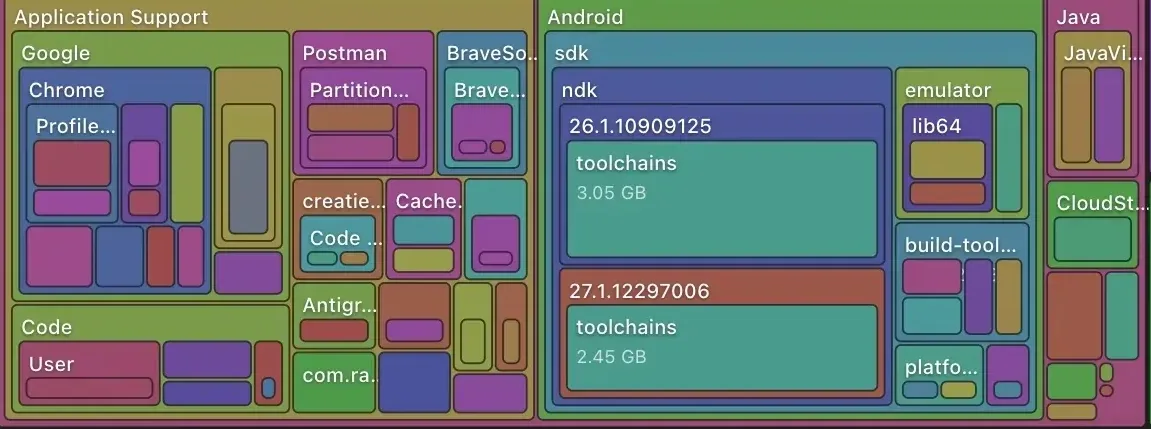
Android Studio takes up space on a Mac in three places: emulator images in ~/.android/avd, SDK system images in ~/Library/Android/sdk, and Gradle caches in ~/.gradle. The app itself is a few gigabytes; those three folders can pass 100 GB after a year, and two of them are hidden dot-folders that Finder doesn't show and most cleanup tools skip.
This guide covers where each one lives, what's safe to delete, and how to remove Android Studio completely if you're done with it.
Where Android Studio stores its files on a Mac
| Location | What's in it | Typical size |
|---|---|---|
~/.android/avd |
Android Virtual Devices: one disk image per emulator you created | 5 to 20 GB each |
~/Library/Android/sdk/system-images |
The Android OS images emulators run, one per API level and architecture | 1 to 3 GB each |
~/Library/Android/sdk (the rest) |
Platform tools, build tools, platforms, NDK, emulator binary | 5 to 30 GB |
~/.gradle/caches |
Downloaded dependencies for every project you've synced | 5 to 20 GB |
~/.gradle/wrapper/dists |
Every Gradle version any project has asked for | 300 MB to 1 GB each |
~/Library/Caches/Google/AndroidStudio<version> |
The IDE's own cache and indexes | 1 to 5 GB |
~/Library/Application Support/Google/AndroidStudio<version> |
Plug-ins, settings, and old IDE versions' leftovers | MB to GB |
The two dot-folders (~/.android and ~/.gradle) are the ones to check first. To see their sizes in Terminal:
du -sh ~/.android/avd ~/.gradle ~/Library/Android/sdk/* 2>/dev/null | sort -h
Before you delete anything: back up your keystores
If you've published an app, your release signing key is a .jks or .keystore file, often kept somewhere under your home folder or inside a project. Caches and emulators are replaceable; a lost signing key means you can't update your app on Google Play under the same listing. Copy your keystores somewhere safe before cleaning up, and never delete the whole of ~/.android without checking it for debug.keystore and anything you put there yourself.
How to delete Android emulators you don't use
Each emulator (AVD) is a virtual disk that grows as you install apps on it. Old ones for API levels you no longer test are the biggest single win.
- Open Android Studio and go to Tools > Device Manager.
- Select an emulator you don't use, open its menu, and choose Delete.
Device Manager removes the AVD's folder from ~/.android/avd. If you've already uninstalled Android Studio, you can delete the .avd folders and their matching .ini files there by hand.
How to remove old SDK system images and platforms
System images and platforms for API levels you don't target take space for nothing.
- Open Tools > SDK Manager in Android Studio.
- On the SDK Platforms tab, untick API levels you don't build for. Tick Show Package Details to remove individual system images (for example the ARM image but not the x86 one).
- On SDK Tools, untick old build-tools versions and the NDK if you don't use it.
- Click Apply.
SDK Manager deletes the files for you, which is safer than deleting inside ~/Library/Android/sdk by hand.
How to clear the Gradle cache on a Mac
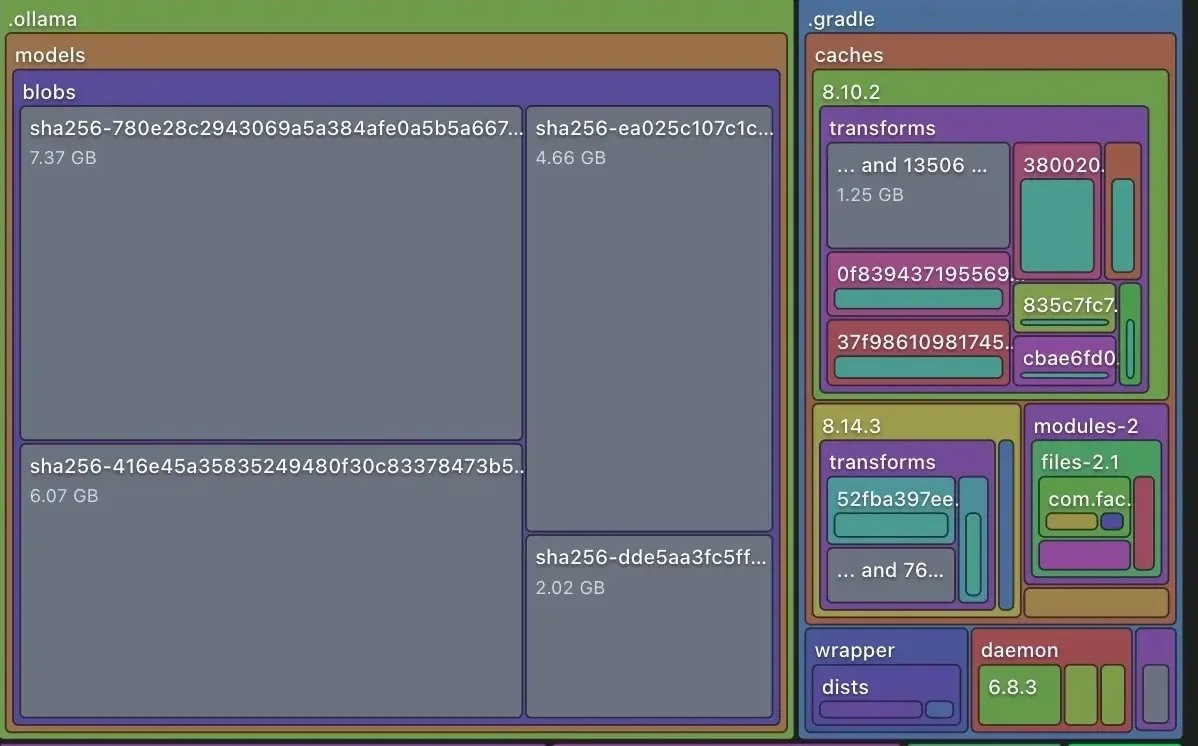
Gradle keeps every dependency version any of your projects has ever used, plus a copy of every Gradle distribution. Two safe cleanups:
- Old distributions: open
~/.gradle/wrapper/distsand delete versions no current project uses. The next build re-downloads a missing one. - Dependency cache: delete
~/.gradle/caches/modules-2(downloaded libraries) if you want the space back now. Every project re-downloads what it needs on the next sync, so expect slower first builds.
Don't delete ~/.gradle itself unless you also mean to lose gradle.properties, which holds your settings and sometimes credentials.
How to clear the Android Studio cache
Inside the IDE, File > Invalidate Caches… rebuilds the index, which fixes odd behaviour and frees some space. For a bigger cleanup, quit Android Studio and delete the contents of ~/Library/Caches/Google/AndroidStudio<version>. Old version folders from previous releases (for example a Hedgehog folder when you're on a newer release) can be deleted entirely, in both Caches and Application Support.
How to uninstall Android Studio on a Mac completely
Dragging Android Studio to the Trash removes the app and leaves everything in the table above behind, which is the bulk of the space. To remove it completely:
- Quit Android Studio and drag it from Applications to the Trash.
- Delete
~/Library/Android(the SDK and system images) if you don't use the SDK from another tool such as Flutter or React Native. - Delete
~/.androidafter backing up any keystores in it. - Delete
~/.gradleif no other JVM projects use Gradle. - Delete the
Google/AndroidStudio*folders in~/Library/Caches,~/Library/Application Support,~/Library/Logsand~/Library/Preferences.
Together these usually free 30 to 100 GB. The general method for removing any app and its leftovers is in how to uninstall apps on Mac completely.
Why does Android Studio use so much storage?
Android Studio uses so much storage because emulators are full virtual devices with their own disk images, every API level you test needs its own multi-gigabyte system image, and Gradle caches every dependency version for every project. None of these are cleaned up automatically, so the total grows with each new project and each new Android release.
Is it safe to delete the .android folder?
It's safe to delete the emulators inside ~/.android/avd, but not the whole .android folder blindly: it also holds debug.keystore, the emulator's settings, and sometimes a release keystore you put there. Back up any keystore files, then delete the AVDs. Android Studio recreates the debug keystore on the next build.
Can I move the Android SDK to an external drive?
Yes. In SDK Manager, set Android SDK Location to a folder on the external drive and let Android Studio download the components again, then delete the old ~/Library/Android/sdk. Emulators run noticeably slower from a slow external disk, so this suits desktop Macs with fast external storage.
More guides
Free up space
How to Free Up Space on Mac: 12 Fixes That Actually Work
12 ways to free up space on a Mac, starting with the ones that return the most. Includes the hidden folders and leftovers Apple's Storage screen never shows.
Free up space
Docker.raw Is Huge on Mac: How to Shrink Docker's Disk
Why Docker.raw grows to 60 GB or more on a Mac and never shrinks, how to prune images and volumes, resize the disk image, and whether you can delete Docker.raw.
Free up space
node_modules Taking Up Space on Mac: How to Find and Delete Them All
Find every node_modules folder on your Mac with one command or npkill, delete the ones from abandoned projects, and clear the npm, Yarn and pnpm caches too.
Free up space
How to Delete Downloads on Mac (and Find the Ones You Forgot)
Delete downloads on a Mac from the Downloads folder, Dock or Storage settings, find downloads saved elsewhere, and why clearing the browser list frees nothing.