Docker and Xcode Are Eating Your SSD. Here's the Fix.
If you're a developer on Mac, your SSD is under constant pressure. Docker Desktop creates a virtual disk that only grows. Xcode caches every build artifact indefinitely. iOS Simulators for versions you don't even support anymore stick around.
On a 512GB MacBook Pro with active development, we were down to 30GB free before figuring out where it all went.
Here's the cleanup routine we run regularly.
Docker: The File That Won't Shrink
Docker Desktop on Mac doesn't use real containers like Linux. It runs a lightweight Linux VM, and all your images and containers live inside a single virtual disk file.
Where it lives: ~/Library/Containers/com.docker.docker/Data/vms/0/data/Docker.raw
Here's the frustrating part: even if you delete images and containers inside Docker, this file doesn't automatically shrink. It grows but rarely contracts.
The fix:
- First, clean up from inside Docker:
docker system prune -a --volumes
This removes stopped containers, unused networks, all unused images, and volumes. Warning: This is aggressive—only run it if you're sure you don't need any stopped containers or unused images.
- If the
Docker.rawfile is still large after pruning, go to Docker Desktop → Settings → Resources → Disk image size. Reduce the limit and apply—Docker will recreate the disk.
Xcode: DerivedData Keeps Growing
Every time you build an iOS project, Xcode dumps intermediate files into ~/Library/Developer/Xcode/DerivedData. Indexes, build artifacts, module caches—it all goes there.
And it never gets cleaned automatically.
After a year of active iOS development, this folder can easily hit 40-50GB.
The fix: You can safely delete everything inside this folder. Xcode rebuilds what it needs the next time you open a project.
rm -rf ~/Library/Developer/Xcode/DerivedData/*
Your next build will take longer as it regenerates the cache. That's the only downside.
iOS Simulator Devices
Every iOS version you've ever tested on leaves behind a simulator device. Each one takes up space.
Where they live: ~/Library/Developer/CoreSimulator/Devices
You'll see folders with UUID names. Don't try to delete them manually—there's a cleaner way:
xcrun simctl delete unavailable
This removes simulator data for device types that are no longer available on your system.
Verification with Visualization
All these developer paths are buried in ~/Library with cryptic folder names. It's hard to know what's safe to delete.
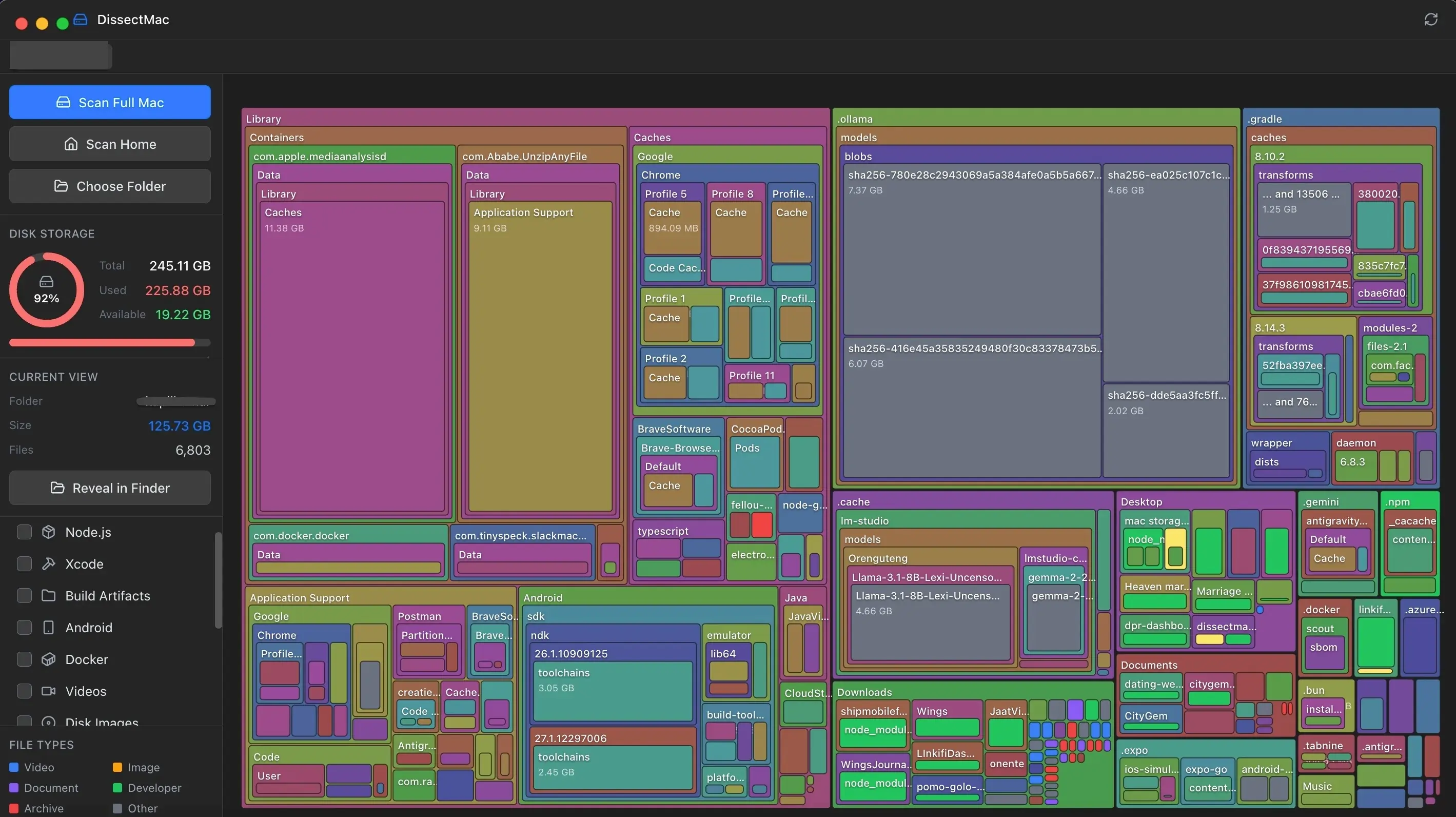
After any major cleanup, we run DissectMac to verify the space was actually reclaimed. Sometimes APFS does unexpected things with snapshots, and the space doesn't come back until you restart.
Developer Cleanup Checklist
-
docker system prune -a --volumes(if you use Docker) - Delete contents of
~/Library/Developer/Xcode/DerivedData/ - Run
xcrun simctl delete unavailable - Check Docker.raw size and resize if needed
- Run DissectMac to verify
Pro Tip
If you use both Xcode and Android Studio, also check ~/.gradle and ~/.android/avd. Between all these dev tools, you can easily lose 100GB+ on a Mac that's been in use for a year.
Continue Reading
Docker.raw: Why is my Mac out of space when Docker is empty?
Deleting Docker images doesn't always free up Mac disk space. We explain the 'sparse file' problem with Docker.raw and how to actually reclaim that 60GB of phantom storage.
The Hidden Cost of Xcode: How to Safely Reclaim 50GB+ from DerivedData
Xcode's DerivedData folder is a notorious drive hog. We explain what it is, why it grows so big, and how to safely navigate ~/Library/Developer to clear build artifacts and simulator caches.
Android Studio is Eating 100GB of Your Mac. Here's How to Stop It.
Those AVD emulator images and Gradle caches don't delete themselves. Here's where they hide and how to reclaim 50-100GB safely.