On this page
Xcode DerivedData is safe to delete: it holds build products, indexes and caches that Xcode regenerates the next time you build a project. Deleting it costs you one slower build per project and nothing else. On a Mac used for iOS or macOS development, the folder often reaches 20 to 60 GB, and it's usually the single biggest item behind a bloated System Data figure.
This guide covers what's in DerivedData, three ways to clear it, and the four other Xcode folders that grow just as large.
What is DerivedData in Xcode?
DerivedData is the folder where Xcode keeps everything it generates while building and indexing a project: compiled object files, module caches, precompiled headers, the index that powers code completion and jump-to-definition, build logs and test results. It lives at:
~/Library/Developer/Xcode/DerivedData
Each project gets its own subfolder with a random suffix, such as MyApp-abcdefghijklmnop. Xcode keeps them so the next build is faster, but it never removes folders for projects you stopped working on, which is how the total climbs.
In System Settings > General > Storage, a Mac with Xcode installed shows a Developer category. The line labelled Project Build Data and Indexes is DerivedData, and you can delete it from there.
Is it safe to delete DerivedData?
Yes. Everything in DerivedData is regenerated from your source code, so deleting it can't lose work. The only cost is that the first build of each project afterwards takes longer, from a few seconds to a few minutes, while Xcode rebuilds its caches and index. Apple's own guidance for fixing odd build errors is to delete DerivedData, so it's a routine step, not a risky one. Quit Xcode before you delete it to avoid file-in-use errors.
How to delete DerivedData
From Xcode, one project: with the project open, choose Product > Clean Build Folder (Shift + Cmd + K). This clears that project's build products but keeps its index.
From Xcode, all projects: open Xcode > Settings > Locations. Next to the Derived Data path there's an arrow that opens the folder in Finder. Select everything inside and move it to the Trash.
From Terminal:
rm -rf ~/Library/Developer/Xcode/DerivedData/*
From Storage settings: System Settings > General > Storage, open the Developer category, and delete Project Build Data and Indexes.
Whichever route you take, the folder comes back as soon as you build again. That's expected.
The other Xcode folders that fill a Mac
DerivedData is the one people know. These four are often as large.
| Folder | What it is | Safe to delete? |
|---|---|---|
~/Library/Developer/Xcode/iOS DeviceSupport |
Debug symbols copied from every physical iPhone or iPad you've connected, one folder per iOS version, several GB each | Yes. Xcode re-copies symbols from the device when you next connect it. Keep the versions you're actively testing |
~/Library/Developer/CoreSimulator/Devices |
Simulator devices and their data | Use xcrun simctl delete unavailable to remove simulators whose runtime is gone; delete others in Xcode > Window > Devices and Simulators |
| Simulator runtimes | Each iOS, watchOS or tvOS simulator version you downloaded, several GB each | Yes. Remove old ones in Xcode > Settings > Platforms |
~/Library/Developer/Xcode/Archives |
Every build you archived for TestFlight or the App Store | Keep the archives for versions still in review or shipped, because you need them to symbolicate crash logs. Delete the rest in Window > Organizer |
~/Library/Caches/com.apple.dt.Xcode |
Xcode's own cache | Yes, it rebuilds |
To see which of these is the problem on your Mac, run:
du -sh ~/Library/Developer/Xcode/* ~/Library/Developer/CoreSimulator/* 2>/dev/null | sort -h
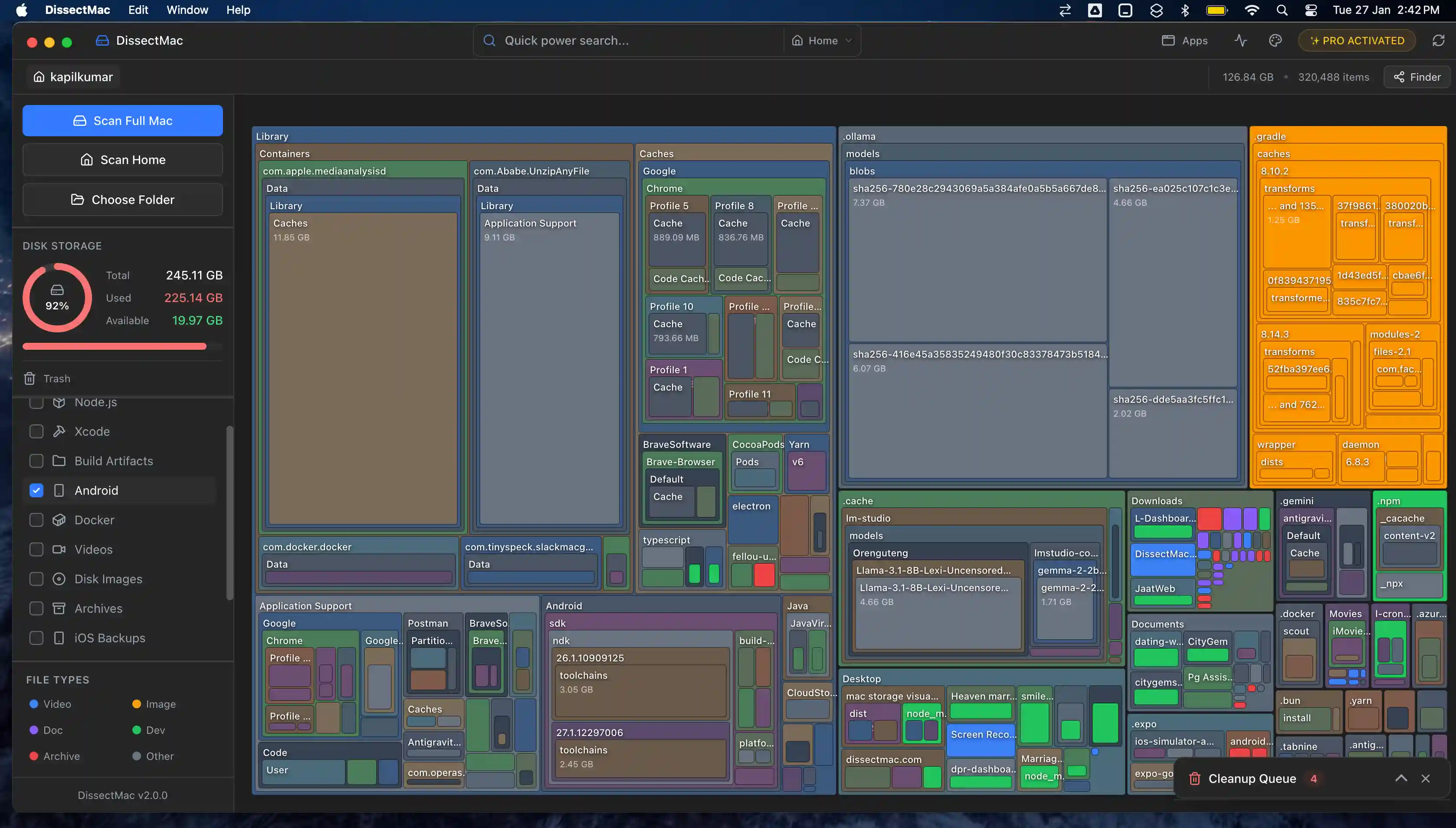
Or scan ~/Library/Developer with DissectMac, where each folder is drawn to scale and the 40 GB one is obvious.
Why is DerivedData so big?
DerivedData gets big because Xcode keeps build products and indexes for every project you've ever opened, including branches, tutorials and one-off experiments, and never prunes the ones you stopped touching. Large projects with many targets, Swift package dependencies and test bundles produce gigabytes per build configuration.
Does deleting DerivedData fix build errors?
Often, yes. A stale index or a half-written module cache causes errors that don't match your code, such as "No such module" for a module that exists, or code completion that shows old symbols. Deleting DerivedData and rebuilding is the standard first fix, and it's why Xcode developers do it regularly.
Can I move DerivedData to another drive?
Yes. In Xcode > Settings > Locations, set Derived Data to Custom and pick a folder on an external or secondary drive. Builds are slower on a slow external disk, so this suits desktop Macs with a fast internal SSD that's simply too small, rather than laptops.
How to uninstall Xcode completely
Drag Xcode from Applications to the Trash, then remove the folders it leaves behind: ~/Library/Developer (DerivedData, device support, simulators, archives), ~/Library/Caches/com.apple.dt.Xcode, and the Command Line Tools at /Library/Developer/CommandLineTools if you don't need them for Homebrew or git. Together those can be 50 GB or more. See how to uninstall apps on Mac completely for the general method.
More guides
Free up space
How to Free Up Space on Mac: 12 Fixes That Actually Work
12 ways to free up space on a Mac, starting with the ones that return the most. Includes the hidden folders and leftovers Apple's Storage screen never shows.
Free up space
Docker.raw Is Huge on Mac: How to Shrink Docker's Disk
Why Docker.raw grows to 60 GB or more on a Mac and never shrinks, how to prune images and volumes, resize the disk image, and whether you can delete Docker.raw.
Free up space
node_modules Taking Up Space on Mac: How to Find and Delete Them All
Find every node_modules folder on your Mac with one command or npkill, delete the ones from abandoned projects, and clear the npm, Yarn and pnpm caches too.
Free up space
How to Delete Downloads on Mac (and Find the Ones You Forgot)
Delete downloads on a Mac from the Downloads folder, Dock or Storage settings, find downloads saved elsewhere, and why clearing the browser list frees nothing.