On this page
"Other Volumes in Container" is the space used by every volume in your Mac's APFS container except the one you've selected. In Disk Utility, if you click "Macintosh HD", the Other Volumes figure includes "Macintosh HD - Data", which is where all your apps, documents, photos and System Data live. That's why it looks so large: it usually is most of your drive.
Nothing is broken. It's a labelling problem, and once you know which volume is which, the number makes sense. (If it's the System Data bar in System Settings that worries you instead, see how to clear System Data on Mac.)
What does "Other Volumes in Container" mean on a Mac?
"Other Volumes in Container" means storage used by the other volumes that share your APFS container. Since macOS Catalina, macOS splits your startup disk into several volumes that draw from one shared pool of space, and Disk Utility counts every volume you haven't selected as "other".
On a typical Mac, the container holds:
| Volume | What's in it |
|---|---|
| Macintosh HD | macOS itself, read-only and sealed |
| Macintosh HD - Data | Your apps, files, settings and System Data |
| Preboot | Files your Mac needs to start up |
| Recovery | macOS Recovery |
| VM | Swap files, used when memory runs short |
| Update | Temporary files from macOS updates (not always present) |
Select "Macintosh HD" and the Data volume is counted as "other". Select "Macintosh HD - Data" and the Other Volumes figure shrinks to the system volume and the small support volumes.
Why is "Other Volumes" so large?
"Other Volumes" is large because it normally includes the Data volume, which holds everything you've put on your Mac. If your Data volume uses 300 GB, Other Volumes will show at least 300 GB whenever the system volume is selected.
If you select the Data volume and Other Volumes is still unusually large, the usual reasons are:
- Swap files in the VM volume, which grow when memory runs short and clear on restart.
- Leftover update files in the Update volume after a macOS update that didn't finish cleaning up.
- Local Time Machine snapshots. Snapshots aren't volumes themselves, but they hold on to deleted files, so space you've freed doesn't come back until the snapshots expire.
How to see what each volume uses
Disk Utility shows one volume at a time. For the full picture, open Terminal and run:
diskutil apfs list
It lists every volume in the container with the space each one uses. For most Macs, "Macintosh HD - Data" accounts for most of the total.
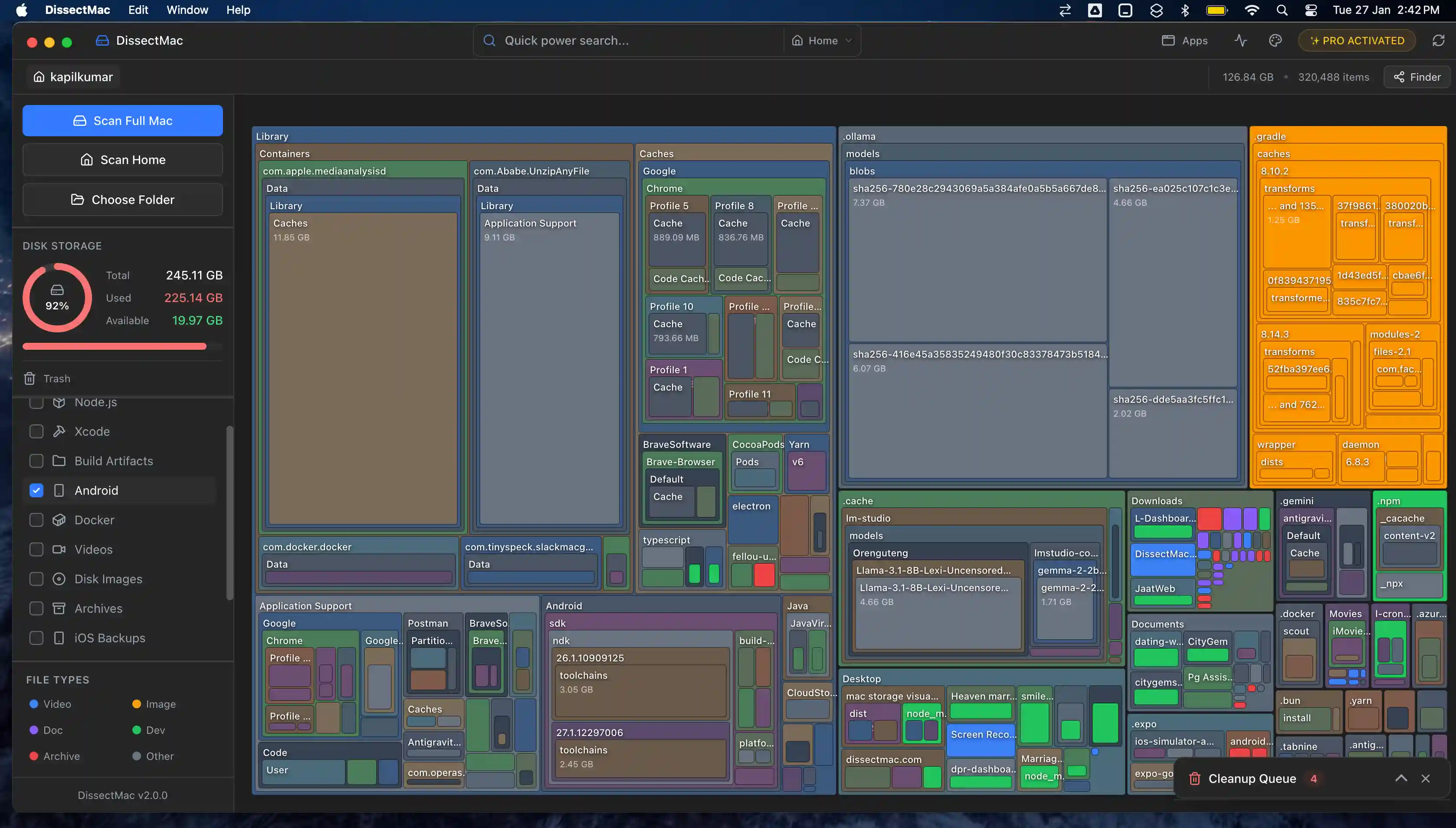
That tells you which volume is big, but not why. To see which folders inside the Data volume take the space, use a disk map. DissectMac scans your drive and draws every folder as a block sized by how much space it takes, including the Library folders Finder hides. The largest folders are the largest blocks, and the map is free.
How to clear Other Volumes in Container
You don't clear "Other Volumes" directly. You shrink whichever volume is big, and in almost every case that's your Data volume.
- Restart your Mac. This clears swap files in the VM volume. If your Mac has been running for weeks, it can free a noticeable amount.
- Let a pending macOS update finish. Open System Settings > General > Software Update and install or restart to complete it, so the Update volume can be cleaned up.
- Remove old local snapshots. List them with
tmutil listlocalsnapshots /, then delete one by its date withsudo tmutil deletelocalsnapshots 2026-09-01-120000, replacing the date with one from your list. Letting a Time Machine backup complete also clears older snapshots. - Shrink the Data volume. This is where most of the space is. Find the largest folders first, then deal with them. Our guide on how to clear System Data on Mac covers the common culprits, and how to free up space on Mac covers everything else.
Don't delete Preboot, Recovery or VM volumes in Disk Utility. Your Mac needs them to start up and run, and removing them can leave it unable to boot.
Is it safe to delete Other Volumes in Container?
It isn't safe to delete the volumes listed under Other Volumes in Container. They include your own data and the volumes macOS needs to start up. What's safe is removing files inside your Data volume that you no longer need, such as old device backups, caches, installers and leftovers from deleted apps.
Why does free space not change after I delete files?
Free space often doesn't change right away because local Time Machine snapshots still hold the deleted files, and APFS counts that space as purgeable rather than free. macOS releases it when it needs the room, or when the snapshots expire. Restarting and letting a backup finish usually brings the number back in line.
Find what's filling your Data volume
Disk Utility and Terminal tell you which volume is large. Neither tells you which folders are responsible.
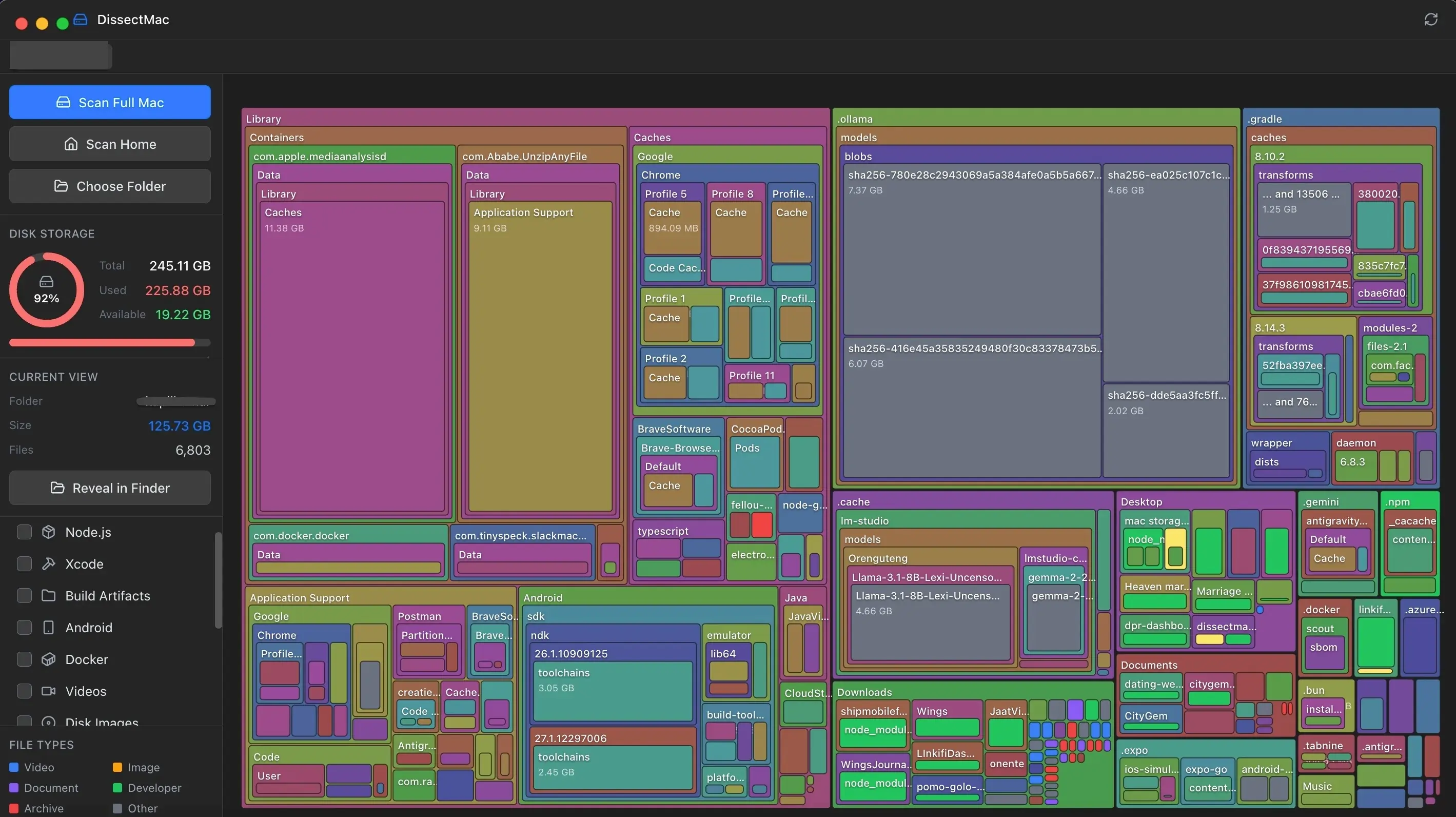
DissectMac does that part. Free: a storage map of your whole drive, a large-file finder, and search that covers the Library folders Finder hides. Pro, $12.99 once: delete files from inside the app, clear leftovers from apps you've deleted, and uninstall apps along with their hidden files. No subscription, and nothing leaves your Mac.
More guides
System Data
System Data on Mac: What It Is and How to Clear It
System Data is the grey bar in macOS Storage holding caches, snapshots, backups and app leftovers. See what's in it, how much is normal and how to clear it.
System Data
What Is "Other" in Mac Storage, and How Do You Clear It?
'Other' in Mac storage is caches, logs, snapshots, backups and anything macOS can't categorise, renamed System Data in macOS 12. What's in it, how to clear it.
System Data
Why Is System Data So Big on Mac? 8 Causes and How Much Is Normal
System Data on your Mac is huge for one of 8 reasons, from Time Machine snapshots to app leftovers. How much is normal, how to find the cause and what to do.
Speed
Why Is My Mac So Slow? 8 Causes and How to Fix Each One
A slow Mac usually has one of 8 causes: a full disk, memory pressure, a runaway process, login items, heat or old hardware. Find yours in 5 minutes and fix it.