On this page
System Data is the macOS storage category for everything that isn't an app, a document, a photo or another labelled type: caches, logs, local Time Machine snapshots, app support files, device backups and developer files. On most Macs it's somewhere around 10 to 30 GB. When it passes 100 GB, one or two specific things are usually responsible, and you can find and remove them.
The fastest way to clear it is to see which folders are big before deleting anything. Apple's Storage screen won't show you that, so this guide covers what's inside System Data, how to see it, and ten ways to shrink it, safest first.
What is System Data on a Mac?
System Data is a catch-all bar in Apple menu > System Settings > General > Storage (older versions of macOS called it "Other"). macOS puts every file it can't file under Applications, Documents, Photos, Music, Mail or another named category into it.
In practice, System Data holds:
- Caches from browsers, Spotify, Slack, design tools and package managers
- Local Time Machine snapshots, the hourly backups macOS keeps on your own drive
- Logs and diagnostic reports
- Application Support files, including folders left behind by apps you deleted
- Swap files, which grow when your Mac runs low on memory
- iPhone and iPad backups, disk images, fonts and plugins
- Developer files such as Xcode builds, iOS simulators and Docker's virtual disk
None of this is a bug. The frustrating part is that Apple shows one grey bar and no folder names, so you can't tell which of these is the problem.
How to see what's in System Data
Apple's Storage screen gives you a total and nothing else. To see the folders underneath, you have three options.
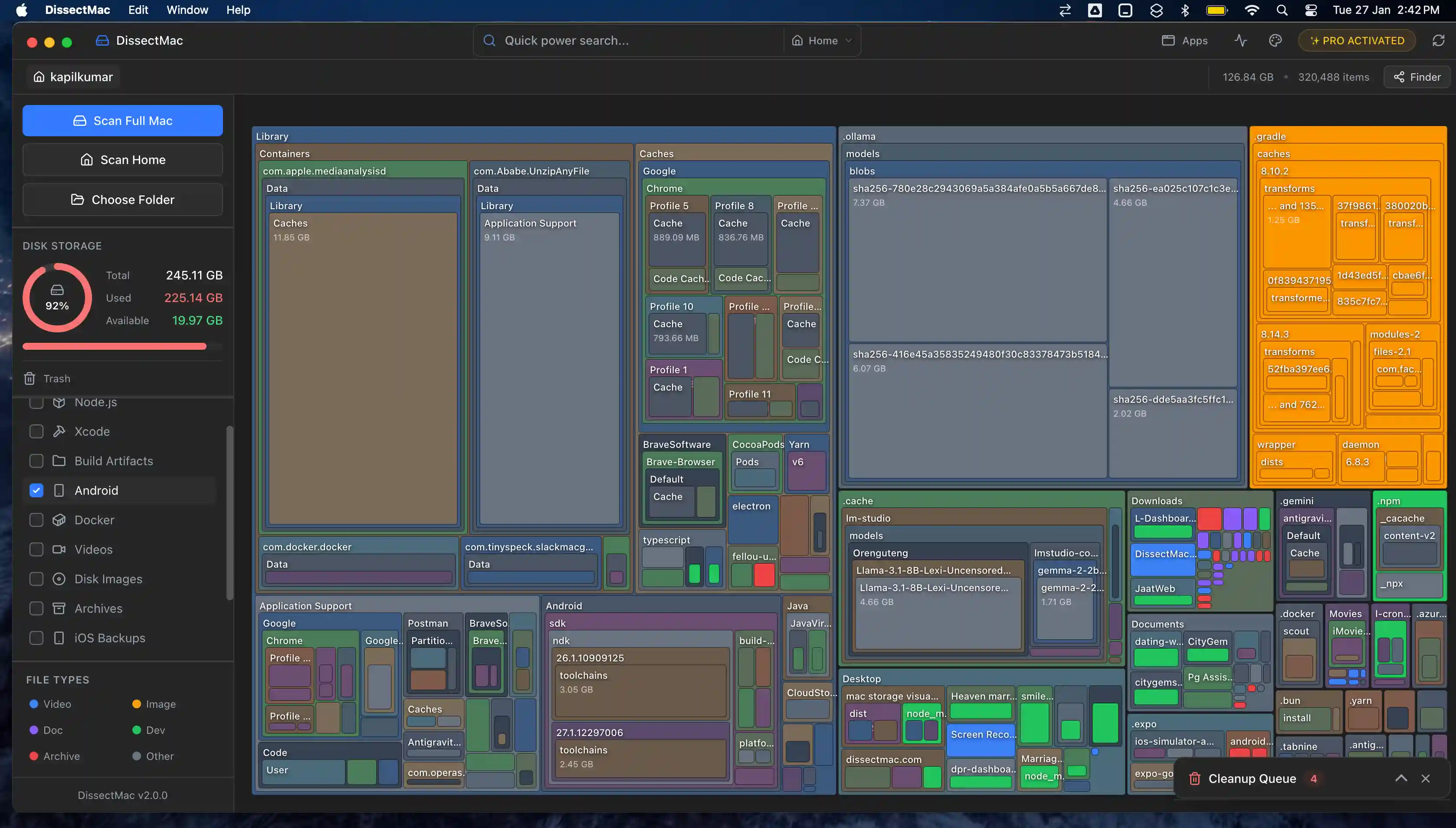
1. A disk map (fastest). DissectMac scans your drive and draws every folder as a block sized by how much space it takes, including ~/Library and the other folders Finder hides. The folder behind your System Data problem is the biggest block, so you don't have to check folders one by one. The map is free.
2. Terminal. This lists the folders in your Library by size, largest last:
du -sh ~/Library/* 2>/dev/null | sort -h
Repeat it inside whichever folder comes out on top (for example ~/Library/Application Support) to narrow it down.
3. Finder. Press Cmd + Shift + G, go to ~/Library, then select a folder and press Cmd + I to see its size. It works, but it's slow when you don't know where to look.
For more on reading the Storage screen itself, see how to check storage on Mac.
What makes System Data grow
When System Data passes 100 GB, it's usually one of these. We go through each cause, with how to confirm it on your Mac, in why System Data gets so big.
- Local Time Machine snapshots. macOS keeps hourly snapshots on your internal drive between backups. If your backup disk has been disconnected for weeks, they pile up. This is the most common cause of sudden growth.
- Leftovers from deleted apps. Dragging an app to the Trash removes the app, not its Application Support folder, caches or containers. A removed video editor or virtual machine app can leave several gigabytes behind for years.
- Old iPhone or iPad backups. A single backup can run to tens of gigabytes, and macOS never removes old ones for you.
- An app caching without limits. Video editors, music apps and browsers are the usual suspects.
- Developer tools. Xcode DerivedData, iOS simulator runtimes and Docker's virtual disk keep growing until you clear them.
- Installers and pending updates. Old
.dmgand.pkgfiles, plus a macOS update that downloaded but never installed. - Apple Intelligence. Apple says its on-device models need about 7 GB of storage.
Is your System Data too big?
Apple doesn't publish a normal size for System Data. As a rough guide, 10 to 30 GB is typical, 30 to 60 GB is common on Macs used for development or video work, and anything past 100 GB means something specific has grown out of control.
What counts as normal depends on how you use your Mac. We cover the ranges in detail, including why the number jumps after updates, in how much System Data is normal.
Part of System Data is also purgeable. APFS marks snapshots and some caches as space it can reclaim, and macOS frees them automatically when your disk gets full. If you still have plenty of free space, a large System Data number might not need fixing.
How to clear System Data on Mac: 10 methods
Work down this list in order. The first methods free the most space with the least risk. Back up before deleting anything you can't recreate.
1. Find the biggest folders first
Guessing wastes time. Run a scan with DissectMac (free) or the du command above, and note the two or three largest folders inside ~/Library. Usually one of the causes listed above accounts for most of the space, and the rest of this list is about dealing with that one thing.
2. Delete local Time Machine snapshots
List them in Terminal:
tmutil listlocalsnapshots /
If the list goes back weeks, ask macOS to thin them. This command requests roughly 20 GB back:
sudo tmutil thinlocalsnapshots / 21474836480 4
Reconnecting your Time Machine drive and letting a backup finish also clears the backlog on its own.
3. Remove leftovers from apps you've deleted
Open ~/Library/Application Support, ~/Library/Containers and ~/Library/Caches, and look for folders named after apps you no longer have. Those are safe to remove once you're sure the app is gone.
Be careful in Application Support: it also holds live data such as Mail's database, saved games and licences. If you can't name the app a folder belongs to, leave it.
DissectMac Pro does this part for you: it finds files left behind by deleted apps, shows you what's in them, and moves them to the Bin in one click. Its uninstaller also removes an app together with its containers, caches and preference files, so the leftovers don't build up again.
4. Clear app caches
In Finder, press Cmd + Shift + G and go to ~/Library/Caches. Delete the contents of individual app folders rather than the Caches folder itself. Apps rebuild what they need, though you may have to sign in again to some services. Our guide to Library caches on Mac covers which ones are safe to clear.
5. Delete old iPhone and iPad backups
Connect your iPhone or iPad, select it in the Finder sidebar, and click Manage Backups. Or go straight to ~/Library/Application Support/MobileSync/Backup, where each folder is one full backup. Delete backups for devices you no longer own, after checking you have another copy. Deleted backups can't be recovered.
6. Clear developer files
If you write code, this is often where the space went:
~/Library/Developer/Xcode/DerivedDatais safe to delete; your next build takes longer. See how to clear Xcode DerivedData.- Old iOS simulator runtimes can be removed in Xcode > Settings > Platforms.
- Docker's virtual disk shrinks with
docker system prune -a, not by deleting files by hand. See shrinking Docker's disk on Mac. - Android emulator images live in
~/.android/avd. See Android Studio cleanup.
7. Delete old installers and disk images
Search your Mac for .dmg and .pkg files, starting with the Downloads folder. Once an app is installed, its installer isn't needed.
8. Finish or remove pending macOS updates
A macOS update that downloaded but never installed can hold several gigabytes. Open System Settings > General > Software Update and either install it or restart so macOS can finish.
9. Turn off features you don't use
If you don't use Apple Intelligence, you can switch it off in System Settings > Apple Intelligence & Siri. Check whether your storage total changes afterwards.
10. Empty every Trash
The Finder Trash is only one of them. Photos keeps a Recently Deleted album for 30 days, and Mail has its own trash mailbox. Both count against your storage until they're emptied.
Is it safe to delete System Data?
Parts of it are safe to delete: caches, logs, local snapshots and build files either regenerate or are disposable. Other parts will break things if you remove them.
Never delete:
- Anything inside
/System. macOS protects it, and working around that protection can break your installation. ~/Library/Keychains, which holds your saved passwords.~/Library/Application Supportfolders for apps you still use./private/var/foldersby hand. Restart in Safe Mode instead and let macOS clear what it can.
The rule that keeps you safe: if you can't name the app a folder belongs to, don't delete it.
Why does System Data come back after I delete it?
System Data comes back because most of it is working state, not junk. Caches rebuild as you use apps, snapshots regenerate every hour, and swap grows when memory runs low. That part is normal.
What shouldn't come back is the specific thing that made it balloon, such as a 60 GB iPhone backup or years of Xcode builds. If System Data climbs back past 100 GB within days, an app is misbehaving. Scan again and see which folder grew.
If System Data won't go down
Three things explain most cases:
- Purgeable space hasn't been released yet. macOS frees it when it needs to, not the moment you delete something. Restarting often updates the number.
- The Trash isn't empty. Deleted files still count until the Trash (and Photos' Recently Deleted album) is emptied.
- Storage settings haven't recalculated. The Storage screen can take a while to refresh after a big cleanup. Close System Settings and check again later.
The quicker route: DissectMac
Everything above works by hand, and every step is listed so you can do it for free. The slow part is always the same: finding which folder is the problem, then finding what uninstalled apps left behind.
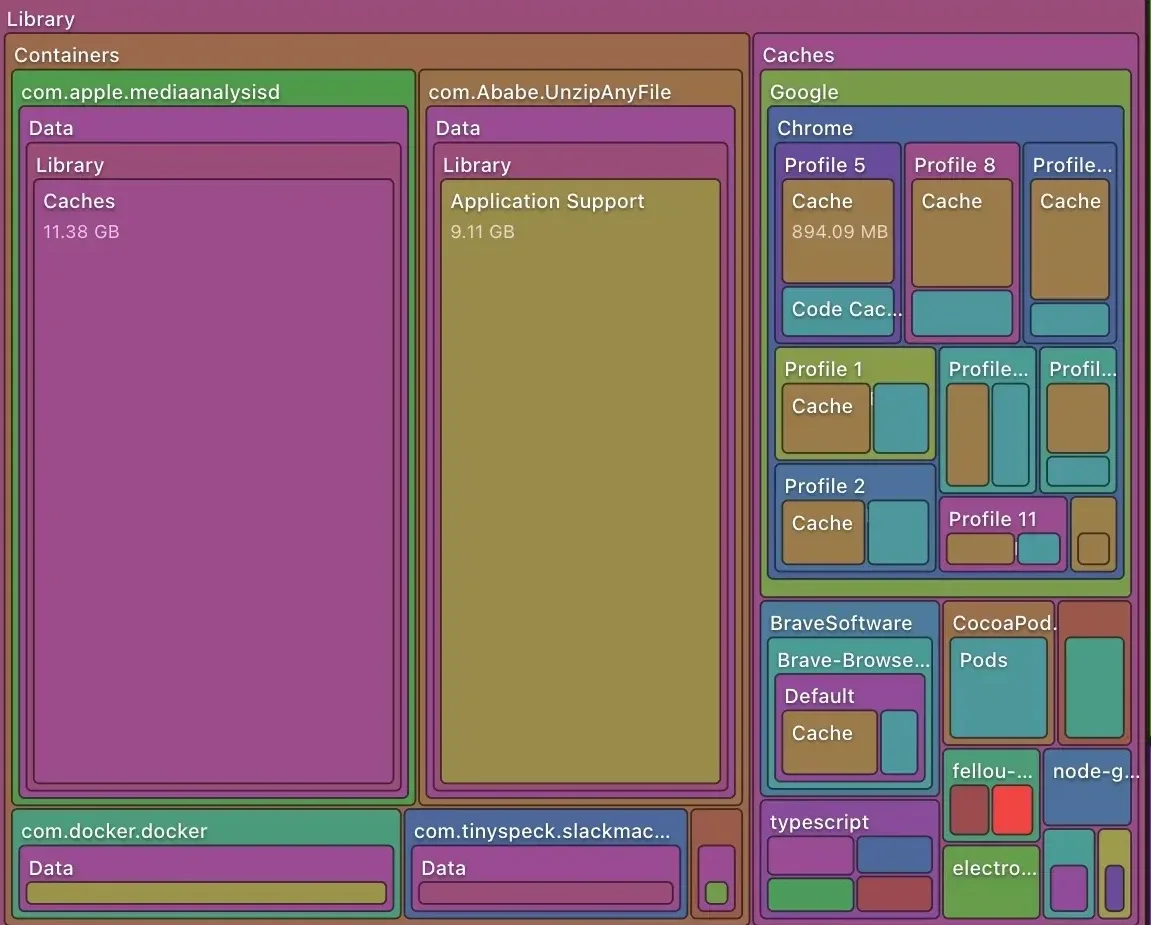
Free: a storage map of your whole drive (Library folders included), a large-file finder and search across your Mac.
Pro, $12.99 once: delete files from inside the app, clear leftovers from deleted apps, and uninstall apps along with their hidden files. No subscription, no account, and your files never leave your Mac.
More guides
System Data
What Is "Other" in Mac Storage, and How Do You Clear It?
'Other' in Mac storage is caches, logs, snapshots, backups and anything macOS can't categorise, renamed System Data in macOS 12. What's in it, how to clear it.
System Data
Why Is System Data So Big on Mac? 8 Causes and How Much Is Normal
System Data on your Mac is huge for one of 8 reasons, from Time Machine snapshots to app leftovers. How much is normal, how to find the cause and what to do.
System Data
What is 'Other Volumes in Container'? (And Why It's So Large)
'Other Volumes in Container' is how APFS labels every volume except the one you selected, usually including your own files. What it means and how to shrink it.
Speed
Why Is My Mac So Slow? 8 Causes and How to Fix Each One
A slow Mac usually has one of 8 causes: a full disk, memory pressure, a runaway process, login items, heat or old hardware. Find yours in 5 minutes and fix it.