The Mystery of Mac 'System Data': 7 Folders You Can Actually Delete
The "System Data" bar in macOS storage settings is Apple's way of saying "we have no idea what this stuff is either." Seriously. It's a catch-all bin that can balloon to 300GB, and there's no "Clean" button anywhere.
We spent weeks debugging this on our own Macs before building DissectMac. Honestly, macOS makes it unnecessarily hard to find where those 100GB of "System Data" actually live—that's exactly why we built the visualizer.
Here's what's actually in there and how to reclaim it.
What's Actually in "System Data"?
It's Apple's junk drawer. Everything that doesn't fit neatly into Applications, Documents, or Photos gets dumped here:
- Caches from apps like Chrome, Slack, Spotify (easily 20GB+)
- Log files that nobody ever reads
- APFS snapshots from Time Machine (the real silent killer)
- App support files from Adobe, Xcode, and other bloatware
The problem? Apple gives you a category. Not file names. Not paths. Just a grey bar and a shrug.
7 Folders I Delete Every Month
Quick note: ~/Library is hidden by default. Hit Cmd + Shift + G in Finder and paste these paths.
1. ~/Library/Caches
The obvious one. Every app dumps temp files here. Spotify alone can hit 8GB. Safe to nuke—apps rebuild what they need.
2. ~/Library/Application Support/MobileSync/Backup
iPhone backups. You might find backups from phones you don't even own anymore. These can be 50GB+ each.
3. ~/Library/Developer/Xcode/DerivedData
Developer tax. Xcode stores every build artifact here. Delete it all. Your next build takes a bit longer. Worth it.
4. ~/Library/Caches/com.apple.bird
This weird folder is iCloud Drive's cache. If you sync a lot, it gets huge. Deleting it triggers a re-sync, but that's fine.
5. /var/folders
System temp files. Don't delete manually—just boot into Safe Mode (hold Shift on restart), wait a minute, reboot normally. macOS clears it for you.
6. ~/Library/Application Support/Adobe/Common/Media Cache Files
Video editors, check this one. Premiere caches "previews" of every clip you've ever touched. This can easily grow to 30-50GB.
7. Local Time Machine Snapshots
Run tmutil listlocalsnapshots / in Terminal. See snapshots from weeks ago? Delete them with sudo tmutil deletelocalsnapshots [snapshot-date] (replace with the actual date shown). This is often the biggest hidden hog.
Why We Built DissectMac for This
We got tired of running du -sh commands and piecing together which hidden folder was the problem. We wanted to see it. All of it. At once.
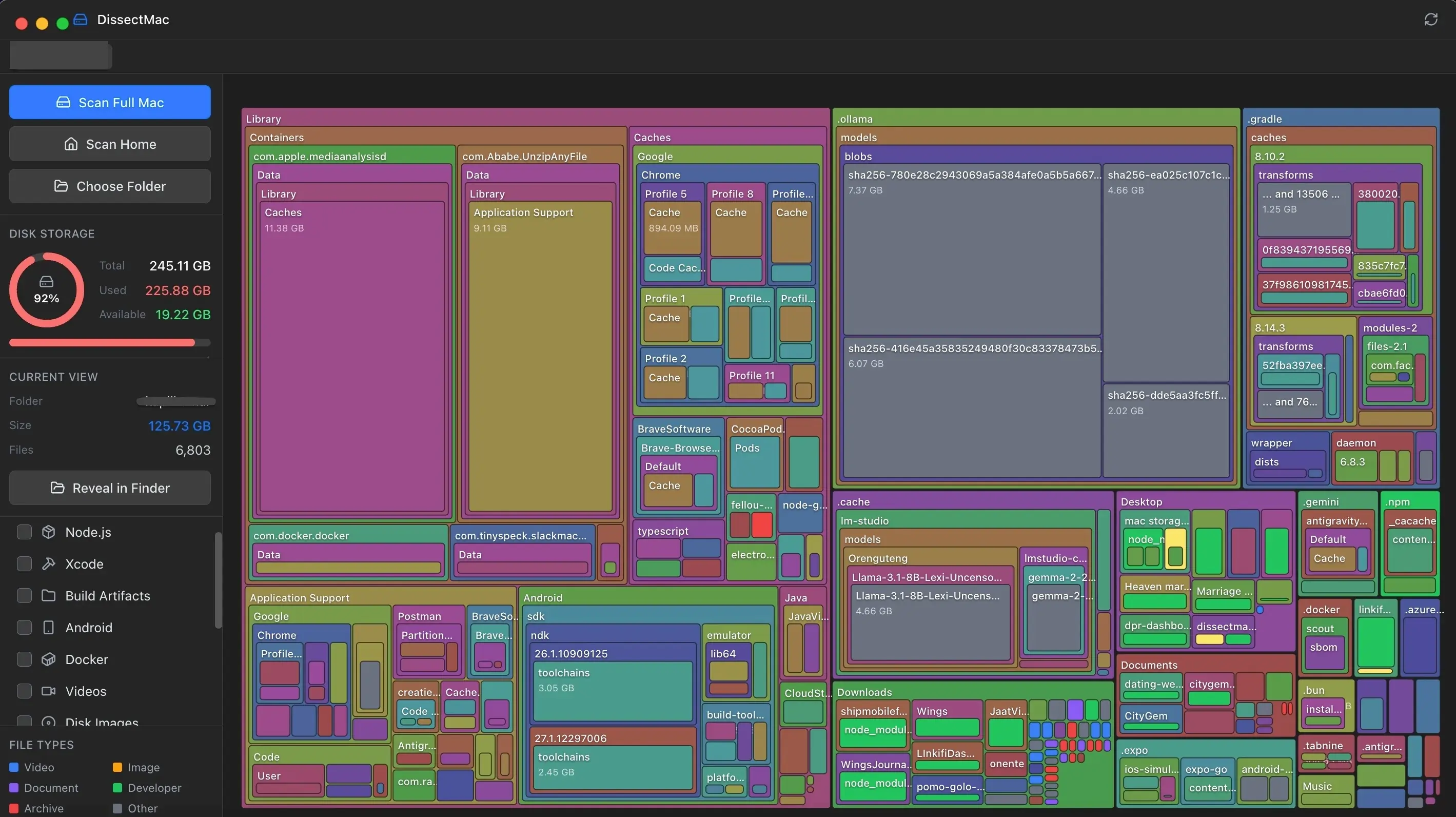
DissectMac turns your entire drive into a visual map. That massive grey "System Data"? It becomes a collection of clickable blocks. Biggest block = biggest problem. Click it, see the path, right-click to reveal in Finder.
No guessing. No Terminal spelunking.
See What's Eating Your Drive →
Pro Tip: Empty Your Actual Trash
Obvious, but we've talked to people with 40GB in their Trash who forgot it existed. Also check Photos → Recently Deleted and Mail → Trash. They don't empty themselves.
Continue Reading
~/Library is Where Your Mac Storage Goes to Hide
The hidden ~/Library folder is probably holding 50GB+ of caches you don't need. Here's what you can safely delete.
'Other' System Data Explained: The Developer's Guide
That grey 'System Data' bar in macOS Settings is frustratingly vague. We break down the 3 main components—Caches, Logs, and App Support—and show you how to investigate them.
Android Studio is Eating 100GB of Your Mac. Here's How to Stop It.
Those AVD emulator images and Gradle caches don't delete themselves. Here's where they hide and how to reclaim 50-100GB safely.