On this page
- What is ~/Library/Caches?
- How to open ~/Library/Caches
- Can I delete everything in ~/Library/Caches?
- Cache folders that are safe to delete
- What not to delete in ~/Library
- How to clear ~/Library/Caches safely
- What happens if I delete ~/Library/Caches?
- Why is ~/Library/Caches so big?
- Is it safe to delete /Library/Caches?
- Find the caches worth clearing
Yes, it's safe to delete the contents of ~/Library/Caches on a Mac for almost every app. Caches are temporary files apps rebuild when they need them. The safe way is to quit the app first, delete what's inside its folder rather than the folder itself, and leave Apple's own com.apple.* folders to macOS.
~/Library/Caches is the cache folder for your user account, inside the Library folder Finder hides by default. On a Mac that's been in use for a while, a few of its folders can grow to gigabytes each. Everything in it counts as System Data in Storage settings, which is why clearing it shrinks that bar. For browser and system cache, see our broader guide on how to clear cache on Mac.
What is ~/Library/Caches?
~/Library/Caches is the folder where apps store temporary data for your user account: downloaded images, thumbnails, streaming buffers, package downloads and similar files. The ~ means your home folder, so the full path is /Users/yourname/Library/Caches. Each app gets its own subfolder, usually named after the app or its bundle ID, such as com.spotify.client.
It's one of three cache locations on a Mac, and the only one you should clear by hand:
| Folder | Whose cache | Clear it by hand? |
|---|---|---|
~/Library/Caches |
Your apps, your account | Yes, folder contents |
/Library/Caches |
Shared by all users on the Mac | Only if you know what the folder is; needs an admin password |
/System/Library/Caches |
macOS itself | No. Protected; use Safe Mode instead |
How to open ~/Library/Caches
The Library folder is hidden, so it won't show up in your home folder by default. Either:
- In Finder, press
Cmd + Shift + G, type~/Library/Cachesand press Return, or - Click Go in the menu bar, hold Option, choose Library, then open Caches.
To see which folders are biggest, switch to List view and turn on View > Show View Options > Calculate all sizes, then sort by size.
Can I delete everything in ~/Library/Caches?
You can delete the contents of almost every app folder in ~/Library/Caches, but you shouldn't select everything and delete it in one go. Quit the apps first, leave the Caches folder and the app subfolders in place, and skip Apple's com.apple.* folders, which macOS manages and uses while you're logged in. Deleting a cache for an app that's still running can make it misbehave until you restart it.
Cache folders that are safe to delete
These folders tend to grow largest. Everything in them rebuilds:
Folder in ~/Library/Caches |
What it is | What happens after clearing |
|---|---|---|
Google/Chrome |
Chrome's page and image cache | Pages load a little slower at first |
com.spotify.client |
Spotify's streaming cache | Songs re-download as you play them |
Homebrew |
Downloaded Homebrew packages | Re-downloaded if needed; brew cleanup does the same |
pip, Yarn, CocoaPods |
Package manager downloads | Re-downloaded on the next install |
JetBrains |
IntelliJ, PyCharm and other JetBrains IDE caches | The IDE re-indexes projects on next launch |
| Folders for apps you've deleted | Leftovers | Nothing, the app is gone |
What not to delete in ~/Library
A few things look like junk and aren't:
com.apple.*folders in Caches. macOS and Apple apps manage these. Leave them alone.~/Library/Containersand~/Library/Group Containers. These hold data for sandboxed apps, including Mail and Microsoft Office, not only caches.~/Library/Application Supportfor apps you still use. It holds real app data: databases, saved games, licences.~/Library/Keychains, which holds your saved passwords.
The rule that keeps you safe: if you can't tell which app a folder belongs to, look it up before you delete it.
How to clear ~/Library/Caches safely
- Quit the apps whose caches you're clearing.
- Open
~/Library/Cachesand sort by size. - Open each large app folder and move its contents to the Trash.
- Wait a day before emptying the Trash. Use your Mac normally. If every app behaves, empty it.
- Restart so apps start fresh and the space shows up as free.
What happens if I delete ~/Library/Caches?
If you delete the contents of ~/Library/Caches, apps rebuild the files they need the next time they run. Your documents, photos, settings and passwords aren't affected, because they aren't stored there. Expect some apps to open more slowly the first time, streaming apps to re-download media, and a few apps to ask you to sign in again.
Why is ~/Library/Caches so big?
~/Library/Caches gets big when one or two apps cache heavily and never clean up, typically browsers, music and video apps, package managers and IDEs. A single folder can reach several gigabytes. Sorting the folder by size, or scanning it with a disk map, shows which app is responsible, and that's usually the only folder worth clearing.
Is it safe to delete /Library/Caches?
/Library/Caches (without the ~) is shared by every user on the Mac and needs an admin password to change. Some of it is safe to clear, but it's easier to break things there, and the space it takes is usually small. Starting up in Safe Mode clears some system caches for you, which is the safer route.
Find the caches worth clearing
Most folders in ~/Library/Caches are tiny. The two or three big ones are the only ones worth clearing, and Finder makes you calculate sizes folder by folder to find them.
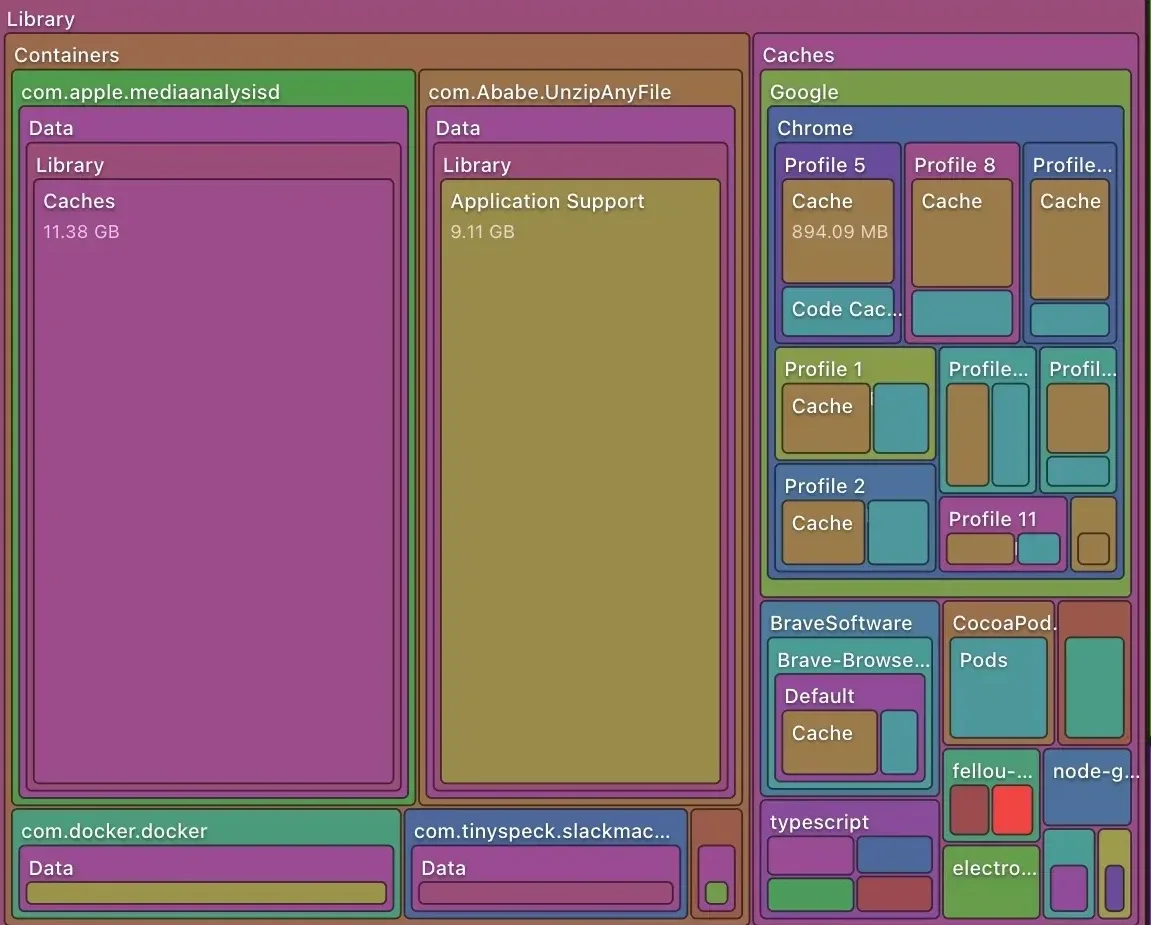
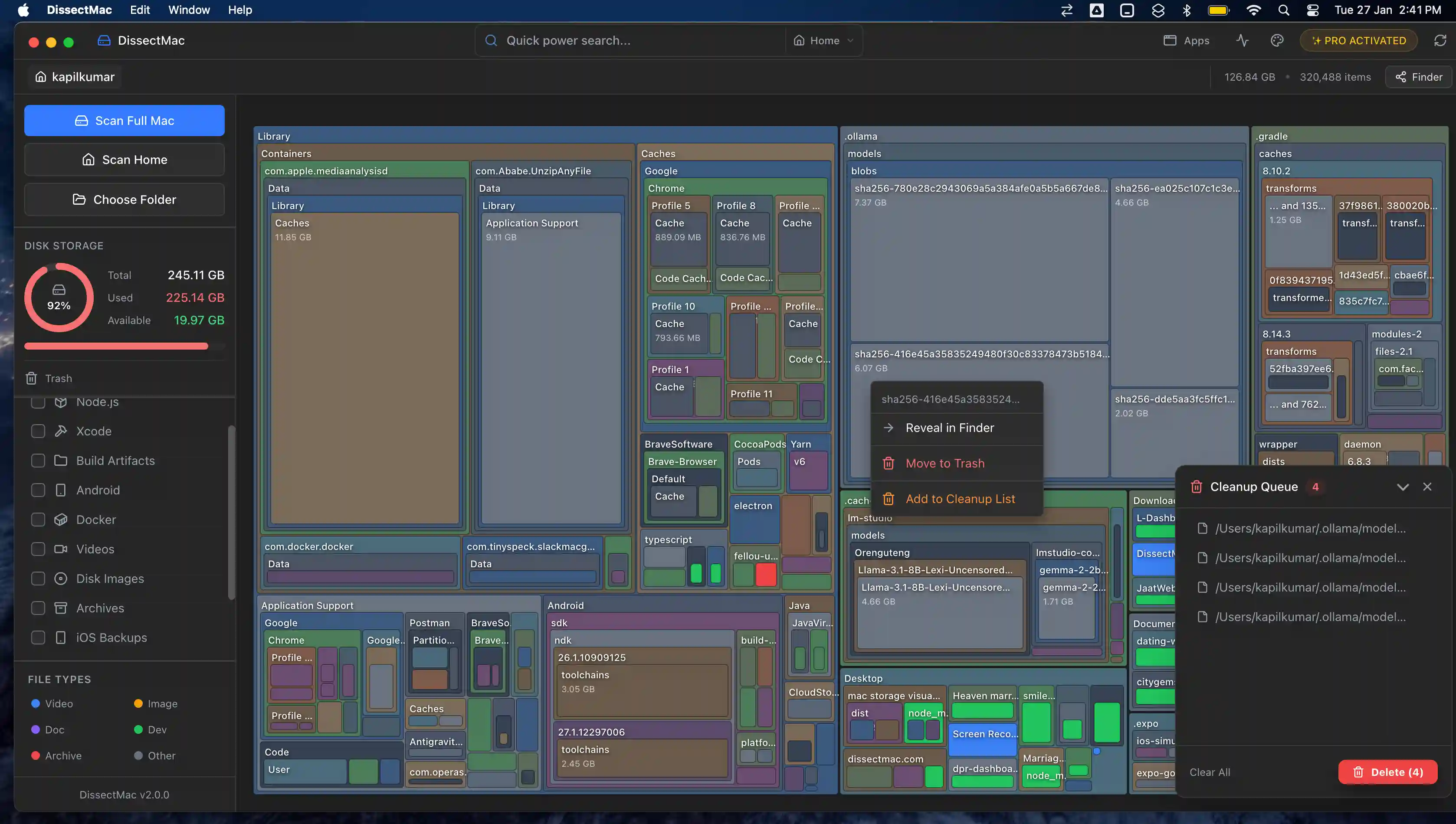
DissectMac shows ~/Library and the rest of your drive as a map where each folder is sized by how much space it takes. The largest caches are the largest blocks. The map is free.
Pro, $12.99 once adds deleting from inside the app, an uninstaller that removes an app together with its caches and leftovers, and a cleanup for files left behind by apps you've already deleted. No subscription, and nothing leaves your Mac.
More guides
Free up space
How to Free Up Space on Mac: 12 Fixes That Actually Work
12 ways to free up space on a Mac, starting with the ones that return the most. Includes the hidden folders and leftovers Apple's Storage screen never shows.
Free up space
Docker.raw Is Huge on Mac: How to Shrink Docker's Disk
Why Docker.raw grows to 60 GB or more on a Mac and never shrinks, how to prune images and volumes, resize the disk image, and whether you can delete Docker.raw.
Free up space
node_modules Taking Up Space on Mac: How to Find and Delete Them All
Find every node_modules folder on your Mac with one command or npkill, delete the ones from abandoned projects, and clear the npm, Yarn and pnpm caches too.
Free up space
How to Delete Downloads on Mac (and Find the Ones You Forgot)
Delete downloads on a Mac from the Downloads folder, Dock or Storage settings, find downloads saved elsewhere, and why clearing the browser list frees nothing.