Where Did All My Mac Storage Go? (A No-BS Guide)
"Your disk is almost full." Thanks, Apple. Super helpful. No mention of what is full or where it is.
You check Photos—10GB. Applications—20GB. Documents—8GB. That's 38GB on a 256GB drive. So why does macOS say you only have 5GB free? Where's the other 200GB?
We've answered this question for dozens of friends and family members. Here's what we tell them.
The Invisible Storage Eaters
Your Mac is constantly saving stuff behind your back. Every YouTube video thumbnail, every Slack conversation, every webpage you've visited—cached. After a year of normal use, these "invisible" files can easily hit 50GB.
The annoying part: Apple hides most of this in ~/Library, a folder that's invisible by default. They don't want "regular users" poking around in there. But that's exactly where your storage went.
Three Things to Check Right Now
1. Actually Empty Your Trash
Obvious, right? But here's what people miss: Photos, Mail, and Notes have their own separate trash folders. You can empty Finder's trash and still have 30GB sitting in Photos → Recently Deleted.
Go empty all of them.
2. Restart Your Mac (Seriously)
When's the last time you actually restarted? Sleep mode doesn't count. macOS accumulates temporary files, swap memory, and cached data that only get cleared on a full restart.
If you haven't rebooted in 2 weeks, you might have 10-20GB of temporary data that'll disappear after a restart. It's the easiest "fix" there is.
3. See What's Actually Taking Space
The storage bar in System Settings is not very helpful. It shows broad categories like "System Data" and "Other" without telling you which files are the problem.
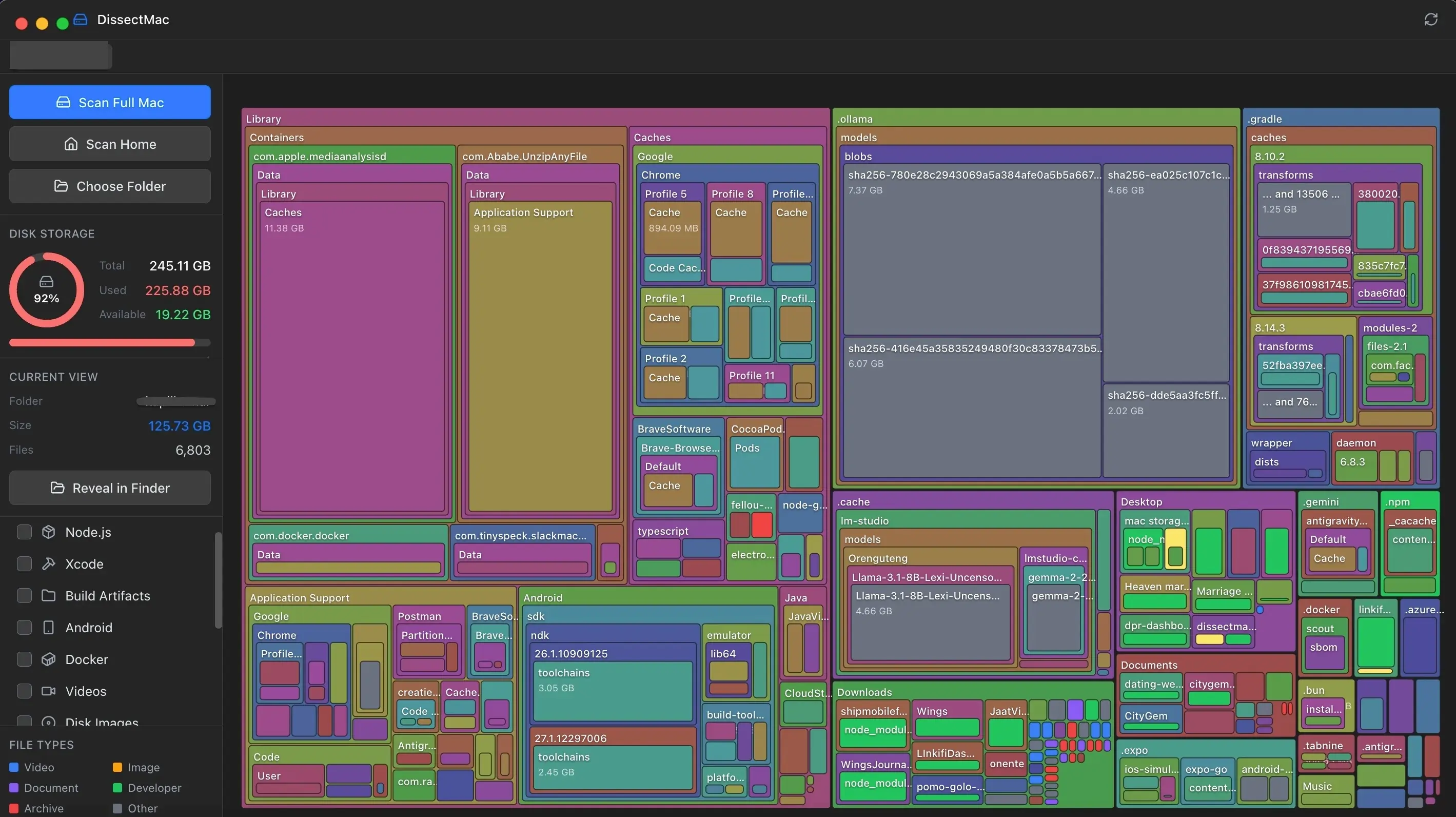
We built DissectMac because we were tired of guessing. It turns your entire drive into a visual map. Big block = big file. Click it to see what it is. That's it.
No hunting through folders. No Terminal commands. Just a picture of where your storage actually went.
The "I Found It" Moment
Usually, it's one of these:
- A large video you downloaded and forgot about
- Old iPhone backups in
~/Library/Application Support/MobileSync/Backup - Browser cache that grew to several GB (Chrome is especially prone to this)
- App caches in
~/Library/Cachesfrom apps you don't even use anymore
With DissectMac, these show up as massive blocks. You'll know immediately.
Final Verdict
Don't spend an hour googling "how to free up space on Mac" and running random Terminal commands. Just:
- Empty ALL your trash folders
- Restart your Mac
- Run DissectMac and look for the biggest blocks
That's it. 10 minutes, and you'll likely recover significant space.
Continue Reading
Android Studio is Eating 100GB of Your Mac. Here's How to Stop It.
Those AVD emulator images and Gradle caches don't delete themselves. Here's where they hide and how to reclaim 50-100GB safely.
macOS Sequoia Update Made Your Disk Full? Here's What to Check.
Updated to Sequoia and now your disk seems even more full? It's probably snapshots, installer leftovers, or re-indexing. Here's how to fix it.
Finding Duplicate Files on Mac Without Paying for an App
Duplicate finder apps can be pricey for something you can often do manually. Here are practical ways to find and delete duplicate files.