macOS Sequoia Update Made Your Disk Full? Here's What to Check.
You cleared space for the Sequoia update. The update finished. Now your disk shows even less free space than before. What happened?
This isn't unique to Sequoia—it happens with most major macOS updates. But the solutions are consistent. Here's what's going on and how to address it.
The Installer May Have Left Files Behind
Sometimes macOS doesn't fully clean up after itself. Check this folder:
ls -lh /Library/Updates/
If you see folders with long numeric names (like 002-12345), those might be leftover installation files.
Important: Only delete these after your Mac has been running stable on Sequoia for a few days. If something went wrong with the update, you might need these for recovery.
Pre-Update Snapshots Are Still There
Before any major OS update, macOS creates APFS snapshots so it can roll back if the install fails. These snapshots can be large (20GB+) and don't always expire quickly.
Check what snapshots exist:
tmutil listlocalsnapshots /
If you see snapshots dated before your update, they're just taking up space now.
Delete a specific snapshot:
sudo tmutil deletelocalsnapshots 2026-01-03-143022
Replace the date with an actual snapshot name from the list.
This is safe if you have external Time Machine backups.
Spotlight is Re-indexing
After a major update, Spotlight often rebuilds its entire search index. This creates temporary files and can make your Mac feel slow.
You'll know this is happening if your Mac's fan is running even when idle, or if you see mds processes using CPU in Activity Monitor.
The fix: Wait. Spotlight re-indexing can take a few hours on a large drive. The temporary files get cleaned up when it's done.
If it's been more than a day and still seems stuck:
sudo mdutil -E /
This wipes the index and forces a fresh rebuild.
New Features May Be Caching Data
Sequoia added features like iPhone Mirroring. These features cache data locally:
~/Library/Caches/com.apple.ScreenContinuity.*~/Library/Caches/com.apple.ScreenSharing.*
If you don't use these features, you can safely delete those folders.
Verification
After any OS update, we like to run DissectMac to see what changed.
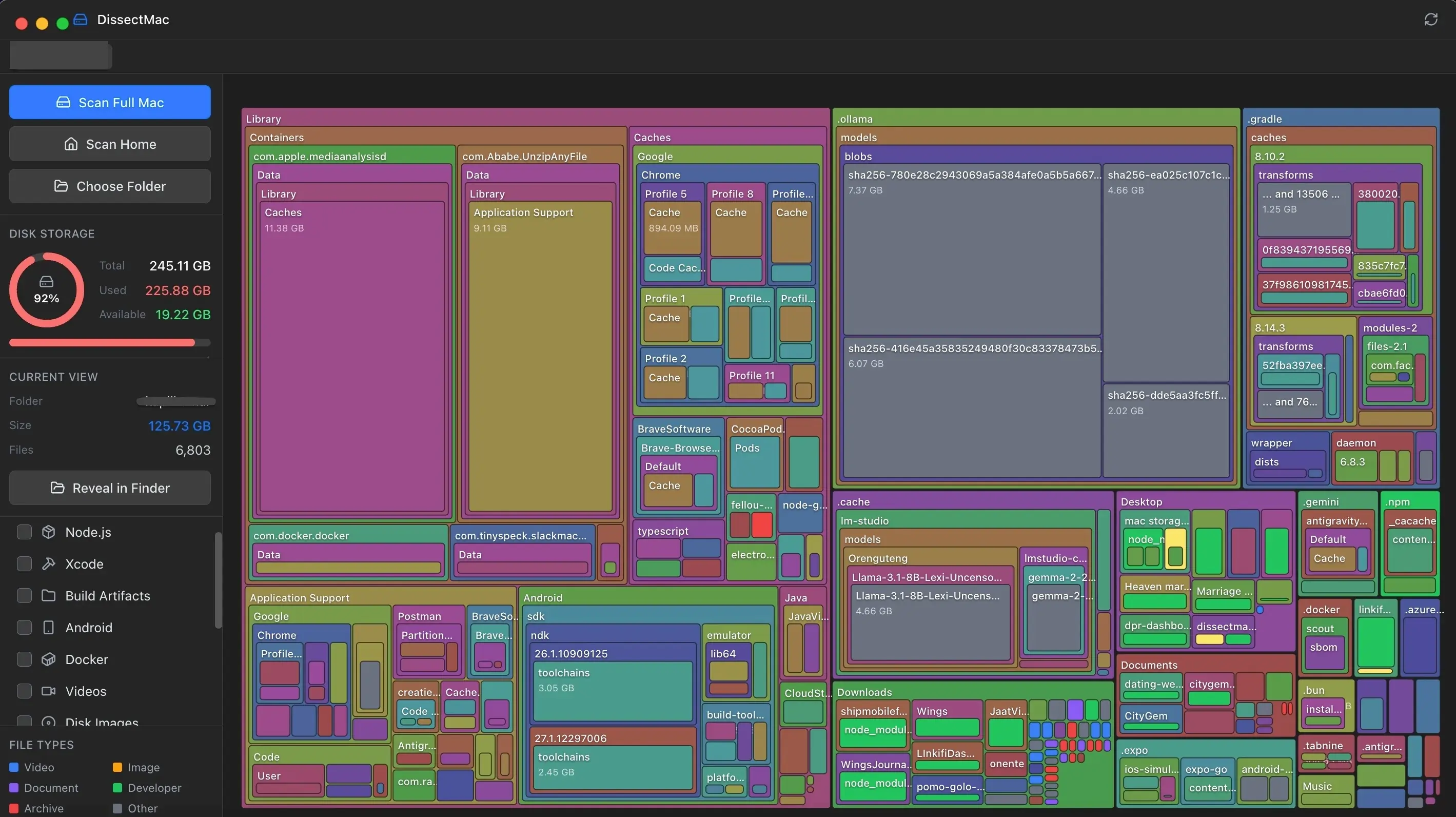
Sometimes the culprit is obvious: a new cache folder, the Spotlight index rebuilding, or Mail re-indexing for new AI features. Seeing it visually makes diagnosis faster.
Quick Checklist
- Check
/Library/Updatesfor leftover installer files - List and delete old snapshots with
tmutil - Clear
~/Library/Cachescontents if needed - Wait for Spotlight to finish re-indexing
- Restart your Mac to clear swap memory
- Run DissectMac to verify space recovery
Pro Tip
Don't panic for 24 hours after a major update. macOS does significant background work—re-indexing, cache rebuilding, optimization. The storage situation often resolves itself overnight. If it's still concerning after a day, then start the cleanup process.
Continue Reading
Where Did All My Mac Storage Go? (A No-BS Guide)
That 'disk almost full' message doesn't tell you anything useful. Here's exactly where your storage went and how to get 20GB back in 10 minutes.
What is 'Other Volumes in Container'? (And Why It's So Large)
Confused by 'Other Volumes in Container' in Disk Utility? It's not a bug—it's APFS. Learn what it means and 3 ways to reclaim space →
GrandPerspective is Great. But It's Time for Something Modern.
GrandPerspective is free but feels dated on Apple Silicon Macs. Compare speed, UI & features with a modern alternative. Both are free →