On this page
- How to delete downloads in Finder
- How to delete downloads from the Dock
- How to delete downloads from Storage settings
- Why clearing your browser's downloads list doesn't free space
- How to find downloads on a Mac
- How to stop downloads piling up
- How do I delete all downloads at once on Mac?
- Why can't I delete a download on my Mac?
- Does deleting downloads free up space on a Mac?
- Do I lose anything by deleting downloads?
To delete downloads on a Mac, open Finder, click Downloads in the sidebar, select the files you don't need, and press Cmd + Delete to move them to the Trash. Then empty the Trash, because until you do the space isn't freed. To clear the whole folder in one go, click inside it, press Cmd + A to select everything, then Cmd + Delete.
The Downloads folder is the one place on a Mac where files arrive without anyone deciding to keep them, so it fills with installers, PDFs and zip files nobody needs. This guide covers the quick clear-out, how to delete downloads from the Dock and from Storage settings, why clearing a browser's download list doesn't delete anything, and how to find downloads that were saved somewhere else.
How to delete downloads in Finder
- Open Finder and click Downloads in the sidebar. If it's missing, press Option + Cmd + L to open the folder directly.
- Switch to list view (Cmd + 2) and click the Size column header to sort largest first. If there's no Size column, choose View > Show View Options and tick Size.
- Select the files to remove. Click one, then Shift + click another to select the range, or Cmd + click to pick individually. Cmd + A selects everything.
- Press Cmd + Delete, or drag the selection to the Trash.
- Empty the Trash: right-click the Trash icon in the Dock and choose Empty Trash, or press Shift + Cmd + Delete in Finder.
Sorting by Date Added instead of size shows what's been sitting there longest. Anything from more than a few months ago that you haven't opened is safe to remove; the original is still wherever you downloaded it from.
How to delete downloads from the Dock
The Downloads stack sits at the right end of the Dock, next to the Trash. Click it to fan out recent files, then drag any of them straight onto the Trash. Right-click a file for Move to Trash. For more than a handful of files, the stack gets awkward; click Open in Finder at the bottom of the stack instead.
How to delete downloads from Storage settings
Open System Settings > General > Storage, click the i next to Documents, then the Downloads tab. It lists the folder's contents sorted by size with a Delete button, and the Large Files tab next to it catches big downloads that were saved elsewhere. Deleted files go to the Trash as usual.
Why clearing your browser's downloads list doesn't free space
Every browser keeps a list of what you've downloaded. Clearing it only clears the list.
- Safari: the downloads button (the arrow at the top right) shows recent downloads, and Clear removes the entries. The files stay in Downloads.
- Chrome: Cmd + Shift + J opens the Downloads page. Clear all empties the list; Remove from list on a single item does the same for one. Neither deletes the file. Use Show in Finder to get to the file itself.
- Firefox: the downloads panel has Clear Preview Panel, and right-clicking an item offers Delete, which does remove the file from disk.
To delete the files, delete them in Finder.
How to find downloads on a Mac
Downloads that aren't in the Downloads folder were saved somewhere else, and there are four ways to find them:
- The browser. In Safari's downloads list, click the magnifying glass next to an item to reveal it in Finder. In Chrome, Show in Finder on the Downloads page.
- Spotlight. Press Cmd + Space and type the file name, or part of it.
- Finder search. Press Cmd + F in Finder, set Kind to the file type (for example Disk Image or PDF), and sort by Date Added.
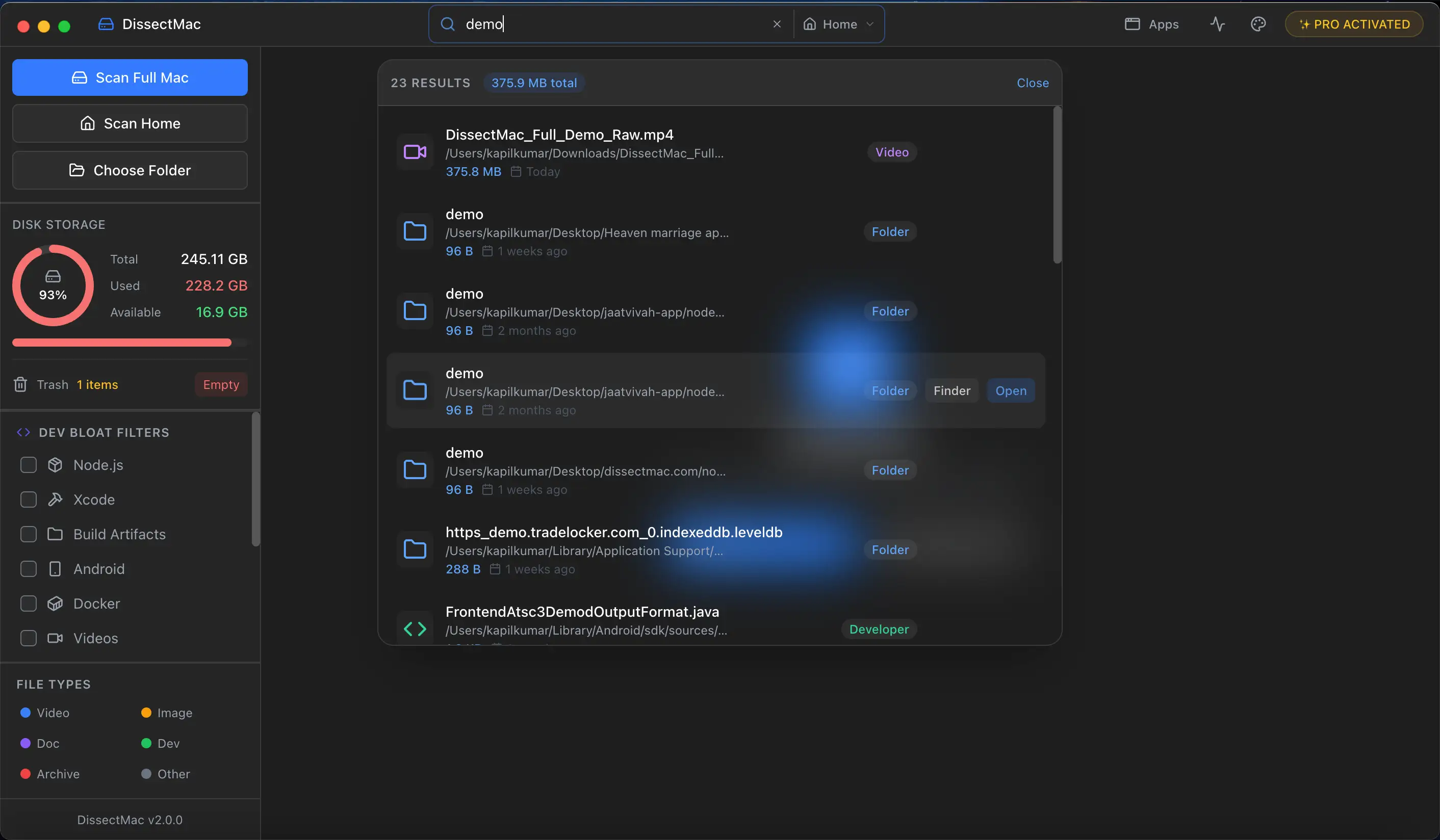
- A disk map. DissectMac scans the whole drive and its Disk Images and Archives filters list every
.dmg,.pkg,.isoand.zipwith its size, wherever it ended up.
Check where your browser saves downloads while you're at it: Safari's Settings > General > File download location, Chrome's Settings > Downloads. If it's set to ask every time, or to the Desktop, downloads spread out and are harder to clear later.
How to stop downloads piling up
Empty the Trash automatically. In Finder, choose Finder > Settings > Advanced and tick Remove items from the Trash after 30 days.
Delete installers after installing. A .dmg or .pkg is only needed once. After you've dragged the app to Applications or run the installer, delete it. Installers are often the biggest files in Downloads, and they're the easiest to identify: sort by Kind.
Review it monthly. Sort by Date Added, select everything older than a month, look through the selection for anything you actually want, and delete the rest.
How do I delete all downloads at once on Mac?
Open the Downloads folder in Finder, press Cmd + A to select everything, then Cmd + Delete to move it all to the Trash. Empty the Trash to free the space. Check the folder first for anything you meant to keep; a file you downloaded to Downloads and never moved is deleted along with the rest.
Why can't I delete a download on my Mac?
A download won't delete when it's still open in an app, when it's a disk image that's still mounted, or when it's locked. Quit the app that opened it, eject the disk image (click the eject icon next to it in the Finder sidebar), or select the file, press Cmd + I and untick Locked. Files that report "in use" after that usually delete after a restart.
Does deleting downloads free up space on a Mac?
Deleting downloads frees space only after you empty the Trash. Until then, the files still take up the same room. If the drive is still full after that, downloads weren't the main problem; how to free up space on Mac covers the folders that usually are.
Do I lose anything by deleting downloads?
Deleting a downloaded file removes your copy of it. Anything you downloaded from a website, an email or a cloud service is still there to download again. What you'd lose is a file that only exists in Downloads, such as a PDF a colleague sent you once, so scan the list before selecting everything.
More guides
Free up space
How to Free Up Space on Mac: 12 Fixes That Actually Work
12 ways to free up space on a Mac, starting with the ones that return the most. Includes the hidden folders and leftovers Apple's Storage screen never shows.
Free up space
Docker.raw Is Huge on Mac: How to Shrink Docker's Disk
Why Docker.raw grows to 60 GB or more on a Mac and never shrinks, how to prune images and volumes, resize the disk image, and whether you can delete Docker.raw.
Free up space
node_modules Taking Up Space on Mac: How to Find and Delete Them All
Find every node_modules folder on your Mac with one command or npkill, delete the ones from abandoned projects, and clear the npm, Yarn and pnpm caches too.
Free up space
How to Clear Cookies on a Mac: Safari, Chrome and Firefox
How to clear cookies on a Mac in Safari, Chrome and Firefox, for one site or all of them, what you'll be signed out of, and how to block third-party cookies.