On this page
- What is cache on a Mac?
- How to clear browser cache on Mac
- How to clear app cache on Mac
- How to clear system cache on Mac
- How to clear developer caches on Mac
- Is it safe to clear cache on a Mac?
- Does clearing cache speed up a Mac?
- How often should I clear cache on my Mac?
- Find the caches worth clearing
- Related guides
To clear cache on a Mac, clear your browser's cache from its settings, then delete the contents of the app folders in ~/Library/Caches and restart. Browser cache fixes most website problems. App caches in ~/Library/Caches are where the storage goes, often several gigabytes on a Mac that's been in use for a year or two. System caches clear themselves when you start up in Safe Mode.
All three are safe to clear: cache is temporary data that apps rebuild when they need it. Below are the exact steps for each, for macOS 26 and later and current versions of Safari, Chrome and Firefox.
What is cache on a Mac?
Cache on a Mac is data that browsers, apps and macOS save so they can load things faster next time: web page images and scripts, album artwork, thumbnails, map tiles and downloaded updates. It's disposable by design. If you delete it, the app downloads or rebuilds what it needs. Cache only becomes a problem when it grows to several gigabytes or goes stale and makes a site or app misbehave.
A Mac keeps three kinds of cache:
| Type | Where it lives | How to clear it |
|---|---|---|
| Browser cache | Inside each browser | From the browser's settings |
| App (user) cache | ~/Library/Caches |
Delete folder contents in Finder |
| System cache | /Library/Caches and /System/Library/Caches |
Start up in Safe Mode |
How to clear browser cache on Mac
Safari
- Open Safari > Settings > Advanced and turn on Show features for web developers.
- In the menu bar, choose Develop > Empty Caches, or press
Option + Cmd + E.
This clears Safari's cache and keeps your history and sign-ins. To clear history and website data as well, use History > Clear History instead. That signs you out of websites.
Chrome
- Choose Chrome > Delete Browsing Data (called Clear Browsing Data in older versions), or press
Cmd + Shift + Delete. - Tick Cached images and files and untick anything you want to keep, such as cookies.
- Choose a time range and confirm.
Firefox
- Open Settings > Privacy & Security.
- Under Cookies and Site Data, click Clear Data.
- Select the cached web content option only, and confirm.
Clearing only the cache keeps you signed in. Clearing cookies as well signs you out of websites; if that's what you're after, see how to clear cookies on Mac.
How to clear app cache on Mac
App caches live in ~/Library/Caches, one folder per app, and they're where most cache-related storage goes.
- Quit the apps whose cache you want to clear.
- In Finder, press
Cmd + Shift + G, type~/Library/Cachesand press Return. - In List view, turn on View > Show View Options > Calculate all sizes and sort by size.
- Open the largest app folders and move their contents to the Trash. Leave the
Cachesfolder and the app folders themselves in place. - Empty the Trash and restart.
Which folders are safe, which to leave alone, and what happens when you clear them is covered in detail in our guide to ~/Library/Caches: what's safe to delete.
How to clear system cache on Mac
The safest way to clear system cache on a Mac is to start up in Safe Mode, which checks your startup disk and deletes some system caches automatically. Then restart normally.
- Apple silicon Mac: shut down, press and hold the power button until startup options appear, select your startup disk, hold Shift and click Continue in Safe Mode.
- Intel Mac: restart and hold Shift until the login window appears.
Don't delete files in /System/Library/Caches by hand. macOS protects that folder, and working around the protection can break your installation.
How to clear developer caches on Mac
Package managers and IDEs keep some of the largest caches on a developer's Mac. Use each tool's own command rather than deleting folders:
brew cleanup                 # Homebrew
npm cache clean --force      # npm
yarn cache clean             # Yarn
pip cache purge              # pip
pod cache clean --all        # CocoaPods
Build outputs aren't caches, but they're usually bigger. See Xcode DerivedData, Docker's disk and old node_modules folders.
Is it safe to clear cache on a Mac?
Clearing cache on a Mac is safe for browsers and almost every app, because cache is temporary data that gets rebuilt. It doesn't delete your documents, photos, passwords or settings. The side effects are small: websites and apps load a little slower the first time, streaming apps re-download what you play, and some apps ask you to sign in again. Don't delete Apple's system cache folders by hand; use Safe Mode for those.
Does clearing cache speed up a Mac?
Clearing cache rarely makes a Mac faster on its own, and it can make apps slower for a while as they rebuild. It helps when your drive is nearly full, because macOS slows down with very little free space, or when a stale cache is making one app or website misbehave.
How often should I clear cache on my Mac?
You don't need to clear cache on a schedule. Browsers and most apps manage their caches automatically. Clear it when a website or app isn't working properly, when you're short on storage, or when one app's cache has grown to several gigabytes.
Find the caches worth clearing
Most caches are small. A handful grow into gigabytes, and those are the only ones worth your time. Finder doesn't show folder sizes until you ask it to calculate them, which makes those few hard to spot.
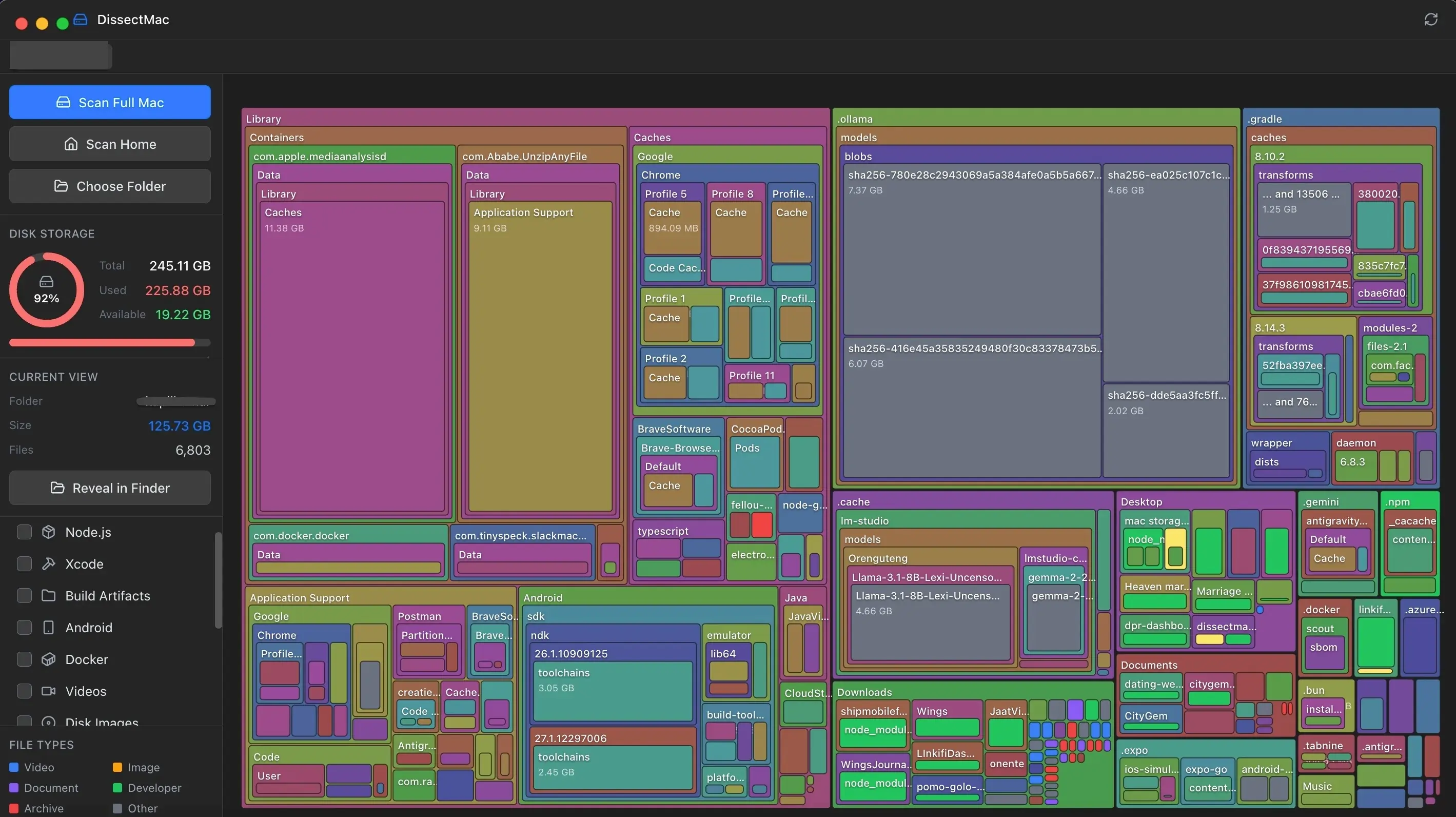
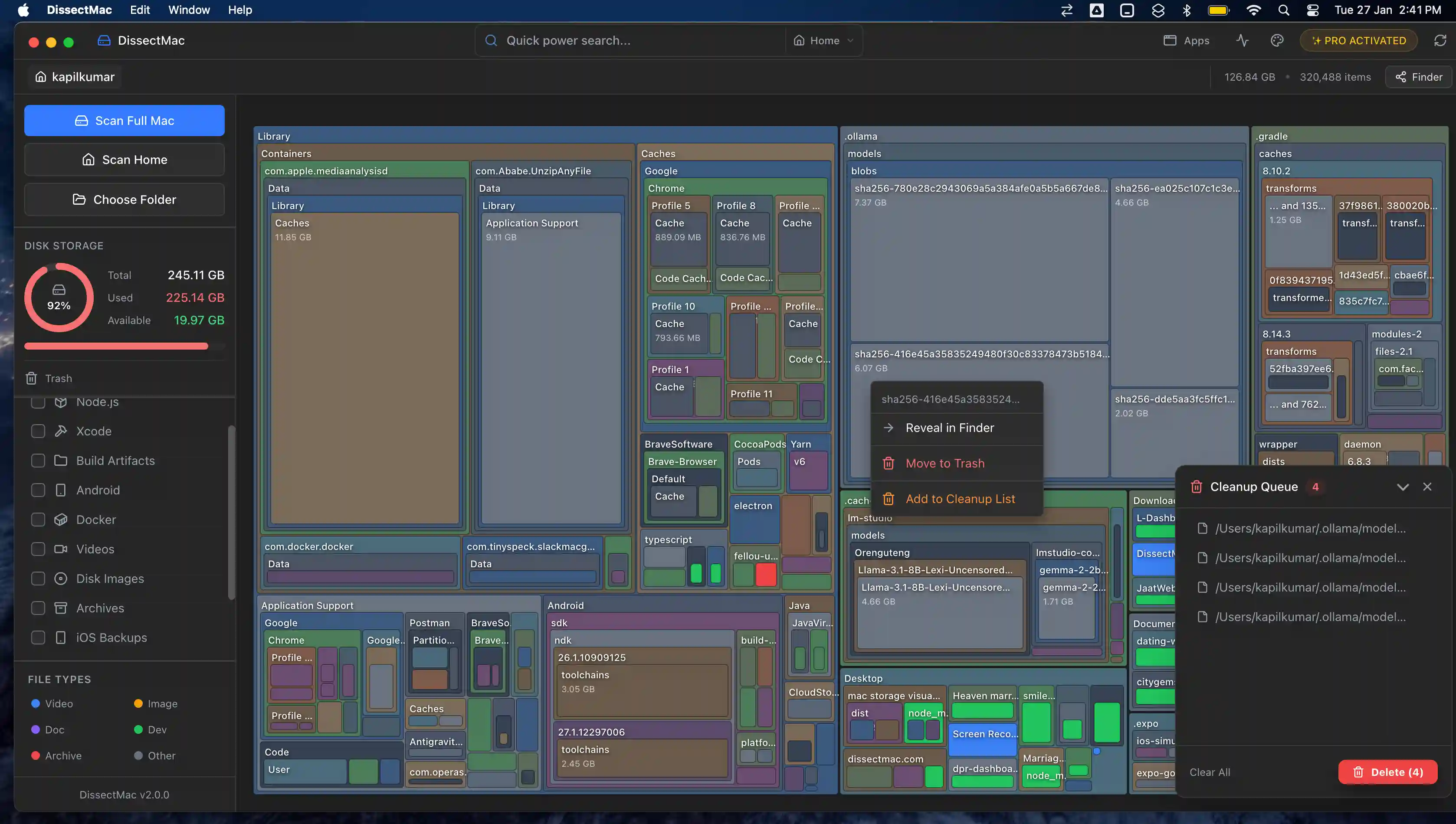
DissectMac shows your whole drive, including ~/Library/Caches, as a map where each folder is sized by the space it takes. The caches worth clearing are the biggest blocks. The map is free.
Pro, $12.99 once adds deleting from inside the app, an uninstaller that removes an app's caches and leftovers along with it, and a cleanup for files left behind by apps you've already deleted. No subscription, a 15-day money-back guarantee, and nothing leaves your Mac.
Related guides
- ~/Library/Caches on Mac: what's safe to delete: folder by folder
- How to free up space on Mac: 12 fixes, starting with the biggest
- How to clear System Data on Mac: where caches, snapshots and leftovers add up
More guides: Free up space
Free up space
How to Free Up Space on Mac: 12 Fixes That Actually Work
12 ways to free up space on a Mac, starting with the ones that return the most. Includes the hidden folders and leftovers Apple's Storage screen never shows.
Free up space
Docker.raw Is Huge on Mac: How to Shrink Docker's Disk
Why Docker.raw grows to 60 GB or more on a Mac and never shrinks, how to prune images and volumes, resize the disk image, and whether you can delete Docker.raw.
Free up space
node_modules Taking Up Space on Mac: How to Find and Delete Them All
Find every node_modules folder on your Mac with one command or npkill, delete the ones from abandoned projects, and clear the npm, Yarn and pnpm caches too.
Free up space
How to Clear Cookies on a Mac: Safari, Chrome and Firefox
How to clear cookies on a Mac in Safari, Chrome and Firefox, for one site or all of them, what you'll be signed out of, and how to block third-party cookies.