On this page
- Why dragging an app to the Trash isn't enough
- Before you uninstall an app
- How to uninstall apps on Mac with Finder
- How to delete apps from Launchpad or the Apps view
- How to use an app's own uninstaller
- How to remove leftover files by hand
- How to uninstall apps on Mac completely with DissectMac
- How to uninstall apps on Mac that won't delete
- Can you delete built-in apps like Safari, Mail or Music?
- How to uninstall apps on Mac using Terminal
- Does deleting an app cancel its subscription?
- Will uninstalling an app delete my files?
- How do I uninstall an app I got from the App Store?
- How much space do leftover files take?
- Is it safe to delete Application Support folders?
- Related guides
To uninstall an app on a Mac, quit it, drag it from the Applications folder to the Trash, empty the Trash, then delete the files it left behind in ~/Library. That last step is the one most guides skip, and it's why "uninstalled" apps can keep several gigabytes of caches, containers and preferences on your drive. Apps you bought from the App Store can also be deleted from Launchpad on macOS 15 and earlier; on macOS 26 and later, Launchpad is gone and Finder is the way.
This guide covers every method, the apps that refuse to delete, and how to remove the leftovers, by hand or with DissectMac's uninstaller, which we make.
Why dragging an app to the Trash isn't enough
Dragging an app to the Trash removes one thing: the .app bundle in your Applications folder. Everything the app created while you used it stays where it was. macOS keeps that data in your Library folder, which Finder hides by default, so you never see it pile up.
Here's where an app's leftovers usually live:
| Folder | What's in it | Typical size |
|---|---|---|
~/Library/Application Support/<App> |
Databases, downloads, saved state, plug-ins | The big one: MB to tens of GB for games, media and dev tools |
~/Library/Caches/<bundle id> |
Temporary files the app rebuilds | MB to GB |
~/Library/Containers/<bundle id> |
Sandboxed app data (App Store apps) | MB to GB |
~/Library/Group Containers/<team id> |
Data shared between an app and its extensions | Varies |
~/Library/Preferences/<bundle id>.plist |
Settings | KB |
~/Library/Saved Application State/<bundle id> |
Window positions | KB |
~/Library/Logs/<App> |
Log files | MB |
~/Library/LaunchAgents and /Library/LaunchDaemons |
Background helpers that start at login | KB, but they keep running |
/Library/Application Support/<App> |
System-wide data for apps installed with a password | MB to GB |
A few kilobytes of preferences don't matter. A 9 GB Steam library, a 20 GB Docker disk image or an Adobe media cache does, and they're all in this table. Leftovers are also one of the reasons the System Data bar in Storage settings grows; see why System Data is so big.
Before you uninstall an app
Three things to check first, in the order that saves the most regret:
- Sign out or deactivate the licence. Apps with per-device licences (Adobe, Microsoft 365, some audio and design tools) count the install against your seat until you sign out.
- Cancel the subscription separately. Deleting an app never cancels a subscription. App Store subscriptions are under System Settings > Apple Account > Subscriptions; others are on the vendor's website.
- Export anything you need. Notes, projects and settings stored inside the app's Library folders go when you remove the leftovers.
Then quit the app. macOS won't move a running app to the Trash.
How to uninstall apps on Mac with Finder
This works for every app that isn't part of macOS, whatever its source.
- Quit the app (
Cmd + Q), or right-click its Dock icon and choose Quit. - In Finder, choose Go > Applications, or press
Cmd + Shift + A. - If the app came with an Uninstall or Uninstaller item in its folder, use that instead (see below).
- Otherwise, drag the app to the Trash, or select it and press
Cmd + Delete. - Enter your administrator password if macOS asks for one.
- Choose Finder > Empty Trash.
Then remove the leftovers (two sections down). Documents you created with the app stay where you saved them.
How to delete apps from Launchpad or the Apps view
macOS 15 Sequoia and earlier: open Launchpad from the Dock or by pinching on the trackpad, then click and hold any icon until they all jiggle. Apps installed from the App Store show an × in the corner; click it and confirm. Apps installed from elsewhere show no ×, so use Finder for those. This still leaves the app's Library files behind.
macOS 26 Tahoe and later: Launchpad was removed and replaced by the Apps view inside Spotlight. That view opens apps but doesn't delete them, so use the Finder steps above.
How to use an app's own uninstaller
Some apps install more than one thing: background helpers, kernel or system extensions, menu bar agents, other apps. For those, the vendor's uninstaller is the only method that removes all of it. Apps that ship one include Adobe Creative Cloud (the Creative Cloud Uninstaller), Docker Desktop (Troubleshoot > Uninstall inside the app), Malwarebytes (Help > Uninstall Malwarebytes), most antivirus and VPN clients, and many audio plug-in installers.
Look in three places: the app's own folder in Applications, the app's Help or app-name menu, and the download page you got it from. If the uninstaller asks for your password, that's expected; it needs to remove files outside your home folder.
How to remove leftover files by hand
After the app is gone, open the Library folder: in Finder, press Cmd + Shift + G, type ~/Library and press Return.
- Open Application Support, Caches, Containers, Preferences, Logs and Saved Application State in turn.
- In each, look for folders or files named after the app, its developer, or its bundle identifier (a reverse-domain name such as
com.spotify.client). - Move them to the Trash.
- Check
~/Library/LaunchAgentsfor a.plistnamed after the app, and/Library/LaunchAgents,/Library/LaunchDaemonsand/Library/Application Supportfor anything installed with a password. - Empty the Trash and restart, so any helper that was still running stops.
Two rules keep this safe. Only delete items you can match to the app you removed; Application Support also holds live data for Mail, Photos, games and apps you still use. And never touch ~/Library/Keychains or anything in /System.
It's tedious, and it's easy to miss a Group Container or a launch agent. Which is the problem DissectMac's uninstaller exists to solve.
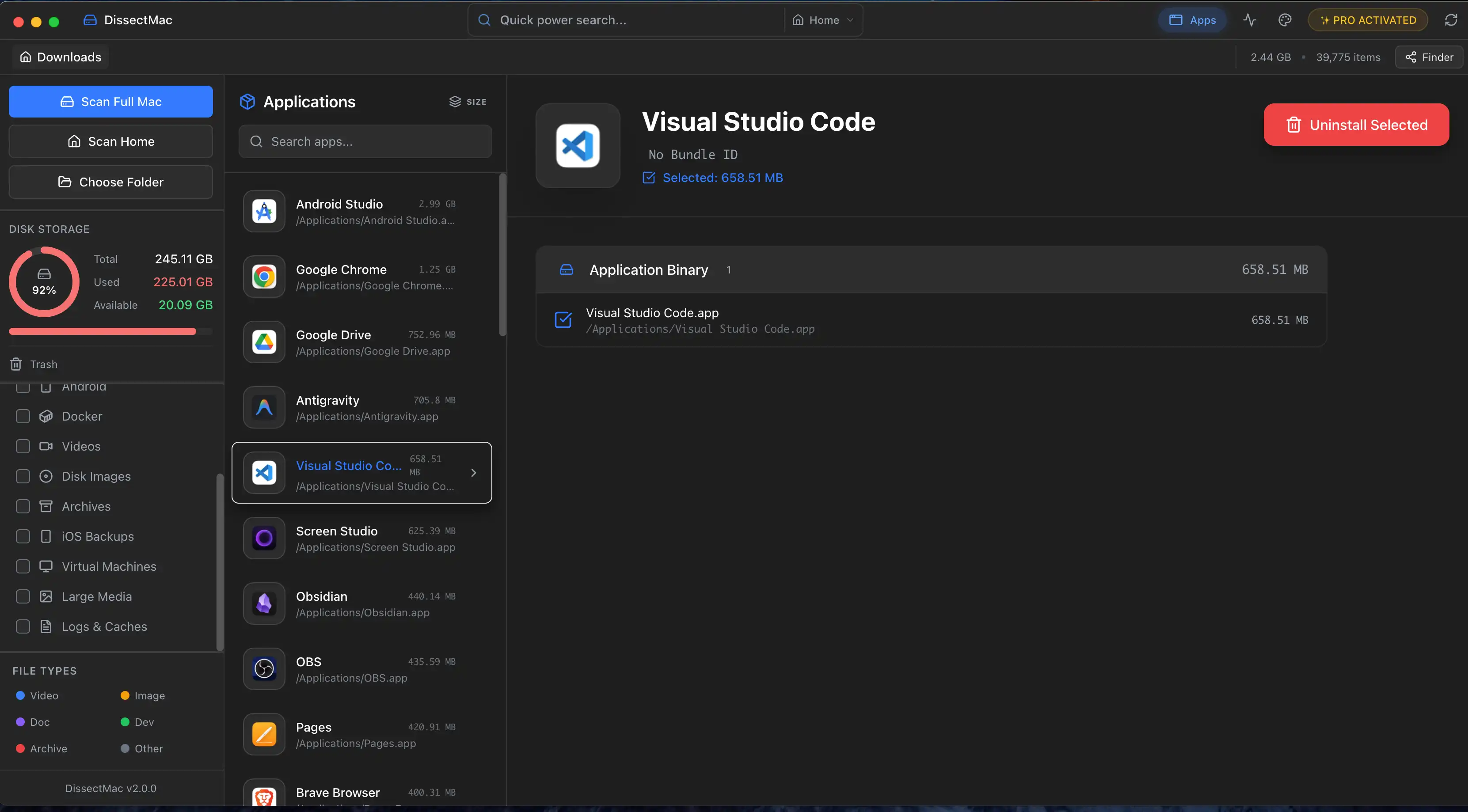
How to uninstall apps on Mac completely with DissectMac
DissectMac Pro includes an uninstaller that does the Library search for you:
- Open DissectMac and go to the uninstaller.
- Pick the app. DissectMac lists the app together with every related file it found: containers, caches, preferences, support files, logs and launch agents, each with its size and path.
- Review the list, untick anything you want to keep, and remove the rest in one step.
For apps you deleted in the past, the leftover cleanup scans your Library for folders whose app is no longer installed, shows what's inside, and moves them to the Bin in one click. The free version shows you all of this on the storage map; deleting from inside the app is a Pro feature.
How to uninstall apps on Mac that won't delete
When an app refuses to go, the error message tells you which fix you need.
"The item can't be moved to the Trash because it's open." Quit the app. If it doesn't respond, open Activity Monitor (in Applications > Utilities), select the app or its helper process, click the × button and choose Force Quit. Then try again. Some apps keep a background helper running after you quit; look for the app's name in Activity Monitor's process list.
"…can't be modified or deleted because it's required by macOS." It's an Apple app protected by System Integrity Protection. You can't remove it, and you shouldn't try; see the next section.
The app asks for a password and then still won't delete. It's locked. Select it, press Cmd + I, and untick Locked. If the owner is another user account, you'll need that account's password.
The app comes back after you delete it. A launch agent or a companion app is reinstalling it. Check ~/Library/LaunchAgents and /Library/LaunchAgents for a .plist with the app's name, remove it, restart, then delete the app again. Management software installed by an employer can also do this; in that case, ask IT.
Nothing works. As a last resort, Terminal can remove an app bundle directly. See below.
Can you delete built-in apps like Safari, Mail or Music?
No. Apps that ship with macOS live on the sealed system volume and are protected by System Integrity Protection, so Finder refuses to delete them and disabling that protection isn't worth the security cost. If you don't want to see one, remove it from the Dock (right-click > Options > Remove from Dock) and don't open it. The built-in apps take a fixed amount of space that you get back only by not thinking about it.
How to uninstall apps on Mac using Terminal
Terminal deletes an app bundle even when Finder complains, but it doesn't touch the Library leftovers, and it doesn't ask "are you sure". Type the app's name exactly:
sudo rm -rf "/Applications/App Name.app"
Enter your password when prompted. Use this only for apps that Finder can't remove, never for anything inside /System, and always with the full path in quotes. Then clear the leftovers as described above.
Does deleting an app cancel its subscription?
No. Deleting an app never cancels a subscription. App Store subscriptions are managed in System Settings > Apple Account > Subscriptions on a Mac (or in the App Store app under your account). Subscriptions bought directly from a developer are cancelled on the developer's website. Cancel first, then uninstall.
Will uninstalling an app delete my files?
Uninstalling an app doesn't delete documents you saved in your own folders, such as Documents, Desktop or iCloud Drive. It does delete anything the app stored inside its own Library folders once you remove those leftovers, which can include notes, project files and settings for apps that keep data internally. Export anything you need before you clear the leftovers.
How do I uninstall an app I got from the App Store?
Uninstall App Store apps the same way as any other: quit the app, drag it from Applications to the Trash and empty the Trash. On macOS 15 and earlier you can also delete them from Launchpad. Your purchase stays on your Apple account, so you can reinstall it from the App Store's Purchased list at any time without paying again.
How much space do leftover files take?
It depends on the app. Preferences and window state are kilobytes. Caches are usually megabytes to a few gigabytes. The biggest leftovers are Application Support folders for games, media apps, virtual machines and developer tools, which can run to tens of gigabytes. The only way to know is to look, which is why the uninstaller shows the size of every file before you delete it.
Is it safe to delete Application Support folders?
It's safe to delete an Application Support folder only when the app that owns it is already uninstalled and you don't need the data inside it. Folders belonging to apps you still use hold live data: Mail's database, Photos' library data, saved games, licences. If you can't match a folder to an app you removed, leave it.
Related guides
- How to free up space on Mac: the full cleanup checklist, biggest wins first
- How to clear cache on Mac: browser, app and system caches
- How to clear System Data on Mac: where leftovers show up in Storage settings
- Shrinking Docker's disk on Mac and clearing Xcode DerivedData: the two largest developer leftovers
More guides: Uninstall apps properly
Speed
Why Is My Mac So Slow? 8 Causes and How to Fix Each One
A slow Mac usually has one of 8 causes: a full disk, memory pressure, a runaway process, login items, heat or old hardware. Find yours in 5 minutes and fix it.
Free up space
Docker.raw Is Huge on Mac: How to Shrink Docker's Disk
Why Docker.raw grows to 60 GB or more on a Mac and never shrinks, how to prune images and volumes, resize the disk image, and whether you can delete Docker.raw.
Free up space
node_modules Taking Up Space on Mac: How to Find and Delete Them All
Find every node_modules folder on your Mac with one command or npkill, delete the ones from abandoned projects, and clear the npm, Yarn and pnpm caches too.
Speed
How to Clear RAM on a Mac (and Why Memory Cleaners Don't Help)
How to free up RAM on a Mac: find what's using memory in Activity Monitor, quit it, cut tabs and login items, and why sudo purge and memory cleaners don't help.