On this page
System Data on a Mac gets big when one thing grows without limit: usually local Time Machine snapshots, leftovers from deleted apps, old iPhone backups or developer files. Between 10 and 30 GB is typical. Past 100 GB, one of the eight causes below is almost always responsible, and you can check each one in a few minutes.
The catch is that Apple's Storage screen shows one grey bar and no folder names. So the steps below include where each cause lives on your drive and how to confirm it's yours before you delete anything. If you already know the cause, go straight to how to clear System Data on Mac.
How much System Data is normal on a Mac?
Apple doesn't publish a normal range for System Data. As a rule of thumb, 10 to 30 GB is typical for a Mac used for browsing, email and documents, and 30 to 60 GB is common on Macs used for coding, music or video. Anything past 100 GB means something specific has run away.
| System Data size | What it usually means |
|---|---|
| 10 to 30 GB | Normal everyday use |
| 30 to 60 GB | Normal if you use Xcode, Docker, music or video apps |
| 60 to 100 GB | Worth a look, especially on a 256 GB Mac |
| 100 GB and up | One of the causes below has grown out of control |
Size matters less than change. If System Data was 25 GB last month and is 90 GB now, find out what grew, even if 90 GB sounds "fine" for your kind of work.
Why System Data gets so big: 8 causes
1. Local Time Machine snapshots
macOS keeps hourly Time Machine snapshots on your internal drive, so you can restore files even when the backup disk isn't plugged in. They're meant to be temporary. When the backup drive stays disconnected for weeks, they build up, and this is the most common reason System Data jumps suddenly.
Check: run tmutil listlocalsnapshots / in Terminal. A long list going back weeks is your answer.
Fix: plug in your backup drive and let a backup finish, or thin the snapshots with sudo tmutil thinlocalsnapshots / 21474836480 4, which asks macOS for roughly 20 GB back.
2. Leftovers from apps you deleted
Dragging an app to the Trash deletes the app and nothing else. Its folders in ~/Library/Application Support, ~/Library/Containers and ~/Library/Caches stay behind, and they count as System Data. A video editor, game launcher or virtual machine app you removed years ago can still be holding several gigabytes.
Check: open those three folders and look for names of apps you no longer have.
Fix: delete the folders you can clearly match to a removed app. Leave anything you can't identify. DissectMac Pro finds these leftovers for you, shows what's inside, and moves them to the Bin in one click.
3. Old iPhone and iPad backups
Every local backup of an iPhone or iPad is stored in ~/Library/Application Support/MobileSync/Backup, and macOS never deletes old ones. A single backup can run to tens of gigabytes. If you've replaced your phone a couple of times, the old backups are probably still there.
Check: connect a device, select it in the Finder sidebar and click Manage Backups, or look at the folder above.
Fix: delete backups for devices you no longer own, after making sure you have a copy you trust.
4. An app caching without limits
Most apps keep a cache and clean it up. A few don't. Video editors, music apps, browsers and chat apps are the usual offenders, and their caches sit in ~/Library/Caches.
Check: run du -sh ~/Library/Caches/* 2>/dev/null | sort -h and look at the bottom of the list.
Fix: quit the app and delete the contents of its cache folder. It rebuilds what it needs. See which Library caches are safe to clear.
5. Developer files
If you write code, this is often the whole story. Xcode's DerivedData, old iOS simulator runtimes, Docker's virtual disk and Android emulator images all grow until you clear them, and all of them land in System Data.
Check: look at ~/Library/Developer, ~/Library/Containers/com.docker.docker and ~/.android/avd.
Fix: follow our guides for Xcode DerivedData, Docker's disk and Android Studio.
6. Swap files
When your Mac runs short of memory, macOS writes memory to swap files on disk, stored in /private/var/vm. They grow during heavy use and count toward System Data.
Check: run ls -lh /private/var/vm.
Fix: restart your Mac. Swap files are cleared on restart. Don't delete them by hand.
7. Old installers and pending macOS updates
.dmg and .pkg installers pile up in Downloads, and a macOS update that downloaded but never installed can hold several gigabytes.
Check: search Finder for .dmg and .pkg, and open System Settings > General > Software Update.
Fix: delete installers for apps you've already installed, and install or finish any pending update.
8. Apple Intelligence
Apple says Apple Intelligence needs about 7 GB of storage for its on-device models. On a Mac with a small drive, that's a noticeable part of System Data.
Check: see whether Apple Intelligence is turned on in System Settings > Apple Intelligence & Siri.
Fix: if you don't use it, turn it off there and check whether your storage total changes.
How to find which cause is yours
Checking eight places by hand works, but it's slow. Two faster ways:
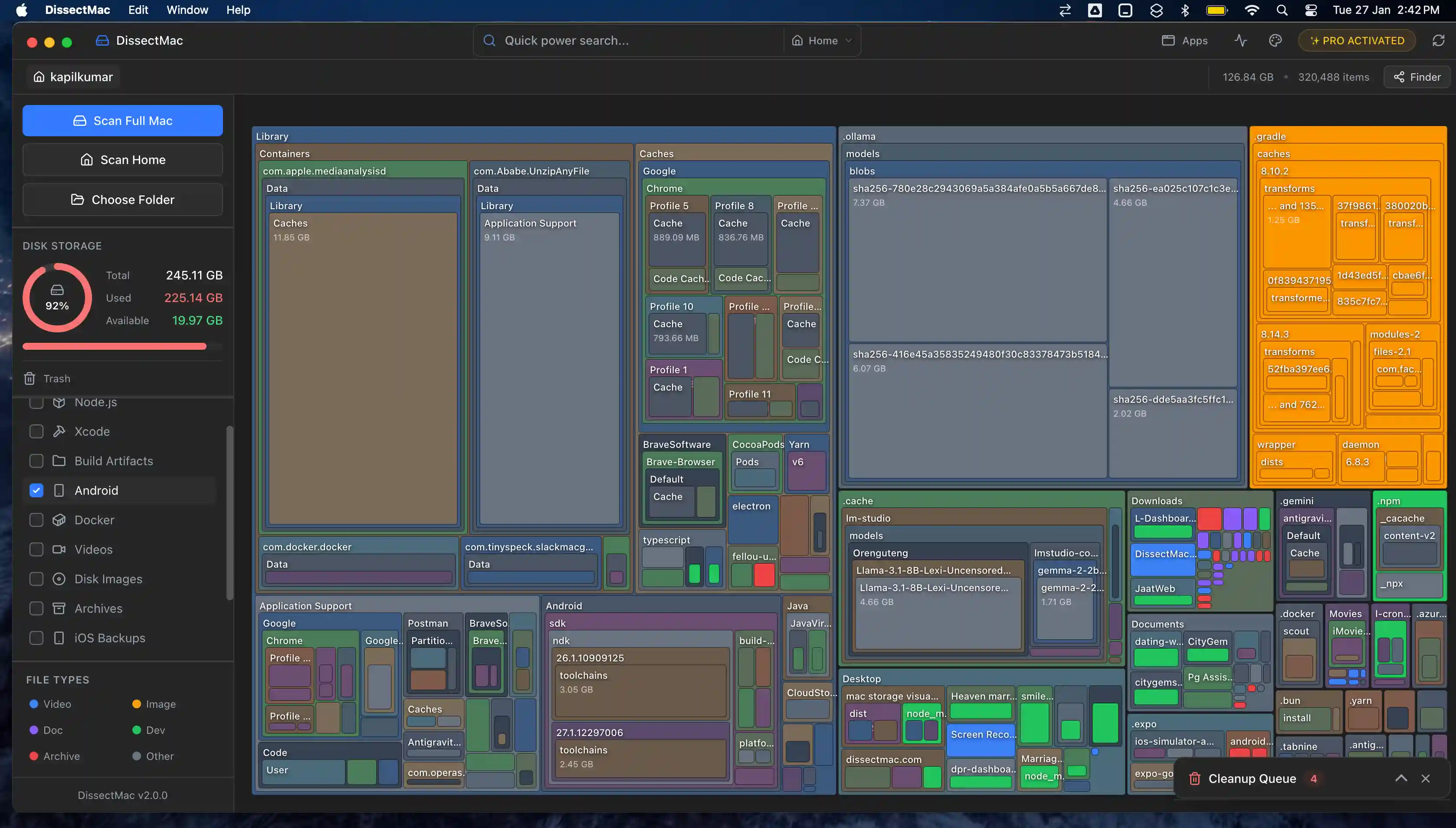
A disk map. DissectMac scans your drive and draws every folder as a block sized by how much space it takes, including the Library folders Finder hides. App leftovers, device backups, caches, developer files and old installers show up as the biggest blocks on the screen. The map is free.
Terminal. This ranks the folders in your Library by size:
du -sh ~/Library/* 2>/dev/null | sort -h
Run it again inside whichever folder comes out on top until you reach the culprit. Local snapshots and swap files won't show up in this list, so check causes 1 and 6 separately.
Once you know the cause, our step-by-step guide on how to clear System Data on Mac covers the fix in the safest order.
Is 100 GB of System Data normal?
100 GB of System Data isn't normal for most Macs. It usually means one cause has run away, most often local Time Machine snapshots, old iPhone backups, leftovers from deleted apps or developer files. On a Mac used heavily for development or video work it can be expected, but it's still worth checking what grew.
Why does System Data keep growing?
System Data keeps growing because much of it is working state: caches refill as you use apps, snapshots are created every hour, and swap grows under memory pressure. Some growth after a cleanup is normal. If it climbs back past 100 GB within days, one app is misbehaving, and a fresh scan shows which folder grew.
Why did System Data jump after a macOS update?
System Data often jumps after a macOS update because of leftover update files and new local snapshots taken around the update. It usually settles within a few days as macOS cleans up. If it doesn't, restart your Mac, let a Time Machine backup finish, and check again.
Can you delete System Data?
You can delete parts of System Data safely: caches, old snapshots, old device backups, installers and build files. Never delete anything inside /System, your ~/Library/Keychains folder, or Application Support folders for apps you still use. Our guide on how to clear System Data lists what's safe and what isn't.
The short version
- Typical: 10 to 30 GB. Investigate: past 100 GB, or any sudden jump.
- Most common causes: Time Machine snapshots, app leftovers, iPhone backups, developer files.
- Fastest way to find yours: a disk map such as DissectMac (free), then fix that one thing.
For the full cleanup checklist beyond System Data, see how to free up space on Mac.
More guides: System Data
System Data
System Data on Mac: What It Is and How to Clear It
System Data is the grey bar in macOS Storage holding caches, snapshots, backups and app leftovers. See what's in it, how much is normal and how to clear it.
System Data
What is 'Other Volumes in Container'? (And Why It's So Large)
'Other Volumes in Container' is how APFS labels every volume except the one you selected, usually including your own files. What it means and how to shrink it.
Speed
Why Is My Mac So Slow? 8 Causes and How to Fix Each One
A slow Mac usually has one of 8 causes: a full disk, memory pressure, a runaway process, login items, heat or old hardware. Find yours in 5 minutes and fix it.
Free up space
Docker.raw Is Huge on Mac: How to Shrink Docker's Disk
Why Docker.raw grows to 60 GB or more on a Mac and never shrinks, how to prune images and volumes, resize the disk image, and whether you can delete Docker.raw.