On this page
"Other" in Mac storage is the category for everything macOS can't file under Apps, Documents, Photos, Music or another named type: caches, logs, local Time Machine snapshots, app support files, disk images, old iPhone backups, browser data and swap. On macOS 12 Monterey and later the same category is called System Data. Nothing changed except the name, and both are safe to shrink once you know what's inside.
This guide covers what's in Other, how to see it, and how to reduce it. If your Mac is on macOS 12 or later and you're looking at a bar labelled System Data, the full step-by-step is in how to clear System Data on Mac.
What "Other" storage is on a Mac
Apple's Storage panel sorts files by type. Anything without a type it recognises lands in Other. In practice that's:
- Caches, in
~/Library/Cachesand/Library/Caches, from browsers, chat apps, media apps and macOS itself. - App support files, in
~/Library/Application Support: databases, plug-ins, downloaded content and leftovers from apps you've deleted. - Local Time Machine snapshots, taken hourly when the backup disk isn't connected.
- iPhone and iPad backups, in
~/Library/Application Support/MobileSync/Backup. - Disk images, archives and installers:
.dmg,.pkg,.zipand.isofiles anywhere on the drive. - Developer files: Xcode's DerivedData, simulators, Docker's disk image.
- Logs, swap files and system caches in
/private/var. - Files in the Trash that haven't been emptied.
On a typical Mac Other, or System Data, is 10 to 30 GB. Past 100 GB, one of the items above has grown out of control, and it's usually snapshots, app leftovers, device backups or developer files.
Other vs System Data: the name change
macOS 10.15 Catalina and macOS 11 Big Sur show Other in About This Mac > Storage. macOS 12 Monterey renamed it System Data and moved the panel to System Settings > General > Storage in macOS 13 Ventura. The contents are the same catch-all, and the fixes are the same. Guides that tell you to "clear Other" and guides about System Data are describing one thing.
How to see what's in Other
The Storage panel has no file list for Other, which is why the category is so frustrating. To see it, look at the folders directly:
Finder. Press Shift + Cmd + G, type ~/Library, and press Return. Select Caches, Application Support and Containers in turn and press Cmd + I to see their sizes.
Terminal. This ranks everything in your Library by size:
du -sh ~/Library/* 2>/dev/null | sort -h
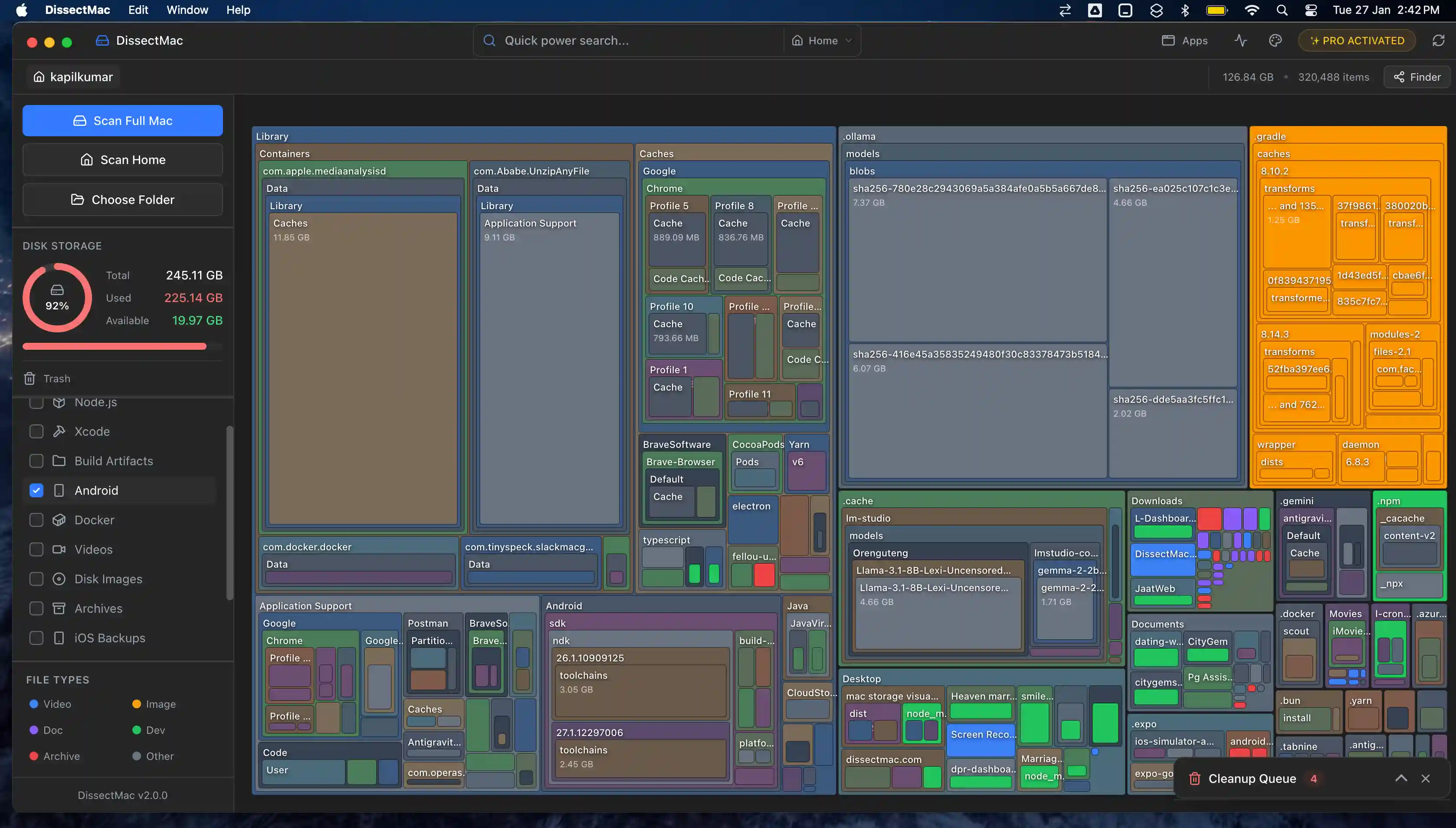
A disk map. DissectMac scans the drive and draws every folder as a block sized by what it holds, hidden Library folders included, so the biggest item in Other is the biggest block on screen. The map is free.
Local snapshots don't appear in any folder listing. Check them with tmutil listlocalsnapshots / in Terminal.
How to clear Other storage on a Mac
In order of how much space each usually returns:
- Let Time Machine finish a backup, or thin the local snapshots with
sudo tmutil thinlocalsnapshots / 21474836480 4. - Delete old iPhone and iPad backups: connect the device, select it in the Finder sidebar and click Manage Backups.
- Remove leftovers from deleted apps in
~/Library/Application Support,~/Library/Containersand~/Library/Caches. Only delete folders you can match to an app you no longer have. - Clear app caches: quit the app, then delete the contents of its folder in
~/Library/Caches. See what's safe to delete in ~/Library/Caches. - Delete installers and disk images you've already used. Search Finder for
.dmgand.pkg. - Clear developer files if you code: Xcode's DerivedData and Docker's disk image are often the whole story.
- Empty the Trash.
Restart when you're done; swap files clear on restart and the Storage panel recalculates.
Why is Other so big on my Mac?
Other is big because one thing has grown without limit: most often local Time Machine snapshots when the backup drive has been unplugged for weeks, leftovers from apps you deleted, old iPhone backups, or developer files. Caches from a single misbehaving app can also run to tens of gigabytes. Why System Data is so big walks through each cause with a check for it.
Is it safe to delete Other storage on a Mac?
Parts of it. Caches, old snapshots, old device backups, installers and build files are safe to remove. Don't delete anything in /System, your ~/Library/Keychains folder, or the Application Support folders of apps you still use. Deleting Other wholesale isn't possible anyway; you clear it one folder at a time.
Does Other storage include the Trash?
Yes. Files in the Trash haven't been removed from the drive, and macOS counts them in Other until you empty it. If you've deleted a lot recently and the category hasn't moved, empty the Trash and check again.
More guides
System Data
System Data on Mac: What It Is and How to Clear It
System Data is the grey bar in macOS Storage holding caches, snapshots, backups and app leftovers. See what's in it, how much is normal and how to clear it.
System Data
Why Is System Data So Big on Mac? 8 Causes and How Much Is Normal
System Data on your Mac is huge for one of 8 reasons, from Time Machine snapshots to app leftovers. How much is normal, how to find the cause and what to do.
System Data
What is 'Other Volumes in Container'? (And Why It's So Large)
'Other Volumes in Container' is how APFS labels every volume except the one you selected, usually including your own files. What it means and how to shrink it.
Speed
Why Is My Mac So Slow? 8 Causes and How to Fix Each One
A slow Mac usually has one of 8 causes: a full disk, memory pressure, a runaway process, login items, heat or old hardware. Find yours in 5 minutes and fix it.