On this page
- Find the cause first: a 5-minute check
- Why is my Mac so slow? The 8 causes
- How to speed up a Mac: fixes in order
- Keep an eye on it
- Why is my Mac so slow all of a sudden?
- Why is my Mac slow after an update?
- Does more RAM make a Mac faster?
- Will clearing cache speed up my Mac?
- How much free space does a Mac need to run well?
- Is my Mac too old?
- Related guides
A Mac is slow for one of a handful of reasons: the startup disk is nearly full, memory is under pressure, one process is hogging the CPU, too much starts at login, macOS or an app is out of date, or the Mac is running hot. You can tell which in about five minutes with Activity Monitor and the Storage screen, and most of the fixes cost nothing.
This guide starts with that five-minute check, because fixing the wrong thing is how people spend an afternoon clearing caches on a Mac whose real problem is a 98% full disk. Then it covers the eight causes, the fix for each, and the order to try them.
Find the cause first: a 5-minute check
Do these four things before changing anything.
1. Check free space. Open Apple menu > System Settings > General > Storage. If the bar shows less than about 10% free, the disk is your problem. macOS uses free space for swap and temporary files, and it slows down noticeably when it runs out. Jump to cause 1.
2. Check memory pressure. Open Activity Monitor (Applications > Utilities, or search for it with Spotlight), click the Memory tab, and look at the Memory Pressure graph at the bottom. Green is fine. Yellow means macOS is compressing memory to cope. Red means it's swapping to disk, and that's when everything crawls. Jump to cause 2.
3. Check the CPU. Click the CPU tab and sort by % CPU. One process sitting at the top using 100% or more of the CPU is a runaway. Note its name. Jump to cause 3.
4. Count what starts at login. Open System Settings > General > Login Items & Extensions. Each item in Open at Login and each app in Allow in the Background is something running before you've opened a single window. Jump to cause 4.
If all four look normal, the cause is further down the list: updates, the browser, heat or hardware.
Why is my Mac so slow? The 8 causes
1. The startup disk is nearly full
macOS needs free space to work. When the disk is close to full it can't swap memory to disk, can't write caches, and Spotlight and Photos stall. Everything feels slow, and it gets worse the fuller the disk is.
Check: the Storage bar in System Settings, or the storage map in DissectMac, which shows what the space is being used for.
Fix: get back to at least 10 to 15% free. The biggest wins are usually local Time Machine snapshots, old device backups, app caches and leftovers from deleted apps. Our guide on how to free up space on Mac walks through them in order, and if the grey System Data bar is the problem, how to clear System Data covers that.
2. Memory is under pressure
Every open app, browser tab and background helper takes memory. When the total passes what your Mac has, macOS compresses what it can and then swaps the rest to disk, which is far slower than RAM.
Check: Activity Monitor > Memory. Yellow or red Memory Pressure, or a large Swap Used figure, confirms it. Sort by Memory to see who's using it; browsers and Electron apps (Slack, Discord, VS Code) are the usual leaders.
Fix: quit apps you're not using, close tabs, and restart the browser once a day if you keep dozens open. The full method, and why memory-cleaner apps and sudo purge don't help, is in how to clear RAM on a Mac. If pressure is red most of the time on a Mac with 8 GB, the honest fix is fewer apps at once, because Apple silicon memory can't be upgraded after purchase.
3. One process is hogging the CPU
A single misbehaving process can pin the CPU and slow everything else. Common ones:
- A browser tab running a heavy page or a broken ad script.
mdsormds_stores: Spotlight indexing, usually after an update or a big file copy. It finishes on its own.photoanalysisd: Photos scanning for faces and objects after an import. Also finishes on its own.WindowServer: the process that draws the screen. High use often means too many windows, an external display, or transparency effects.kernel_task: this one is special. When kernel_task shows huge CPU use, the Mac is usually managing heat by taking CPU time away from other apps. See cause 7.
Check: Activity Monitor > CPU, sorted by % CPU.
Fix: quit the app behind the process. If it won't quit, select it and click the × button at the top of Activity Monitor, then Force Quit. Indexing processes are best left alone to finish.
4. Too much starts at login
Every login item and background helper takes memory and CPU from the moment you log in. Apps add themselves without asking, and the list only grows.
Check: System Settings > General > Login Items & Extensions.
Fix: turn off anything you don't need running all the time. Cloud sync clients, updaters and menu bar utilities are the usual offenders. Removing an app you no longer use is better than switching off its helper; uninstall it completely so the launch agent goes with it.
5. macOS or an app is out of date
Old versions carry bugs that newer ones fixed, and an app built for an older macOS can misbehave on a newer one. A pending macOS update also holds several gigabytes on disk until it installs.
Check: System Settings > General > Software Update, and the App Store's Updates tab.
Fix: install updates and restart. If a specific app got slow after a macOS upgrade, check the developer's site for a compatible version.
6. The browser is doing too much
Modern browsers are the heaviest thing most people run. Dozens of tabs, a handful of extensions and a couple of streaming sites can use more memory than every other app combined.
Check: Activity Monitor > Memory, sorted by Memory. Chrome and Safari list each tab as a separate process.
Fix: close tabs you're not reading, remove extensions you don't use, and clear the cache if pages have started misbehaving. How to clear cache on Mac covers Safari, Chrome and Firefox.
7. The Mac is running hot
When a Mac gets too warm, it slows the processor to protect itself. On Intel Macs the fans spin up and kernel_task climbs in Activity Monitor. Apple silicon Macs run cooler, but a MacBook on a duvet or a pillow still throttles.
Check: hot to the touch, fans running, kernel_task near the top of the CPU list.
Fix: move it to a hard, flat surface, clear the vents, and quit whatever was working the CPU. If it happens at idle on an older Intel MacBook, the fans or thermal paste may need service.
8. The hardware is the limit
Some Macs are slow because of what's inside them. Intel Macs from before 2018 with a spinning hard drive are the clearest case: macOS is designed around SSDs, and a hard drive makes everything wait. Low memory (8 GB) on any Mac shows up as constant swap. A failing drive shows up as random stalls.
Check: Apple menu > System Settings > General > About for the model and memory. Run Disk Utility > First Aid on the startup disk to check for errors.
Fix: on an older Intel Mac with a hard drive, an SSD upgrade is the single biggest speed-up available. On Apple silicon, memory and storage are fixed at purchase, so the fix is reducing what runs at once, or a newer Mac.
A note on malware: it's rarer on Macs than the antivirus adverts suggest, but browser hijackers and adware do exist and they do slow things down. If your browser's home page or search engine changed without you, remove the extension responsible and check Login Items for anything you don't recognise.
How to speed up a Mac: fixes in order
Once you know the cause, this is the order that returns the most speed for the least effort.
- Restart. It clears swap, stuck processes and days of accumulated memory use. If you haven't restarted in weeks, start here.
- Free up disk space until at least 10 to 15% is free.
- Quit the hogs: whatever sat at the top of the CPU or Memory list.
- Trim login items and background apps.
- Install updates for macOS and your apps.
- Put the browser on a diet: tabs, extensions, cache.
- Turn down visual effects: System Settings > Accessibility > Display, then turn on Reduce motion and Reduce transparency. This helps most on older Macs and with external displays.
- Let indexing finish if Spotlight or Photos is busy. If Spotlight has been stuck for more than a day, rebuild the index: open Terminal and run
sudo mdutil -E /. - Start up in Safe Mode once. It clears some caches and runs a disk check. On Apple silicon, shut down, hold the power button until startup options appear, select your disk, hold Shift and click Continue in Safe Mode. On Intel, hold Shift while starting up. Restart normally afterwards.
- Reinstall macOS as a last resort, keeping your files. Use macOS Recovery, and back up first.
Keep an eye on it
Activity Monitor tells you what's happening right now, but it's a tool you open when something's already wrong.
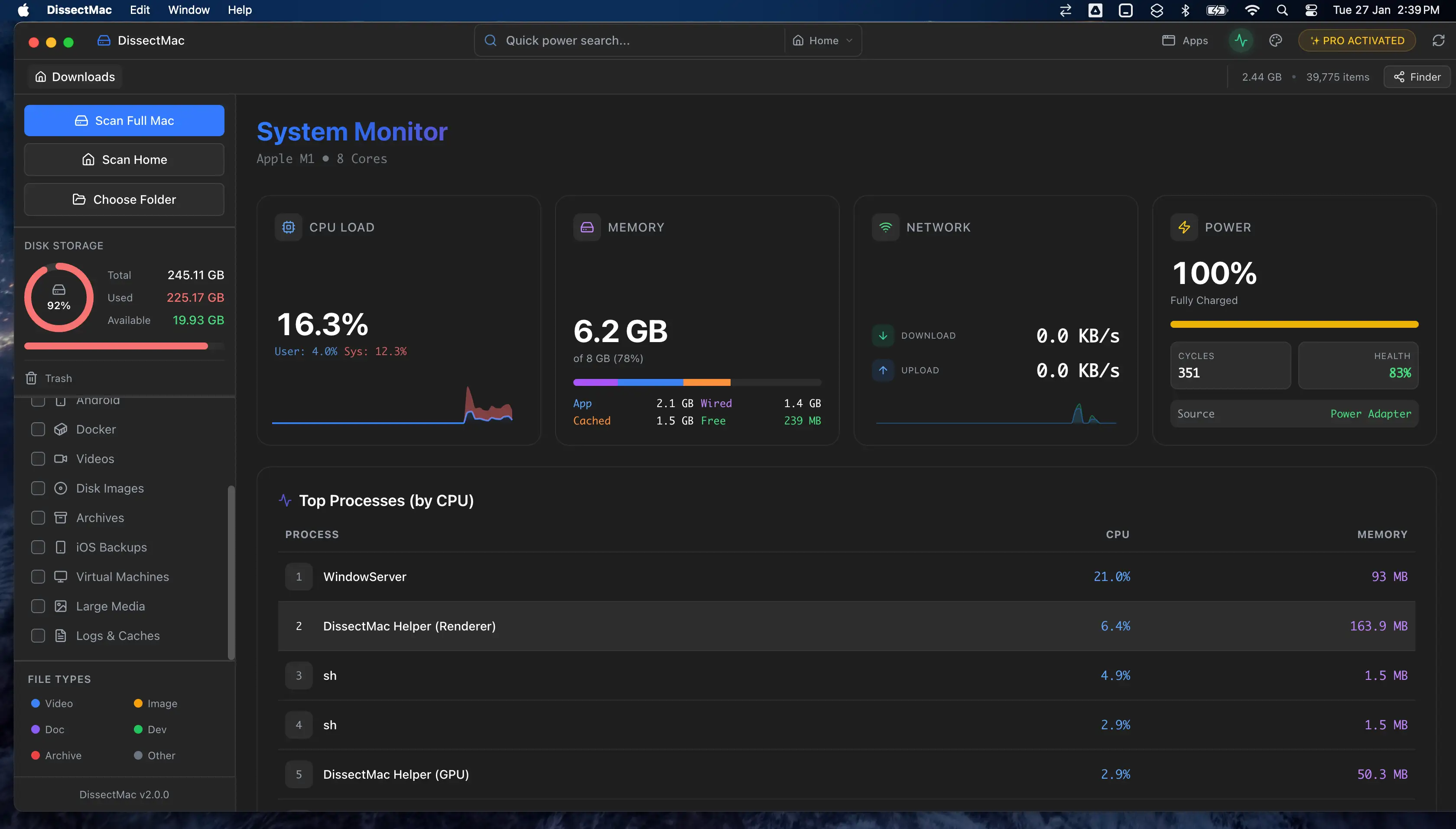
DissectMac includes a live monitor for CPU, memory and network use, so you can see the process eating your Mac during a heavy build or a long render without opening Activity Monitor. It sits next to the storage map, so the two most common causes on this list, a full disk and a runaway process, are one window. The monitor and the map are free. Pro adds deleting from inside the app, an uninstaller that removes apps together with their launch agents and helpers, and cleanup for files left behind by apps you deleted earlier.
Why is my Mac so slow all of a sudden?
A Mac that slows down suddenly usually has a new process running: Spotlight or Photos indexing after an update or a big import, a browser tab that went wrong, a backup or sync client catching up, or a disk that crossed the nearly-full line. Open Activity Monitor and sort by CPU, then check free space. Heat is the other sudden cause; a MacBook that moved from a desk to a sofa can throttle within minutes.
Why is my Mac slow after an update?
A Mac is often slow for a day or two after a macOS update because Spotlight rebuilds its index, Photos re-scans the library, and the system finishes installing in the background. Give it 24 hours plugged in, then check Activity Monitor. If it's still slow, look for an app that isn't compatible with the new version, and check that the update didn't push the disk close to full.
Does more RAM make a Mac faster?
More memory makes a Mac faster only when memory pressure is the bottleneck: if the Memory Pressure graph in Activity Monitor is often yellow or red, more RAM would help. If it's green and the Mac is still slow, RAM isn't the problem. On Apple silicon Macs, memory is part of the chip and can't be added later, so this is a decision for the next purchase rather than a fix for this one.
Will clearing cache speed up my Mac?
Clearing cache rarely makes a Mac faster. Caches exist to make apps quicker, and apps rebuild them after you clear them. It helps in two cases: when the disk is nearly full and the cache is a large part of it, or when a stale cache is making one app misbehave. Otherwise, start with the causes above.
How much free space does a Mac need to run well?
Keep at least 10 to 15% of the drive free. macOS uses that room for swap, snapshots and updates, and performance drops noticeably below it. On a 256 GB Mac that's 25 to 40 GB free.
Is my Mac too old?
A Mac is usually not too old if it runs a supported macOS version. Intel Macs with a spinning hard drive are the exception: an SSD upgrade brings them back, while nothing else does. Any Apple silicon Mac should feel quick; if yours doesn't, the cause is almost always on the list above rather than the hardware.
Related guides
- How to clear RAM on a Mac: the fix for cause 2, and what doesn't work
- How to free up space on Mac: the fix for cause 1, in order of gigabytes returned
- How to clear cache on Mac: browser, app and system caches
- How to uninstall apps on Mac completely: remove the login items and helpers with the app
- How to clear System Data on Mac: when the grey bar is what's filling the disk
More guides: Slow Mac
Speed
How to Clear RAM on a Mac (and Why Memory Cleaners Don't Help)
How to free up RAM on a Mac: find what's using memory in Activity Monitor, quit it, cut tabs and login items, and why sudo purge and memory cleaners don't help.
Free up space
Docker.raw Is Huge on Mac: How to Shrink Docker's Disk
Why Docker.raw grows to 60 GB or more on a Mac and never shrinks, how to prune images and volumes, resize the disk image, and whether you can delete Docker.raw.
Free up space
node_modules Taking Up Space on Mac: How to Find and Delete Them All
Find every node_modules folder on your Mac with one command or npkill, delete the ones from abandoned projects, and clear the npm, Yarn and pnpm caches too.
Free up space
How to Clear Cookies on a Mac: Safari, Chrome and Firefox
How to clear cookies on a Mac in Safari, Chrome and Firefox, for one site or all of them, what you'll be signed out of, and how to block third-party cookies.