On this page
"Your system has run out of application memory" appears when macOS has used all of your RAM, compressed what it can, and can no longer swap memory to disk, usually because one app has a memory leak or the startup disk is nearly full. The alert lists the apps using the most memory and offers to force quit them. Force quit the one at the top, save your work everywhere else, and restart.
This guide covers what the alert means, which app is usually responsible, and the three things that stop it coming back.
What the alert means
macOS manages memory in layers. When your apps need more RAM than the Mac has, it first compresses memory that isn't being used, then writes memory to swap files on the startup disk. The alert appears when both are exhausted: the compressor can't squeeze any more, and there's no room left on disk for more swap. At that point macOS pauses the apps that are asking for memory and shows the dialog so you can choose what to close.
Two things are almost always behind it:
- An app with a memory leak. A leak is a bug where an app keeps claiming memory and never gives it back. Its memory use climbs for hours or days until it has taken everything. Browsers, Slack, Microsoft Teams, Zoom, Adobe apps, Kernel_task after a font or driver problem, and occasionally Finder or WindowServer are the usual names in the list.
- A nearly full startup disk. Swap lives on the startup disk. If the disk has only a few gigabytes free, macOS runs out of room for swap long before it would on a Mac with space, and the alert fires under a load the Mac could otherwise handle.
The amount of RAM matters less than people think. The alert appears on 64 GB Macs with a leaking app just as it does on 8 GB ones.
What to do right now
- Look at the list in the alert. It's sorted by memory use. The app at the top, especially if the figure is tens of gigabytes, is the one to close.
- Save your work in the other apps while the Mac is still responsive. Force quitting the top app usually frees enough memory to do this.
- Force quit the top app. Select it in the alert and click Force Quit. If the alert has gone, use Apple menu > Force Quit (
Option + Cmd + Esc). - Restart. A restart clears swap and every leaked allocation. Do it even if the Mac seems fine after the force quit, because whatever leaked has left fragments behind.
How to find the app that caused it
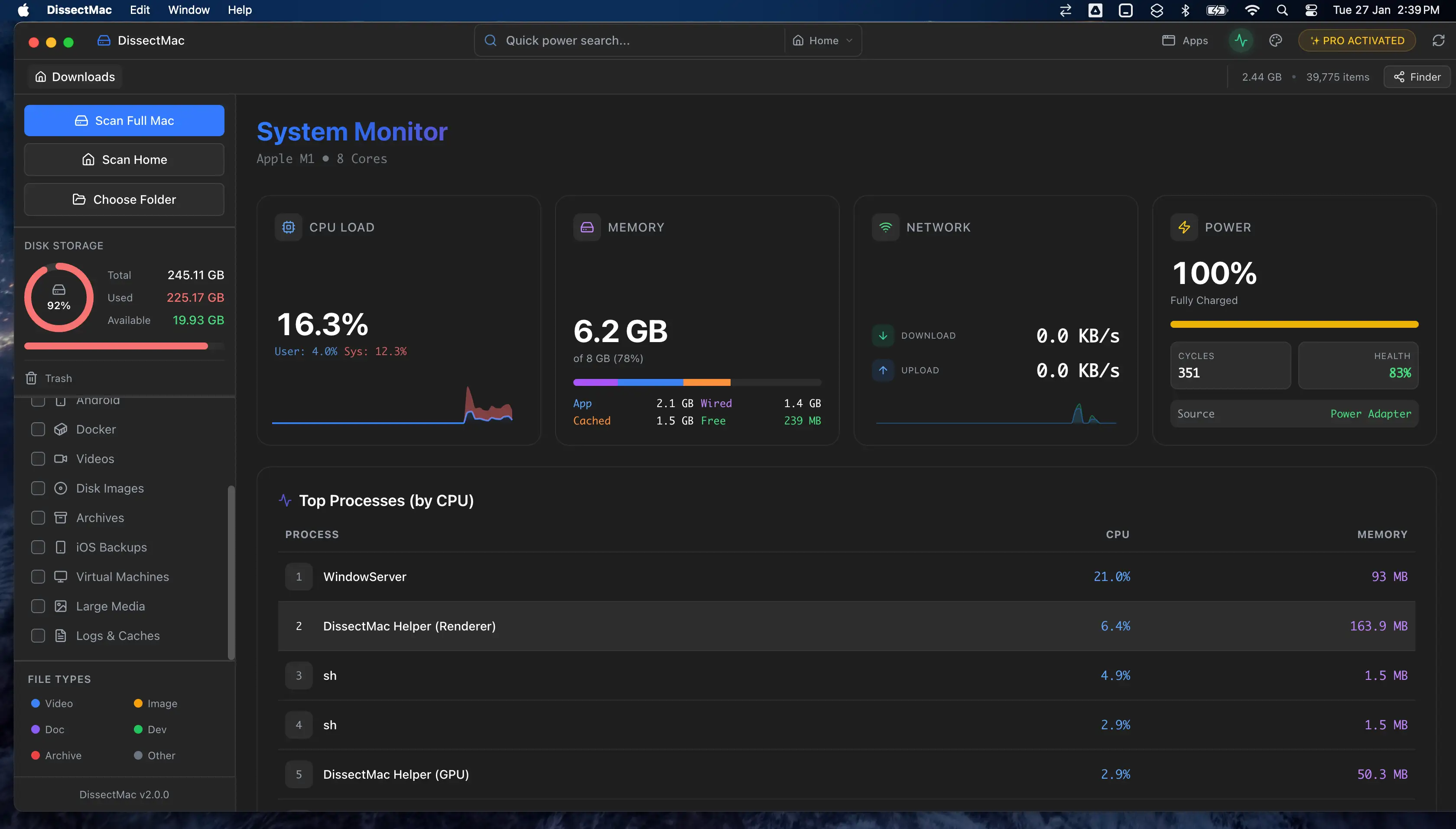
If the alert didn't show a clear culprit, or you want to catch it early next time, open Activity Monitor (Applications > Utilities), click the Memory tab, and sort by the Memory column. Watch the top few entries for a minute: an app whose figure keeps climbing while you aren't doing anything with it is leaking.
Two figures at the bottom of the window tell you how close to the edge you are. Memory Pressure should be green. Swap Used in the gigabytes means the Mac is already leaning on disk. Our guide on how to clear RAM on a Mac explains the rest of that panel.
Also check the disk. Open System Settings > General > Storage. If available space is under 10 GB, the disk is part of the problem regardless of which app leaked.
How to stop it coming back
Update or replace the leaking app. Leaks are bugs, and the fix is usually in the next version. Check for updates in the app or the App Store. If a browser is the culprit, an extension is often the real leak: disable them all and re-enable one at a time.
Free up the startup disk. Keep at least 10 to 15 percent free so swap has room. Old iPhone backups, caches from deleted apps and developer files are the usual space hogs; how to free up space on Mac goes through them in order.
Check login items. Apps that launch at login and sit in the background all day have all day to leak. Trim the list in System Settings > General > Login Items & Extensions.
Restart weekly. Uptime of weeks gives even small leaks time to grow. A restart once a week resets everything.
Does this alert mean my Mac needs more RAM?
Usually not. The alert is triggered by an app taking far more memory than it should, or by a full disk leaving no room for swap, and neither is fixed by more RAM. If Activity Monitor shows red memory pressure during your normal work with no single app standing out, and your Mac has 8 GB, then more memory would help, and on current Macs that means a new machine, since RAM isn't upgradeable.
Why does my Mac keep running out of application memory?
A Mac keeps running out of application memory because the leaking app is still installed and still launching, or because the startup disk is still nearly full. Update the app or stop it launching at login, and free enough disk space that swap has room. If it happens with different apps each time, check available disk space first; that's the common factor.
Is it safe to force quit apps from the alert?
Yes, with one caution: force quitting an app discards unsaved changes in it. Force quit the app at the top of the list, then save your work in the rest before doing anything else. Documents in apps that autosave, such as Pages, Notes and most Apple apps, are recovered on the next launch.
More guides
Speed
Why Is My Mac So Slow? 8 Causes and How to Fix Each One
A slow Mac usually has one of 8 causes: a full disk, memory pressure, a runaway process, login items, heat or old hardware. Find yours in 5 minutes and fix it.
Speed
How to Stop Apps From Opening on Startup on a Mac
Stop apps opening at startup on a Mac: remove them from Login Items, turn off background items, untick Reopen windows, and find the launch agents that hide.
Speed
How to Clear RAM on a Mac (and Why Memory Cleaners Don't Help)
How to free up RAM on a Mac: find what's using memory in Activity Monitor, quit it, cut tabs and login items, and why sudo purge and memory cleaners don't help.
Speed
Task Manager on Mac: How to Open Activity Monitor and Use It
The Mac equivalent of Task Manager is Activity Monitor. How to open it, read the CPU, Memory, Energy, Disk and Network tabs, and force quit an app that's stuck.