On this page
- How to check RAM usage on a Mac
- How to free up RAM on a Mac: what works
- What doesn't work: sudo purge and memory cleaners
- What "Your system has run out of application memory" means
- How much RAM does a Mac need?
- Does clearing RAM make a Mac faster?
- Is high memory usage on a Mac bad?
- Can you add RAM to a Mac?
- Related guides
To clear RAM on a Mac, open Activity Monitor, click the Memory tab, quit the apps at the top of the list, close browser tabs you aren't using, and restart if Memory Pressure is still yellow or red. That's the whole method. macOS manages memory on its own, so there's no "clear" button, and the two things people are told to try instead, the sudo purge command and memory-cleaner apps, don't do what their names suggest.
Here's how to tell whether memory is your problem, the fixes that work, and the ones that don't.
How to check RAM usage on a Mac
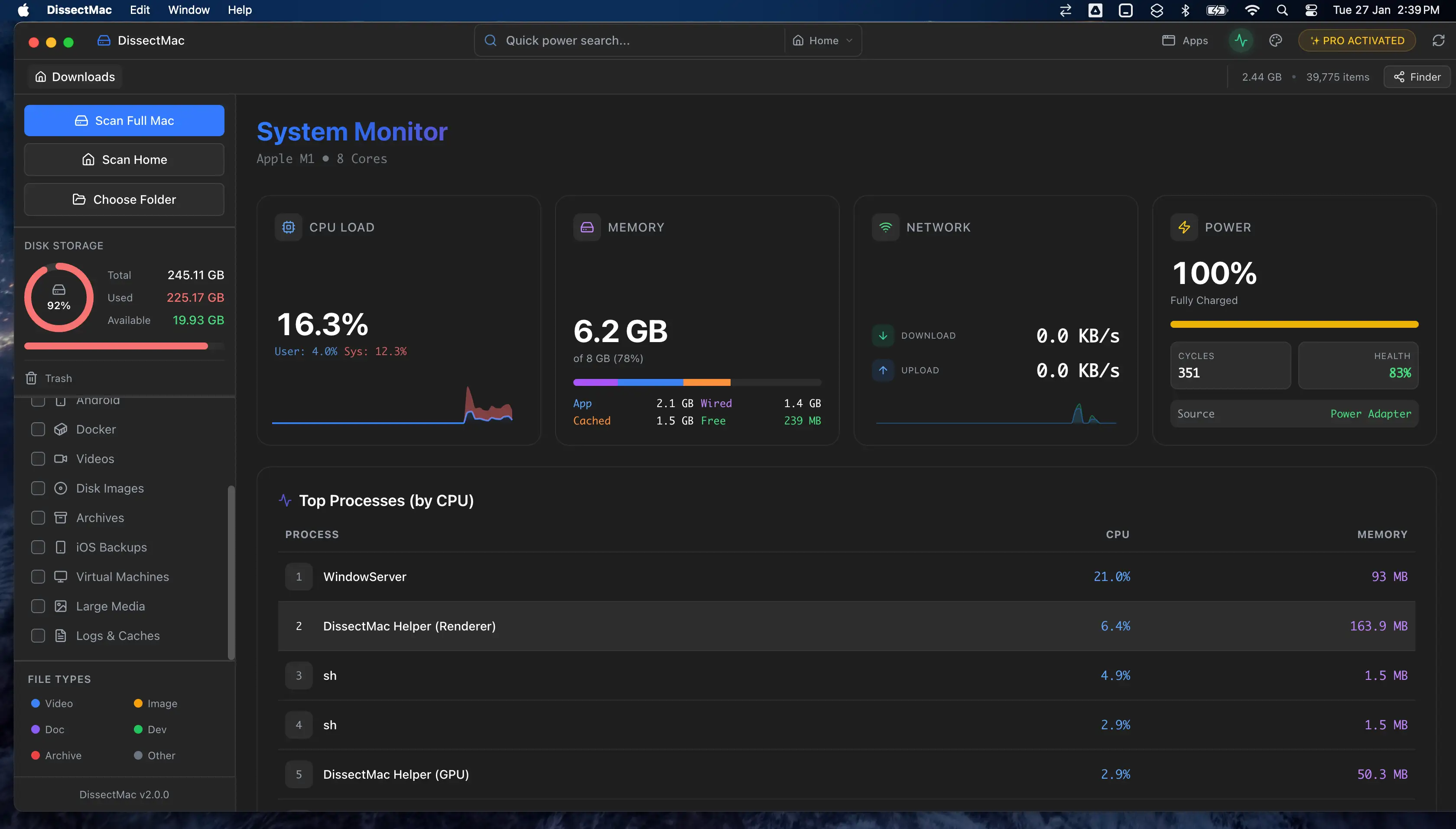
Open Activity Monitor from Applications > Utilities (or search for it with Spotlight) and click the Memory tab. Sort the list by the Memory column to see which apps use the most. The numbers at the bottom are the ones that matter:
| Figure | What it means |
|---|---|
| Memory Pressure graph | The only number that tells you if you're short. Green: fine. Yellow: macOS is compressing memory to cope. Red: it's swapping to disk and everything slows down |
| Physical Memory | How much RAM your Mac has |
| Memory Used | Total in use, including memory that isn't a problem |
| App Memory | What your apps are using |
| Wired Memory | Reserved by macOS; can't be freed |
| Compressed | Memory macOS squeezed to make room; a large figure means pressure |
| Swap Used | Memory written to disk because RAM ran out; anything past a few hundred MB while you're working means you'd benefit from freeing some |
| Cached Files | Files kept in memory in case they're needed again. macOS drops them the moment an app needs the space, so a high figure is fine |
The mistake most people make is looking at Memory Used. On a Mac, high usage is normal and healthy: unused RAM is wasted RAM, so macOS fills it with cached files. Look at Memory Pressure and Swap Used instead. If pressure is green, you don't need to clear anything.
How to free up RAM on a Mac: what works
1. Quit the apps using the most memory
In Activity Monitor's Memory tab, the top of the sorted list is usually a browser, a chat app built on Electron (Slack, Discord, Teams), a design tool, or a virtual machine. Quit the ones you're not using with Cmd + Q. Closing a window isn't quitting; the app keeps its memory until it quits.
If an app won't respond, select it in Activity Monitor, click the × button at the top, and choose Force Quit.
2. Close browser tabs
Every tab is a separate process with its own memory. Twenty tabs can use more than every other app combined, and a single tab with a heavy web app or a broken ad script can use gigabytes. Close what you aren't reading, and restart the browser once a day if you keep many tabs open; long-running browser processes grow.
3. Restart the Mac
A restart clears swap, kills leaked memory from processes that never gave it back, and resets background helpers. If your Mac has been up for weeks and Memory Pressure is red, restarting fixes more than any other single step.
4. Trim login items and background apps
Anything in System Settings > General > Login Items & Extensions runs from the moment you log in and holds memory the whole time. Cloud sync clients, updaters and menu bar utilities add up. Turn off what you don't need, or uninstall the app completely so its helper goes with it.
5. Check for a memory leak
If one app's memory keeps climbing the longer it runs, and quitting and reopening it brings the number back down, it's leaking. Update it, and if that doesn't help, tell the developer. Until it's fixed, restart that app periodically.
6. Reduce what runs at once
On an 8 GB Mac, a browser with many tabs, a video call and a design app open together will hit red pressure no matter what you clear. The honest fix is fewer things at once, or a Mac with more memory next time; Apple silicon memory can't be added after purchase.
What doesn't work: sudo purge and memory cleaners
sudo purge is a Terminal command that flushes the disk cache: the "Cached Files" figure in Activity Monitor. It makes Memory Used drop for a moment, which looks like success. But cached files were never the problem; macOS gives that memory to apps automatically the instant they need it. Purging it only means files have to be read from disk again. It does nothing for Memory Pressure or swap.
Memory cleaner apps work by asking macOS for a large block of memory, which forces the system to compress and swap out other apps' memory, then releasing it. The freed memory shows up in the app's counter. Meanwhile the apps you were using have been pushed to disk and have to swap back in when you return to them, which is slower than before. Apple's memory management does the same job better on its own. Skip them.
What "Your system has run out of application memory" means
The dialog appears when memory and swap are both exhausted, usually because one process has grown far past normal: a runaway browser tab, a leaking app, or a script. The dialog lists apps to quit. Quit the one using the most memory (check Activity Monitor if the list doesn't say), then restart. If it happens repeatedly with the same app, that app is leaking; update it or find an alternative. If it happens with normal use on a Mac with little free disk space, the disk is the cause: macOS needs free space for swap, so free up space first.
How much RAM does a Mac need?
For browsing, email, documents and video calls, 8 GB works but leaves little room; 16 GB is the comfortable minimum in 2026 for anyone who keeps a lot open. Developers, video editors and anyone running virtual machines want 32 GB or more. The test is Memory Pressure: if it's yellow or red for most of your working day, you'd benefit from more, and if it's green, more RAM won't make the Mac faster.
Does clearing RAM make a Mac faster?
Clearing RAM makes a Mac faster only when Memory Pressure was yellow or red. Freeing memory on a Mac with green pressure changes nothing, because macOS already had what it needed. If the Mac feels slow with green pressure, the cause is elsewhere; our guide on why a Mac is slow walks through the other seven.
Is high memory usage on a Mac bad?
High memory usage is normal on a Mac and not a problem on its own. macOS deliberately uses free RAM to cache files, so Memory Used sits high even on an idle Mac. The signal that matters is Memory Pressure. Green with high usage is healthy; red with any usage is a problem.
Can you add RAM to a Mac?
On Apple silicon Macs (M1 onward), no: memory is part of the chip and fixed at purchase. On Intel Macs, some older models can be upgraded, including many iMacs, the 2018 Mac mini and the Mac Pro, while MacBooks from 2013 onward have soldered memory. Check your model on Apple's support site before buying anything.
Related guides
- Why is my Mac so slow: the eight causes, including memory, and how to tell which is yours
- How to free up space on Mac: a full disk starves swap, which shows up as memory trouble
- How to uninstall apps on Mac completely: remove background helpers together with the app
More guides: Slow Mac
Speed
Why Is My Mac So Slow? 8 Causes and How to Fix Each One
A slow Mac usually has one of 8 causes: a full disk, memory pressure, a runaway process, login items, heat or old hardware. Find yours in 5 minutes and fix it.
Free up space
Docker.raw Is Huge on Mac: How to Shrink Docker's Disk
Why Docker.raw grows to 60 GB or more on a Mac and never shrinks, how to prune images and volumes, resize the disk image, and whether you can delete Docker.raw.
Free up space
node_modules Taking Up Space on Mac: How to Find and Delete Them All
Find every node_modules folder on your Mac with one command or npkill, delete the ones from abandoned projects, and clear the npm, Yarn and pnpm caches too.
Free up space
How to Clear Cookies on a Mac: Safari, Chrome and Firefox
How to clear cookies on a Mac in Safari, Chrome and Firefox, for one site or all of them, what you'll be signed out of, and how to block third-party cookies.