On this page
To check storage on a Mac, open Apple menu → System Settings → General → Storage. On macOS Monterey and earlier it's Apple menu → About This Mac → Storage → Manage.
That gives you a coloured bar and a category breakdown. It's the right place to start, and it will not tell you which folder is actually the problem. This guide covers all three ways to check, and what each one leaves out.
How do I check storage on my Mac?
macOS Ventura (13) and later: Apple menu → System Settings → General → Storage
macOS Monterey (12) and earlier: Apple menu → About This Mac → Storage → Manage
You'll see a horizontal bar split into Applications, Documents, Photos, Mail, iCloud Drive, macOS and System Data, with a sidebar listing the same categories and their sizes.
Give it a minute. macOS recalculates on open, and the numbers move around while it does.
How do I see what's taking up space on my Mac?
The category bar tells you what kind of thing is using space, not which files. To get closer, use these three, in increasing order of usefulness.
1. Large & Old Files
In the Storage panel sidebar, click Large & Old Files. This is the most useful thing Apple ships for this problem and almost nobody opens it. It lists individual files by size, with the date you last opened them.
What it misses: anything inside your Library folder, which is exactly where the space usually is.
2. Finder's Get Info
Select any folder and press Cmd + I. To see hidden folders like ~/Library, press Cmd + Shift + G and type the path.
What it misses: nothing, in principle — but you check one folder at a time, and each takes seconds to calculate. Finding an 80 GB folder buried four levels deep can take twenty minutes of clicking.
3. Terminal
For total free space:
df -h /
For the size of a specific folder:
du -sh ~/Library
To rank the contents of a folder by size, largest last:
du -sh ~/Library/* | sort -h
What it misses: it's accurate and fast, but you still need to know where to look. du on your whole home folder takes a while and prints a wall of text.
Why doesn't the storage bar add up?
Because several of those categories overlap, and one of them is deliberately vague.
- System Data is a catch-all for everything macOS can't classify — caches, logs, snapshots, app support files, swap. It has no file list and no "show me" button. On a full Mac it's often the largest segment. We cover it in detail in System Data on Mac explained.
- iCloud Drive files can be listed at full size while only a placeholder is stored locally.
- Purgeable space is counted as used, even though macOS will free it automatically when you need it.
So the bar is a rough map, not an inventory. It tells you roughly where to look and then stops.
What is purgeable space on Mac?
Purgeable space is storage that APFS has marked as reclaimable — mostly local Time Machine snapshots and caches. macOS frees it automatically when the disk comes under pressure.
This is why you can delete a 30 GB file and see your available space barely change, or copy a large file onto a "full" drive and have it succeed. The space was always there; macOS just hadn't released it yet.
To see the real figure, open Disk Utility and select your volume — it reports purgeable separately. Or in Terminal:
diskutil info / | grep -i "Free Space\|Container Free"
If you want to force some of it back, thin your local snapshots:
sudo tmutil thinlocalsnapshots / 21474836480 4
How do I check storage from Terminal?
The three commands worth knowing:
| Command | What it tells you |
|---|---|
df -h / |
Total, used and available space on your startup volume |
du -sh ~/Library |
The size of one folder |
du -sh ~/Library/* | sort -h |
Everything in a folder, ranked by size |
du reports what's on disk and ignores the category abstractions entirely, which makes it the most honest built-in answer. It's also the slowest to read.
Seeing the whole drive at once
Each method above answers a narrow question: how much space is left, how big is this one folder, what are my largest loose files. None of them shows you the shape of your drive.
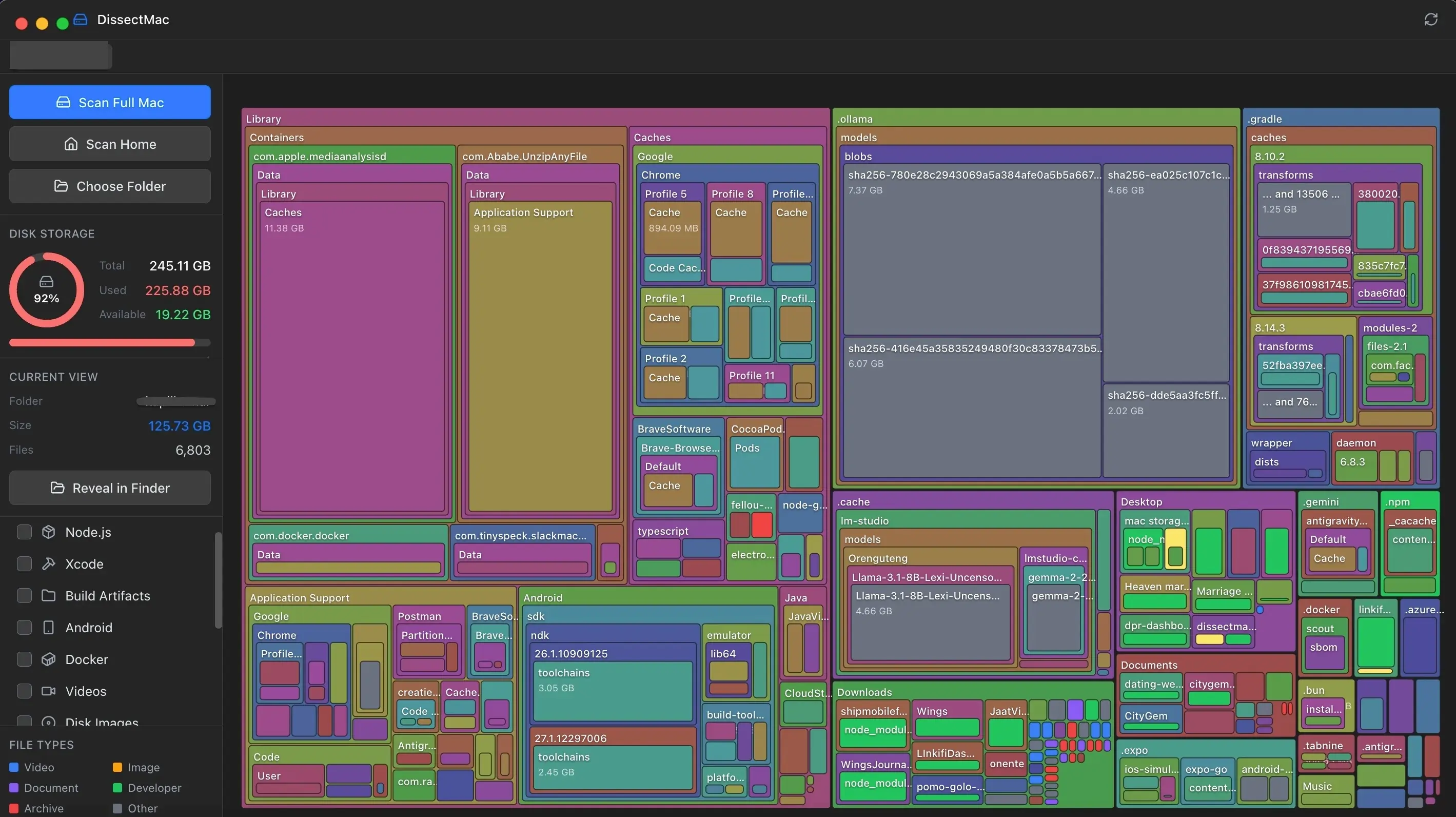
That's the part DissectMac handles. It scans your drive and draws every folder as a block sized by the space it uses, so the answer to "what's taking up my storage" is whatever the biggest rectangle turns out to be. Click into it to go deeper, right-click to reveal the file in Finder.
It reads hidden folders like ~/Library that the Storage panel skips, it's free to download, and the scan runs entirely on your Mac.
See your whole drive at once →
Related guides
- How to free up space on Mac — twelve fixes, ordered by space recovered
- System Data on Mac explained — the grey bar, decoded
- ~/Library/Caches explained — the folder the Storage panel won't show you
More guides: Check storage
Speed
Why Is My Mac So Slow? 8 Causes and How to Fix Each One
A slow Mac usually has one of 8 causes: a full disk, memory pressure, a runaway process, login items, heat or old hardware. Find yours in 5 minutes and fix it.
Free up space
Docker.raw Is Huge on Mac: How to Shrink Docker's Disk
Why Docker.raw grows to 60 GB or more on a Mac and never shrinks, how to prune images and volumes, resize the disk image, and whether you can delete Docker.raw.
Free up space
node_modules Taking Up Space on Mac: How to Find and Delete Them All
Find every node_modules folder on your Mac with one command or npkill, delete the ones from abandoned projects, and clear the npm, Yarn and pnpm caches too.
Speed
How to Clear RAM on a Mac (and Why Memory Cleaners Don't Help)
How to free up RAM on a Mac: find what's using memory in Activity Monitor, quit it, cut tabs and login items, and why sudo purge and memory cleaners don't help.