On this page
"Other Users & Shared" in your Mac's storage settings is the space used by files that don't belong to your account: the home folders of other user accounts on the Mac, the /Users/Shared folder, and the home folders of accounts that were deleted with their files kept. It's large when someone else's account is holding a photo library or a stack of downloads, or when an old account was removed but its files weren't.
You can't see inside it from your own account, which is why it looks mysterious. This guide covers what's in it, how to see the sizes, and how to clear it safely.
What Other Users & Shared includes
Open System Settings > General > Storage and the category sits in the list below the storage bar. It adds up three things:
| Location | What it holds |
|---|---|
/Users/<other account> |
The home folder of every other user account on the Mac: their Documents, Downloads, Photos library, Library caches and iCloud files |
/Users/Shared |
The folder every account can read and write. Some installers, games and audio apps store large content here so all users can access it |
/Users/Deleted Users |
Home folders kept when an account was deleted with "Don't change the home folder" or "Save the home folder in a disk image" |
Other accounts' files count in full even if the person hasn't logged in for years, and they include the same caches and leftovers that fill your own Library. A family Mac with three accounts often has more space in Other Users than in the account that's looking.
How to see what's using the space
Your account can't open another user's home folder, so Finder's Get Info shows nothing useful. Two ways round it:
Terminal. This lists every home folder with its size (it asks for an administrator password):
sudo du -sh /Users/* 2>/dev/null | sort -h
If /Users/Shared or /Users/Deleted Users is big, go one level deeper:
sudo du -sh /Users/Shared/* /Users/Deleted\ Users/* 2>/dev/null | sort -h
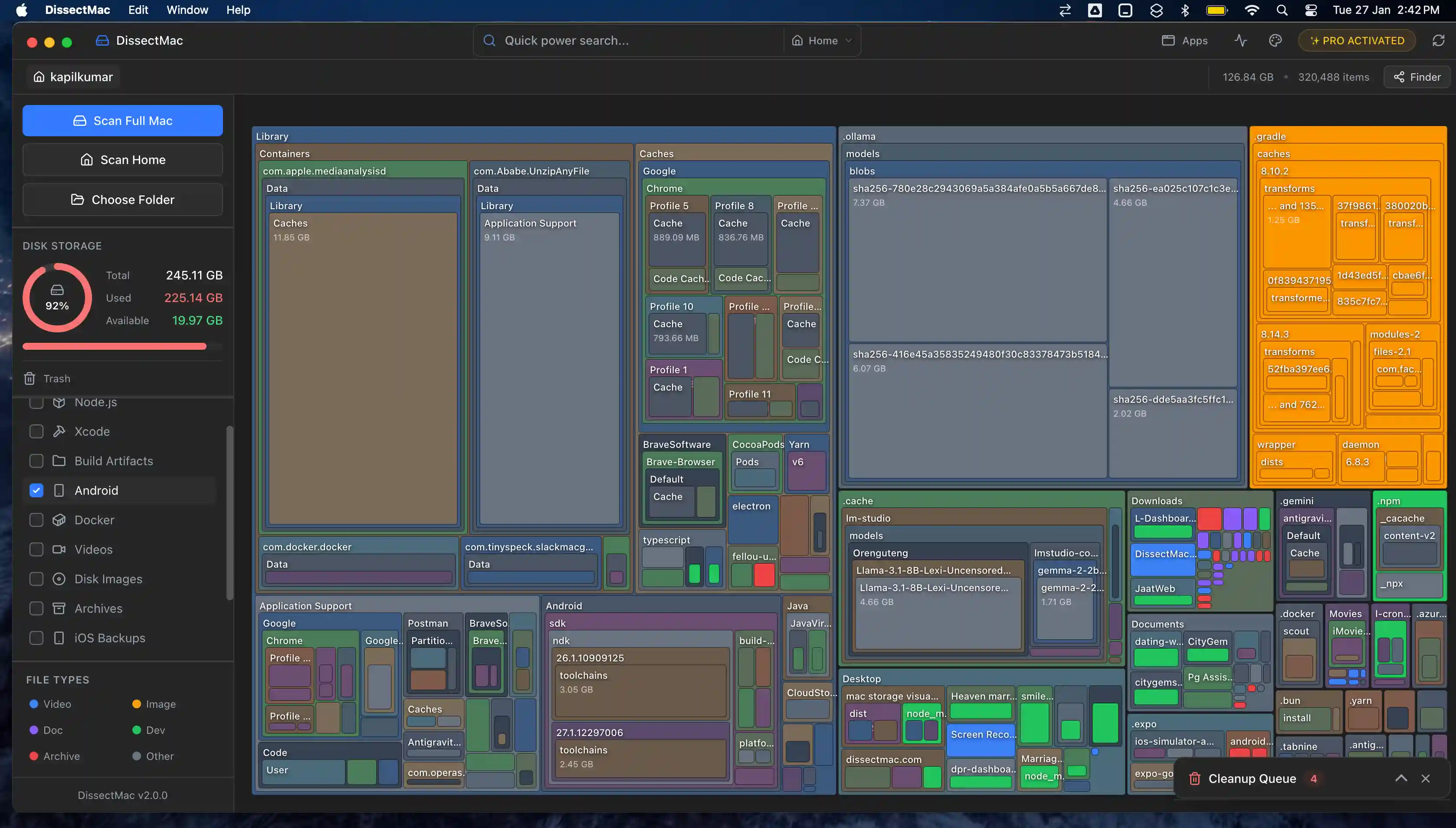
A disk map. Run DissectMac as an administrator with Scan Full Mac and every user folder is drawn as a block sized by what it holds, so you can see which account, and which folder inside it, is responsible.
How to clear Other Users & Shared
1. Delete accounts nobody uses. Open System Settings > Users & Groups, click the i next to the account, and choose Delete Account. Pick Delete the home folder to free the space. The other options keep the files and move the problem into Deleted Users. Back up anything the person wants first; deleting the home folder is final.
2. Empty Deleted Users. In Finder, choose Go > Go to Folder (Shift + Cmd + G) and enter /Users/Deleted Users. Each folder or .dmg inside is a former account's files. Move the ones you're sure about to the Trash and empty it. You'll be asked for an administrator password.
3. Clear the Shared folder. Go to /Users/Shared. Anything in it was put there by an installer or a user; look for game content, sample libraries, old installers and folders named after apps you no longer have. Leave folders that belong to apps you still use, such as Adobe or Logic content, unless you're prepared to reinstall them.
4. Clean up inside other accounts. If the account is still needed, the cleanup has to happen from inside it: log in as that user (or ask them to), and go through how to free up space on Mac. Old iPhone backups, Downloads and app caches are as common in other accounts as in yours.
Why is Other Users & Shared so big?
Other Users & Shared is big because another account on the Mac holds large files, most often a Photos library, iPhone backups, a Downloads folder full of installers, or caches from apps that account uses, or because an account was deleted with its home folder kept. Every file in those folders counts, whether or not the account is still in use.
How do I delete Other Users & Shared storage on my Mac?
Delete unused accounts with the home folder in System Settings > Users & Groups, remove the leftovers in /Users/Deleted Users, and clear installers and old content from /Users/Shared. For accounts that are still in use, the files have to be cleaned up from inside that account. You need an administrator password for all of it.
Is it safe to delete the Shared folder on a Mac?
Don't delete the /Users/Shared folder itself; macOS expects it to exist and some apps write to it. Delete what's inside it selectively. Content for apps you still use, such as sound libraries or game assets, would have to be downloaded again.
Can I see Other Users & Shared without an admin password?
No. Other accounts' home folders are private to those accounts, and macOS only shows their sizes to an administrator. If you're not an administrator on the Mac, ask the person who is; the Storage panel total is the only figure a standard account can see.
More guides
Check storage
How to Check Storage on Mac (And What It Hides From You)
Check storage on a Mac in System Settings, Finder or Terminal, see which files use it, and understand purgeable space and why the storage bar never adds up.
Check storage
How to Find Large Files on a Mac (Storage Settings, Finder, Terminal)
Find the largest files on a Mac with the Storage panel's Large Files list, a Finder search by size, one Terminal command, or a disk map drawn to scale.
Speed
Why Is My Mac So Slow? 8 Causes and How to Fix Each One
A slow Mac usually has one of 8 causes: a full disk, memory pressure, a runaway process, login items, heat or old hardware. Find yours in 5 minutes and fix it.
System Data
What Is "Other" in Mac Storage, and How Do You Clear It?
'Other' in Mac storage is caches, logs, snapshots, backups and anything macOS can't categorise, renamed System Data in macOS 12. What's in it, how to clear it.