On this page
To find large files on a Mac, open System Settings > General > Storage, click the i next to Documents, and open the Large Files tab. It lists your biggest files sorted by size with the date each was last opened, and a Delete button. For files it doesn't cover, a Finder search by size or one Terminal command finds everything over a size you choose.
Large files are the fast win on a full Mac. Twenty files can be 50 GB, and they're quicker to judge than a thousand small ones. This guide covers the four ways to find them, what each one misses, and which big files are safe to delete.
1. The Storage panel's Large Files list
- Open System Settings > General > Storage.
- Click the i next to Documents.
- Click the Large Files tab.
Files are sorted largest first, with the last-opened date alongside, which is the useful combination: a 4 GB video you haven't opened since 2023 is an easy decision. Select a file and click Delete to send it to the Trash, or click the magnifying glass to reveal it in Finder.
What it misses: anything inside ~/Library, which is where iPhone backups, app caches and developer files live, and anything in another user's account. It only lists loose files, not big folders.
2. Finder search by size
- In Finder, press Cmd + F.
- Click This Mac so the search covers the whole drive.
- Click the Kind menu on the filter row and choose Other…, then tick File Size and click OK.
- Set the filter to File Size > is greater than >
1GB (or 500 MB for a fuller list). - Sort the results by size: switch to list view and click the Size column.
Click Save to keep the search as a Smart Folder in the sidebar, so you can rerun it in a click.
What it misses: files in ~/Library and other hidden locations, unless you add a second filter row, System files > are included. Even then, a Finder search finds files, not folders, so a folder of 10,000 small cache files never appears.
3. Terminal
This lists every file over 1 GB in your home folder, with its size:
find ~ -type f -size +1G -exec ls -lh {} + 2>/dev/null | awk '{print $5, $9, $10, $11}'
Change +1G to +500M for a longer list. To rank folders instead of files, which catches the caches and backups made of many small files:
du -sh ~/* ~/Library/* 2>/dev/null | sort -h
Both commands are exact and cover hidden folders. The find one can take a few minutes on a large drive.
What it misses: nothing, but you get a wall of paths and have to check each one by hand.
4. A disk map
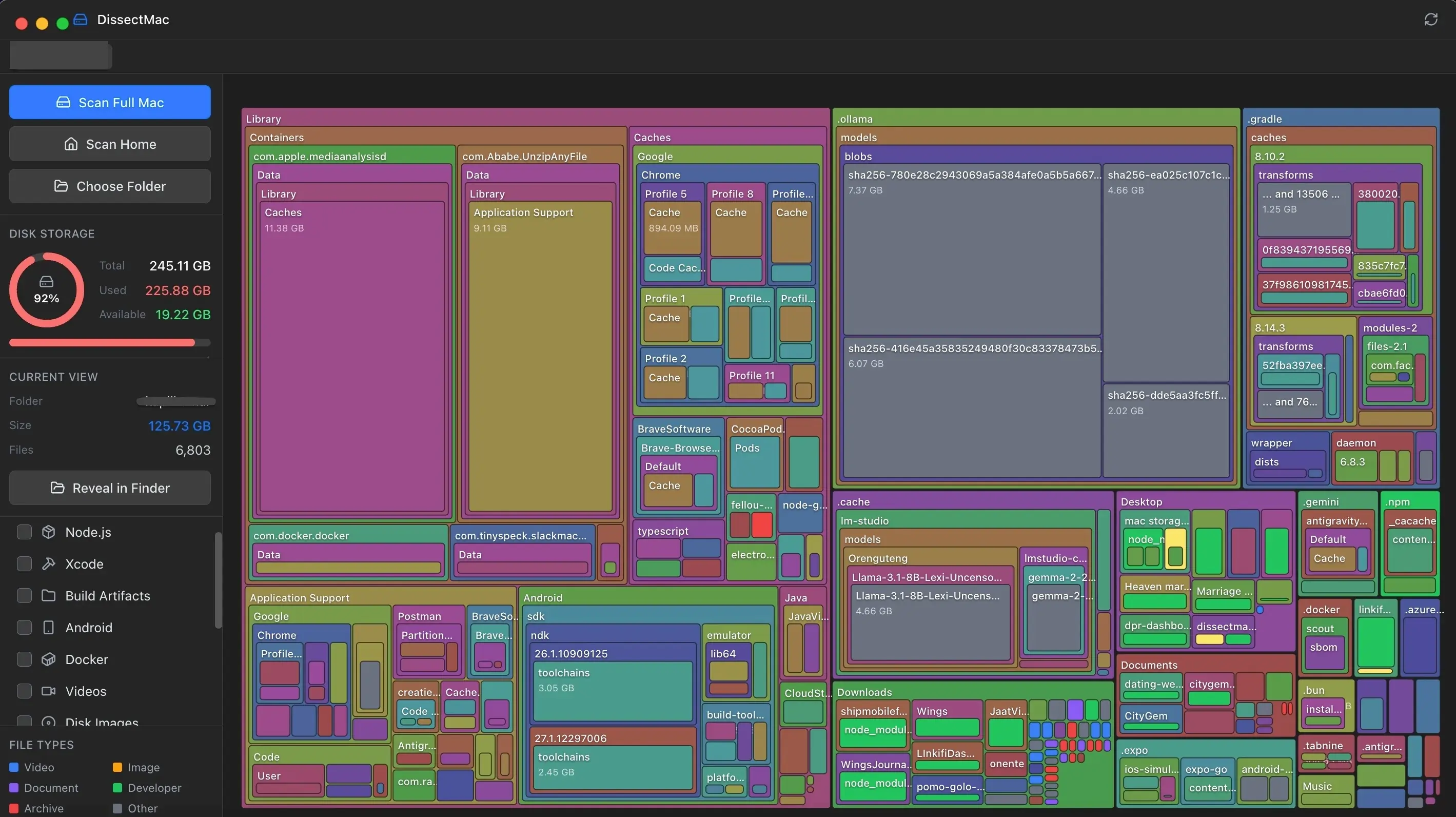
A disk map draws every folder as a block sized by the space it uses, so large files and large folders show up the same way: as the biggest rectangles on screen. DissectMac scans the drive, hidden folders included, and its sidebar filters pull out the usual suspects with a click: Large Media for videos and images, Disk Images for .dmg and .iso files, Archives for zips, iOS Backups, Virtual Machines and Logs & Caches. Search by name to find a file you know exists but can't place. The map and the filters are free.
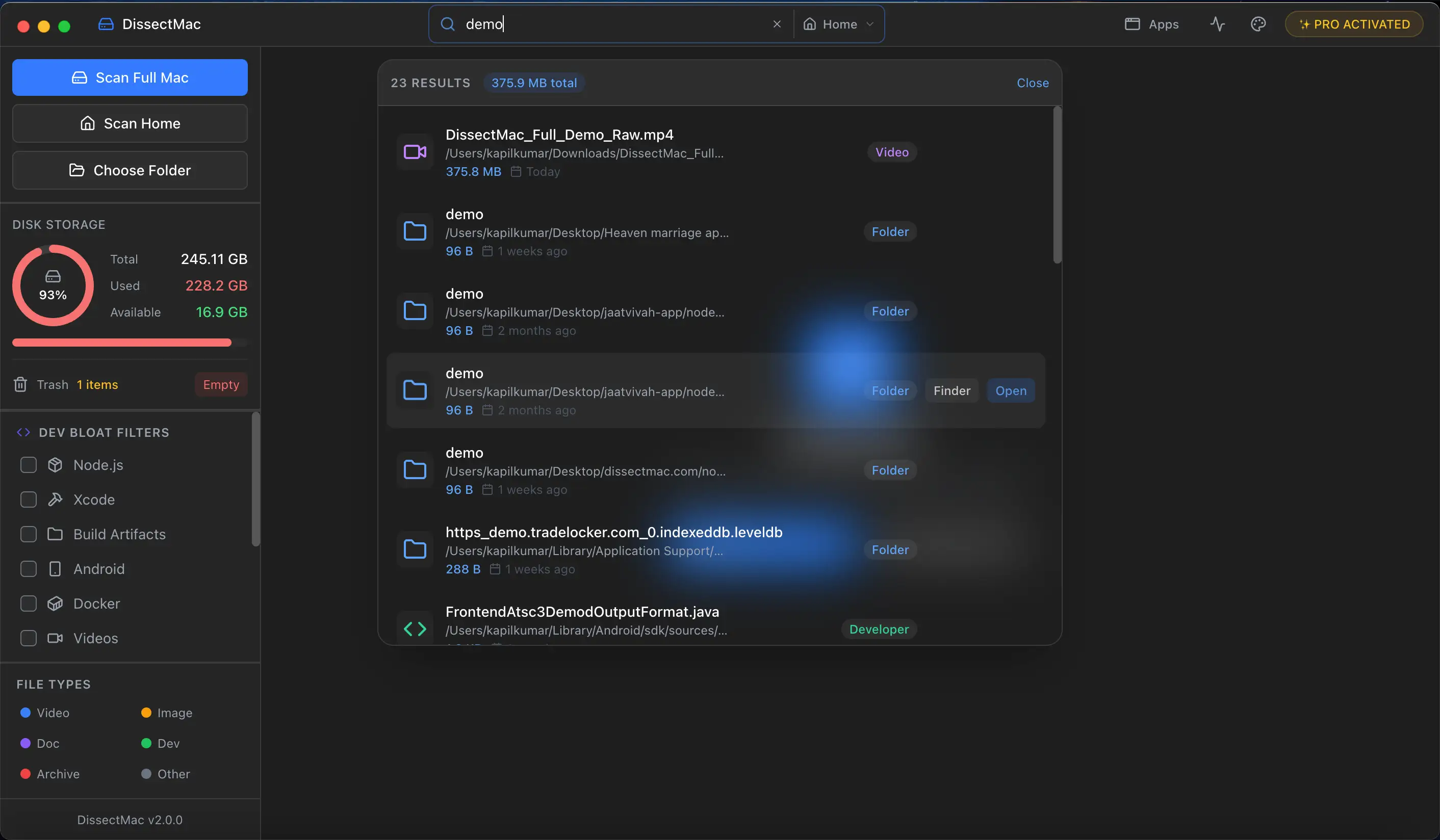
What it misses: files inside other users' accounts unless you scan the full Mac as an administrator.
Which large files are safe to delete?
| Usually safe | Check first | Leave alone |
|---|---|---|
Installers (.dmg, .pkg) you've already used |
Video projects and their media | Anything in /System or /Library you didn't put there |
| Old iPhone backups for phones you no longer have | Virtual machine disks (.vmdk, .utm, Parallels .pvm) |
Docker.raw and Xcode's DerivedData, unless you follow the Docker or Xcode guides |
| Downloads older than a few months | Photos libraries (delete inside Photos, not the library file) | Your Time Machine backup disk's contents |
| Zip files you've already extracted | Game files (uninstall through the launcher) | Files in iCloud Drive that exist only in the cloud |
Empty the Trash afterwards or the space doesn't come back.
How do I find what's taking up space on my Mac?
Start with System Settings > General > Storage for the category breakdown, then use the Large Files list under Documents for loose files and a disk map for folders. The how to check storage on a Mac guide covers what each built-in tool shows and hides.
Why can't I find the large files on my Mac?
The biggest files on most Macs are hidden from Finder's search and the Storage panel's lists because they're inside ~/Library: iPhone backups, app caches, mail attachments and developer files. Use the Terminal du command above or a disk map to see that folder, or in Finder press Shift + Cmd + G and type ~/Library to open it directly.
How do I sort files by size on a Mac?
In any Finder window, switch to list view (Cmd + 2) and click the Size column header. If there's no Size column, choose View > Show View Options and tick Size. To see sizes for folders as well as files, tick Calculate all sizes in the same panel.
More guides
Check storage
How to Check Storage on Mac (And What It Hides From You)
Check storage on a Mac in System Settings, Finder or Terminal, see which files use it, and understand purgeable space and why the storage bar never adds up.
Check storage
Other Users & Shared Taking Up Space on Mac: What It Is and How to Clear It
Other Users & Shared in Mac storage is space used by other accounts, the Shared folder and deleted users' home folders. How to see what's in it and clear it.
Speed
Why Is My Mac So Slow? 8 Causes and How to Fix Each One
A slow Mac usually has one of 8 causes: a full disk, memory pressure, a runaway process, login items, heat or old hardware. Find yours in 5 minutes and fix it.
System Data
What Is "Other" in Mac Storage, and How Do You Clear It?
'Other' in Mac storage is caches, logs, snapshots, backups and anything macOS can't categorise, renamed System Data in macOS 12. What's in it, how to clear it.