On this page
- How to delete a single message on Mac
- How to delete a conversation on Mac
- How to delete all messages on Mac
- Does deleting messages on Mac delete them on iPhone?
- How to recover deleted messages on Mac
- Why are Messages taking up space on Mac?
- How to delete large attachments on Mac
- Stop old messages piling up: the Keep Messages setting
- See what else is filling your Mac
- Can I delete messages on Mac without deleting them on iPhone?
- How long do deleted messages stay on Mac?
- Does deleting a message unsend it?
To delete messages on a Mac, open Messages, select the message in the conversation, press Delete and click Delete to confirm. To delete a whole conversation, Control-click it in the sidebar and choose Delete. If Messages in iCloud is turned on, anything you delete on your Mac is also deleted from your iPhone, iPad and other devices signed in to the same Apple Account.
Deleting doesn't change anything for the people you were talking to: their copy of the conversation stays as it was. Below are the steps for single messages, whole chats and attachments, plus the setting that stops old messages from piling up again.
How to delete a single message on Mac
- Open Messages and select the conversation.
- Click the message you want to remove. It can be text, a photo, a video, a file, a link or an audio message. Hold Cmd and click to select more than one.
- Press Delete.
- Click Delete in the dialog.
You can also Control-click a single message bubble and choose Delete. Messages you sent in the last two minutes have a different option, Undo Send, which removes the message from both your Mac and the recipient's device. Apple notes that a message removed with Undo Send can't be recovered afterwards.
How to delete a conversation on Mac
- One conversation: Control-click it in the sidebar and choose Delete. On a trackpad or Magic Mouse, you can also swipe left with two fingers on the conversation and click the Delete button.
- Several conversations: Hold Cmd and click each one in the sidebar, then Control-click the selection and choose Delete.
- An empty conversation: Hold the pointer over it and click the close button.
How to delete all messages on Mac
There's no single "delete everything" button in Messages. Select the conversations in the sidebar (hold Cmd and click each one), then Control-click the selection and choose Delete. Apple's guide uses the same steps for several conversations at once.
Think twice before you do this with Messages in iCloud on, because it clears the conversations on every device that uses your Apple Account. If you only want to clear your Mac, turn off Messages in iCloud on the Mac first: open Messages > Settings, click iMessage and deselect Enable Messages in iCloud. Your iPhone keeps its copy, and the Mac stops syncing deletions back to it.
Does deleting messages on Mac delete them on iPhone?
Yes, when Messages in iCloud is on. Apple says deleting a message or conversation on your Mac removes it from all your devices where Messages in iCloud is turned on. With Messages in iCloud off, each device keeps its own copy and deleting on the Mac leaves your iPhone alone.
How to recover deleted messages on Mac
Deleted conversations go to Recently Deleted first, where they stay for up to 30 days.
- In Messages, choose View > Recently Deleted.
- Select the conversation in the sidebar.
- Click Recover.
To remove them for good straight away, select them in the same view and click Delete. If Recently Deleted doesn't appear in the View menu, you haven't deleted a conversation in the last 30 days.
Why are Messages taking up space on Mac?
Messages takes up space on a Mac because it keeps every photo, video, voice message and file you've sent or received, not only the text. Years of group chats full of videos can grow to tens of gigabytes.
Messages stores this data in the Messages folder inside your user Library (~/Library/Messages), with attachments in an Attachments subfolder. Apple doesn't document deleting files from that folder by hand, and Messages tracks every attachment in its own database, so don't trash files there directly. Remove attachments through Messages or the Storage panel instead, as below. Then Messages knows what's gone.
How to delete large attachments on Mac
The fastest way to see the biggest attachments is the built-in Storage panel:
- Choose Apple menu > System Settings, click General in the sidebar, then Storage.
- Wait for the storage bar to finish calculating, then click the info button (i) next to Messages.
- Select the attachments you no longer need. Hold Cmd to select several.
- Click Delete, then Done.
To clear attachments from one chat instead, open the conversation in Messages and click the contact or group name at the top. Scroll to a section such as Photos, click Show More, select the items, Control-click the selection and choose Delete.
Stop old messages piling up: the Keep Messages setting
Messages keeps everything forever unless you tell it otherwise. To have it clear old conversations automatically:
- Open Messages > Settings.
- Click General.
- Open the Keep messages menu and choose 30 Days or 1 Year.
| Keep messages | What happens |
|---|---|
| Forever (default) | Nothing is removed automatically |
| 1 Year | Conversations and their attachments older than a year are deleted |
| 30 Days | Conversations and their attachments older than 30 days are deleted |
Apple notes that any option other than Forever removes conversations together with their attachments, and that you can set the same limit in iCloud settings. With Messages in iCloud on, those removals behave like any other deletion and reach your other devices.
Another option is Store in iCloud in the same Storage panel. Apple lists storing messages and attachments in iCloud as a way to save space, but it moves the data onto your iCloud plan rather than removing it.
See what else is filling your Mac
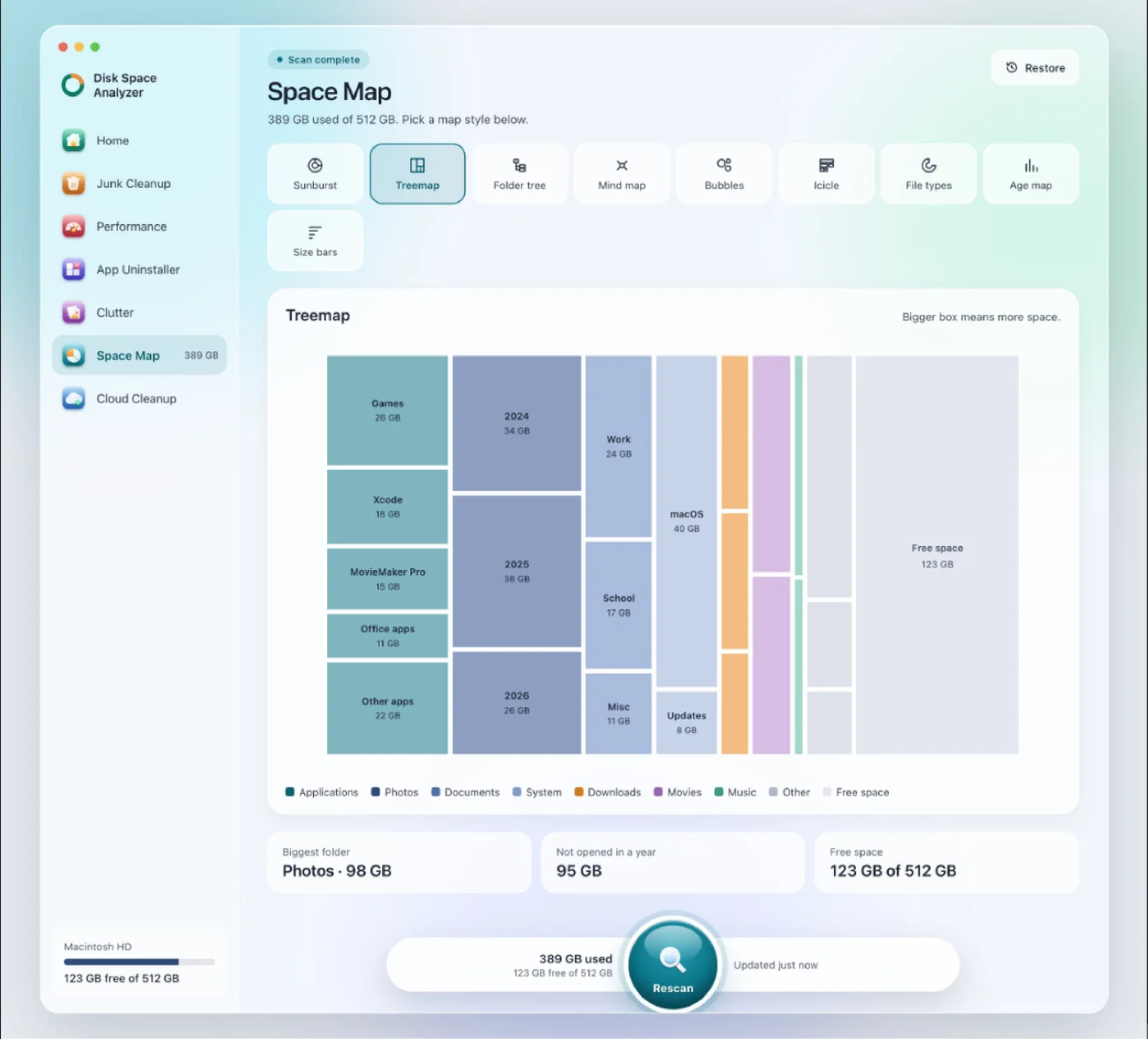
Messages is often only part of the story. We make DissectMac, and its Space Map draws your whole drive as a picture with every folder sized to scale, Library folders included, so you can compare Messages with Photos, app caches and old downloads in one view. Scanning is free. Pro is $19.99 once, cleans junk, apps and clutter from inside the app, and anything it removes stays in its Safe Bin for 30 days so Restore can put it back. To clear Messages itself, use the steps above. For a wider cleanup, see how to free up space on Mac.
Can I delete messages on Mac without deleting them on iPhone?
Yes. Turn off Messages in iCloud on the Mac first (Messages > Settings > iMessage, deselect Enable Messages in iCloud), then delete. With syncing off, the deletion stays on the Mac.
How long do deleted messages stay on Mac?
Deleted conversations stay in Recently Deleted for up to 30 days. After that, Apple says they're removed from all your devices, and after 40 days they're permanently deleted from iCloud.
Does deleting a message unsend it?
No. Deleting removes the message only from your devices. To remove a message from the recipient's device too, use Undo Send within two minutes of sending it.
More guides
Free up space
How to Clear Storage on Mac: 12 Fixes That Work
How to clear storage on Mac when it's full: 12 ways to free up space, biggest wins first, including hidden folders Apple's Storage screen doesn't show.
Free up space
How to Empty Trash on Mac
Empty the Trash on Mac from the Dock or Finder, delete one item for good, set it to empty itself after 30 days, and fix a Trash that won't empty.
Free up space
Xcode DerivedData: Is It Safe to Delete, and How
Xcode DerivedData is safe to delete. What's in it, three ways to clear it, and the other Xcode folders (device support, simulators, archives) that fill a Mac.
Free up space
Docker.raw Is Huge on Mac: How to Shrink Docker's Disk
Why Docker.raw grows to 60 GB or more on a Mac and never shrinks, how to prune images and volumes, resize the disk image, and whether you can delete Docker.raw.