On this page
- Before you uninstall Chrome
- How to uninstall Chrome on Mac
- Delete your Chrome profile
- Remove the other files Chrome leaves behind
- Remove Google's background updater
- Uninstall Chrome with DissectMac
- Will uninstalling Chrome delete my bookmarks?
- Does uninstalling Chrome remove my Google Account data?
- How do I reinstall Chrome on Mac?
- Why is something from Google still running after I deleted Chrome?
To uninstall Chrome on a Mac, quit Chrome, drag Google Chrome from the Applications folder to the Trash, and empty the Trash. That removes the app. Your Chrome profile (bookmarks, history, saved passwords, extensions), its cache and Google's background updater stay on your Mac until you delete them from ~/Library, which this guide covers.
The same steps apply to any app; our guide to uninstalling apps on Mac explains why dragging to the Trash leaves files behind.
Before you uninstall Chrome
- Keep your bookmarks and passwords. If you're signed in to Chrome with sync turned on, they're stored in your Google Account and come back when you sign in on another browser or device. If you're not signed in, export them first: bookmarks from Bookmarks > Bookmark Manager > ⋮ > Export bookmarks, passwords from Google Password Manager > Settings > Export passwords.
- Pick a new default browser. Open System Settings > Desktop & Dock and set Default web browser to Safari or another browser. Otherwise macOS asks every time you click a link.
How to uninstall Chrome on Mac
These are Google's own steps:
- Right-click Chrome in the Dock and choose Quit.
- Open Finder and go to Applications. If Chrome isn't there, search Finder for "Google Chrome".
- Drag Google Chrome to the Trash.
- Empty the Trash.
If macOS says Chrome can't be moved because it's open, a Chrome helper is still running. Open Activity Monitor, search for "Chrome", select each process and click Force Quit, then try again. Our guide to force quitting on Mac covers the other ways.
Delete your Chrome profile
Google's help page lists this as optional. It deletes your bookmarks, history, saved passwords, cookies and extensions from this Mac, so only do it after the steps above.
- In Finder, choose Go > Go to Folder (or press Cmd + Shift + G).
- Enter
~/Library/Application Support/Google/Chromeand press Return. - Select everything in the folder and drag it to the Trash.
Anything synced to your Google Account stays on Google's servers. To delete that too, clear it from your Google Account's data settings, not from the Mac.
Remove the other files Chrome leaves behind
Chrome writes to more places than its profile folder. Open each with Go > Go to Folder and delete the Chrome items you find:
| Location | What's there |
|---|---|
~/Library/Application Support/Google/Chrome |
Your profile: bookmarks, history, extensions, cookies (above) |
~/Library/Caches/Google/Chrome |
Web cache, which can grow to gigabytes |
~/Library/Caches/com.google.Chrome |
More cached data |
~/Library/Preferences/com.google.Chrome.plist |
App settings |
~/Library/Saved Application State/com.google.Chrome.savedState |
Window positions |
~/Applications/Chrome Apps |
Shortcuts for any web apps you installed from Chrome |
If you don't use any other Google software, you can delete the whole ~/Library/Application Support/Google and ~/Library/Caches/Google folders. Leave them if you use Google Drive or another Google app on this Mac, because they share these folders.
Remove Google's background updater
Chrome installs an updater that keeps running after Chrome is gone. Recent versions call it GoogleUpdater; older ones called it Keystone.
- Open
~/Library/LaunchAgentsand delete files whose names start withcom.google.GoogleUpdaterorcom.google.keystone. - Open
~/Library/Application Support/Googleand delete the GoogleUpdater folder. - If Chrome was installed for all users, check
/Library/LaunchAgents,/Library/LaunchDaemonsand/Library/Googlefor the same names. macOS asks for your password to delete them. - Restart the Mac.
Again, skip this if you use Google Drive or other Google apps, which rely on the same updater.
Uninstall Chrome with DissectMac
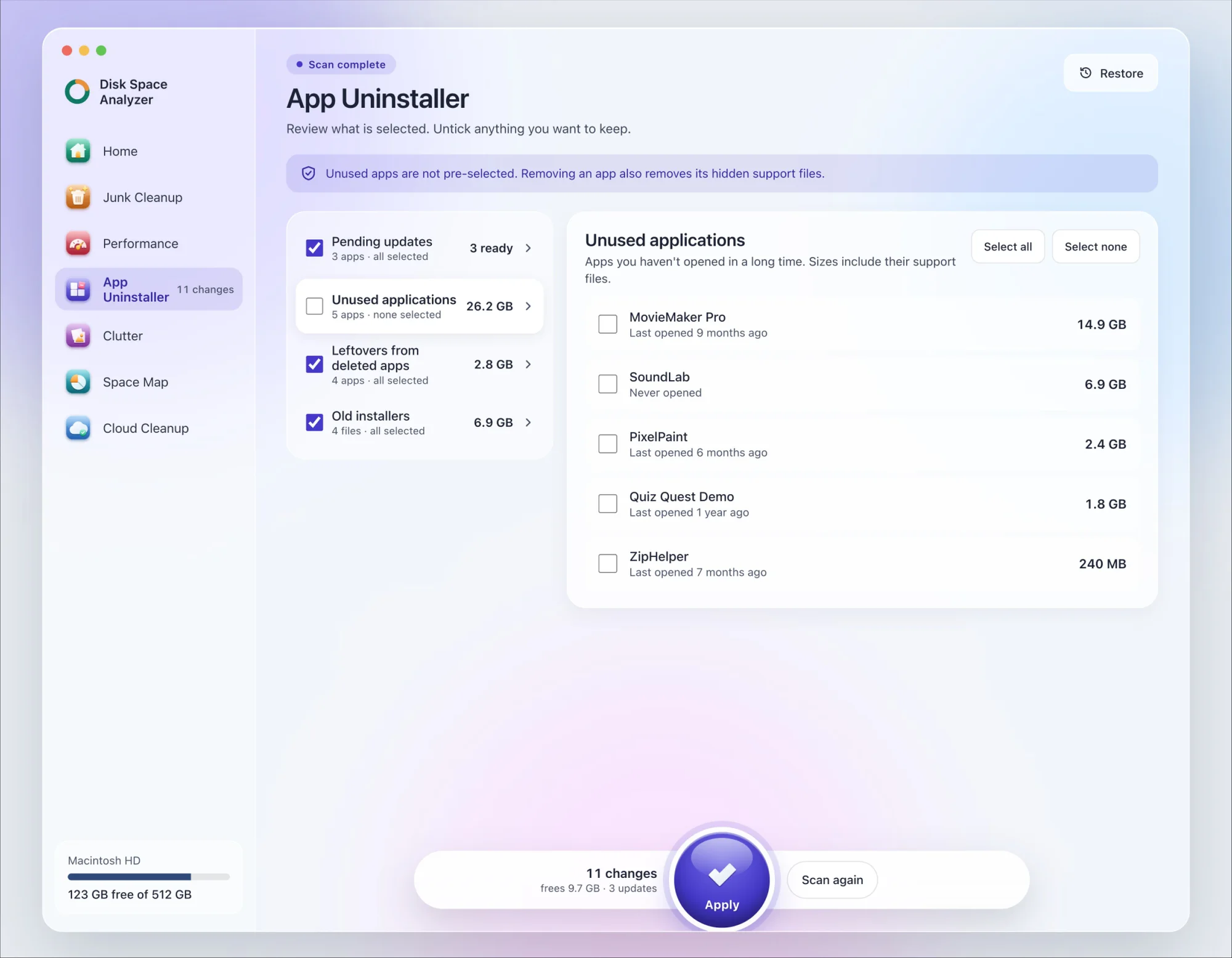
We make DissectMac, so this is our tool. App Uninstaller does the Library search for you, so you don't have to visit each folder above.
- Open DissectMac, go to App Uninstaller and press Scan.
- Find Google Chrome in the list of applications and tick it.
- Press Apply. Chrome goes together with its hidden support files, so export your bookmarks first if you're not syncing them.
Already dragged Chrome to the Trash? Its files show up in the Leftovers from deleted apps group instead. The scan is free; removing from inside the app is part of Pro, $19.99 once, and anything removed is kept for 30 days, so Restore brings it back.
Will uninstalling Chrome delete my bookmarks?
Not by itself. Dragging Chrome to the Trash leaves your profile, including bookmarks, in ~/Library/Application Support/Google/Chrome. They're only deleted if you delete that folder. If you sync with a Google Account, they're also stored online.
Does uninstalling Chrome remove my Google Account data?
No. Deleting Chrome from your Mac doesn't touch anything synced to your Google Account. Manage or delete that data from your Google Account settings.
How do I reinstall Chrome on Mac?
Download it again from google.com/chrome, open the downloaded file and drag Chrome to Applications. If you kept your profile folder, Chrome picks up your bookmarks and settings where you left them.
Why is something from Google still running after I deleted Chrome?
That's the Google updater described above. It's installed separately and launched by macOS at login, so deleting Chrome doesn't stop it. Remove its LaunchAgents and folder, then restart.
More guides
Uninstall
How to Uninstall Apps on Mac Completely (Leftovers Included)
How to uninstall apps on a Mac properly: Finder, Launchpad, official uninstallers, apps that won't delete, and the ~/Library leftovers most guides skip.
Uninstall
How to Uninstall Zoom on Mac
Uninstall Zoom on Mac from Zoom's own menu: Zoom Workplace > Uninstall Zoom Workplace. Then clear the Keychain entries and Library files it leaves.
Uninstall
How to Uninstall Xcode on Mac
Uninstall Xcode on Mac completely: remove simulator runtimes first, delete Xcode.app, then clear DerivedData, Archives and device support in ~/Library/Developer.
Uninstall
How to Uninstall Steam on Mac (and Its Games)
How to uninstall Steam on Mac: remove games inside Steam, quit it, drag it to the Trash, then clear the Steam folder in ~/Library where your games live.