On this page
- Before you uninstall Xcode
- Remove simulator runtimes first
- How to uninstall Xcode on Mac
- Delete the Xcode data in ~/Library/Developer
- Command Line Tools are separate from Xcode
- Uninstall Xcode with DissectMac
- Does deleting Xcode delete my projects?
- Will uninstalling Xcode break git or Homebrew?
- Why is Xcode still using space after I deleted it?
- How do I reinstall Xcode?
To uninstall Xcode on a Mac, quit Xcode, drag Xcode from the Applications folder to the Trash, and empty the Trash. That removes the app, but most of the disk space Xcode uses sits elsewhere: simulator runtimes, and the build data, archives and device symbols in ~/Library/Developer. Remove the runtimes before you delete Xcode, because you manage them from Xcode's own settings.
The basic method works for any app; our guide to uninstalling apps on Mac explains why dragging to the Trash leaves files behind.
Before you uninstall Xcode
- Keep the archives you still need.
~/Library/Developer/Xcode/Archivesholds every build you archived for TestFlight or the App Store, and you need them to symbolicate crash reports for shipped versions. Copy the ones you want to keep to another drive. - Your projects are safe. Deleting Xcode doesn't touch your project folders or source code.
- Signing certificates stay in Keychain. They aren't stored in Xcode, so they're still there if you reinstall.
- Decide about the Command Line Tools. Homebrew and
gitneed either Xcode or the separate Command Line Tools. See the section below before removing both.
Remove simulator runtimes first
Simulator runtimes are stored outside Xcode.app, so deleting the app doesn't remove them. Apple's steps:
- Open Xcode and choose Xcode > Settings.
- Click Components in the sidebar. Xcode shows each installed component and how much storage you recover by removing it.
- Under Other Installed Platforms, click the information button next to a simulator runtime and click Delete. Repeat for each one.
In Xcode 14 and 15, the same list is under Xcode > Settings > Platforms.
Then delete the simulator devices. Choose Window > Devices and Simulators, click Simulators, select the ones you don't need and delete them. To remove every simulator whose runtime is no longer installed in one go, run this in Terminal while Xcode is still installed:
xcrun simctl delete unavailable
How to uninstall Xcode on Mac
Apple doesn't publish a separate uninstaller for Xcode. You remove it like any app:
- Quit Xcode and the Simulator app.
- Open Finder and go to Applications.
- Drag Xcode to the Trash. If you have more than one version, such as Xcode-beta, drag each one you want gone.
- Empty the Trash.
Delete the Xcode data in ~/Library/Developer
This folder usually holds more than Xcode.app itself. Quit Xcode, then choose Go > Go to Folder in Finder, enter ~/Library/Developer and press Return.
| Location | What's there |
|---|---|
~/Library/Developer/Xcode/DerivedData |
Build products and indexes for every project you've opened |
~/Library/Developer/Xcode/Archives |
Archived builds for TestFlight and the App Store (keep the ones you need) |
~/Library/Developer/Xcode/iOS DeviceSupport |
Debug symbols copied from each iPhone or iPad you connected, one folder per iOS version |
~/Library/Developer/CoreSimulator |
Simulator devices and their data |
~/Library/Caches/com.apple.dt.Xcode |
Xcode's cache |
~/Library/Preferences |
Files whose names start with com.apple.dt.Xcode (Xcode's settings) |
If you're removing Xcode for good, delete the folders you don't need and empty the Trash. If you're reinstalling Xcode, deleting DerivedData is enough to start clean; our guide to deleting Xcode DerivedData covers what each of these folders does and which are safe to keep.
Command Line Tools are separate from Xcode
The Command Line Tools for Xcode are a separate package at /Library/Developer/CommandLineTools. Deleting Xcode.app doesn't remove them, and you may want to keep them: Homebrew and git rely on them when full Xcode isn't installed.
If you keep the Command Line Tools but delete Xcode, point the developer tools back at them so commands like git don't look for the deleted Xcode:
sudo xcode-select --reset
To remove the Command Line Tools as well, Apple gives this command. It deletes the whole folder and asks for your password:
sudo rm -rf /Library/Developer/CommandLineTools
After that, git, make and Homebrew stop working until you reinstall the tools with xcode-select --install. Software Update keeps offering new versions of the package unless you also delete its receipt with sudo pkgutil --forget com.apple.dt.commandlinetools.
Uninstall Xcode with DissectMac
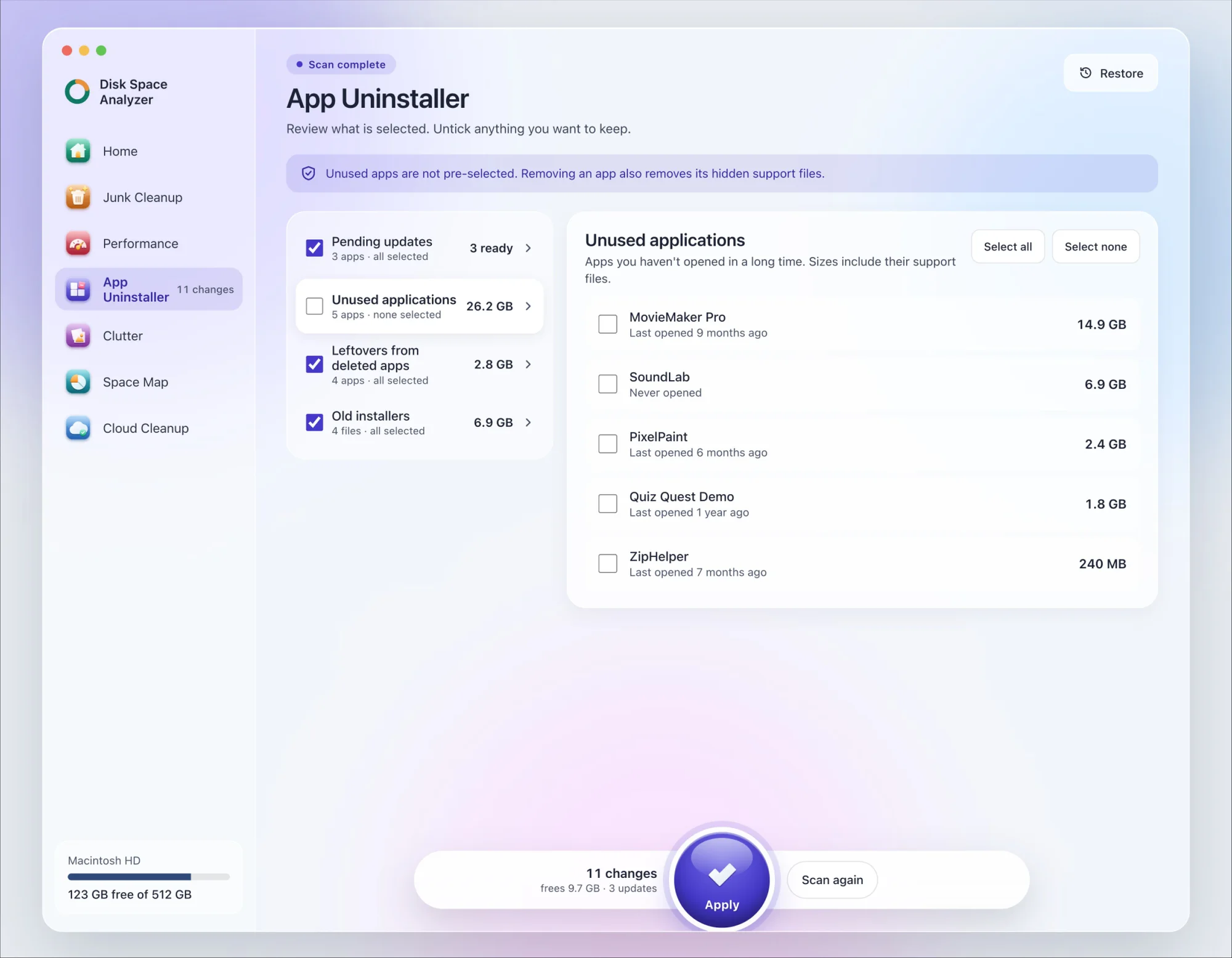
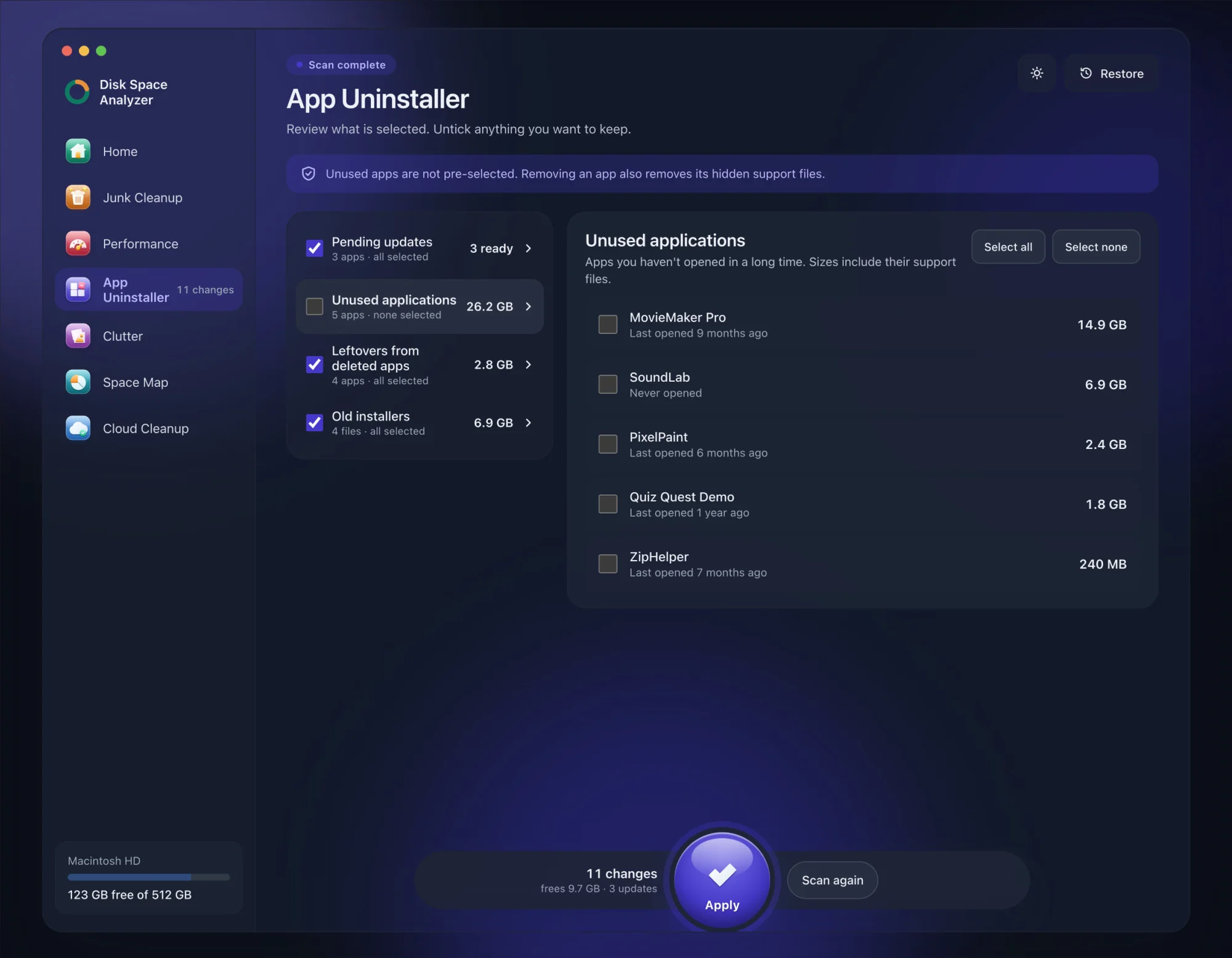
We make DissectMac, so this is our tool. App Uninstaller does the Library search for you, so you don't have to visit each folder above.
- Open DissectMac, go to App Uninstaller and press Scan.
- Find Xcode in the list of applications and tick it.
- Press Apply. Xcode goes together with its hidden support files, so remove your simulator runtimes in Xcode's settings first, and copy any archives you still need.
Already dragged Xcode to the Trash? Its files show up in the Leftovers from deleted apps group instead. The scan is free; removing from inside the app is part of Pro, $19.99 once, and anything removed is kept for 30 days, so Restore brings it back.
Does deleting Xcode delete my projects?
No. Your projects live wherever you saved them, usually in your Documents or Developer folder, and deleting Xcode doesn't touch them. You lose DerivedData and archives only if you delete them from ~/Library/Developer.
Will uninstalling Xcode break git or Homebrew?
Not if the Command Line Tools are installed, since they include git and the compilers Homebrew uses. Run sudo xcode-select --reset after deleting Xcode. If you also removed the Command Line Tools, run xcode-select --install to get them back.
Why is Xcode still using space after I deleted it?
Because simulator runtimes and the folders in ~/Library/Developer aren't part of Xcode.app. Delete the folders listed above. If runtimes remain and you've already deleted Xcode, reinstall it, remove them under Xcode > Settings > Components, then delete it again.
How do I reinstall Xcode?
Download it again from the Mac App Store or the Apple Developer website, open it once to install its components, and download only the simulator runtimes you need from Xcode > Settings > Components.
More guides
Uninstall
How to Uninstall Apps on Mac Completely (Leftovers Included)
How to uninstall apps on a Mac properly: Finder, Launchpad, official uninstallers, apps that won't delete, and the ~/Library leftovers most guides skip.
Uninstall
How to Uninstall Zoom on Mac
Uninstall Zoom on Mac from Zoom's own menu: Zoom Workplace > Uninstall Zoom Workplace. Then clear the Keychain entries and Library files it leaves.
Uninstall
How to Uninstall Steam on Mac (and Its Games)
How to uninstall Steam on Mac: remove games inside Steam, quit it, drag it to the Trash, then clear the Steam folder in ~/Library where your games live.
Uninstall
How to Uninstall Spotify on Mac (Completely)
Uninstall Spotify on Mac: quit it, move it to the Trash, then delete the cache and support folders Spotify lists for a clean reinstall.