On this page
- Before you uninstall Steam
- Uninstall individual games in Steam first
- How to uninstall Steam on Mac
- Where Steam keeps your games
- Remove the files Steam leaves behind
- Uninstall Steam with DissectMac
- Does uninstalling Steam delete my games?
- Will I lose my Steam games if I uninstall Steam?
- Can I play Steam games without Steam?
- How do I reinstall Steam without downloading my games again?
To uninstall Steam on a Mac, quit Steam, drag Steam from the Applications folder to the Trash, then delete the Steam folder in ~/Library/Application Support and empty the Trash. The second part matters more than usual: your Steam games are installed inside that folder, so deleting the app alone leaves every game on your disk.
The same idea applies to any app; our guide to uninstalling apps on Mac explains why dragging to the Trash leaves files behind.
Before you uninstall Steam
- Your games stay on your account. Games you bought are tied to your Steam account, not to this Mac. You can download them again after reinstalling Steam, but you'll need your account name and password to do it.
- Check where your saves are. Games that support Steam Cloud keep saves online. Valve notes that local save files can sit in the same folder as your game downloads, so copy any saves you care about before deleting that folder.
- Find every game library. Steam can install games in more than one place, for example on an external drive. Open Steam > Settings > Storage to see each library and how much space it uses.
Uninstall individual games in Steam first
If you want the space back, remove games from inside Steam before you remove Steam itself. Steam deletes the game files for you and doesn't miss libraries on other drives.
- Open Steam and go to your Library.
- Right-click a game and choose Manage > Uninstall.
- Confirm with Uninstall.
The game stays in your library, so you can install it again later. Repeat for each game you want gone.
How to uninstall Steam on Mac
These are Valve's own steps:
- With Steam open, choose Steam > Quit Steam from the menu bar.
- Open Applications and drag Steam to the Trash.
- In Finder, click Go in the menu bar and hold the Option key until Library appears, then open it.
- Go to
Library/Application Support/Steam. - Choose how much to delete:
- To keep your games: delete everything in the Steam folder except the
steamappsfolder, which holds your game downloads and local save files. - To remove everything: delete the whole Steam folder.
- To keep your games: delete everything in the Steam folder except the
- Empty the Trash from Finder > Empty Trash.
Valve's support page says dragging Steam to the Trash won't fully uninstall it, which is why steps 3 to 5 are there. If macOS says Steam is still open, a Steam process is still running. Quit it in Activity Monitor and try again; our guide to force quitting on Mac covers the other ways.
Where Steam keeps your games
The default library is ~/Library/Application Support/Steam/steamapps. Each installed game is a folder inside steamapps/common. Because the folder sits in your hidden user Library, Finder's Applications folder never shows it, and that's why a Mac can hold a lot of Steam games without them being obvious. To check, open the folder with Go > Go to Folder and look at its size with File > Get Info, or see our guide to finding large files on Mac.
If you added other libraries in Settings > Storage, each one has its own steamapps folder on that drive. Deleting the Steam folder in your user Library doesn't touch them.
Remove the files Steam leaves behind
Open each location with Go > Go to Folder and delete the Steam items you find:
| Location | What's there |
|---|---|
~/Library/Application Support/Steam |
The Steam client data, plus your default game library in steamapps (above) |
steamapps folders on other drives |
Games in any extra libraries you set up |
~/Library/Preferences |
Settings files whose names start with com.valvesoftware.steam |
~/Library/Caches |
Cached data in items whose names start with com.valvesoftware.steam |
Some games also write their own settings and saves to folders named after the game or its developer in ~/Library/Application Support. Delete those only after you're sure you don't need the saves.
Uninstall Steam with DissectMac
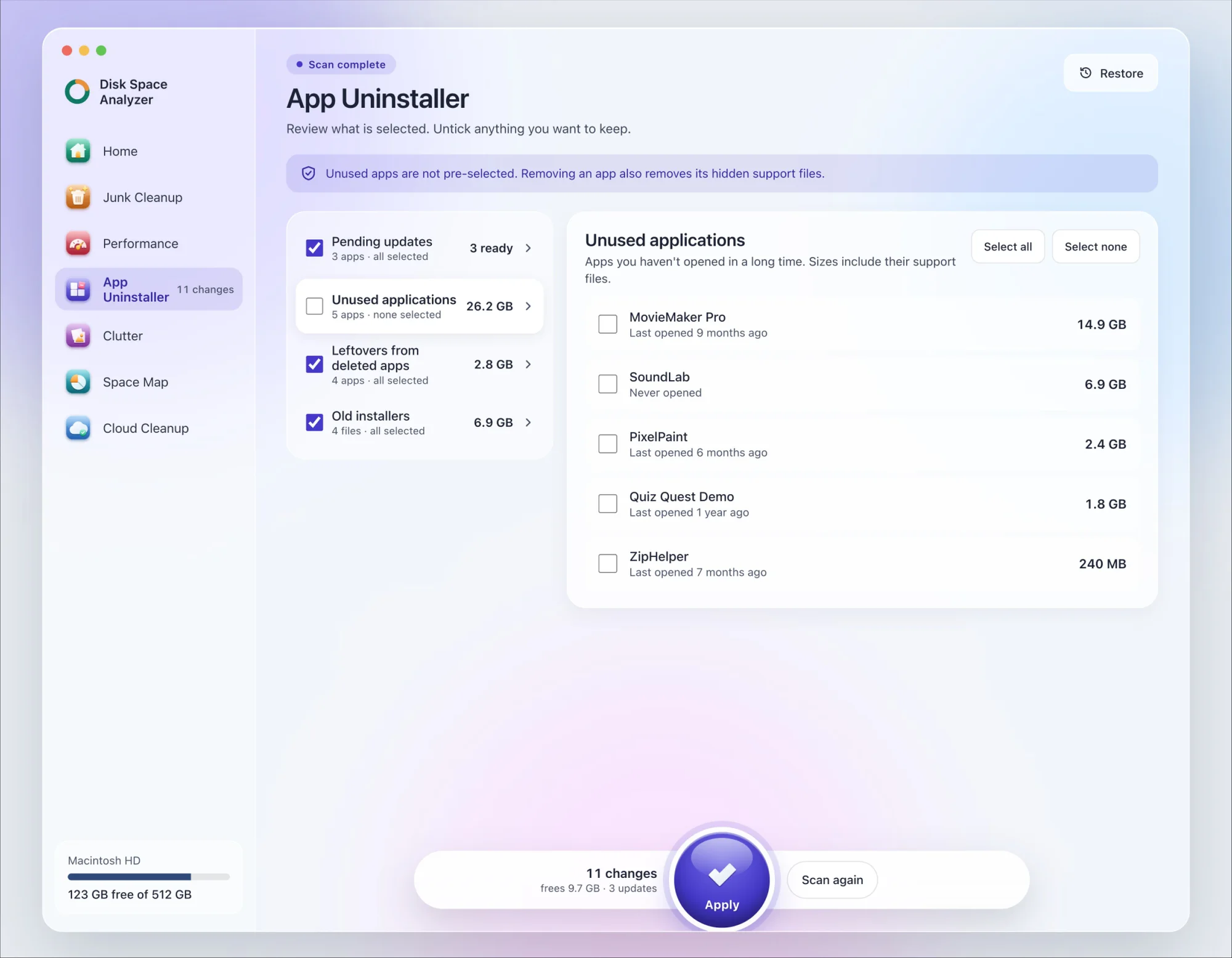
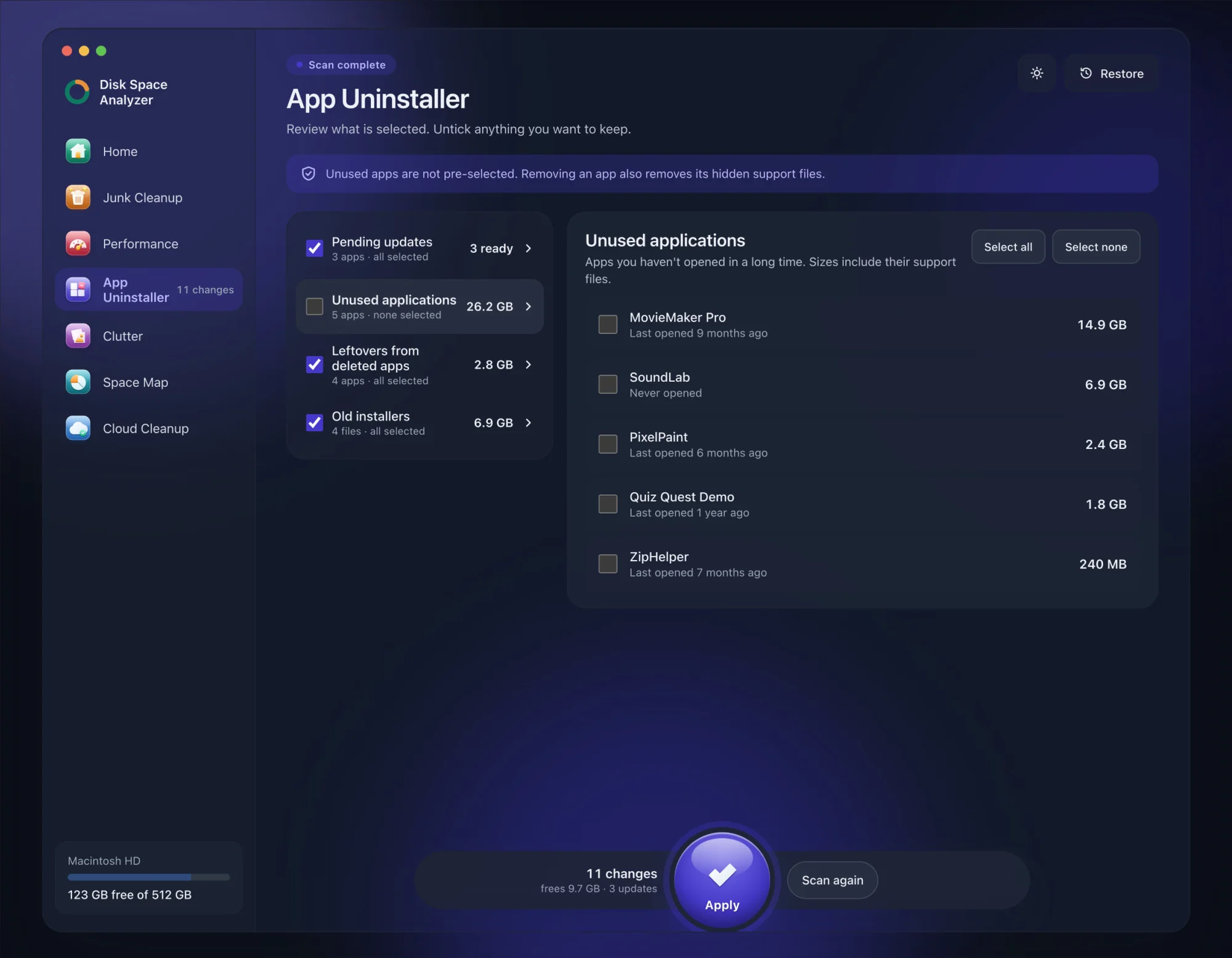
We make DissectMac, so this is our tool. App Uninstaller does the Library search for you, so you don't have to visit each folder above.
- Open DissectMac, go to App Uninstaller and press Scan.
- Find Steam in the list of applications and tick it.
- Press Apply. Steam goes together with its hidden support files. Steam installs your games inside its support folder,
~/Library/Application Support/Steam, so if that folder is listed with Steam, your installed games go too. Uninstall the games you want gone in Steam first, and copy any local saves you want to keep.
Already dragged Steam to the Trash? Its files show up in the Leftovers from deleted apps group instead. The scan is free; removing from inside the app is part of Pro, $19.99 once, and anything removed is kept for 30 days, so Restore brings it back.
Does uninstalling Steam delete my games?
Not by itself. Dragging Steam to the Trash leaves your games in ~/Library/Application Support/Steam/steamapps. They're only deleted when you delete that folder or uninstall them from inside Steam first.
Will I lose my Steam games if I uninstall Steam?
No. Your games are linked to your Steam account, so they stay in your library. You can reinstall Steam, sign in and download them again.
Can I play Steam games without Steam?
No. Valve says the Steam app is required to play games bought through Steam, and retail games registered to Steam. Remove Steam and those games won't launch.
How do I reinstall Steam without downloading my games again?
Follow Valve's "keep your games" option: delete everything in the Steam folder except steamapps, then download Steam again from store.steampowered.com and install it. Valve recommends this when you're reinstalling Steam to fix a problem.
More guides
Uninstall
How to Uninstall Apps on Mac Completely (Leftovers Included)
How to uninstall apps on a Mac properly: Finder, Launchpad, official uninstallers, apps that won't delete, and the ~/Library leftovers most guides skip.
Uninstall
How to Uninstall Zoom on Mac
Uninstall Zoom on Mac from Zoom's own menu: Zoom Workplace > Uninstall Zoom Workplace. Then clear the Keychain entries and Library files it leaves.
Uninstall
How to Uninstall Xcode on Mac
Uninstall Xcode on Mac completely: remove simulator runtimes first, delete Xcode.app, then clear DerivedData, Archives and device support in ~/Library/Developer.
Uninstall
How to Uninstall Spotify on Mac (Completely)
Uninstall Spotify on Mac: quit it, move it to the Trash, then delete the cache and support folders Spotify lists for a clean reinstall.