On this page
- Before you uninstall Creative Cloud
- Step 1: Uninstall your Creative Cloud apps
- Step 2: Run the Creative Cloud Uninstaller
- When the uninstall gets stuck: Creative Cloud Cleaner Tool
- Remove the files Creative Cloud leaves behind
- Uninstall Creative Cloud with DissectMac
- Does uninstalling Creative Cloud cancel my subscription?
- Why can't I uninstall Creative Cloud on my Mac?
- Can I uninstall Creative Cloud but keep Photoshop?
- Will uninstalling Creative Cloud delete my files?
To uninstall Adobe Creative Cloud on a Mac, first uninstall every Creative Cloud app (Photoshop, Illustrator, Premiere Pro and the rest) from inside the Creative Cloud desktop app, then download and run Adobe's Creative Cloud Uninstaller. Dragging Creative Cloud to the Trash doesn't remove it, and Adobe's uninstaller refuses to run while any Creative Cloud app is still installed.
Most apps leave files behind however you remove them; our guide to uninstalling apps on Mac explains why.
Before you uninstall Creative Cloud
- Let your files finish syncing. Adobe warns that files which haven't synced to Creative Cloud can be lost when you uninstall. Open the Creative Cloud desktop app and check that syncing is complete before you start.
- Cancelling is a separate step. Uninstalling doesn't end your subscription, and keeping the subscription doesn't stop you uninstalling. To cancel, sign in at account.adobe.com, open Plans and choose Manage plan. On an annual plan paid monthly, Adobe charges a cancellation fee after the first 14 days, so read the amount it shows before you confirm.
- Try Repair first if you're troubleshooting. Adobe doesn't recommend uninstalling the desktop app unless you need to. Its uninstaller has a Repair option that fixes many install problems without removing anything.
Step 1: Uninstall your Creative Cloud apps
Adobe says to remove its apps from the Creative Cloud desktop app, not by dragging them to the Trash.
- Open the Creative Cloud desktop app.
- Go to the list of your installed apps.
- Next to an app, select the More actions icon (three dots) and choose Uninstall.
- Choose whether to keep or remove that app's preferences. Remove them if you're not coming back.
- Repeat for every Adobe app in the list.
Menu names here move around between Creative Cloud versions, but the More actions menu next to each installed app is where Uninstall lives.
Step 2: Run the Creative Cloud Uninstaller
Once no Creative Cloud apps are left, remove the desktop app itself:
- Quit Creative Cloud from its icon in the menu bar.
- Go to Adobe's "Uninstall Creative Cloud desktop app" help page, choose the macOS tab and download the uninstaller.
- Extract the zip file and double-click Creative Cloud Uninstaller.app. If macOS asks, allow it to run.
- Choose Uninstall. (Repair is the other option, if you only want to fix the app.)
- When it finishes, select Close.
If the uninstaller says you still have Creative Cloud applications installed that require it, go back to Step 1. Something is still in the list.
When the uninstall gets stuck: Creative Cloud Cleaner Tool
If Creative Cloud won't uninstall, an app won't disappear from the list, or a reinstall keeps failing, Adobe's fix is the Creative Cloud Cleaner Tool. It removes damaged install records and files the normal uninstaller leaves.
- Quit every Adobe app, including Creative Cloud. Check Activity Monitor for Adobe processes still running and quit them.
- Download the Cleaner Tool from Adobe's "Run Creative Cloud Cleaner Tool" help page and double-click AdobeCreativeCloudCleanerTool.dmg.
- Choose your language in the upper-right menu, then select Accept on the licence agreement.
- In the upper-right menu, choose what to remove: CC Apps, Creative Cloud & CS6 Products to remove everything, or CC Apps for Creative Cloud apps only.
- Select the entries you want to remove in the table and click Cleanup Selected.
- When the tool says it completed successfully, restart your Mac.
If your problem is file syncing rather than the install, Adobe's fix is narrower: with All selected in the menu, choose CoreSync from the list and click Cleanup Selected.
The Cleaner Tool is for broken installs. If the normal two steps above worked, you don't need it.
Remove the files Creative Cloud leaves behind
Adobe software shares folders, so check these after both steps are done. Open each with Go > Go to Folder:
| Location | What's there |
|---|---|
~/Library/Application Support/Adobe |
Per-app support files, including the CoreSync sync folder |
/Library/Application Support/Adobe |
Shared Adobe components installed for all users. macOS asks for your password |
~/Library/Preferences |
Settings files whose names start with com.adobe |
~/Library/Caches |
Cached data in folders and files named Adobe or starting with com.adobe |
/Applications |
Empty Adobe app folders that stay after uninstalling |
If you still use any other Adobe software on this Mac, such as Acrobat Reader, leave the shared Adobe folders alone. Your own Photoshop, Illustrator or InDesign documents saved in Documents, Desktop or elsewhere aren't touched by any of these steps.
Uninstall Creative Cloud with DissectMac
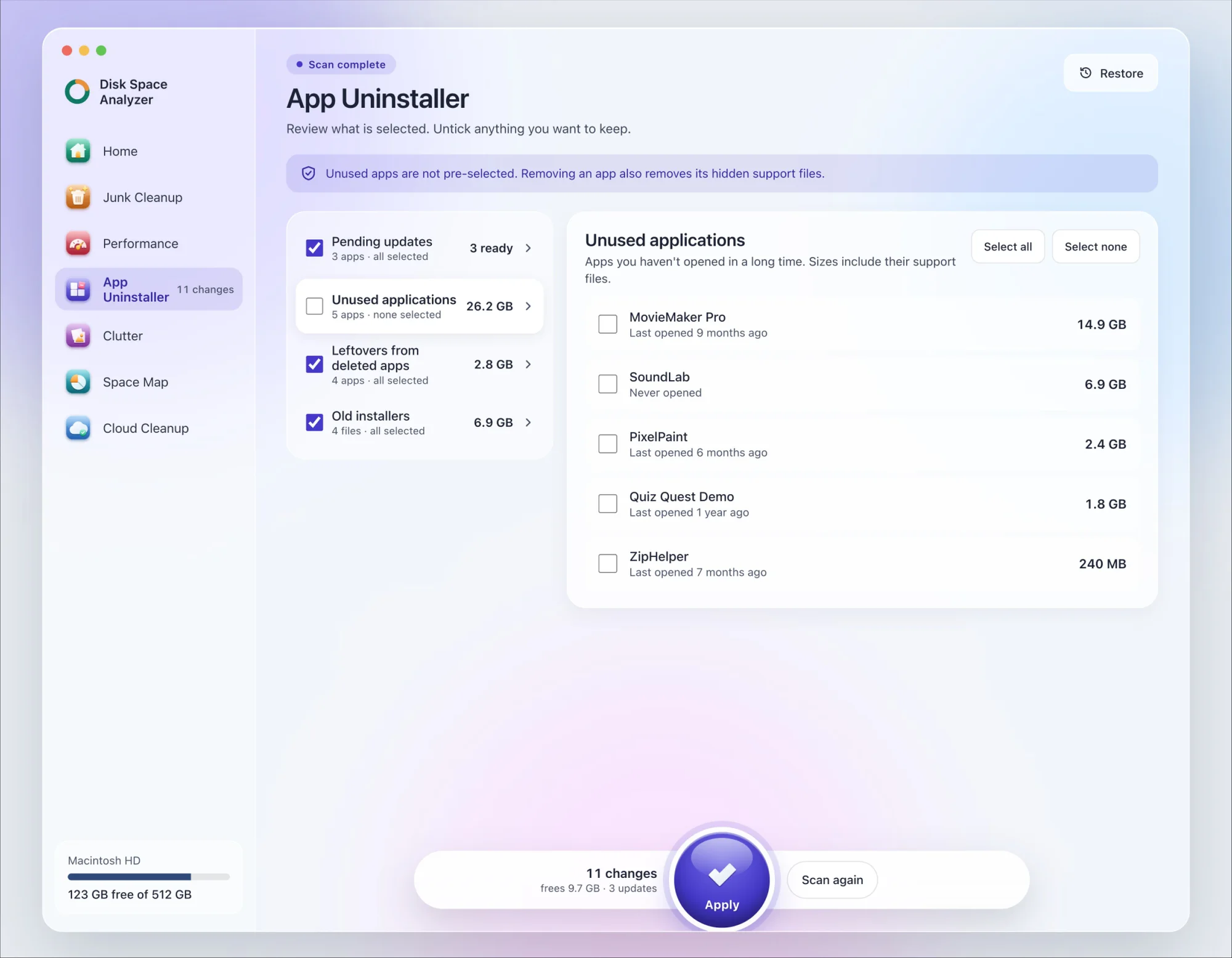
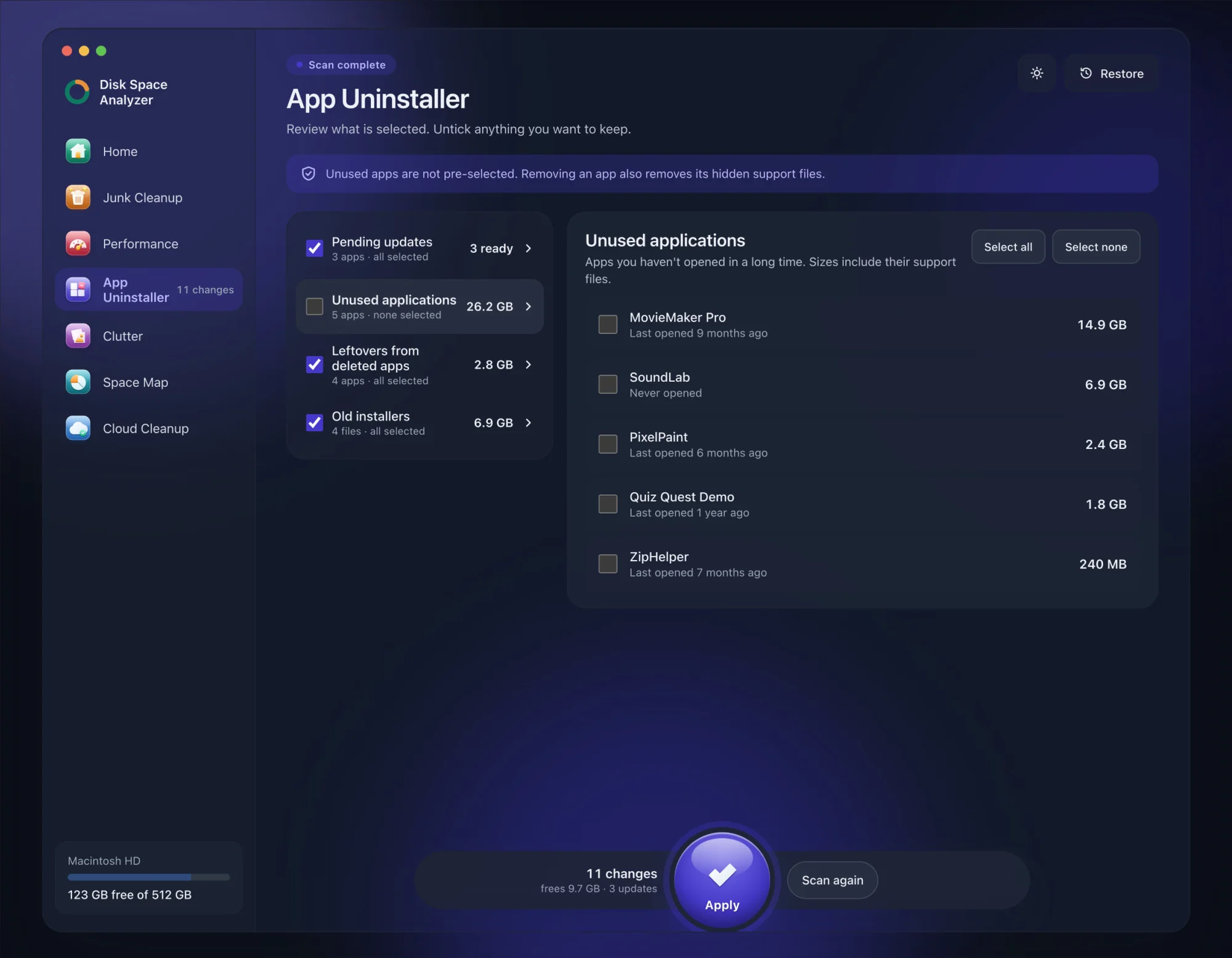
We make DissectMac, so this is our tool. App Uninstaller does the Library search for you, so you don't have to visit each folder above.
- Open DissectMac, go to App Uninstaller and press Scan.
- Find Adobe Creative Cloud in the list of applications and tick it.
- Press Apply. Creative Cloud goes together with its hidden support files, so let your files finish syncing and remove your Adobe apps with Adobe's steps first.
Already removed Creative Cloud with Adobe's uninstaller? Its files show up in the Leftovers from deleted apps group instead. The scan is free; removing from inside the app is part of Pro, $19.99 once, and anything removed is kept for 30 days, so Restore brings it back.
Does uninstalling Creative Cloud cancel my subscription?
No. Your plan keeps billing until you cancel it from your Adobe account at account.adobe.com. Uninstalling only removes the software from this Mac.
Why can't I uninstall Creative Cloud on my Mac?
Usually because an Adobe app is still installed. Adobe only lets you remove the desktop app once every Creative Cloud app is gone, and dragging it to the Trash doesn't work. Uninstall the remaining apps from inside Creative Cloud, then run the uninstaller again. If it still fails, use the Cleaner Tool.
Can I uninstall Creative Cloud but keep Photoshop?
No. Photoshop and the other Creative Cloud apps depend on the desktop app for sign-in, licensing and updates, which is why Adobe makes you remove them first.
Will uninstalling Creative Cloud delete my files?
Not files you saved to your Mac yourself. Cloud documents stay in your Adobe account. The risk is files that hadn't finished syncing, which is why Adobe tells you to let syncing complete before you uninstall.
More guides
Uninstall
How to Uninstall Apps on Mac Completely (Leftovers Included)
How to uninstall apps on a Mac properly: Finder, Launchpad, official uninstallers, apps that won't delete, and the ~/Library leftovers most guides skip.
Uninstall
How to Uninstall Zoom on Mac
Uninstall Zoom on Mac from Zoom's own menu: Zoom Workplace > Uninstall Zoom Workplace. Then clear the Keychain entries and Library files it leaves.
Uninstall
How to Uninstall Xcode on Mac
Uninstall Xcode on Mac completely: remove simulator runtimes first, delete Xcode.app, then clear DerivedData, Archives and device support in ~/Library/Developer.
Uninstall
How to Uninstall Steam on Mac (and Its Games)
How to uninstall Steam on Mac: remove games inside Steam, quit it, drag it to the Trash, then clear the Steam folder in ~/Library where your games live.