On this page
- Before you uninstall Dropbox
- How to uninstall Dropbox on Mac
- What happens to your Dropbox files
- Unlink your Mac from your Dropbox account
- Remove the files Dropbox leaves behind
- Uninstall Dropbox with DissectMac
- Will uninstalling Dropbox delete my files?
- Does uninstalling Dropbox delete my account?
- Where is the Dropbox folder on a Mac?
- Why does Dropbox say it can't be moved to the Trash?
To uninstall Dropbox on a Mac, click the Dropbox icon in the menu bar, quit Dropbox, then drag Dropbox from the Applications folder to the Trash. That removes the app. It doesn't delete your Dropbox account, and it doesn't remove your Dropbox folder from the Mac, so the files you kept offline stay where they are until you delete them.
The same steps apply to any app; our guide to uninstalling apps on Mac explains why dragging to the Trash leaves files behind.
Before you uninstall Dropbox
- Check which files are on this Mac. Dropbox on current macOS can keep files online-only. Only files marked Make available offline are stored on your Mac; the rest live in your Dropbox account. If you want local copies after uninstalling, mark the folders you need as available offline and let them download, or copy them somewhere outside the Dropbox folder.
- Your plan keeps running. Uninstalling doesn't cancel a paid Dropbox plan or close your account. Manage your plan from your account settings on dropbox.com.
- Wait for syncing to finish. Click the Dropbox icon in the menu bar and make sure it isn't still uploading changes, or those edits won't reach your account.
How to uninstall Dropbox on Mac
These are Dropbox's own steps:
- Click the Dropbox icon in the menu bar.
- Click your avatar (profile picture or initials) in the bottom-left corner of the window that opens.
- Click Quit.
- Open Finder and go to Applications.
- Drag Dropbox to the Trash.
- Optional: drag your Dropbox folder to the Trash too. Back up anything you need first.
Some Macs end up with two Dropbox desktop apps installed, which Dropbox says can cause syncing problems. If you find a second copy, uninstall it the same way.
If macOS won't let you move Dropbox to the Trash, a Dropbox process is still running. Open Activity Monitor, quit anything named Dropbox, and repeat the steps. Our guide to force quitting on Mac covers the other ways.
What happens to your Dropbox files
Your files in your Dropbox account aren't affected. You can still reach them on dropbox.com and any other device you use.
On the Mac, Dropbox for macOS on File Provider keeps the Dropbox folder at ~/Library/CloudStorage/Dropbox, and Finder shows it under Locations in the sidebar instead of Favorites. Apple requires this location for cloud storage apps, and Dropbox doesn't support moving it. Older Dropbox installs used ~/Dropbox in your home folder, so check there too.
What stays on your Mac after uninstalling:
- Files marked available offline stay in the Dropbox folder as normal files. They stop syncing.
- Online-only files were never fully on the Mac, so they aren't there to keep. Download them from dropbox.com if you need them.
Delete the local Dropbox folder only once you're sure everything in it is also in your account or backed up.
Unlink your Mac from your Dropbox account
Deleting the app removes it from this Mac, not from your Dropbox account. To take the Mac off your account's list of devices, unlink it from the web:
- Sign in to dropbox.com.
- Click your avatar in the bottom-left corner and choose Settings.
- Open the Security tab. Your devices are listed under Devices.
- Click the trash can icon next to your Mac.
- Click Unlink.
On paid plans, Dropbox offers a checkbox here to delete that computer's Dropbox files the next time it comes online. Leave it unticked unless the Mac is lost or you want the local copies gone.
Remove the files Dropbox leaves behind
Open each location with Go > Go to Folder. To see folders whose names start with a dot, press Cmd + Shift + . in Finder.
| Location | What's there |
|---|---|
~/Library/CloudStorage/Dropbox |
Your local Dropbox folder on File Provider (above) |
~/Dropbox |
Your Dropbox folder on older installs |
~/.dropbox |
The desktop app's settings from previous installs |
/Library/DropboxHelperTools |
Helper tools from older Dropbox installs. macOS asks for your password |
~/Library/Preferences and ~/Library/Caches |
Settings and cache items with dropbox in their names |
Dropbox's own advanced reinstall guide has you move ~/.dropbox and /Library/DropboxHelperTools to the Trash, so they're the settings folders to clear once the app is gone.
Uninstall Dropbox with DissectMac
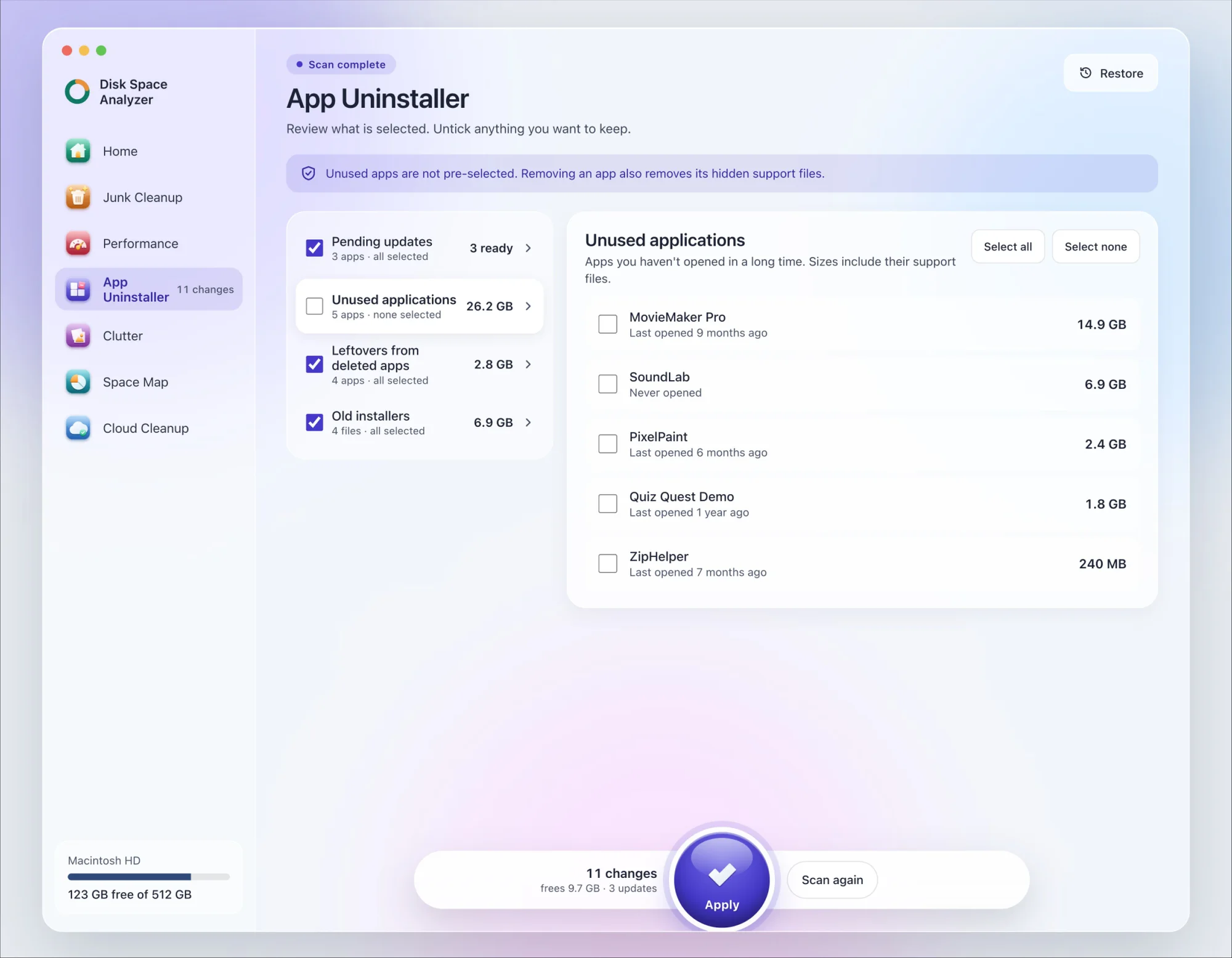
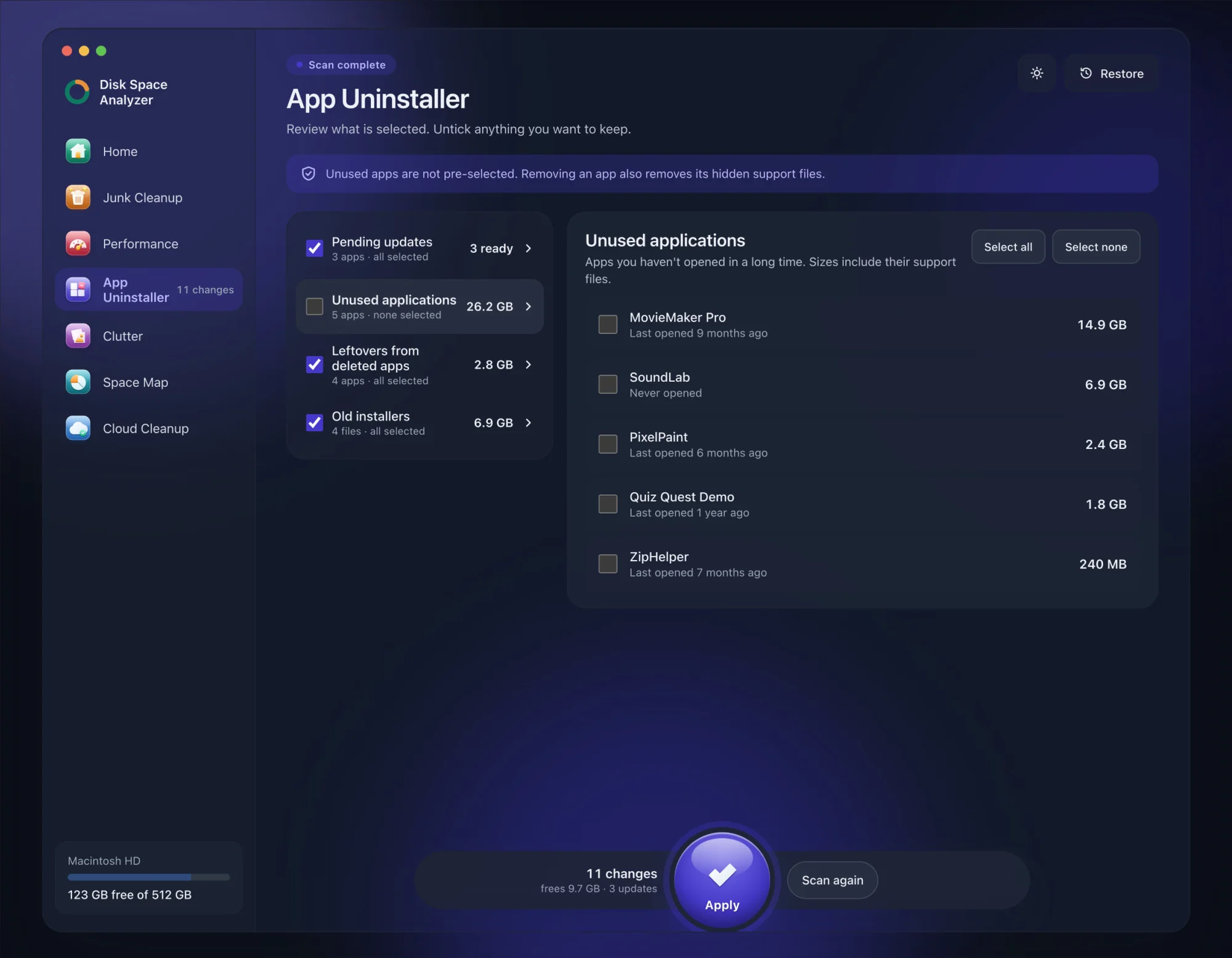
We make DissectMac, so this is our tool. App Uninstaller does the Library search for you, so you don't have to visit each folder above.
- Open DissectMac, go to App Uninstaller and press Scan.
- Find Dropbox in the list of applications and tick it.
- Press Apply. Dropbox goes together with its hidden support files, so make sure the files you need are synced or copied outside the Dropbox folder first.
Already dragged Dropbox to the Trash? Its files show up in the Leftovers from deleted apps group instead. The scan is free; removing from inside the app is part of Pro, $19.99 once, and anything removed is kept for 30 days, so Restore brings it back.
Will uninstalling Dropbox delete my files?
No. Dropbox says uninstalling the app doesn't remove the Dropbox folder from your Mac or delete anything from your account. Files marked available offline stay on the Mac, and everything stays on dropbox.com.
Does uninstalling Dropbox delete my account?
No. Your account, files and any paid plan carry on. Deleting the account or cancelling the plan is done separately on dropbox.com.
Where is the Dropbox folder on a Mac?
On current versions it's at ~/Library/CloudStorage/Dropbox, shown under Locations in Finder's sidebar. Older versions put it at ~/Dropbox. If you can't see Library, hold Option and click Go in Finder's menu bar.
Why does Dropbox say it can't be moved to the Trash?
Because it's still running. Quit it from the menu bar icon, then check Activity Monitor for any remaining Dropbox processes and quit them before trying again.
More guides
Uninstall
How to Uninstall Apps on Mac Completely (Leftovers Included)
How to uninstall apps on a Mac properly: Finder, Launchpad, official uninstallers, apps that won't delete, and the ~/Library leftovers most guides skip.
Uninstall
How to Uninstall Zoom on Mac
Uninstall Zoom on Mac from Zoom's own menu: Zoom Workplace > Uninstall Zoom Workplace. Then clear the Keychain entries and Library files it leaves.
Uninstall
How to Uninstall Xcode on Mac
Uninstall Xcode on Mac completely: remove simulator runtimes first, delete Xcode.app, then clear DerivedData, Archives and device support in ~/Library/Developer.
Uninstall
How to Uninstall Steam on Mac (and Its Games)
How to uninstall Steam on Mac: remove games inside Steam, quit it, drag it to the Trash, then clear the Steam folder in ~/Library where your games live.