On this page
- Before you uninstall Homebrew
- Find your Homebrew prefix
- How to uninstall Homebrew on Mac
- Uninstall a second Homebrew in /usr/local
- Remove the brew shellenv line
- Remove the files Homebrew leaves behind
- Uninstall Homebrew apps with DissectMac
- Does uninstalling Homebrew remove the apps I installed with it?
- Why does Terminal show a brew error after uninstalling Homebrew?
- Can I reinstall Homebrew after uninstalling it?
- Is it safe to uninstall Homebrew?
To uninstall Homebrew on a Mac, run Homebrew's official uninstall script in Terminal. It deletes brew, every formula you installed and Homebrew's caches and logs. It doesn't edit your shell startup file, and apps you installed with --cask can stay in your Applications folder, so this guide covers those too.
Homebrew isn't an app, so there's nothing to drag to the Trash. Our guide to uninstalling apps on Mac covers ordinary apps; this one covers Homebrew.
Before you uninstall Homebrew
- Save a list of what you installed. Run
brew list --formulaandbrew list --cask, orbrew bundle dumpto write aBrewfileyou can reinstall from later withbrew bundle. - Decide what to do with cask apps. The uninstall script doesn't uninstall casks one by one. To remove a cask app properly while Homebrew still works, run
brew uninstall --cask <name>for each one first. To keep an app, leave it and know that it won't update through Homebrew anymore. - Check what depends on it. Tools from Homebrew, such as Python, Node, Git or databases, stop working once it's gone. Back up any database data under Homebrew's
varfolder before you start.
Find your Homebrew prefix
Homebrew lives in a different folder depending on your Mac:
| Mac | Default prefix |
|---|---|
| Apple silicon | /opt/homebrew |
| Intel | /usr/local |
Run brew --prefix to see which one you have. If you moved from an Intel Mac with Migration Assistant, you may have both.
How to uninstall Homebrew on Mac
This is the command from Homebrew's own install repository. It downloads and runs the uninstall script, which deletes files permanently:
/bin/bash -c "$(curl -fsSL https://raw.githubusercontent.com/Homebrew/install/HEAD/uninstall.sh)"
- Open Terminal and paste the command.
- The script lists what it's about to remove and asks you to confirm. Type
yand press Return. - Enter your password if macOS asks.
- When it finishes, it prints Homebrew uninstalled! If anything is left, it adds a list headed "The following possible Homebrew files were not deleted".
If you want to see what would go without deleting anything, download the script and run it with --dry-run:
curl -fsSLO https://raw.githubusercontent.com/Homebrew/install/HEAD/uninstall.sh
/bin/bash uninstall.sh --dry-run
If the script reports steps that failed, it suggests running it again with sudo.
Uninstall a second Homebrew in /usr/local
On an Apple silicon Mac that came over from an Intel one, an old Homebrew can still sit in /usr/local. Homebrew documents this case: download the script and point it at that prefix with --path.
curl -fsSLO https://raw.githubusercontent.com/Homebrew/install/HEAD/uninstall.sh
/bin/bash uninstall.sh --path /usr/local
Run it once per prefix you want to remove.
Remove the brew shellenv line
When you installed Homebrew, it told you to add a line like this to your shell startup file:
eval "$(/opt/homebrew/bin/brew shellenv)"
The uninstall script leaves it there, so every new Terminal window prints a "no such file or directory" error for brew. Open ~/.zprofile (and check ~/.zshrc and ~/.bash_profile) in a text editor, delete the line, save, and open a new Terminal window.
Remove the files Homebrew leaves behind
The script removes the Cellar, the Caskroom, brew itself and empty folders. It leaves anything it doesn't recognize as Homebrew's own and prints it in the "not deleted" list. Check these with Go > Go to Folder:
| Location | What's there |
|---|---|
/opt/homebrew (Apple silicon) |
Whatever the script listed as not deleted; once you've checked it, delete the folder |
/usr/local/bin, /usr/local/etc, /usr/local/var (Intel) |
Files the script listed. Other installers also use /usr/local, so delete only the listed items, not the folder |
/Applications and ~/Applications |
Apps you installed with brew install --cask |
~/.zprofile, ~/.zshrc, ~/.bash_profile |
The brew shellenv line (edit, don't delete the file) |
The script already deletes ~/Library/Caches/Homebrew and ~/Library/Logs/Homebrew, unless you ran it with --skip-cache-and-logs.
Uninstall Homebrew apps with DissectMac
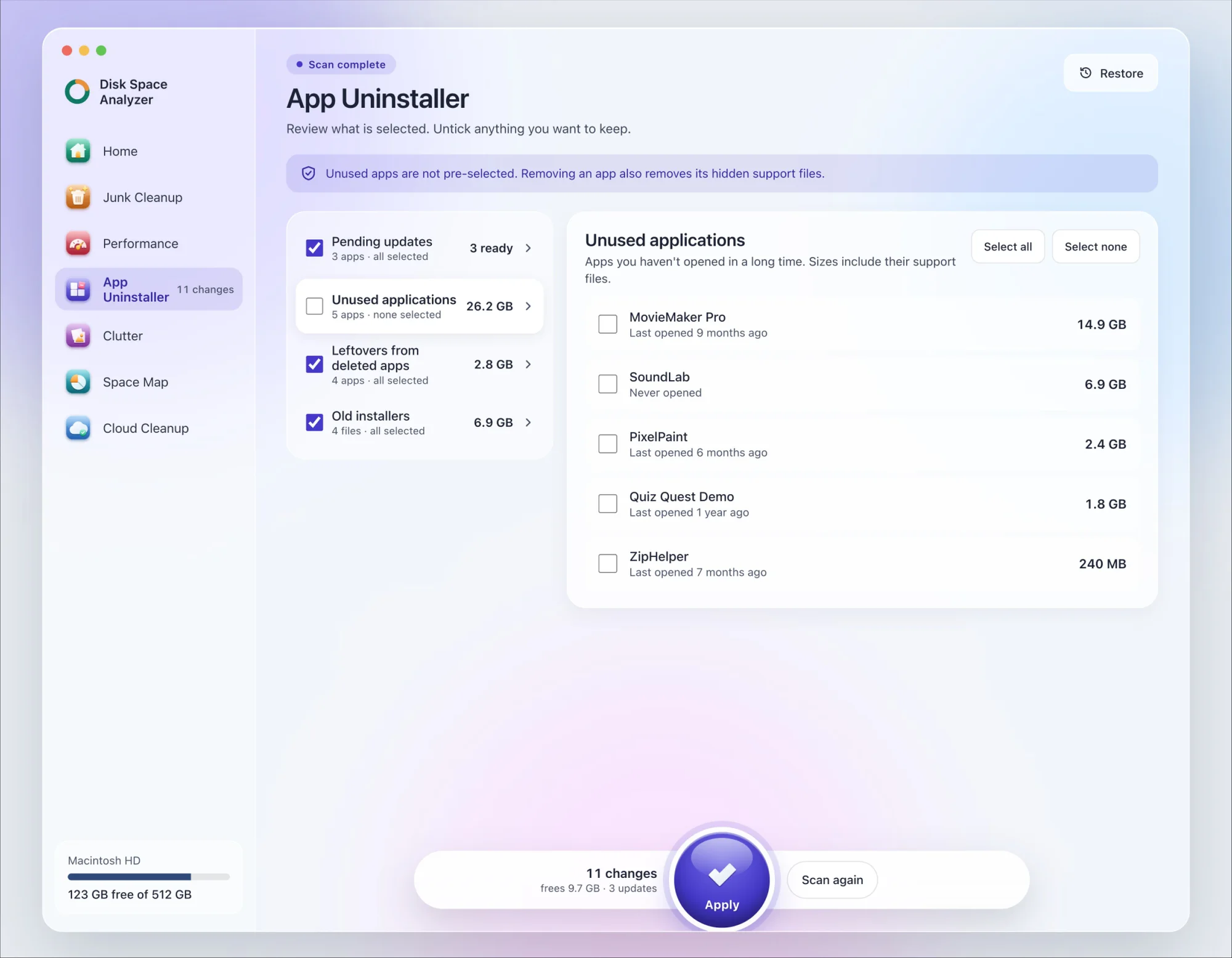
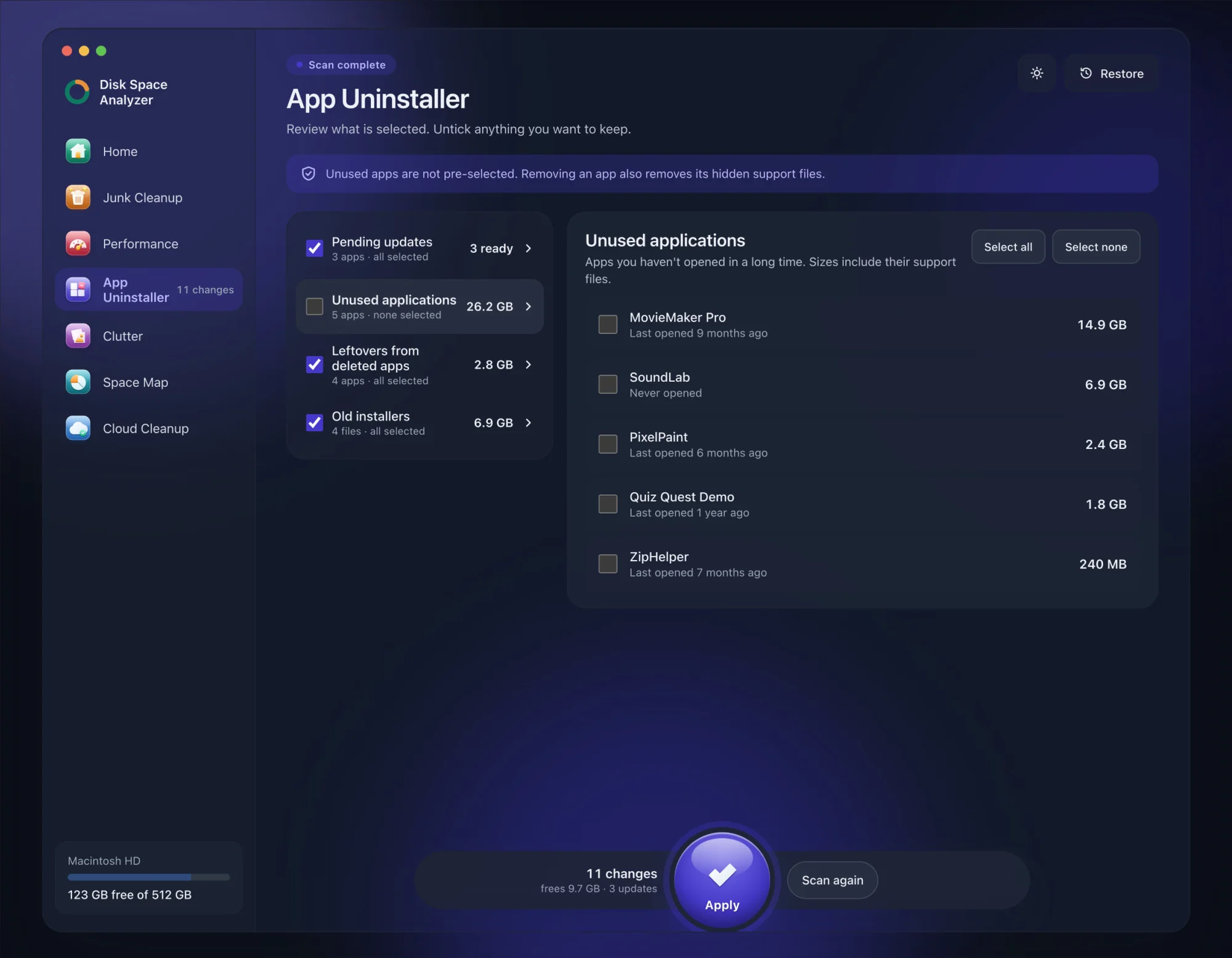
We make DissectMac, so this is our tool. App Uninstaller does the Library search for you, so you don't have to visit each folder above.
- Open DissectMac, go to App Uninstaller and press Scan.
- If an app you installed with
--caskappears in the list of applications, tick it. - Press Apply. Apps go together with their hidden support files. Homebrew itself and the formulas in its prefix aren't apps, so remove them with the steps above.
Already deleted the apps? Their files show up in the Leftovers from deleted apps group instead. The scan is free; removing from inside the app is part of Pro, $19.99 once, and anything removed is kept for 30 days, so Restore brings it back.
Does uninstalling Homebrew remove the apps I installed with it?
Not always. The script deletes the Caskroom and app links that point into Homebrew's folder, but apps copied into Applications by a cask usually stay. Remove them with brew uninstall --cask before you uninstall Homebrew, or delete them afterwards like any other app.
Why does Terminal show a brew error after uninstalling Homebrew?
Because your shell startup file still runs brew shellenv. Delete that line from ~/.zprofile or ~/.zshrc and open a new Terminal window.
Can I reinstall Homebrew after uninstalling it?
Yes. Run the install command from brew.sh again, add the brew shellenv line it prints, then run brew bundle in the folder with your saved Brewfile to bring your formulas and casks back.
Is it safe to uninstall Homebrew?
Yes. macOS doesn't depend on Homebrew. What breaks is anything you installed through it, such as command-line tools, language runtimes and local databases, so save your package list and any data first.
More guides
Uninstall
How to Uninstall Apps on Mac Completely (Leftovers Included)
How to uninstall apps on a Mac properly: Finder, Launchpad, official uninstallers, apps that won't delete, and the ~/Library leftovers most guides skip.
Uninstall
How to Uninstall Zoom on Mac
Uninstall Zoom on Mac from Zoom's own menu: Zoom Workplace > Uninstall Zoom Workplace. Then clear the Keychain entries and Library files it leaves.
Uninstall
How to Uninstall Xcode on Mac
Uninstall Xcode on Mac completely: remove simulator runtimes first, delete Xcode.app, then clear DerivedData, Archives and device support in ~/Library/Developer.
Uninstall
How to Uninstall Steam on Mac (and Its Games)
How to uninstall Steam on Mac: remove games inside Steam, quit it, drag it to the Trash, then clear the Steam folder in ~/Library where your games live.