On this page
- Before you uninstall League of Legends
- How to uninstall League of Legends on Mac
- Remove the Riot Client's shared folder
- Remove the files League of Legends leaves behind
- Uninstall League of Legends with DissectMac
- Will I lose my account or skins if I uninstall League?
- Why does it say the Riot Client is still running?
- Does uninstalling League remove the Riot Client?
- How do I reinstall League of Legends on Mac?
To uninstall League of Legends on a Mac, fully close League and the Riot Client, move League of Legends.app from Applications to the Trash, empty the Trash and restart. Those are Riot's own steps. The Riot Client's shared folder and a few logs stay behind until you delete them, and your Riot account, champions, skins and rank are untouched because they live on Riot's servers.
The game is one app, but like most Mac apps it spreads files outside it; our guide to uninstalling apps on Mac explains the general pattern.
Before you uninstall League of Legends
- Your progress is safe. Your account, champions, skins, Blue Essence, RP and ranked history are stored on Riot's servers. Sign in after a reinstall, on this Mac or a PC, and everything is there.
- Teamfight Tactics goes too. On a Mac, TFT is played inside the League client, so removing League removes TFT.
- Settings stored in the app go with it. Riot keeps League's config files in a Config folder inside the app. If you've tuned keybinds or graphics and want them back exactly, copy that folder first (see below).
- Uninstalling isn't deleting your account. If you want the Riot account itself gone, that's a separate request through Riot Support.
How to uninstall League of Legends on Mac
These are the steps from Riot's "Uninstalling the game" support article:
- Fully close League of Legends and the Riot Client. If either still shows in the Dock, right-click it and choose Quit.
- Open Finder and select Applications in the sidebar.
- Find League of Legends.app and move it to the Trash.
- From the Finder menu bar, choose Finder > Empty Trash.
- Restart your Mac.
If macOS won't move the app because it's in use, part of the game or the Riot Client is still running. Open Activity Monitor, search for "League" and "Riot", select each process and click Force Quit, then try again. Our guide to force quitting on Mac covers the other ways.
To keep your settings, before step 3 Control-click League of Legends.app, choose Show Package Contents, find the Config folder and copy it somewhere safe.
Remove the Riot Client's shared folder
Riot's troubleshooting article for a clean reinstall adds one more step: delete the Riot Games folder in the shared Users folder.
- In Finder, choose Go > Go to Folder (or press Cmd + Shift + G).
- Enter
/Users/Sharedand press Return. - Drag the Riot Games folder to the Trash, then empty the Trash.
If you installed any other Riot game on this Mac, it depends on this folder, so leave it in place. If you see a separate Riot Client app in Applications, move it to the Trash too.
Remove the files League of Legends leaves behind
Riot documents where its Mac logs live. Open each with Go > Go to Folder and delete what you find:
| Location | What's there |
|---|---|
/Applications/League of Legends.app |
The game itself, including its Config folder and game logs (step 3) |
/Users/Shared/Riot Games |
The Riot Client's shared folder (above) |
~/Library/Logs/Riot Games |
Riot Client logs |
~/Library/Application Support/com.riotgames.LeagueofLegends.LeagueClient |
League client logs |
You may also find items in ~/Library/Preferences and ~/Library/Caches whose names start with com.riotgames. They're small settings and cache files, safe to delete once the game is gone.
Uninstall League of Legends with DissectMac
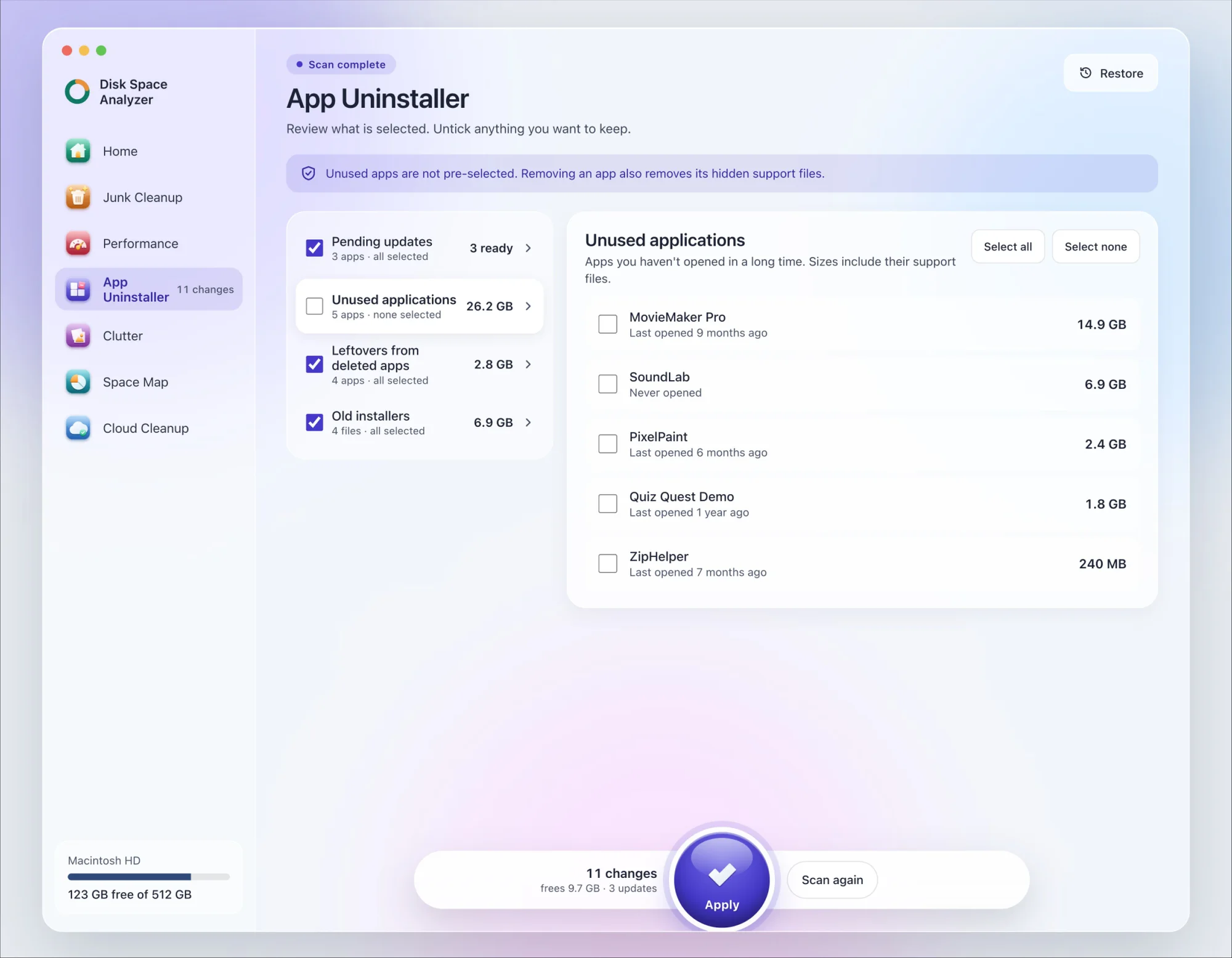
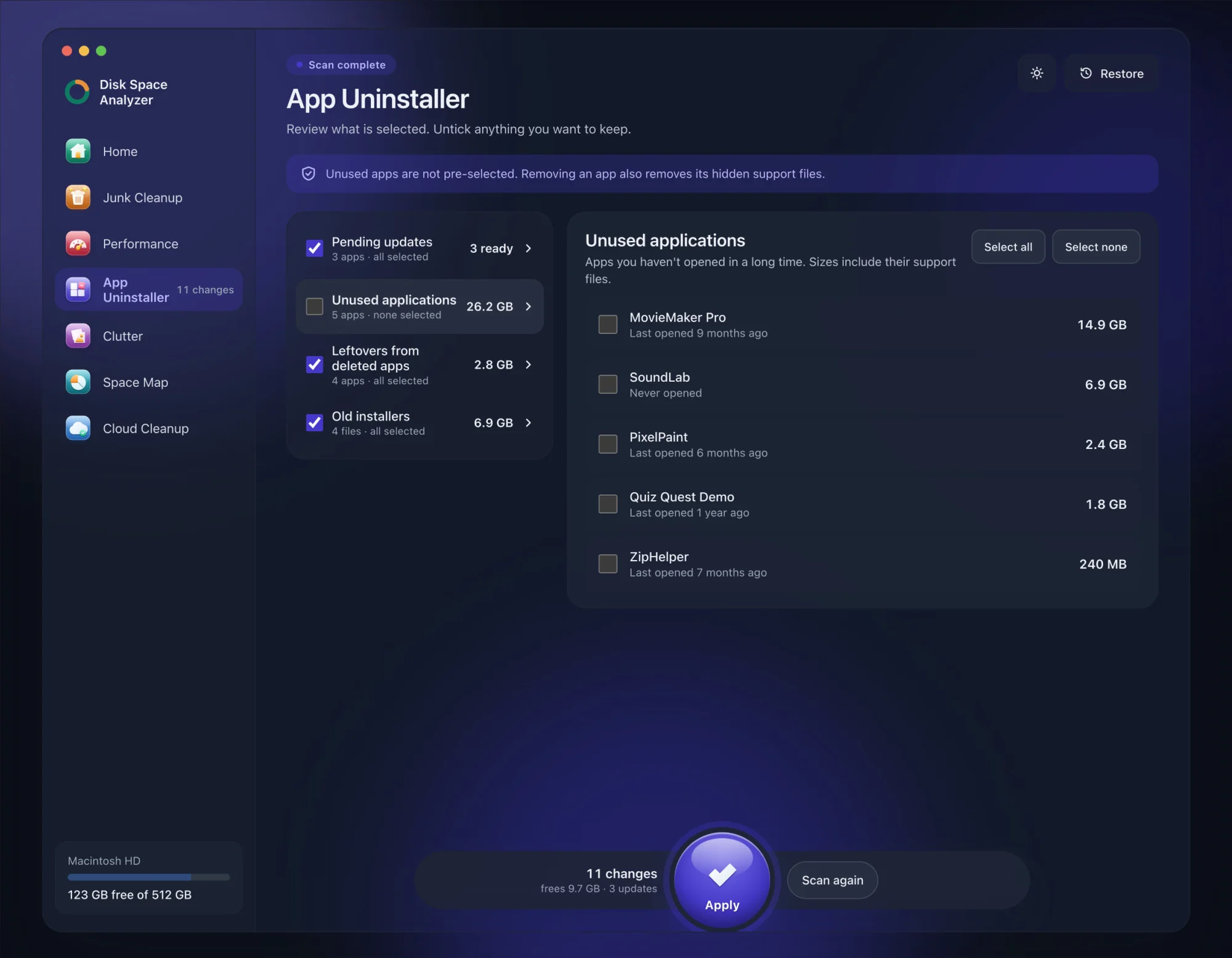
We make DissectMac, so this is our tool. App Uninstaller does the Library search for you, so you don't have to visit each folder above.
- Open DissectMac, go to App Uninstaller and press Scan.
- Find League of Legends in the list of applications and tick it.
- Press Apply. League goes together with its hidden support files, so copy the Config folder first if you want your settings back later.
The shared /Users/Shared/Riot Games folder isn't part of the app, so delete it with the steps above. Already dragged League to the Trash? Its files show up in the Leftovers from deleted apps group instead. The scan is free; removing from inside the app is part of Pro, $19.99 once, and anything removed is kept for 30 days, so Restore brings it back.
Will I lose my account or skins if I uninstall League?
No. Your account, champions, skins and rank are tied to your Riot account on Riot's servers. Uninstalling only removes the game files from your Mac.
Why does it say the Riot Client is still running?
The Riot Client stays open in the background after you close the game. Quit it from the Dock, or force quit any "Riot" process in Activity Monitor, then move League to the Trash again.
Does uninstalling League remove the Riot Client?
Not on its own. Riot's steps remove League of Legends.app; the Riot Client's files stay in /Users/Shared/Riot Games until you delete that folder.
How do I reinstall League of Legends on Mac?
Download the Mac installer from the official League of Legends site, open it and follow the prompts. When it finishes, sign in and your account is as you left it.
More guides
Uninstall
How to Uninstall Apps on Mac Completely (Leftovers Included)
How to uninstall apps on a Mac properly: Finder, Launchpad, official uninstallers, apps that won't delete, and the ~/Library leftovers most guides skip.
Uninstall
How to Uninstall Zoom on Mac
Uninstall Zoom on Mac from Zoom's own menu: Zoom Workplace > Uninstall Zoom Workplace. Then clear the Keychain entries and Library files it leaves.
Uninstall
How to Uninstall Xcode on Mac
Uninstall Xcode on Mac completely: remove simulator runtimes first, delete Xcode.app, then clear DerivedData, Archives and device support in ~/Library/Developer.
Uninstall
How to Uninstall Steam on Mac (and Its Games)
How to uninstall Steam on Mac: remove games inside Steam, quit it, drag it to the Trash, then clear the Steam folder in ~/Library where your games live.