On this page
- Before you uninstall Malwarebytes
- Deactivate this Mac from your subscription
- How to uninstall Malwarebytes on Mac
- If Malwarebytes won't open or won't uninstall
- Remove the files Malwarebytes leaves behind
- Uninstall Malwarebytes with DissectMac
- Does uninstalling Malwarebytes cancel my subscription?
- Why can't I find the Uninstall option in Malwarebytes?
- Can I drag Malwarebytes to the Trash instead?
- How do I reinstall Malwarebytes on Mac?
To uninstall Malwarebytes on a Mac, open Malwarebytes, choose Help > Uninstall Malwarebytes from the menu bar, confirm, and enter your Mac password. Malwarebytes then removes itself. If the app won't open or the uninstall leaves pieces behind, Malwarebytes provides a separate Mac Uninstall tool, covered below.
Malwarebytes is one of the apps where its own uninstaller matters more than dragging to the Trash; our guide to uninstalling apps on Mac explains why.
Before you uninstall Malwarebytes
- Uninstalling doesn't cancel your subscription. Subscriptions bought from the Malwarebytes Online Store renew automatically. To stop that, sign in to your Malwarebytes account, open your payment page and click Turn auto-renewal off. Malwarebytes says a cancelled subscription stays active until its expiration date.
- Free up the device seat. Uninstalling doesn't remove this Mac from your subscription either. If you want to use the seat on another device, deactivate this Mac first (steps below).
- Bought it through the App Store? Malwarebytes can't cancel App Store subscriptions. Cancel it from your Apple account's Subscriptions list.
- Have something else in place. If Malwarebytes was your only malware scanner, macOS still has its built-in protection (XProtect and Gatekeeper) after you remove it.
Deactivate this Mac from your subscription
Malwarebytes documents two ways to do this. Deactivating signs this Mac out of your subscription; it doesn't cancel the subscription or uninstall the app.
From the app:
- Open Malwarebytes.
- Click the person icon on the main dashboard, then click My subscription.
- On your subscription card, click the three dots and choose Deactivate subscription.
- Click Deactivate subscription again to confirm, and click Yes if asked.
From your Malwarebytes account (handy if you've already removed the app): sign in to your account, find the Mac under Activated Devices, click the three dots, then Deactivate, and confirm.
How to uninstall Malwarebytes on Mac
These are the steps from Malwarebytes' "Uninstall Malwarebytes for Windows and Mac" article:
- Click the Malwarebytes icon in the menu bar at the top of the screen.
- Click Open Malwarebytes.
- In the menu bar at the top left, next to the Apple menu, click Help.
- Click Uninstall Malwarebytes.
- When asked to confirm, click I'll risk it.
- Enter your Mac's password and click OK.
Malwarebytes uninstalls itself automatically.
If Malwarebytes won't open or won't uninstall
Malwarebytes' fallback is its Mac Uninstall tool, from the help article "Unable to reinstall Malwarebytes for Mac". The tool needs macOS 11 (Big Sur) or later.
- Download the tool from that Malwarebytes help article.
- Open your Downloads folder and double-click MB-Mac-Uninstall. If macOS asks, click Open.
- When asked whether to remove all Malwarebytes software from your Mac, click OK.
- Enter your Mac password and click OK.
- The tool removes Malwarebytes and quits when it's done. Delete the MB-Mac-Uninstall file afterwards.
- Restart your Mac.
Malwarebytes recommends this tool when a reinstall fails, because the cause is usually files left over from a previous install. Run it before reinstalling.
If the app is stuck and won't respond when you try to open it, quit it first; our guide to force quitting on Mac covers how.
Remove the files Malwarebytes leaves behind
Malwarebytes doesn't publish a list of its support files, and its Mac Uninstall tool exists to remove the ones its normal uninstaller can miss. Run that tool first. Then, if you want to check by hand, open these folders with Go > Go to Folder and look for items with "malwarebytes" in the name:
| Location | What to look for |
|---|---|
~/Library/Application Support |
A Malwarebytes folder with app data |
~/Library/Caches |
Cache folders named after Malwarebytes |
~/Library/Preferences |
Settings files whose names start with com.malwarebytes |
/Library/LaunchDaemons and /Library/LaunchAgents |
Background helpers whose names start with com.malwarebytes (asks for your password) |
Don't delete Malwarebytes items while the app is still installed and running. Use the Help menu uninstaller or the Mac Uninstall tool for that part.
Uninstall Malwarebytes with DissectMac
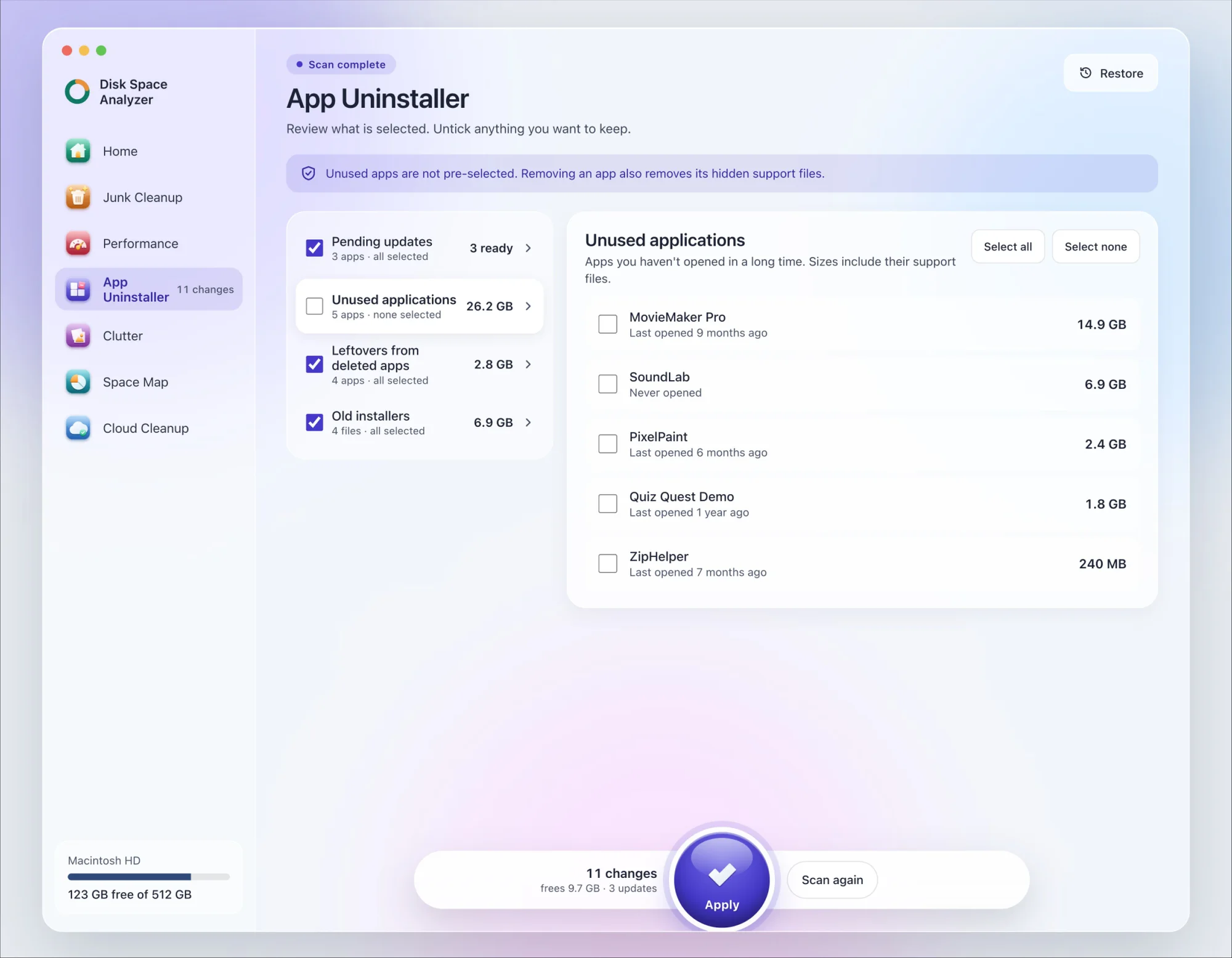
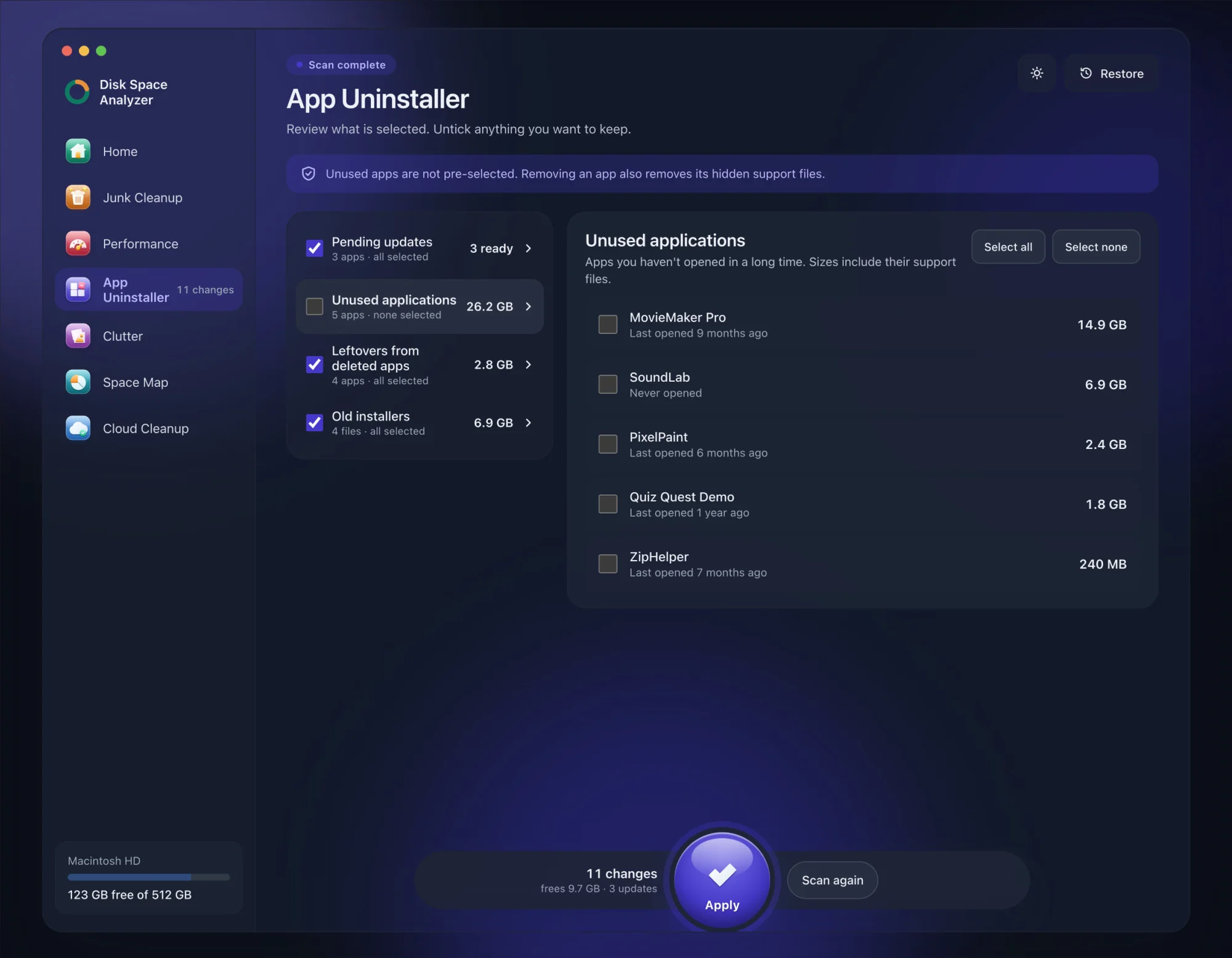
We make DissectMac, so this is our tool. App Uninstaller does the Library search for you, so you don't have to visit each folder above.
- Open DissectMac, go to App Uninstaller and press Scan.
- Find Malwarebytes in the list of applications and tick it.
- Press Apply. Malwarebytes goes together with its hidden support files, so deactivate this Mac from your subscription first if you want the seat back.
Already removed Malwarebytes with its own uninstaller? Anything it missed shows up in the Leftovers from deleted apps group instead. The scan is free; removing from inside the app is part of Pro, $19.99 once, and anything removed is kept for 30 days, so Restore brings it back.
Does uninstalling Malwarebytes cancel my subscription?
No. Turn off auto-renewal in your Malwarebytes account to cancel. If you bought through the App Store, cancel it in your Apple account.
Why can't I find the Uninstall option in Malwarebytes?
The Help menu belongs to the app window, not the menu bar icon. Click the Malwarebytes icon, choose Open Malwarebytes, and then open Help in the menu bar at the top left.
Can I drag Malwarebytes to the Trash instead?
Malwarebytes mentions Finder as an option, but the in-app uninstaller is the method it documents step by step. If you've already dragged it to the Trash, run the Mac Uninstall tool to clear what's left.
How do I reinstall Malwarebytes on Mac?
Restart your Mac, then download Malwarebytes from malwarebytes.com and install it. If the install fails, run the Mac Uninstall tool, restart and try again.
More guides
Uninstall
How to Uninstall Apps on Mac Completely (Leftovers Included)
How to uninstall apps on a Mac properly: Finder, Launchpad, official uninstallers, apps that won't delete, and the ~/Library leftovers most guides skip.
Uninstall
How to Uninstall Zoom on Mac
Uninstall Zoom on Mac from Zoom's own menu: Zoom Workplace > Uninstall Zoom Workplace. Then clear the Keychain entries and Library files it leaves.
Uninstall
How to Uninstall Xcode on Mac
Uninstall Xcode on Mac completely: remove simulator runtimes first, delete Xcode.app, then clear DerivedData, Archives and device support in ~/Library/Developer.
Uninstall
How to Uninstall Steam on Mac (and Its Games)
How to uninstall Steam on Mac: remove games inside Steam, quit it, drag it to the Trash, then clear the Steam folder in ~/Library where your games live.