
On this page
- Which Mac do you have?
- How to boot a Mac in safe mode on Apple silicon
- How to boot a Mac in safe mode on Intel
- How to tell if your Mac is in safe mode
- What does safe mode do on a Mac?
- How to test a problem in safe mode
- What it means if the problem goes away in safe mode
- Find what loads at startup with DissectMac
- What if the problem is still there in safe mode?
- How to get out of safe mode on a Mac
- Why is my Mac stuck in safe mode?
- Does safe mode delete anything on a Mac?
- Is safe mode slower to start?
To boot a Mac in safe mode on Apple silicon, shut it down, press and hold the power button until the startup options appear, select your startup disk, then hold Shift and click Continue in Safe Mode. On an Intel Mac, turn it on and hold Shift straight away, and let go when the login window appears. Mac safe mode starts macOS without login items, third-party extensions or non-Apple fonts, checks the startup disk and clears some system caches.
People use it to answer one question: is the problem macOS itself, or something that loads on top of it? The steps below follow Apple's own instructions in Start up your Mac in safe mode.
Which Mac do you have?
The steps depend on the chip. Choose Apple menu > About This Mac. If the window shows Chip followed by Apple M1, M2, M3, M4 or later, you have Apple silicon. If it shows Processor followed by an Intel name, you have an Intel Mac.
Before you start, Apple suggests installing any waiting macOS and app updates and unplugging accessories you don't need, since either of those fixes many problems on its own.
How to boot a Mac in safe mode on Apple silicon
- Shut down the Mac. If it won't shut down normally, press and hold the power button for up to 10 seconds.
- Press and hold the power button until you see the startup options window.
- Select your startup disk. It's usually called Macintosh HD.
- Press and hold Shift, then click Continue in Safe Mode.
- Log in. You may be asked to log in a second time before the Mac finishes starting up.
How to boot a Mac in safe mode on Intel
- Turn on or restart the Mac, and press and hold Shift immediately.
- Release Shift when the login window appears, then log in.
Apple notes that an Intel Mac with a firmware password can't start in safe mode.
How to tell if your Mac is in safe mode
Look at the upper-right corner of the login window. Apple says Safe Boot appears there in red when the Mac has started in safe mode.
If you missed it, check System Information after you log in:
- Hold Option and click the Apple menu.
- Choose System Information.
- Click Software in the sidebar.
- Look at Boot Mode. It reads Safe in safe mode and Normal otherwise.
What does safe mode do on a Mac?
According to Apple, starting in safe mode:
- Runs a basic check of your startup disk.
- Prevents some software from loading, including login items, extensions that macOS doesn't need and fonts that Apple didn't install.
- Clears some system caches, such as the font cache and kernel cache. macOS rebuilds them as it needs them.
Some things work differently while you're in safe mode. Apple lists video and graphics, file sharing, Wi-Fi, accessibility features, audio and USB, Thunderbolt or FireWire devices as features that may not behave as usual. A choppy screen or a missing Wi-Fi network in safe mode is expected, so don't count it as a sign of the problem you're testing.
How to test a problem in safe mode
Do whatever triggered the problem: open the app that crashes, wait for the slowdown, try the startup that hangs. Then compare.
| What happens in safe mode | What it points to | What to do next |
|---|---|---|
| The problem is gone | A login item, extension or font, or a cache or disk issue that safe mode fixed | Restart normally and test again |
| The problem is gone, then returns after a normal restart | Software that loads at startup | Remove login items one at a time, or test in a new user account |
| The problem is still there | macOS itself or hardware | Reinstall macOS, which keeps your personal files |
| The Mac won't start in safe mode at all | A startup problem | Follow Apple's guidance for a Mac that doesn't start up |
What it means if the problem goes away in safe mode
Restart normally and try again. The disk check or the cache clearing may have been the fix on its own, and some problems never come back after one safe boot.
If the problem returns, something that loads at startup is the likely cause. Open System Settings > General > Login Items & Extensions (called Login Items on macOS 13 and 14) and turn off the apps under Open at Login and Allow in the Background. Turn them back on one at a time until the problem returns, and you've found the culprit. Our guide to stopping apps from opening on startup walks through each list.
If that doesn't settle it, Apple suggests two more tests: log in to a new user account to see whether the problem follows your account, or reinstall macOS.
Find what loads at startup with DissectMac
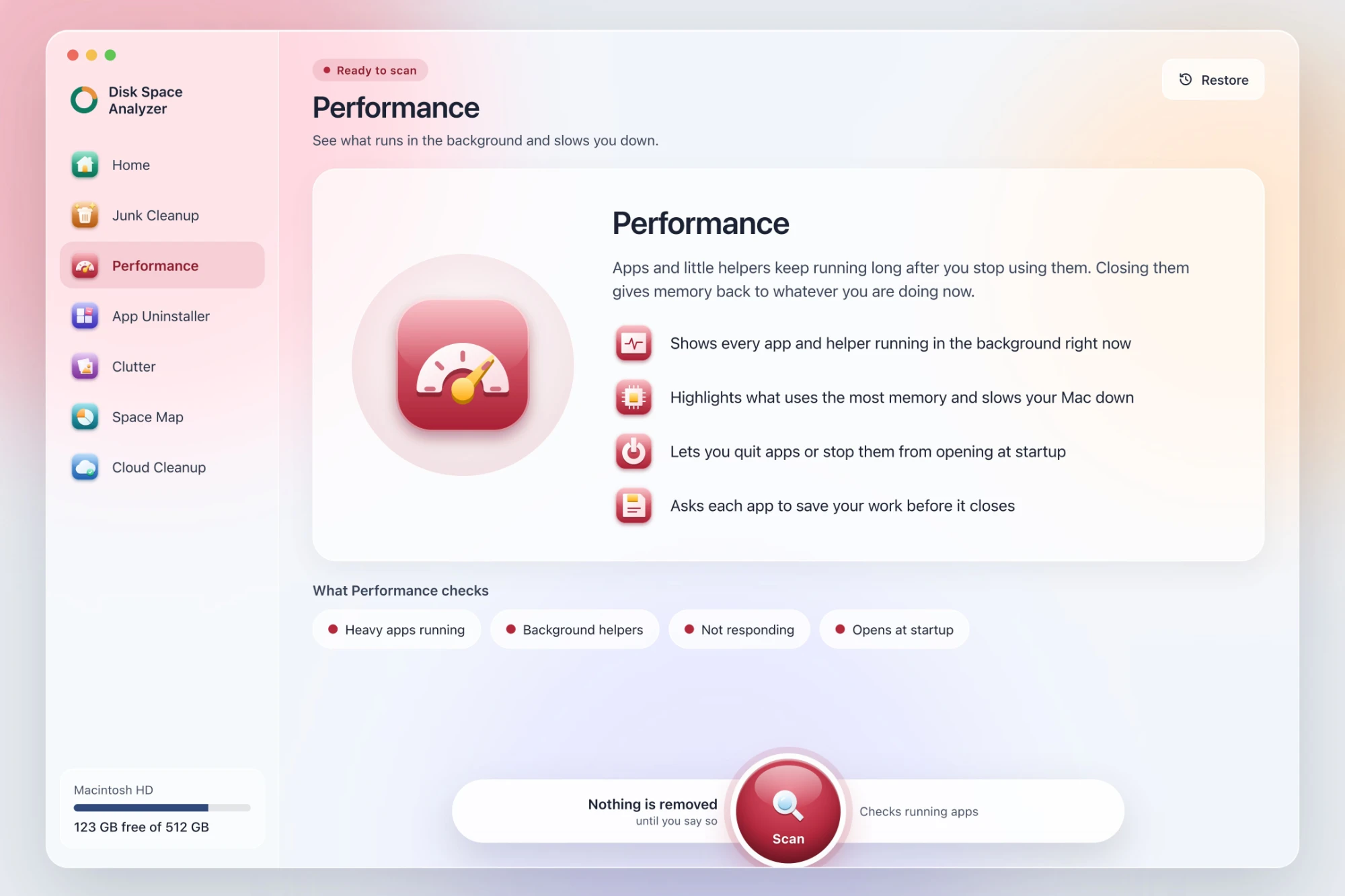
We make DissectMac, so weigh this accordingly. Its Performance scan lists the apps and helpers that start at login, and shows which apps are using the most memory right now. That's the same list you'd work through after a safe mode test, in one place with each item's memory use beside it. Scanning is free. Pro is $19.99 once, and anything DissectMac removes stays in its Safe Bin for 30 days, so Restore can put it back.
What if the problem is still there in safe mode?
Software that loads at startup isn't the cause, because safe mode didn't load it. Apple's next step is to reinstall macOS from macOS Recovery, which replaces the system without removing your personal files. Back up first anyway. If the problem survives a reinstall, it's likely hardware, and Apple Support or an Apple Authorized Service Provider is the next stop.
If the problem is general slowness rather than one fault, our checklist for why a Mac is slow covers the causes safe mode can't, such as a nearly full disk.
How to get out of safe mode on a Mac
Choose Apple menu > Restart and don't hold any keys. The Mac starts normally. Check Boot Mode in System Information if you want to be sure.
Why is my Mac stuck in safe mode?
On an Intel Mac, a Shift key that's stuck or held by something on the keyboard starts safe mode every time. Check the key, or try an external keyboard. If the Mac still starts in safe mode, reset NVRAM: shut down, turn the Mac on and hold Option + Cmd + P + R for about 20 seconds. Apple silicon Macs reset NVRAM automatically when needed.
Does safe mode delete anything on a Mac?
No personal files are deleted. Safe mode clears some system caches, which macOS rebuilds, and leaves your documents, photos and apps alone. Apple mentions safe mode as a way to free some space temporarily for this reason, since the caches come back as you use the Mac.
Is safe mode slower to start?
It can be. The disk check and cache clearing happen during startup, and graphics may not run at full speed, so the Mac can feel slower in safe mode. That goes away when you restart normally.
More guides
Speed
Why Is My Mac So Slow? 8 Causes and How to Fix Each One
A slow Mac usually has one of 8 causes: a full disk, memory pressure, a runaway process, login items, heat or old hardware. Find yours in 5 minutes and fix it.
Speed
mds_stores High CPU on Mac: What It Is and Fixes
mds_stores is Spotlight building its search index. Why it spikes after updates and big copies, how long it takes, and how to exclude folders or rebuild it.
Speed
kernel_task High CPU on Mac: Why and What to Do
kernel_task high CPU on a Mac means macOS is holding back the processor to control heat. Why you can't quit it, what heats the Mac, and how to fix it.
Speed
How to Speed Up a MacBook (13 Fixes)
How to speed up a MacBook: restart, update, free disk space, quit heavy apps, trim login items and more. 13 fixes in order, plus what doesn't help.