On this page
- The quick version
- 1. Restart your MacBook
- 2. Update macOS and your apps
- 3. Free up disk space
- 4. Quit the apps using the most memory
- 5. Stop apps opening at login
- 6. Close tabs and remove browser extensions
- 7. Let syncing and indexing finish
- 8. Keep it cool
- 9. Reduce motion and transparency
- 10. Run First Aid in Disk Utility
- 11. Test in safe mode
- 12. Test with a new user account
- 13. Upgrade or replace the hardware
- What doesn't speed up a Mac
- Speed up your MacBook with DissectMac
- How do I speed up my MacBook Air?
- Will a factory reset speed up my Mac?
- Why is my MacBook so slow all of a sudden?
To speed up a MacBook, restart it, install the latest macOS, keep at least 10 to 15 percent of the disk free, quit the apps using the most memory, and stop apps you don't need from opening at login. Those five fixes solve most slow Macs and cost nothing. The rest of the 13 below are for the cases they don't.
If you'd rather find the exact cause first, our why is my Mac so slow guide has a five-minute check with Activity Monitor. This page is the fix list.
The quick version
| Fix | Takes | Helps when |
|---|---|---|
| 1. Restart | 2 min | It's been days or weeks since the last restart |
| 2. Update macOS and apps | 10 to 30 min | You're a version or more behind |
| 3. Free up disk space | 10 min+ | The disk is more than about 85 to 90 percent full |
| 4. Quit heavy apps | 2 min | Memory Pressure is yellow or red |
| 5. Trim login items | 5 min | It's slow for a while after you log in |
| 6. Close tabs and remove extensions | 5 min | The browser is the slow part |
| 7. Let syncing and indexing finish | Wait | It's slow after an update, migration or new iCloud setup |
| 8. Keep it cool | 1 min | The fans run loudly, or it slows down under load |
| 9. Reduce motion and transparency | 1 min | An older Intel MacBook feels laggy in the interface |
| 10. Run First Aid | 5 to 15 min | Apps freeze when saving, or the disk reports errors |
| 11. Test in safe mode | 10 min | Something you installed might be the cause |
| 12. Create a new user to test | 10 min | The problem might be in your account's settings |
| 13. Upgrade or replace hardware | Varies | Everything above is done and it's still slow |
1. Restart your MacBook
A restart clears swap files, closes processes that have been leaking memory for days and finishes any update waiting in the background. Choose Apple menu > Restart. If you close the lid instead of shutting down, your MacBook may not have restarted in weeks.
2. Update macOS and your apps
Open System Settings > General > Software Update and install what's offered. Then update apps from the App Store's Updates section and in each app's own Check for Updates menu. Apple's own advice for a slow Mac includes keeping macOS and your apps up to date, and old app versions are a common cause of hangs after a macOS upgrade.
3. Free up disk space
A nearly full disk is the most common cause of a slow Mac. macOS needs free space for swap files, caches and updates, and when it runs out, everything waits. Check System Settings > General > Storage, and aim to keep at least 10 to 15 percent free.
The biggest wins are usually old iPhone backups, local Time Machine snapshots, a Downloads folder of old installers, and caches and leftovers from apps. Our guide to clearing storage on Mac goes through 12 fixes in the order that frees the most.
4. Quit the apps using the most memory
Open Activity Monitor (Cmd + Space, type Activity Monitor), click the Memory tab and look at Memory Pressure at the bottom. Green is fine. Yellow or red means macOS is compressing memory and swapping to disk, which is when a MacBook feels slow.
Sort by Memory and quit the apps at the top that you aren't using. A browser with dozens of tabs, a virtual machine or a video editor can take more memory than everything else together. How to clear RAM on a Mac explains the Memory tab in detail.
5. Stop apps opening at login
Open System Settings > General > Login Items & Extensions (just Login Items on macOS 13 and 14). Remove anything under Open at Login you don't need straight away, and turn off items under Allow in the Background you don't recognise or use. Our guide to stopping apps opening on startup covers the hidden launch agents this screen doesn't show.
6. Close tabs and remove browser extensions
Each browser tab is its own process, and some sites keep using CPU in the background. Close tabs you aren't using and remove extensions you don't need. In Safari, open Safari > Settings > Extensions; in Chrome, open Window > Extensions. Chrome's own task manager (Window > Task Manager) shows which tab or extension is using the most.
7. Let syncing and indexing finish
After a macOS update, a migration or a fresh iCloud sign-in, your MacBook works hard in the background for a while: Spotlight rebuilds its index, Photos analyses your library and iCloud Drive downloads or uploads files. Leave it plugged in and awake for a few hours. If mds_stores stays busy for days, see mds_stores high CPU.
8. Keep it cool
When a Mac gets hot, macOS slows apps down on purpose to bring the temperature down. On Intel Macs you'll see this as kernel_task using lots of CPU; MacBook Air models with Apple silicon have no fan, so they slow down under long, heavy work. Use your MacBook on a hard surface, keep the vents clear and avoid hot rooms or direct sun. More in kernel_task high CPU.
9. Reduce motion and transparency
On older Intel MacBooks, interface effects can make windows and Mission Control feel slow. Open System Settings > Accessibility > Display and turn on Reduce motion and Reduce transparency. On Apple silicon Macs this rarely makes a visible difference.
10. Run First Aid in Disk Utility
If apps freeze when saving or you see disk errors, open Disk Utility (in Applications > Utilities), select your startup volume and click First Aid. It checks the disk for errors and repairs what it can.
11. Test in safe mode
Safe mode starts your Mac with only what macOS needs, without login items or third-party extensions. If your MacBook is fast in safe mode, something you installed is the cause. Our Mac safe mode guide has the steps for Apple silicon and Intel.
12. Test with a new user account
Create a test account in System Settings > Users & Groups, log in to it and use the Mac for a while. If it's fast there, the slowdown comes from something in your own account, such as login items, a corrupted preference file or a background app.
13. Upgrade or replace the hardware
If everything above is done and it's still slow, the limit may be the hardware:
- Intel MacBooks with a spinning hard drive feel far faster with an SSD, where the model allows it.
- Older Intel models with upgradable RAM benefit from more memory.
- Apple silicon MacBooks can't be upgraded after purchase. If you regularly hit red Memory Pressure, the fix is fewer apps open at once, or more memory in your next Mac.
- macOS support: a Mac that no longer gets current macOS versions will keep falling behind newer apps.
What doesn't speed up a Mac
- Memory cleaner apps and
sudo purge. They empty memory macOS is using as cache, which it fills again straight away. - Clearing all caches. Apps rebuild them, and your Mac is slower until they do. Clear a cache when it's huge or broken, not for speed. See whether clearing cache speeds up a Mac.
- Defragmenting. Macs with SSDs and APFS don't need it, and macOS has no defrag tool for them.
Speed up your MacBook with DissectMac
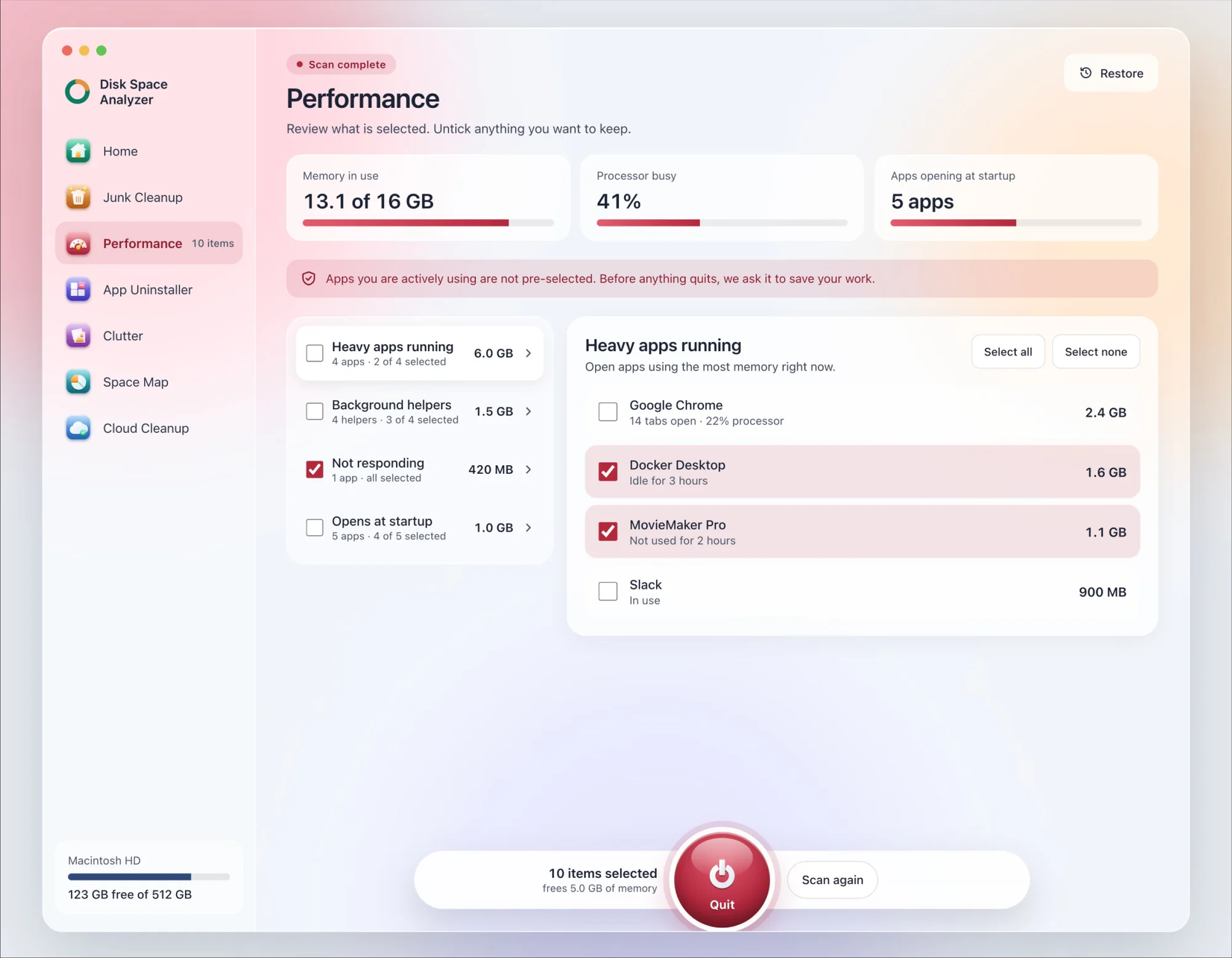
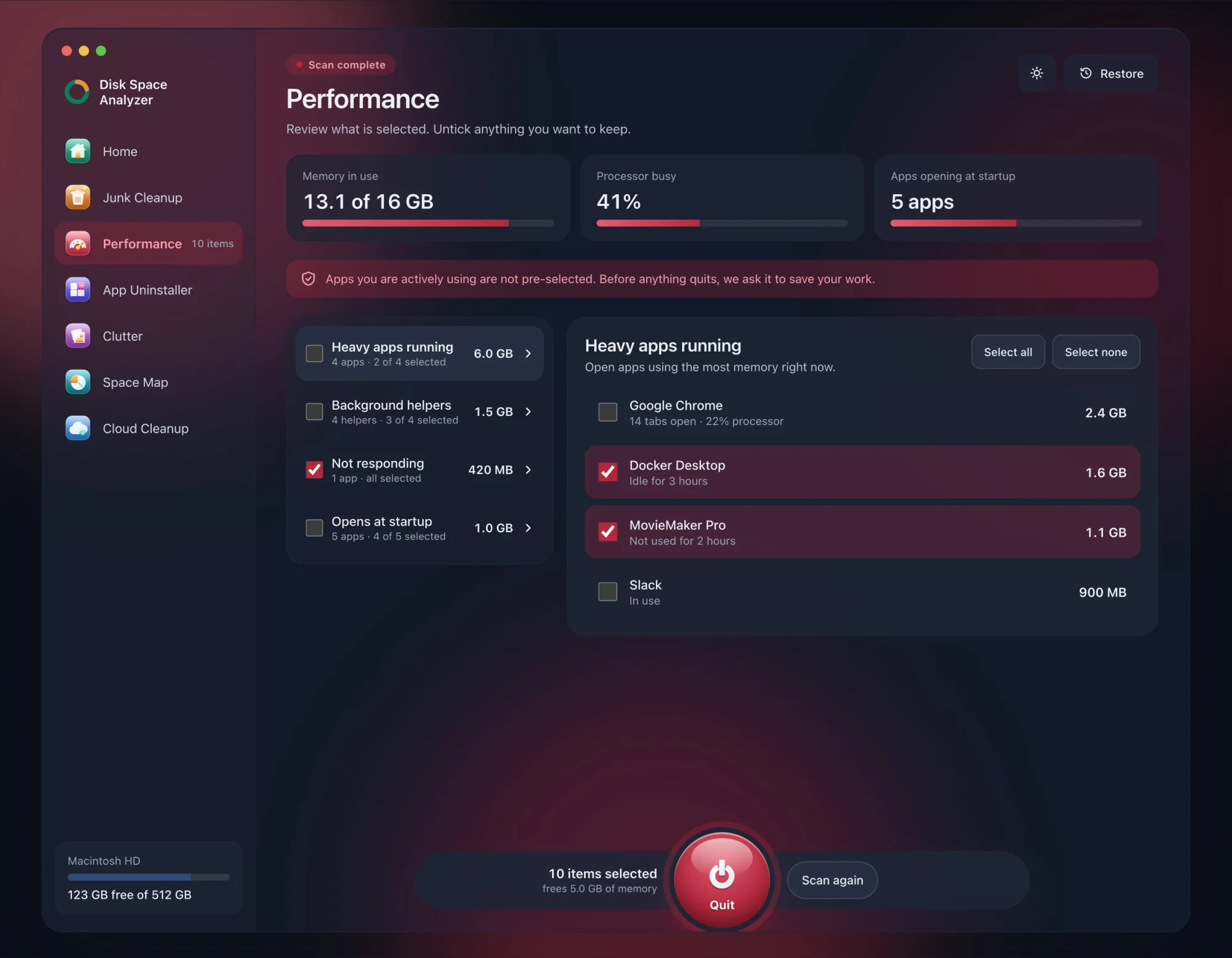
We make DissectMac, so weigh this accordingly. Its Performance scan shows how much memory is in use, how busy the processor is, the heaviest apps running and what opens at login, all on one screen. Space Map draws your whole disk to scale, so if storage is the problem, the folder causing it is the biggest block. Scanning is free. Pro quits background apps, stops startup items and clears space from inside the app for $19.99 once, and anything removed is kept for 30 days, so Restore brings it back.
How do I speed up my MacBook Air?
The same fixes apply, with two that matter more on an Air. Keep the disk well below full, because base models have smaller drives that fill quickly. And mind the heat: Apple silicon MacBook Airs have no fan, so long exports or games slow down as the chip warms up. Use it on a hard surface and give heavy jobs time.
Will a factory reset speed up my Mac?
Sometimes, because it removes everything that's accumulated, but it's a last resort. Try the fixes above and a test user account first. If a new user account is fast, a reset will likely help; if it's slow too, the cause is more likely the hardware or the disk.
Why is my MacBook so slow all of a sudden?
A sudden slowdown usually has one cause: a macOS update still finishing in the background, the disk filling up, one app stuck using lots of CPU, or the Mac running hot. Our why is my Mac so slow guide checks each in about five minutes.
More guides
Speed
Why Is My Mac So Slow? 8 Causes and How to Fix Each One
A slow Mac usually has one of 8 causes: a full disk, memory pressure, a runaway process, login items, heat or old hardware. Find yours in 5 minutes and fix it.
Speed
mds_stores High CPU on Mac: What It Is and Fixes
mds_stores is Spotlight building its search index. Why it spikes after updates and big copies, how long it takes, and how to exclude folders or rebuild it.
Speed
How to Start a Mac in Safe Mode
How to boot a Mac in safe mode on Apple silicon and Intel, how to check it worked, what safe mode does, how to leave it and what your results mean.
Speed
kernel_task High CPU on Mac: Why and What to Do
kernel_task high CPU on a Mac means macOS is holding back the processor to control heat. Why you can't quit it, what heats the Mac, and how to fix it.