On this page
- What are mds, mdsstores and mdworker?
- Why is mdsstores using so much CPU?
- How long does Spotlight indexing take?
- Check whether Spotlight is still indexing
- Fix 1: Wait, plugged in
- Fix 2: Exclude folders with Search Privacy
- Fix 3: Rebuild the Spotlight index
- Is there a quick way to find what's keeping Spotlight busy?
- Is mdsstores a virus?
- Can I kill mdsstores?
- Does mdsstores slow down my Mac?
High CPU from mds_stores on a Mac means Spotlight is building or updating its search index. It's a normal part of macOS, it usually follows a macOS update, a migration or a big file copy, and it stops on its own once the index is complete. The fix in most cases is to leave the Mac on and plugged in until it finishes. If mds_stores stays busy for days, exclude the folders that keep changing or rebuild the index.
This guide explains the three Spotlight processes, how long indexing should take and what to do when it doesn't stop.
What are mds, mds_stores and mdworker?
They are the three parts of Spotlight's indexing system. You'll see all of them in Activity Monitor when it's working.
| Process | What it does |
|---|---|
mds |
The metadata server. Apple's man page describes it as the server for every client of the metadata APIs, Spotlight included |
mds_stores |
Manages the index files themselves, the "metadata stores" on each volume. Heavy CPU and disk use here means the index is being written |
mdworker, mdworker_shared |
Workers that mds starts to read files and pull out what Spotlight searches: names, text, dates, tags. Several can run at once |
Apple's man page for mdworker says it scans and indexes files "as a volume is mounted or a file changes". That one line explains almost every spike: connect a drive or change a lot of files, and the workers start.
None of them can be switched off from Activity Monitor. If you force quit mds_stores, macOS starts it again within seconds and picks up where it left off.
Why is mds_stores using so much CPU?
Something gave Spotlight a lot of new or changed files to read. The usual causes:
- A macOS update. Spotlight often re-indexes after a major update, which is one reason a Mac feels slow for a day or two afterwards.
- Migration Assistant or a restore. A whole Mac's worth of files arrives at once, and every one needs indexing.
- A big file copy or download. Copying a photo library, a project folder or a large archive.
- An external drive. Spotlight indexes a drive the first time you connect it, and again if its index is missing or damaged.
- Folders that never stop changing. Developer folders such as
node_modulesor Xcode's DerivedData, virtual machine files, and some sync clients rewrite thousands of files a day. Spotlight follows each change. - A nearly full disk. The
mdutilman page notes that indexing may be delayed by low disk space, so a full disk can leave Spotlight stuck halfway rather than finishing.
How long does Spotlight indexing take?
On a typical Mac, a few hours. Apple's support article on rebuilding the index says indexing "can take hours or even days" depending on how much data there is, and that it finishes sooner when the Mac is idle, connected to power and online. Updates after that first pass are much faster.
So a busy mds_stores on the evening after an update is expected. One that's still at the top of the CPU list two or three days later, with no new files arriving, is worth fixing.
Check whether Spotlight is still indexing
- Open Activity Monitor (Cmd + Space, type
Activity Monitor, press Return). - Click the CPU tab and type
mdin the search box. You'll seemds,mds_storesand anymdworker_sharedprocesses. - Click the Disk tab with the same search. Steady writes from
mds_storesmean it's still building the index.
To confirm indexing is turned on for your startup disk, open Terminal and run:
mdutil -s /
It should print Indexing enabled. If the CPU use comes and goes in short bursts, that's Spotlight keeping up with files you're changing, and it isn't a problem. Our guide to Activity Monitor, the Mac's task manager, covers the other columns.
Fix 1: Wait, plugged in
Leave the Mac on and connected to power overnight. The display can sleep; the Mac itself shouldn't. Spotlight works fastest when you aren't using the Mac. Don't restart it repeatedly to "reset" the process; indexing resumes after a restart, so you only lose time.
Free up space first if the disk is nearly full. Below about 10 percent free, macOS struggles with indexing as well as everything else; how to free up space on a Mac starts with what frees the most.
Fix 2: Exclude folders with Search Privacy
If one folder keeps Spotlight busy and you never search inside it, take it out of the index.
- Choose Apple menu > System Settings.
- Click Spotlight in the sidebar. On macOS 13 and 14 it's called Siri & Spotlight.
- Click Search Privacy. On older versions the button reads Spotlight Privacy.
- Click the add button (+) and choose the folder or drive, or drag it into the list.
- Click Done.
Good candidates are developer build folders, virtual machine files, backup drives and archive drives you only browse in Finder. Don't exclude your home folder or your startup disk: Spotlight also powers search in Mail, Finder and many apps.
To stop indexing an external drive from Terminal instead, run sudo mdutil -i off /Volumes/DriveName, replacing DriveName with the drive's name as it appears in Finder.
Fix 3: Rebuild the Spotlight index
When indexing never finishes, or Spotlight can't find files you know are there, the index may be damaged. Apple's method is to exclude the disk and then include it again:
- Open System Settings > Spotlight > Search Privacy, as above.
- Add your startup disk (usually Macintosh HD) to the list.
- Wait a few seconds, select it in the list and click the remove button (−).
- Click Done and quit System Settings.
Spotlight then indexes the whole disk again. If you see a permissions error when adding the disk, Apple's article points to fixing ownership of the disk or folder first.
The Terminal equivalent erases the index and lets Spotlight rebuild it:
sudo mdutil -E /
Enter your administrator password when asked. The -E flag, per the mdutil man page, erases the local index store so it's rebuilt. Expect mds_stores to be busy again for hours, and search in Spotlight, Finder and Mail to miss results until it finishes. Don't run it repeatedly; each run starts the rebuild over.
Avoid sudo mdutil -i off / as a fix. It turns indexing off for the startup disk, which stops the CPU use but breaks Spotlight and Mail search until you turn it back on.
Is there a quick way to find what's keeping Spotlight busy?
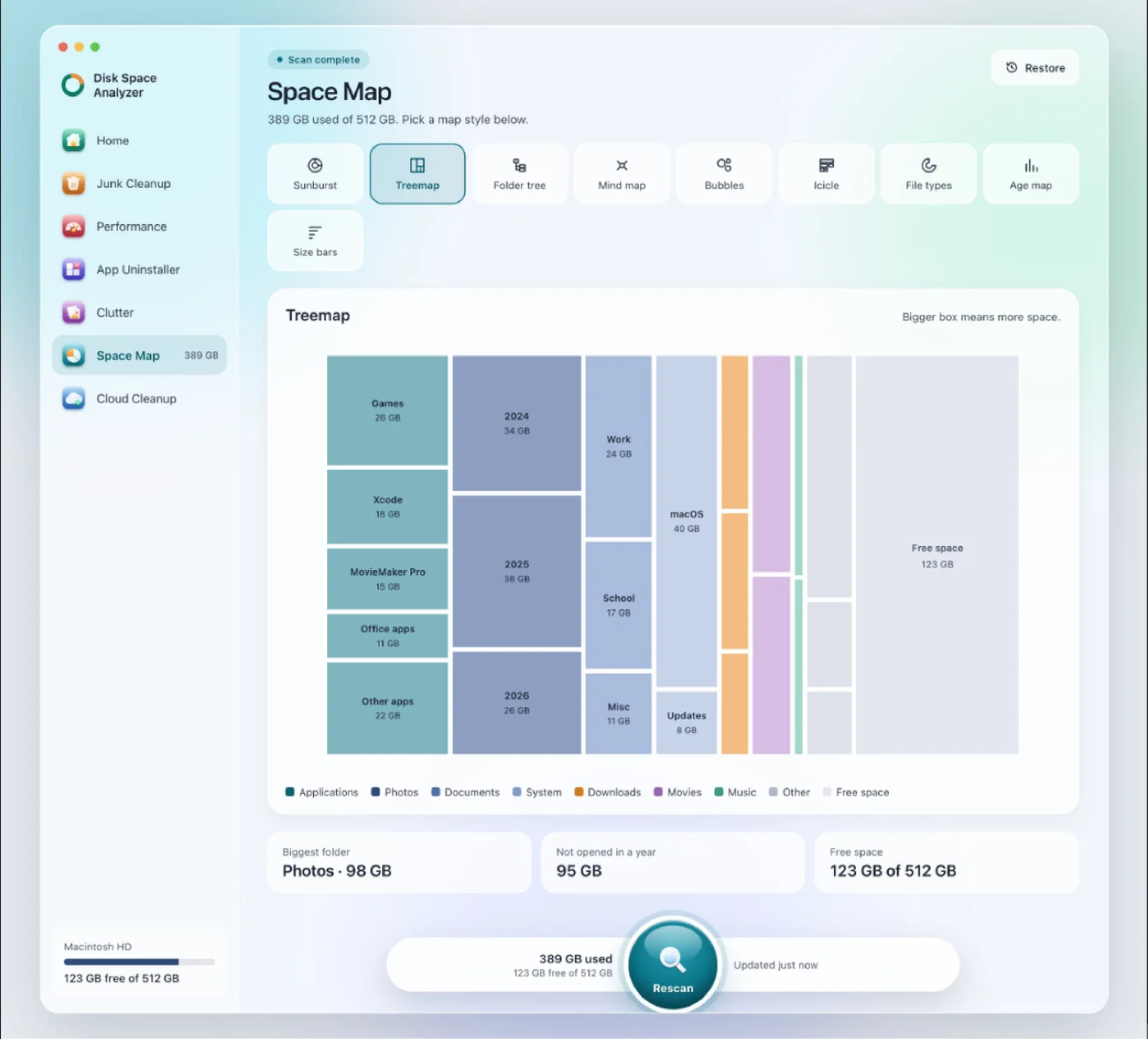
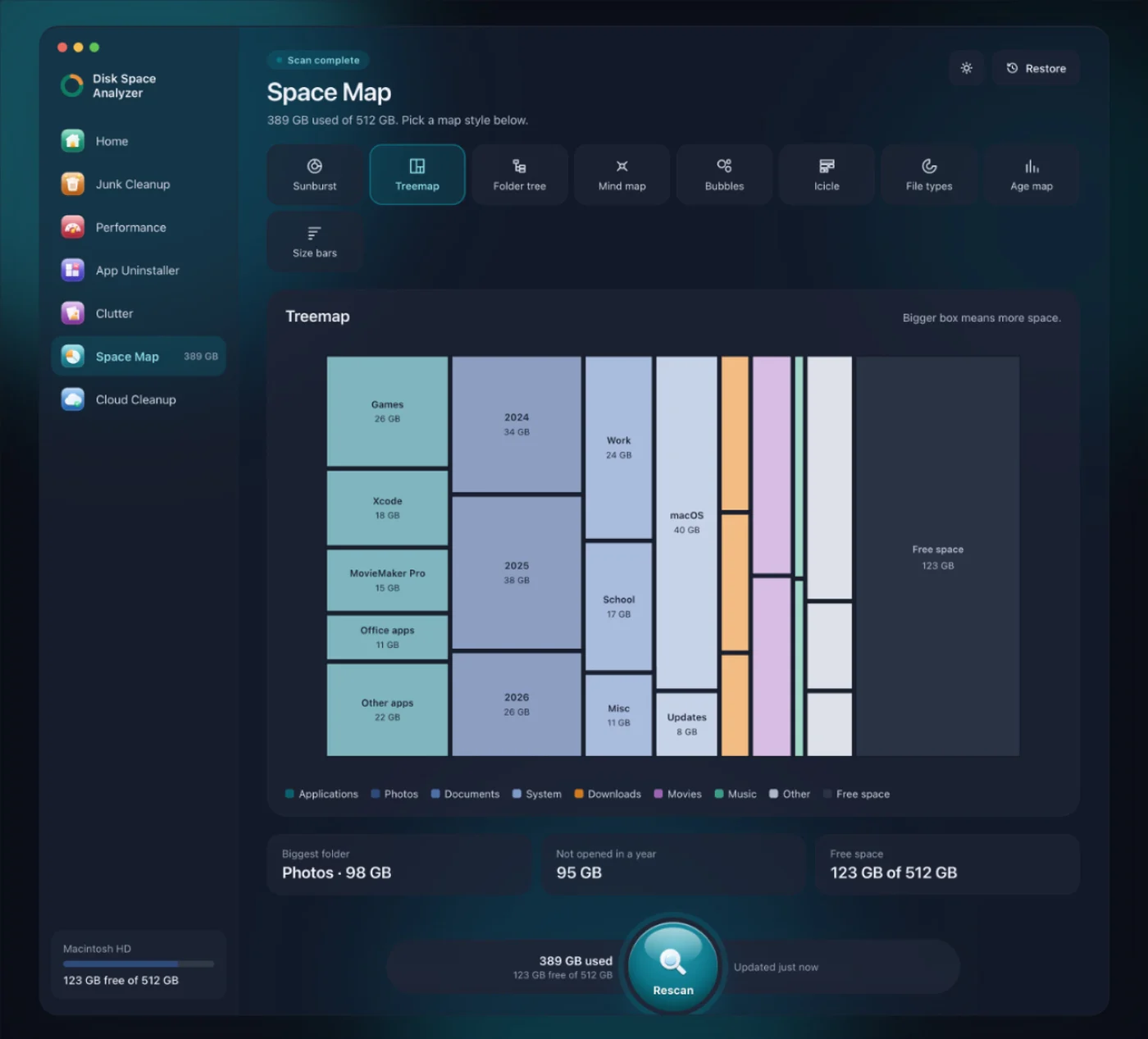
Look for the folders with the most files that change most often. Finder doesn't show that easily, which is where a disk map helps. We make DissectMac, and its free Space Map draws the whole disk to scale, hidden folders included, so a huge node_modules tree or a virtual machine bundle shows up as one big block you can add to Search Privacy. If the folder turns out to be something you don't need, such as old node_modules folders (how to clean them up), deleting it removes the work too. Pro cleans junk from inside the app and keeps anything it removes in the Safe Bin for 30 days, so Restore can put it back.
Is mds_stores a virus?
No. mds_stores is part of macOS, and it runs on every Mac with Spotlight turned on. A copy that keeps using CPU for days points to an index problem, which the fixes above deal with, not to malware.
Can I kill mds_stores?
You can, but it comes straight back. macOS relaunches it automatically and indexing continues. Killing it repeatedly only makes indexing take longer.
Does mds_stores slow down my Mac?
While it's indexing, yes, a little: it uses CPU and disk, and on Macs with fans you may hear them spin up. If the Mac is slow and mds_stores isn't near the top of the CPU list, look elsewhere; why is my Mac so slow checks each cause in order.
More guides
Speed
Why Is My Mac So Slow? 8 Causes and How to Fix Each One
A slow Mac usually has one of 8 causes: a full disk, memory pressure, a runaway process, login items, heat or old hardware. Find yours in 5 minutes and fix it.
Speed
How to Start a Mac in Safe Mode
How to boot a Mac in safe mode on Apple silicon and Intel, how to check it worked, what safe mode does, how to leave it and what your results mean.
Speed
kernel_task High CPU on Mac: Why and What to Do
kernel_task high CPU on a Mac means macOS is holding back the processor to control heat. Why you can't quit it, what heats the Mac, and how to fix it.
Speed
How to Speed Up a MacBook (13 Fixes)
How to speed up a MacBook: restart, update, free disk space, quit heavy apps, trim login items and more. 13 fixes in order, plus what doesn't help.