On this page
- Where you see purgeable space
- What's in purgeable space on a Mac?
- Why does my Mac show more available space than free space?
- Do you need to clear purgeable space?
- How to clear purgeable space on a Mac
- See what's on your disk with DissectMac
- Is it safe to delete purgeable space?
- Why won't my purgeable space go down?
- Does purgeable space slow down a Mac?
Purgeable space on a Mac is storage taken up by files macOS can remove on its own when it needs room, such as local Time Machine snapshots, copies of iCloud files and caches. Apple's wording is that available storage "includes free storage space and purgeable disk caches". So the space is in use right now, but macOS counts it as available because it will clear it as soon as something else needs it.
That's why a Mac can say 80 GB is available while only 30 GB is free. In most cases you don't need to do anything about it. This guide explains where the number comes from, what's in it, and the few cases where it's worth clearing by hand.
Where you see purgeable space
The difference between free and available shows up in a few places:
- System Settings > General > Storage. The bar at the top shows used storage and how much is available. Apple's description of this screen counts purgeable space as available.
- Finder. Select Macintosh HD and choose File > Get Info (or press Cmd + I). The Available figure includes purgeable space. The status bar at the bottom of a Finder window (View > Show Status Bar) shows the same available figure.
- Terminal.
df -h /reports blocks that are free on the disk, without counting purgeable space, so its number is usually smaller than Finder's.
Apple sums up the oddity in one line in its storage help: disk space "might be both available and used at the same time".
What's in purgeable space on a Mac?
Apple doesn't publish a single list, but its support articles describe each kind of storage macOS treats as removable.
| What it is | Where it comes from | What happens when macOS needs the space |
|---|---|---|
| Local Time Machine snapshots | Time Machine saves a snapshot of the startup disk about every hour and keeps it for 24 hours | Deleted as they age or when space is needed. Apple says the Mac counts this space as available storage |
| iCloud Drive files | Store in iCloud keeps Desktop and Documents in iCloud Drive | macOS keeps only recently opened files on the Mac and leaves the rest in iCloud, ready to download |
| iCloud Photos originals | Optimize Mac Storage in Photos settings | Full-size originals stay in iCloud, smaller versions stay on the Mac |
| Watched Apple TV movies and shows | Optimize Storage in Storage settings | Removed after you've watched them |
| Mail attachments | Optimize Storage | Only recent attachments are kept on the Mac |
| Caches, logs and temporary files | macOS and apps | Apple says macOS clears caches and logs that are safe to delete, including temporary database files, interrupted downloads, staged macOS and app updates and Safari website data |
Local snapshots are often the largest part, especially on a Mac whose Time Machine drive hasn't been connected for a while.
Why does my Mac show more available space than free space?
Free space is space with nothing in it. Available space is free space plus everything macOS could delete without asking you. When an app asks for room, macOS removes purgeable items first, so in normal use the available figure is the one that matters.
The two figures drift apart over time. A Mac that has been running for weeks with iCloud Drive syncing and Time Machine taking hourly snapshots can carry a lot of purgeable data. That's macOS using empty space as a cache rather than a sign that something is wrong.
Do you need to clear purgeable space?
Usually not. macOS frees it as space is needed, so it doesn't slow the Mac down and doesn't stop you saving files.
There are three cases where clearing it by hand helps:
- An installer says there isn't enough space while Finder shows plenty available.
- Disk Utility or a virtual machine needs a fixed block of space, such as when you resize a partition or create a large disk image.
- You want an accurate picture of what's using your disk, without snapshots and cached files muddying it.
How to clear purgeable space on a Mac
No app clears purgeable space directly, because macOS manages it. What you can do is remove the things macOS counts as purgeable, or ask macOS to do it sooner. Start with the least intrusive option.
1. Let macOS do it
Do nothing, and let macOS purge as space is needed. Apple's storage articles describe this as automatic: snapshots are deleted "as space is needed", and iCloud files are left in iCloud when storage runs low. It's the method Apple intends, and it never removes anything you'd miss.
2. Back up with Time Machine
Connect your Time Machine drive and let a backup finish (Time Machine menu bar icon > Back Up Now). Once the backup is on the drive, macOS needs fewer local snapshots.
3. Remove local Time Machine snapshots
List the snapshots on your startup disk:
tmutil listlocalsnapshots /
Each line has a date in the form 2026-11-13-101530. To delete one snapshot, pass its date:
sudo tmutil deletelocalsnapshots 2026-11-13-101530
To delete every local snapshot on the startup disk:
sudo tmutil deletelocalsnapshots /
Deleting snapshots is permanent. Any change you made since your last backup to an external drive can no longer be recovered from them, so run a full Time Machine backup first if you rely on them. A gentler option asks macOS to thin snapshots until it frees a set amount, here about 20 GB:
sudo tmutil thinlocalsnapshots / 21474836480 4
4. Use the Storage recommendations
Open System Settings > General > Storage and review the recommendations at the top. Store in iCloud and Optimize Storage don't empty purgeable space themselves. They decide which files macOS may remove later, and turning them on adds to the purgeable figure. Leave them on if you want macOS to manage space for you. Empty Trash Automatically deletes items that have been in the Trash for more than 30 days, which is real free space rather than purgeable space.
See what's on your disk with DissectMac
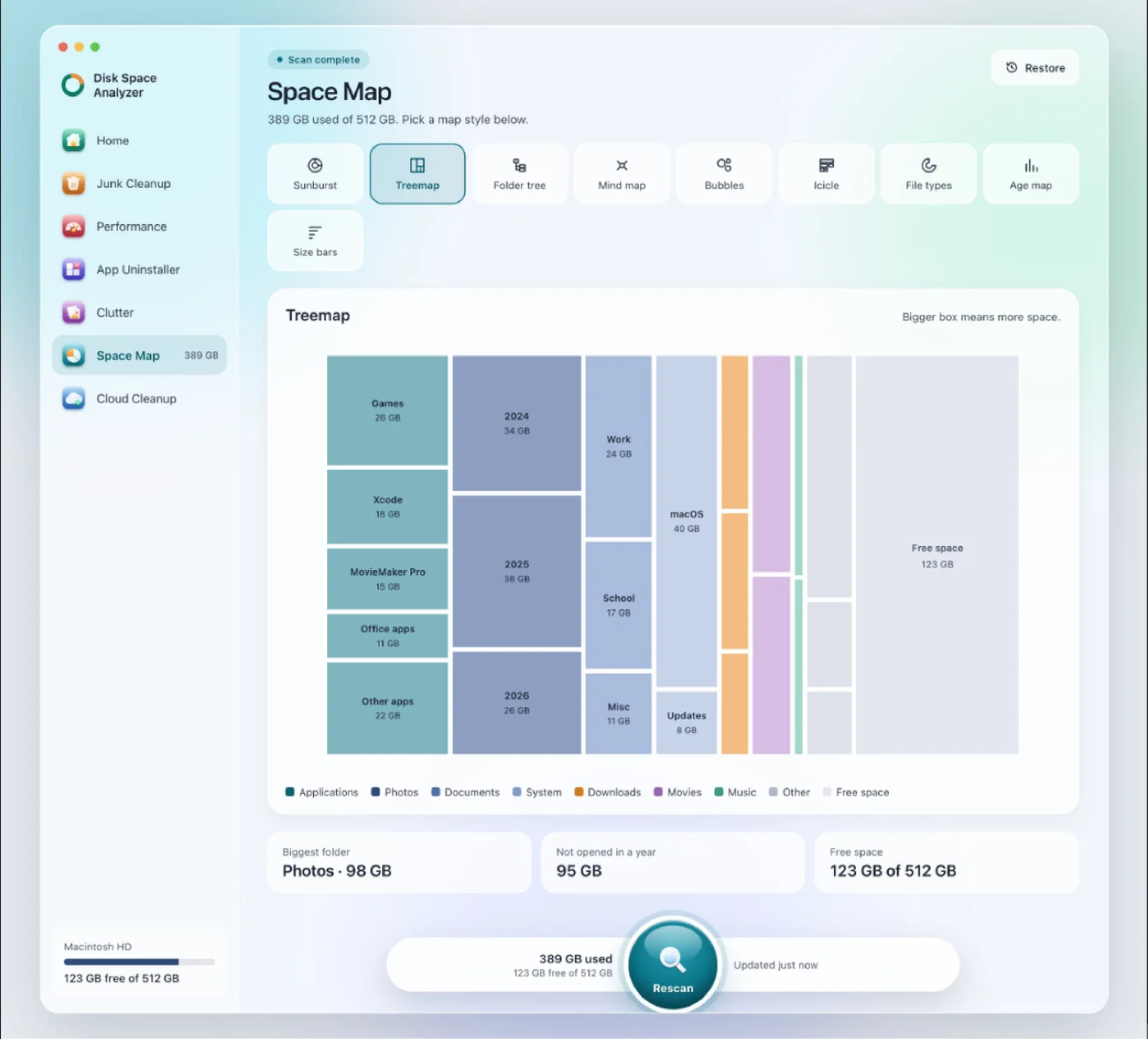
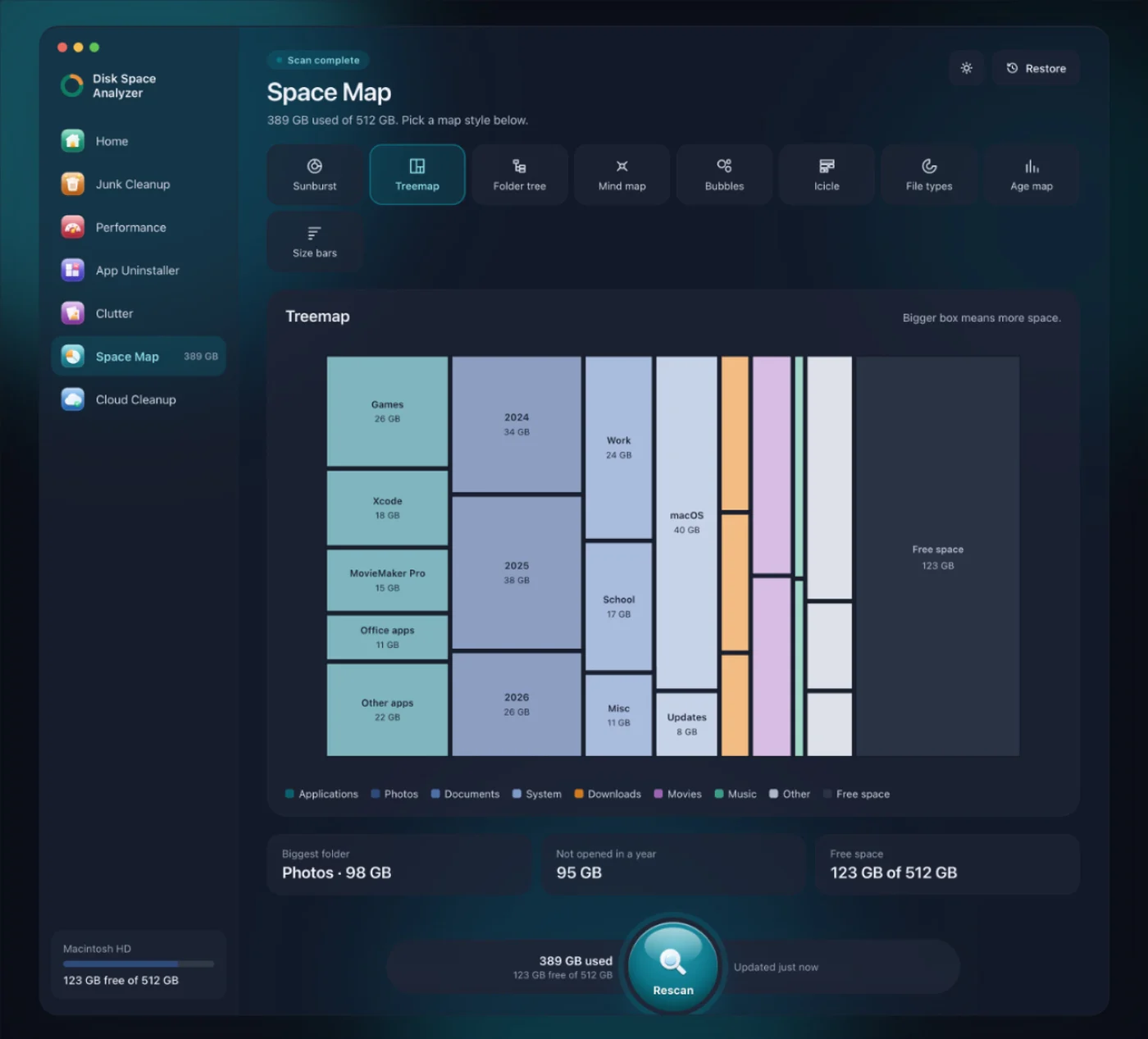
We make DissectMac, so take this with that in mind. It doesn't clear purgeable space, and no Mac app can in the way some cleaners claim. What its Space Map does is draw every folder on your drive to scale, including the Library folders Finder hides, so you can see what's using space that macOS won't purge for you: old iPhone backups, app caches, large downloads and leftovers from deleted apps. Scanning is free. Pro is $19.99 once, and anything it removes stays in the Safe Bin for 30 days so Restore can put it back.
If your Storage bar is mostly grey, our guide to why System Data is so big covers the snapshots and caches that end up there. For the full sequence of what to delete on a full Mac, see how to free up space on a Mac.
Is it safe to delete purgeable space?
Yes, for the items macOS considers purgeable, because it would delete them itself. The one thing to think about is Time Machine snapshots, which are a short-term safety net between backups. Make sure your external backup is current before you delete them.
Why won't my purgeable space go down?
macOS keeps purgeable files until something needs the space, so the number can stay high for weeks. If an app or installer reports that the disk is full while Finder shows plenty available, delete local snapshots with tmutil and restart, then try again.
Does purgeable space slow down a Mac?
No. Purgeable files sit on the disk like any other files and use no memory or CPU. A Mac slows down when its truly free space runs very low, which is a different problem; see why is my Mac so slow.
More guides
Check storage
How to Check Storage on Mac (And What It Hides From You)
Check storage on a Mac in System Settings, Finder or Terminal, see which files use it, and understand purgeable space and why the storage bar never adds up.
Check storage
Other Users & Shared Taking Up Space on Mac: What It Is and How to Clear It
Other Users & Shared in Mac storage is space used by other accounts, the Shared folder and deleted users' home folders. How to see what's in it and clear it.
Check storage
How to Find Large Files on a Mac (Storage Settings, Finder, Terminal)
Find the largest files on a Mac with the Storage panel's Large Files list, a Finder search by size, one Terminal command, or a disk map drawn to scale.
Speed
Why Is My Mac So Slow? 8 Causes and How to Fix Each One
A slow Mac usually has one of 8 causes: a full disk, memory pressure, a runaway process, login items, heat or old hardware. Find yours in 5 minutes and fix it.