On this page
- Before you uninstall Docker
- How to uninstall Docker on Mac
- Uninstall Docker from Terminal
- Remove the files Docker leaves behind
- Uninstall Docker with DissectMac
- Does uninstalling Docker delete my images and containers?
- Why is Docker still taking up space after I deleted it?
- How do I uninstall Docker if the app won't open?
- Can I reinstall Docker after uninstalling it?
To uninstall Docker on a Mac, open Docker Desktop, click the Troubleshoot icon, choose Uninstall, then drag Docker from Applications to the Trash. Docker's uninstaller deletes your local containers, images and volumes along with the app's data, but leaves two folders, ~/.docker and a group container in ~/Library, which this guide covers.
Dragging Docker to the Trash on its own isn't enough; our guide to uninstalling apps on Mac explains why apps leave files behind.
Before you uninstall Docker
- Only after disk space? You may not need to uninstall at all. Docker's disk image can stay large after you delete things inside it; our guide to shrinking Docker's disk on Mac gets the space back and keeps Docker working.
- Save the images you built. Uninstalling deletes every local image. Push the ones you want to a registry with
docker push, or save them to a file withdocker image save -o images.tar image1 image2. - Save container changes and volumes.
docker container committurns a container into an image you can save, but it doesn't include volumes or bind mounts. Back up volume data, such as local databases, separately. - Check your Docker subscription. Uninstalling the app doesn't cancel a paid Docker plan. Manage that from your Docker account.
How to uninstall Docker on Mac
These are Docker's own steps for Docker Desktop. They permanently delete your local containers, images, volumes and other Docker data.
- Open Docker Desktop.
- In the top-right corner of the Dashboard, click the Troubleshoot icon.
- Click Uninstall.
- Click Uninstall again to confirm.
- Quit Docker if it's still open, then drag Docker from the Applications folder to the Trash and empty the Trash.
Uninstall Docker from Terminal
If Docker Desktop won't open, Docker documents a command-line uninstaller inside the app. It deletes the same data as the button:
/Applications/Docker.app/Contents/MacOS/uninstall
Then drag Docker from Applications to the Trash.
You may see an "operation not permitted" error about .com.apple.containermanagerd.metadata.plist or ~/Library/Containers/com.docker.docker. Docker says you can ignore it: Docker Desktop is still uninstalled. To delete that folder later, give Terminal Full Disk Access in System Settings > Privacy & Security > Full Disk Access, then remove it.
If you installed Docker Desktop with Homebrew, run brew uninstall --cask docker-desktop instead of deleting the app by hand, after the in-app uninstall.
Remove the files Docker leaves behind
Docker's documentation lists these folders as left behind after the uninstaller runs. Each command deletes the folder permanently:
rm -rf ~/Library/Group\ Containers/group.com.docker
rm -rf ~/.docker
| Location | What's there |
|---|---|
~/Library/Group Containers/group.com.docker |
Docker Desktop settings files |
~/.docker |
Docker CLI configuration, contexts and saved registry logins |
~/Library/Containers/com.docker.docker |
Docker Desktop's data, including the disk image that held your images and volumes. Remove it after granting Full Disk Access if the uninstaller couldn't |
~/.docker is a hidden folder. In Finder, press Cmd + Shift + . to show hidden files, or use Go > Go to Folder.
Uninstall Docker with DissectMac
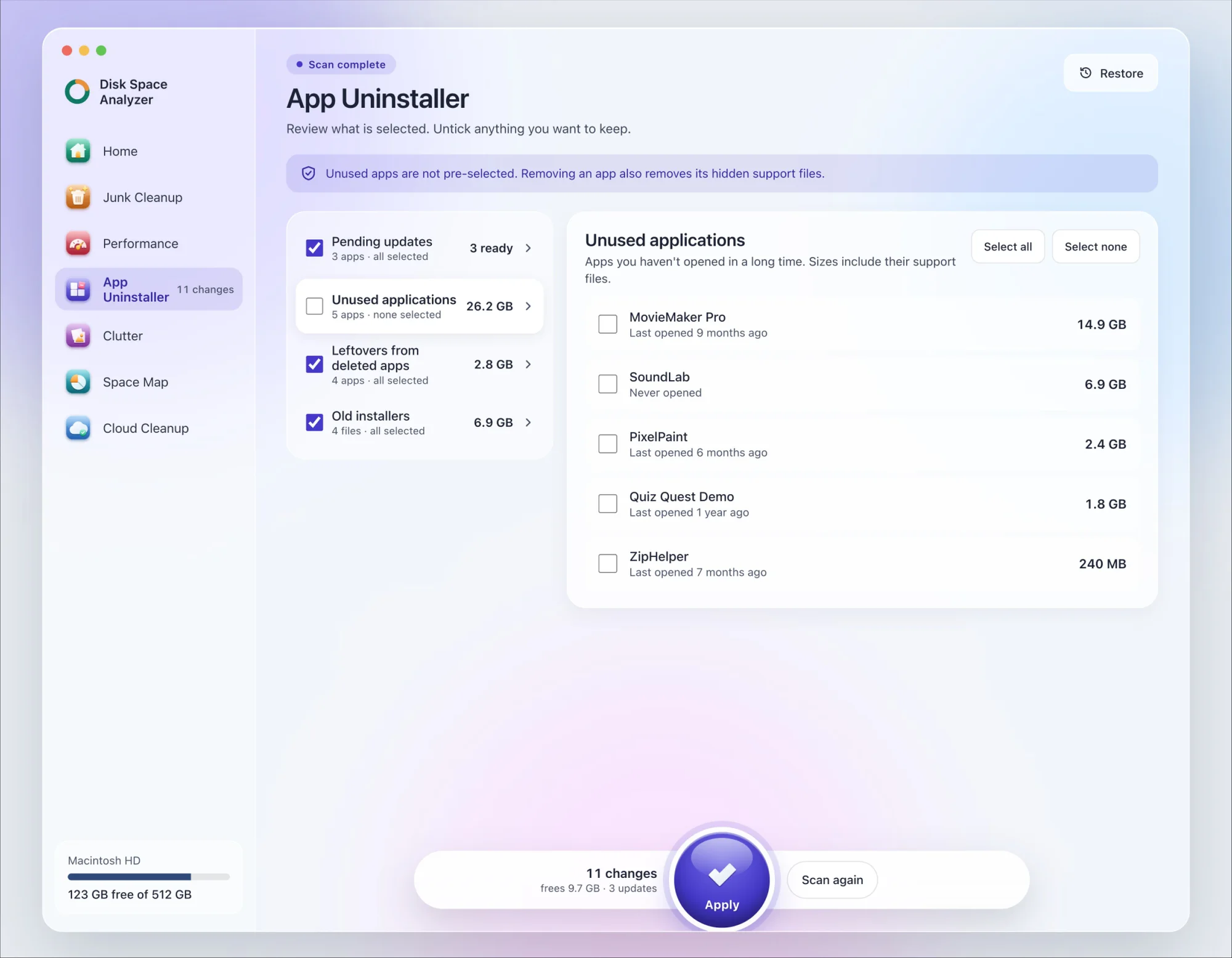
We make DissectMac, so this is our tool. App Uninstaller does the Library search for you, so you don't have to visit each folder above.
- Open DissectMac, go to App Uninstaller and press Scan.
- Find Docker in the list of applications and tick it.
- Press Apply. Docker goes together with its hidden support files, which can include its disk image with your containers, images and volumes, so save anything you need first, as described above.
Already dragged Docker to the Trash? Its files show up in the Leftovers from deleted apps group instead. The scan is free; removing from inside the app is part of Pro, $19.99 once, and anything removed is kept for 30 days, so Restore brings it back.
Does uninstalling Docker delete my images and containers?
Yes. Docker's uninstaller deletes local containers, images, volumes and other Docker data. Anything you pushed to Docker Hub or another registry stays there, and you can pull it again after reinstalling.
Why is Docker still taking up space after I deleted it?
Because dragging Docker to the Trash doesn't remove its data. Its disk image sits in ~/Library/Containers/com.docker.docker, and settings stay in ~/.docker and ~/Library/Group Containers/group.com.docker. Delete those folders, using Full Disk Access if macOS blocks you.
How do I uninstall Docker if the app won't open?
Run /Applications/Docker.app/Contents/MacOS/uninstall in Terminal, then move Docker to the Trash and remove the leftover folders above. If you already deleted the app, the script went with it, so delete the leftover folders by hand.
Can I reinstall Docker after uninstalling it?
Yes. Download Docker Desktop from docker.com and install it again. You start with no images or containers, so load saved ones with docker image load -i images.tar or pull them from your registry.
More guides
Uninstall
How to Uninstall Apps on Mac Completely (Leftovers Included)
How to uninstall apps on a Mac properly: Finder, Launchpad, official uninstallers, apps that won't delete, and the ~/Library leftovers most guides skip.
Uninstall
How to Uninstall Zoom on Mac
Uninstall Zoom on Mac from Zoom's own menu: Zoom Workplace > Uninstall Zoom Workplace. Then clear the Keychain entries and Library files it leaves.
Uninstall
How to Uninstall Xcode on Mac
Uninstall Xcode on Mac completely: remove simulator runtimes first, delete Xcode.app, then clear DerivedData, Archives and device support in ~/Library/Developer.
Uninstall
How to Uninstall Steam on Mac (and Its Games)
How to uninstall Steam on Mac: remove games inside Steam, quit it, drag it to the Trash, then clear the Steam folder in ~/Library where your games live.