On this page
- Before you uninstall Office
- Your Microsoft 365 subscription is separate
- How to uninstall Microsoft Office on Mac
- If Office still won't reinstall or start
- Remove the files Office leaves behind
- Uninstall Microsoft Office with DissectMac
- Does uninstalling Office cancel my Microsoft 365 subscription?
- Will uninstalling Office delete my Word and Excel files?
- How do I reinstall Office on Mac?
- Why do Office icons in my Dock show a question mark?
To uninstall Microsoft Office on a Mac, move Word, Excel, PowerPoint, Outlook and OneNote from the Applications folder to the Trash, then delete their folders in ~/Library/Containers and ~/Library/Group Containers, and restart. Those are Microsoft's own steps. Deleting the apps doesn't cancel a Microsoft 365 subscription, which you manage separately in your Microsoft account.
Office is a good example of why dragging an app to the Trash isn't the whole job; our guide to uninstalling apps on Mac explains the general pattern.
Before you uninstall Office
- Back up Outlook. Microsoft warns that deleting the Office folders in your Library removes Outlook data. Mail in a Microsoft 365, Outlook.com or Exchange account stays on the server, but anything stored only on this Mac (POP accounts, items under On My Computer) goes with the folders. Export it first from the Tools tab with Export, which saves an
.olmarchive, or copy the folders listed below somewhere safe. - Check your documents. Uninstalling doesn't touch Word, Excel or PowerPoint files saved in Documents, Desktop or OneDrive. Only the app data in
~/Libraryis removed. - Know your sign-in. If you plan to reinstall, have the Microsoft account email and password tied to your copy of Office ready. You need them to activate again.
- Admin rights. Microsoft says you must be signed in as an administrator on the Mac, or be able to enter an administrator name and password.
Your Microsoft 365 subscription is separate
Removing the apps from your Mac doesn't stop billing. To cancel, go to account.microsoft.com/services/microsoft365, sign in with the account that bought the subscription and choose Cancel subscription (it may say Upgrade or Cancel). Microsoft notes that cancelling a Personal, Basic or Family plan drops your OneDrive storage back to the free 5 GB.
If you subscribed through the App Store, Microsoft can't cancel it for you. Cancel it from your Apple account's Subscriptions list instead. A one-time purchase such as Office 2024 has nothing to cancel.
How to uninstall Microsoft Office on Mac
These are the steps from Microsoft's "Uninstall Office for Mac" support article.
- Open Finder and go to Applications.
- Hold Command and click each Microsoft 365 app: Word, Excel, PowerPoint, Outlook and OneNote. Depending on your version, you may not have all of them.
- Control-click the selection and choose Move to Trash.
- In Finder, press Cmd + Shift + G, enter
~/Libraryand click Go. - Open Containers and move these folders to the Trash, if they're there: Microsoft Error Reporting, Microsoft Excel, com.microsoft.netlib.shipassertprocess, com.microsoft.Office365ServiceV2, Microsoft Outlook, Microsoft PowerPoint, com.microsoft.RMS-XPCService, Microsoft Word and Microsoft OneNote. Finder shows some of them by app name rather than the
com.microsoftname. - Go back to Library, open Group Containers and move UBF8T346G9.ms, UBF8T346G9.Office and UBF8T346G9.OfficeOsfWebHost to the Trash, if present.
- If you added Office apps to the Dock, Control-click each one and choose Options > Remove from Dock.
- Empty the Trash and restart your Mac.
Want to remove one app only, say Outlook? Move that app to the Trash and delete only its container. Leave the UBF8T346G9 group containers alone, because the other Office apps share them.
If Office still won't reinstall or start
Microsoft has a second article, "Troubleshoot Office for Mac issues by completely uninstalling before you reinstall", for when the steps above aren't enough. It adds system-wide items in /Library (macOS asks for your password to delete them) and a license step:
- In Finder, choose Go > Computer, open Macintosh HD > Library.
- In LaunchDaemons, delete
com.microsoft.office.licensingV2.helper.plistandcom.microsoft.autoupdate.helper.plist. - In LaunchAgents, delete
com.microsoft.update.agent.plist. - In PrivilegedHelperTools, delete
com.microsoft.office.licensingV2.helperandcom.microsoft.autoupdate.helper. - In Preferences, delete
com.microsoft.office.licensingV2.plist. - Run Microsoft's License Removal Tool, from its "How to remove Office license files on a Mac" article. It removes every Office license on the Mac, so you'll sign in again to activate.
That same article also lists OneDrive items (com.microsoft.onedriveupdaterdaemon.plist, UBF8T346G9.OneDriveStandaloneSuite and others). Skip them if you want to keep OneDrive. If you want it gone too, see how to uninstall OneDrive on Mac.
Remove the files Office leaves behind
Here is everything Microsoft lists, in one place. Open each with Go > Go to Folder.
| Location | What to delete |
|---|---|
~/Library/Containers |
The Word, Excel, PowerPoint, Outlook, OneNote, error reporting and com.microsoft service folders (step 5) |
~/Library/Group Containers |
UBF8T346G9.ms, UBF8T346G9.Office, UBF8T346G9.OfficeOsfWebHost (holds Outlook data) |
/Library/LaunchDaemons |
Office licensing and AutoUpdate helper .plist files |
/Library/LaunchAgents |
com.microsoft.update.agent.plist |
/Library/PrivilegedHelperTools |
Office licensing and AutoUpdate helpers |
/Library/Preferences |
com.microsoft.office.licensingV2.plist |
The /Library items are only needed for a full clean-out. Microsoft AutoUpdate is shared by all Microsoft apps on the Mac, so leave its helpers if you still use OneDrive, Teams or Edge.
Uninstall Microsoft Office with DissectMac
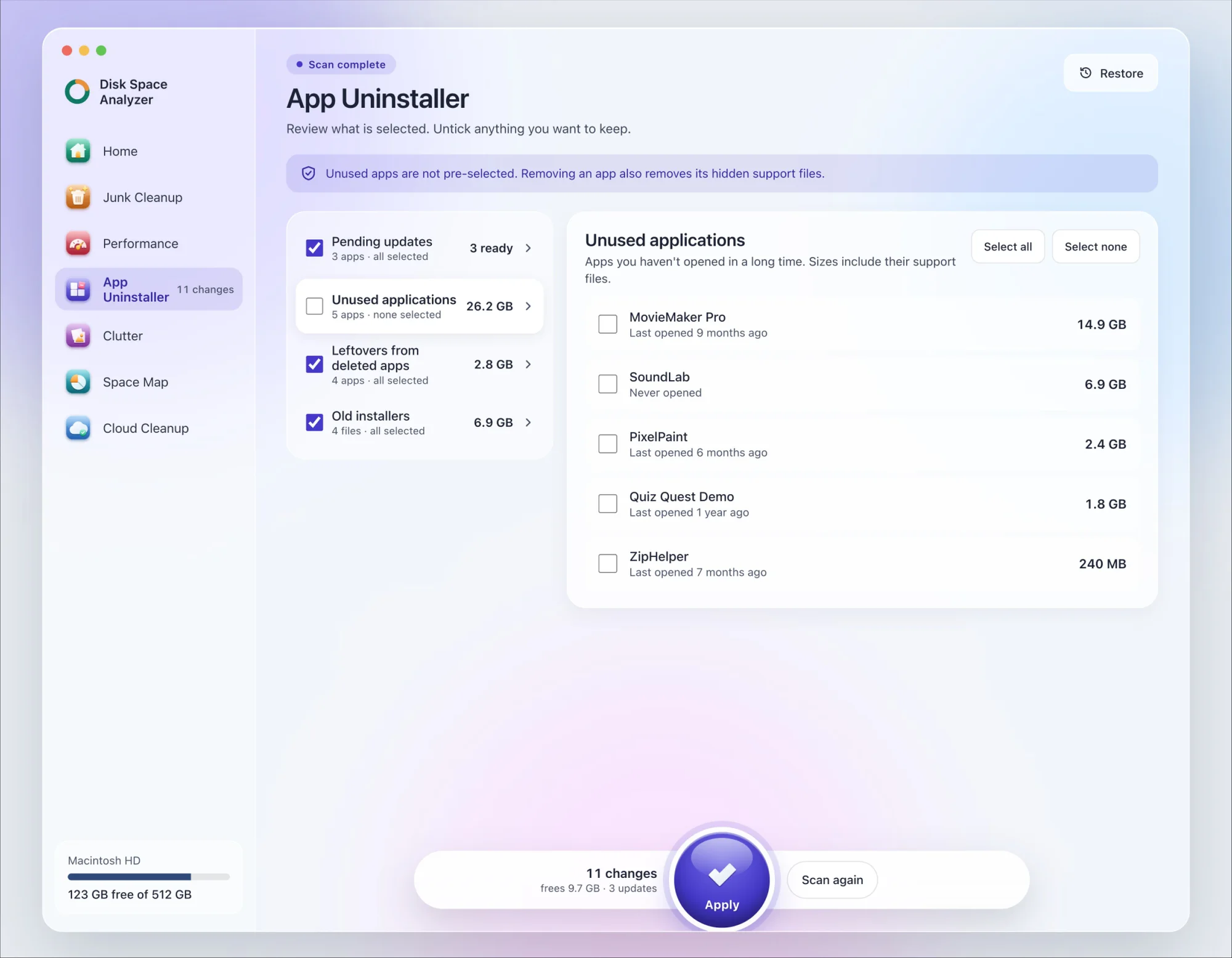
We make DissectMac, so this is our tool. App Uninstaller does the Library search for you, so you don't have to visit each folder above.
- Open DissectMac, go to App Uninstaller and press Scan.
- Find Microsoft Word, Microsoft Excel, Microsoft PowerPoint, Microsoft Outlook and Microsoft OneNote in the list of applications and tick them.
- Press Apply. Office goes together with its hidden support files, so export your Outlook data first if any of it lives only on this Mac.
Already dragged Office to the Trash? Its files show up in the Leftovers from deleted apps group instead. The scan is free; removing from inside the app is part of Pro, $19.99 once, and anything removed is kept for 30 days, so Restore brings it back.
Does uninstalling Office cancel my Microsoft 365 subscription?
No. The subscription keeps renewing until you cancel it in your Microsoft account, or in your Apple account if you bought it through the App Store.
Will uninstalling Office delete my Word and Excel files?
No. Your documents stay wherever you saved them. What you lose is local Outlook data, plus settings and caches in the Office containers.
How do I reinstall Office on Mac?
Sign in to your Microsoft account at microsoft365.com, download the Office installer and run it, then open any Office app and sign in to activate. If the reinstall fails or Office won't start, do the full clean-out above first.
Why do Office icons in my Dock show a question mark?
The apps are gone but the Dock still points to them. Control-click each icon and choose Options > Remove from Dock.
More guides
Uninstall
How to Uninstall Apps on Mac Completely (Leftovers Included)
How to uninstall apps on a Mac properly: Finder, Launchpad, official uninstallers, apps that won't delete, and the ~/Library leftovers most guides skip.
Uninstall
How to Uninstall Zoom on Mac
Uninstall Zoom on Mac from Zoom's own menu: Zoom Workplace > Uninstall Zoom Workplace. Then clear the Keychain entries and Library files it leaves.
Uninstall
How to Uninstall Xcode on Mac
Uninstall Xcode on Mac completely: remove simulator runtimes first, delete Xcode.app, then clear DerivedData, Archives and device support in ~/Library/Developer.
Uninstall
How to Uninstall Steam on Mac (and Its Games)
How to uninstall Steam on Mac: remove games inside Steam, quit it, drag it to the Trash, then clear the Steam folder in ~/Library where your games live.