On this page
- Before you uninstall OneDrive
- How to turn off OneDrive without uninstalling
- How to uninstall OneDrive on Mac
- Reset OneDrive instead of uninstalling
- Remove the files OneDrive leaves behind
- Uninstall OneDrive with DissectMac
- Will uninstalling OneDrive delete my files?
- How do I stop OneDrive from opening at startup on Mac?
- Can I turn off OneDrive without uninstalling it?
- Does uninstalling Office remove OneDrive?
To uninstall OneDrive on a Mac, unlink this Mac in OneDrive's settings, quit OneDrive, then drag OneDrive from the Applications folder to the Trash. Microsoft says you won't lose files or data by doing this: everything synced stays in your OneDrive account at OneDrive.com. If you only want OneDrive to stop running, you can turn it off without uninstalling.
OneDrive also leaves settings and containers in ~/Library, which this guide covers. Our guide to uninstalling apps on Mac explains why that happens with most apps.
Before you uninstall OneDrive
- Know where your files live. With Files On-Demand, which Microsoft turns on by default from macOS 12.1, many files are online-only: they show a cloud icon and don't take up space on your Mac. Files you've opened are locally available, and files marked Always keep on this device show a green circle with a white check mark.
- Copy, don't move, anything you want offline. To keep a local copy outside OneDrive, select the files in Finder, choose Always keep on this device, wait for them to download, then copy them to a folder outside OneDrive. Microsoft notes that moving a file out of the OneDrive folder removes it from OneDrive.
- Don't delete from the OneDrive folder to "clean up". Deleting a synced file removes it from OneDrive on every device. Microsoft keeps deleted items in the OneDrive recycle bin on the web for 30 days.
- Your subscription is separate. Uninstalling the app doesn't change your Microsoft 365 plan or your storage. Cancel that in your Microsoft account if you want to stop paying.
How to turn off OneDrive without uninstalling
If you only want OneDrive out of the way, pick the lightest option.
Pause syncing. Click the OneDrive cloud icon in the menu bar, open the menu and choose Pause syncing. Choose Resume syncing when you want it back.
Quit OneDrive. Click the cloud icon, open the menu (the gear or … icon, depending on your version) and choose Quit OneDrive. Some versions call it Close OneDrive. It starts again at your next login unless you change the next setting.
Stop OneDrive opening at login. Click the cloud icon, open the menu and choose Preferences. On the General tab, turn off Open at Login. If you don't see that option in your version, open System Settings > General > Login Items & Extensions (Login Items on macOS 14 and earlier) and remove OneDrive under Open at Login. Our guide to stopping apps opening on startup covers that screen.
Unlink this Mac. This disconnects the Mac from your account without deleting the app. Click the cloud icon, choose Help & Settings (or the … menu) > Preferences, open the Account tab and click Unlink this Mac. Microsoft says no data is lost by unlinking; your local folders are disconnected from the cloud, and anything you change while unlinked syncs once you link again.
How to uninstall OneDrive on Mac
These follow Microsoft's "Turn off, disable, or uninstall OneDrive" article.
- Click the OneDrive cloud icon in the menu bar, choose Help & Settings > Preferences, open the Account tab and click Unlink this Mac.
- Quit OneDrive from the same menu.
- Open Finder, go to Applications and drag OneDrive to the Trash.
- Empty the Trash.
You can still reach every synced file by signing in at OneDrive.com.
Reset OneDrive instead of uninstalling
If you're removing OneDrive because it won't sync, Microsoft's fix is a reset, not an uninstall. It disconnects all sync connections and then does a full sync, and Microsoft says you won't lose files.
- Quit OneDrive.
- In Applications, Control-click OneDrive and choose Show Package Contents.
- Open Contents > Resources.
- Double-click ResetOneDriveApp.command, or ResetOneDriveAppStandalone.command if you use the standalone app.
- Start OneDrive and sign in. When asked for a location, pick your previous OneDrive folder so unchanged files aren't downloaded again.
Older versions may not include these scripts. In that case Microsoft says to move the old app to the Trash and install the latest version.
Remove the files OneDrive leaves behind
Microsoft's admin and troubleshooting docs list these locations. Open each with Go > Go to Folder and delete the OneDrive items:
| Location | What's there |
|---|---|
~/Library/Containers |
com.microsoft.OneDrive-mac (App Store version) and com.microsoft.onedrive.findersync |
~/Library/Group Containers |
UBF8T346G9.OneDriveStandaloneSuite (standalone version settings) |
~/Library/Preferences |
Files starting with com.microsoft.OneDrive, plus com.microsoft.OneDriveUpdater.plist and com.microsoft.SharePoint-mac.plist |
~/Library/Cookies |
com.microsoft.onedrive.binarycookies and com.microsoft.onedriveupdater.binarycookies |
/Library/LaunchDaemons |
com.microsoft.onedriveupdaterdaemon.plist (asks for your password) |
Leave the other UBF8T346G9 folders in Group Containers if you use Word, Excel, PowerPoint or Outlook, because they belong to Office. Your OneDrive folder itself appears under Locations in the Finder sidebar on macOS 12.1 and later; check it holds nothing you need before you delete it.
Uninstall OneDrive with DissectMac
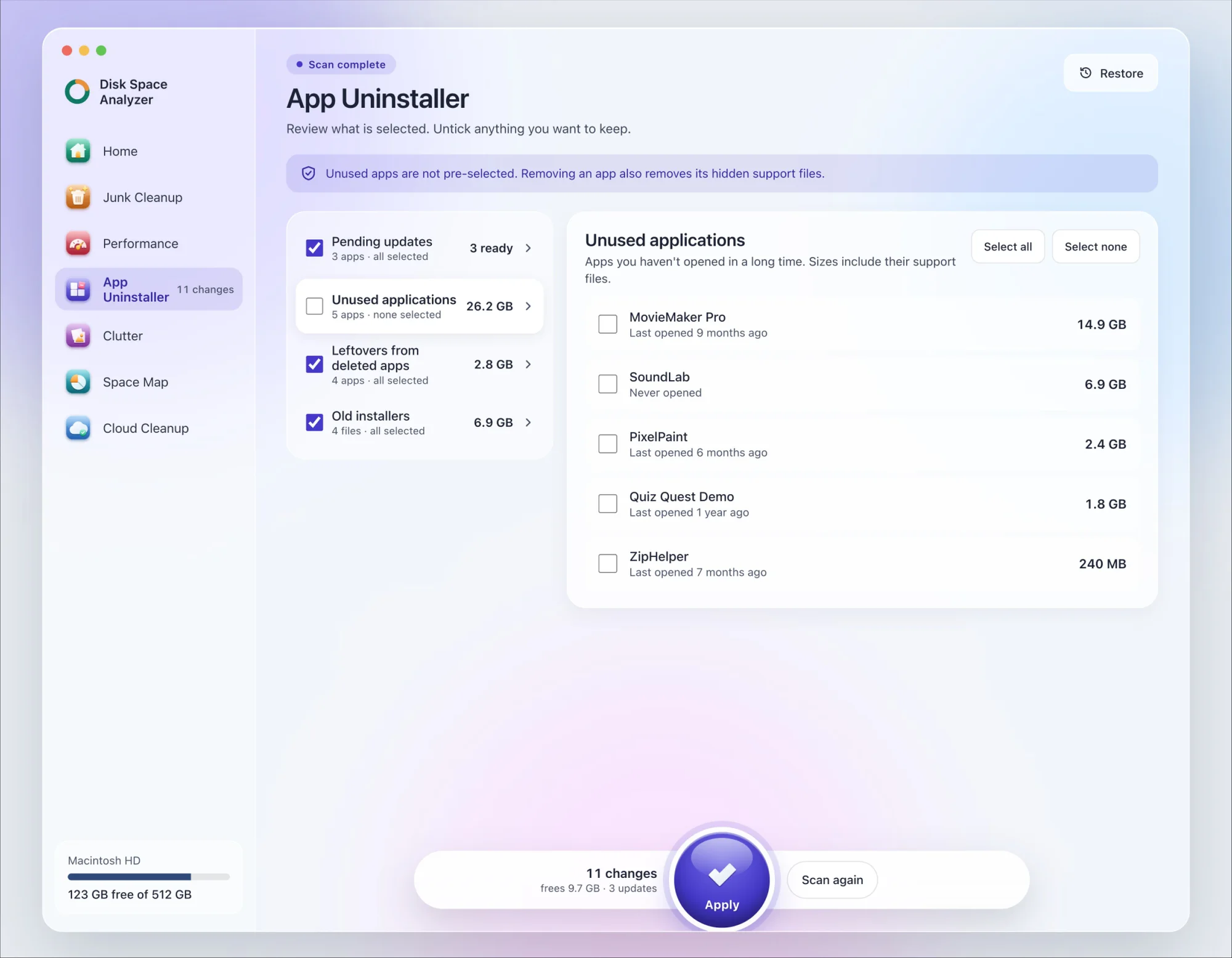
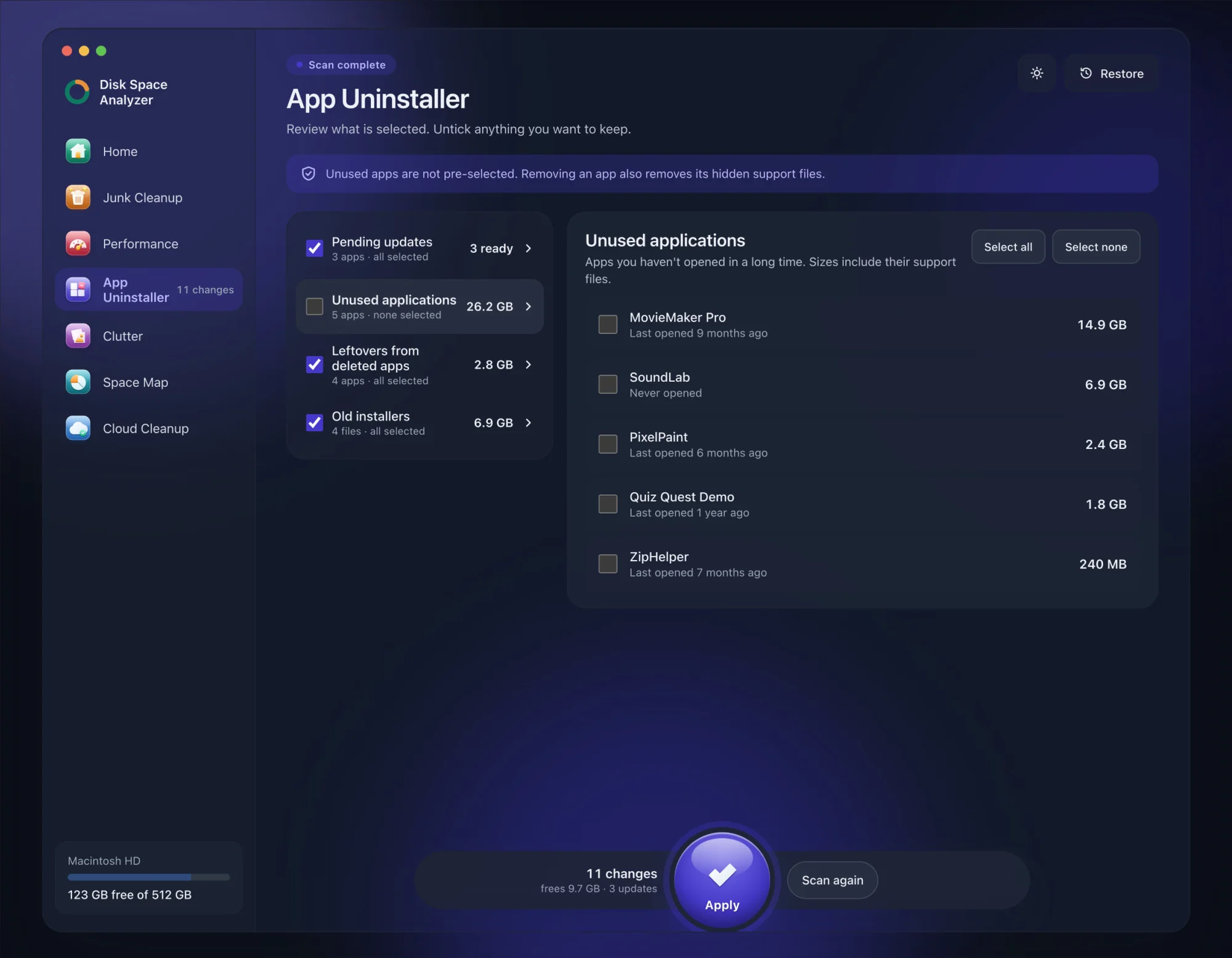
We make DissectMac, so this is our tool. App Uninstaller does the Library search for you, so you don't have to visit each folder above.
- Open DissectMac, go to App Uninstaller and press Scan.
- Find OneDrive in the list of applications and tick it.
- Press Apply. OneDrive goes together with its hidden support files, so unlink this Mac and copy out any files you want offline first.
Already dragged OneDrive to the Trash? Its files show up in the Leftovers from deleted apps group instead. The scan is free; removing from inside the app is part of Pro, $19.99 once, and anything removed is kept for 30 days, so Restore brings it back.
Will uninstalling OneDrive delete my files?
No. Microsoft says you won't lose files or data by unlinking or uninstalling OneDrive. Synced files stay in your account at OneDrive.com. Online-only files were never stored on the Mac, so download or copy any you need offline before you unlink.
How do I stop OneDrive from opening at startup on Mac?
Turn off Open at Login on the General tab of OneDrive's Preferences, or remove OneDrive from Login Items in System Settings.
Can I turn off OneDrive without uninstalling it?
Yes. Pause syncing, quit it, or unlink this Mac. The app stays installed and you can sign in again later.
Does uninstalling Office remove OneDrive?
Not with Microsoft's standard Office uninstall steps, which don't touch OneDrive. If you want both gone, see how to uninstall Microsoft Office on Mac and do OneDrive separately.
More guides
Uninstall
How to Uninstall Apps on Mac Completely (Leftovers Included)
How to uninstall apps on a Mac properly: Finder, Launchpad, official uninstallers, apps that won't delete, and the ~/Library leftovers most guides skip.
Uninstall
How to Uninstall Zoom on Mac
Uninstall Zoom on Mac from Zoom's own menu: Zoom Workplace > Uninstall Zoom Workplace. Then clear the Keychain entries and Library files it leaves.
Uninstall
How to Uninstall Xcode on Mac
Uninstall Xcode on Mac completely: remove simulator runtimes first, delete Xcode.app, then clear DerivedData, Archives and device support in ~/Library/Developer.
Uninstall
How to Uninstall Steam on Mac (and Its Games)
How to uninstall Steam on Mac: remove games inside Steam, quit it, drag it to the Trash, then clear the Steam folder in ~/Library where your games live.