On this page
- Before you uninstall Teams
- How to uninstall Microsoft Teams on Mac
- Delete the new Teams cache and settings
- Remove classic Teams
- Remove the files Teams leaves behind
- Uninstall Microsoft Teams with DissectMac
- Will uninstalling Teams delete my chats?
- Why did Teams come back after I uninstalled it?
- How do I uninstall classic Teams on Mac?
- How do I reinstall Teams on Mac?
To uninstall Microsoft Teams on a Mac, quit Teams, open the Applications folder and move Microsoft Teams to the Trash, then empty the Trash. Microsoft says you can remove Teams like any other Mac app. Its cache and settings stay in two folders in ~/Library until you delete them, and the older classic Teams also leaves an updater behind. This guide covers both.
Teams is a typical case of an app that leaves files behind after you drag it to the Trash; our guide to uninstalling apps on Mac explains why that happens.
Before you uninstall Teams
- Your chats aren't on the Mac. Teams chats, channels and meetings are stored in your Microsoft account or your organization's Microsoft 365 tenant. Uninstalling the app doesn't delete them, and they come back when you sign in on the web or another device.
- Save files you only downloaded. Files shared in Teams stay in Teams. Copies you downloaded are in your Downloads folder and aren't touched by uninstalling.
- Check with IT on a work Mac. If your organization manages the Mac, Teams may be required and your IT team can install it again through their device management tools. Ask before removing it.
- Office can bring it back. Microsoft notes that reinstalling or repairing Office can install Teams again.
How to uninstall Microsoft Teams on Mac
These are the steps from Microsoft's "Uninstall Microsoft Teams" support article:
- Right-click Teams in the Dock, hold down Option and choose Force Quit.
- Open Finder and go to Applications.
- Select Microsoft Teams and move it to the Trash.
- Empty the Trash.
If you still have the old app, it's called Microsoft Teams classic in Applications. Move it to the Trash as well, or use the classic Teams steps below.
Delete the new Teams cache and settings
The new Teams app keeps its data in two folders. Microsoft's Teams admin documentation gives these Terminal commands to clear them. They delete Teams' local cache and settings permanently, so quit Teams first.
- Open Terminal from Applications > Utilities.
- Run each command and press Return after each one:
rm -rf ~/Library/Group\ Containers/UBF8T346G9.com.microsoft.teams
rm -rf ~/Library/Containers/com.microsoft.teams2
Prefer Finder? Choose Go > Go to Folder (or press Cmd + Shift + G), go to ~/Library/Group Containers and ~/Library/Containers, and move those two folders to the Trash.
Remove classic Teams
Microsoft ended availability of classic Teams on July 1, 2025. On most Macs the new Teams app removes it automatically some time after it installs, but that doesn't always work. Microsoft's article on uninstalling classic Teams gives these Terminal commands for a Mac. They delete the classic app, its cache, its settings and its updater, and the sudo lines ask for your administrator password.
sudo rm -rf /Applications/Microsoft\ Teams\ classic.app
rm -rf ~/Library/Application\ Support/Microsoft/Teams
defaults delete com.microsoft.teams
sudo launchctl bootout system /Library/LaunchDaemons/com.microsoft.teams.TeamsUpdaterDaemon.plist
sudo rm -f /Library/LaunchDaemons/com.microsoft.teams.TeamsUpdaterDaemon.plist
sudo rm -rf /Library/Logs/Microsoft/Teams/updater.log
If a line reports that a file doesn't exist, that part is already gone. Carry on with the next one.
Remove the files Teams leaves behind
Here is every location Microsoft documents, in one place. Open each with Go > Go to Folder.
| Location | What's there |
|---|---|
~/Library/Group Containers/UBF8T346G9.com.microsoft.teams |
New Teams data |
~/Library/Containers/com.microsoft.teams2 |
New Teams cache and settings |
~/Library/Application Support/Microsoft/Teams |
Classic Teams cache |
~/Library/Preferences |
Classic Teams settings in the com.microsoft.teams file (removed by defaults delete) |
/Library/LaunchDaemons/com.microsoft.teams.TeamsUpdaterDaemon.plist |
Classic Teams updater |
/Library/Logs/Microsoft/Teams |
Classic Teams updater log |
Leave the other UBF8T346G9 folders in Group Containers alone if you still use Word, Excel, Outlook or OneDrive. Those belong to Office, and deleting them removes Office data. The same goes for Microsoft AutoUpdate, which updates every Microsoft app on the Mac. Remove it only if Teams was the last one; see how to uninstall Microsoft Office on Mac for that clean-out.
Uninstall Microsoft Teams with DissectMac
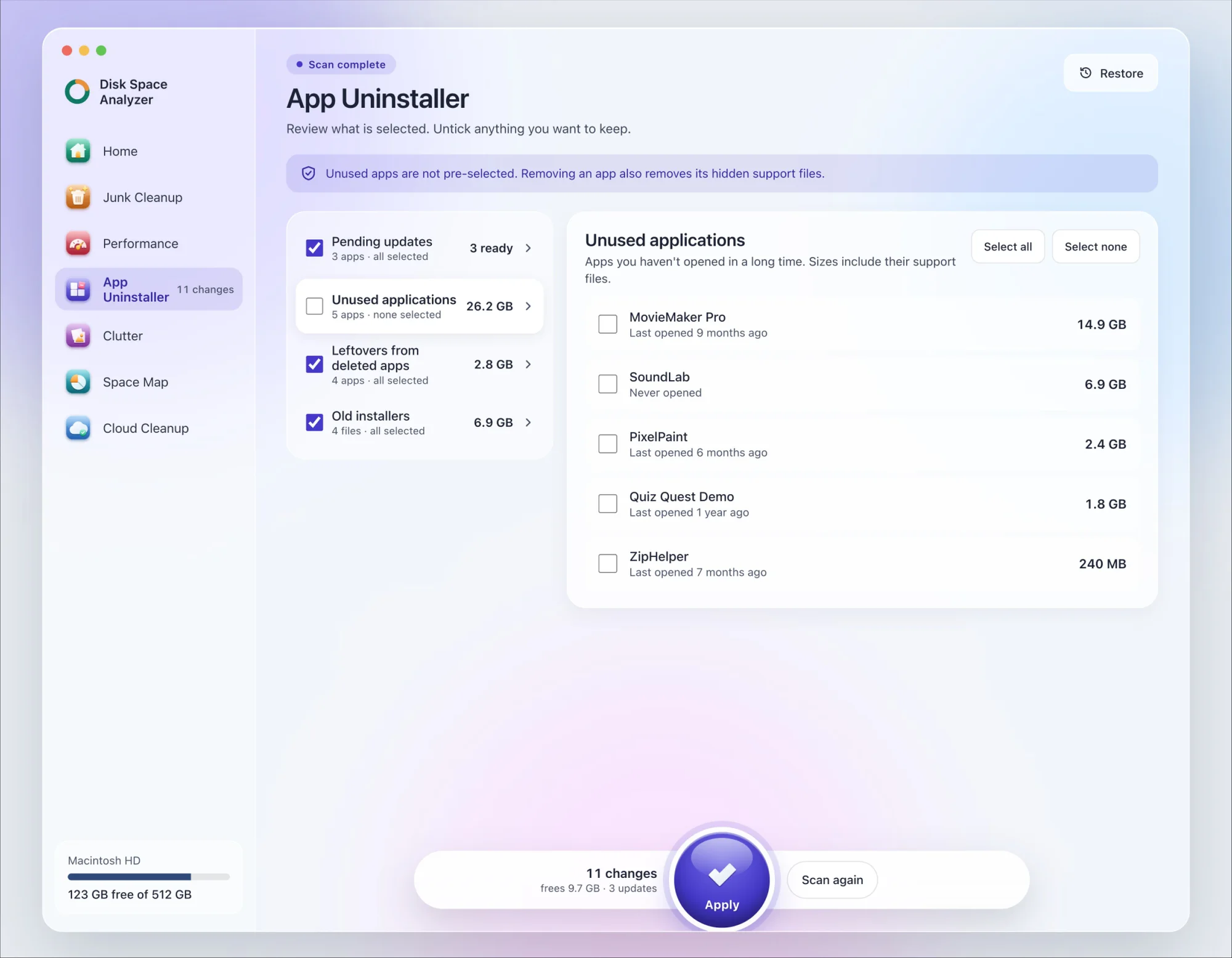
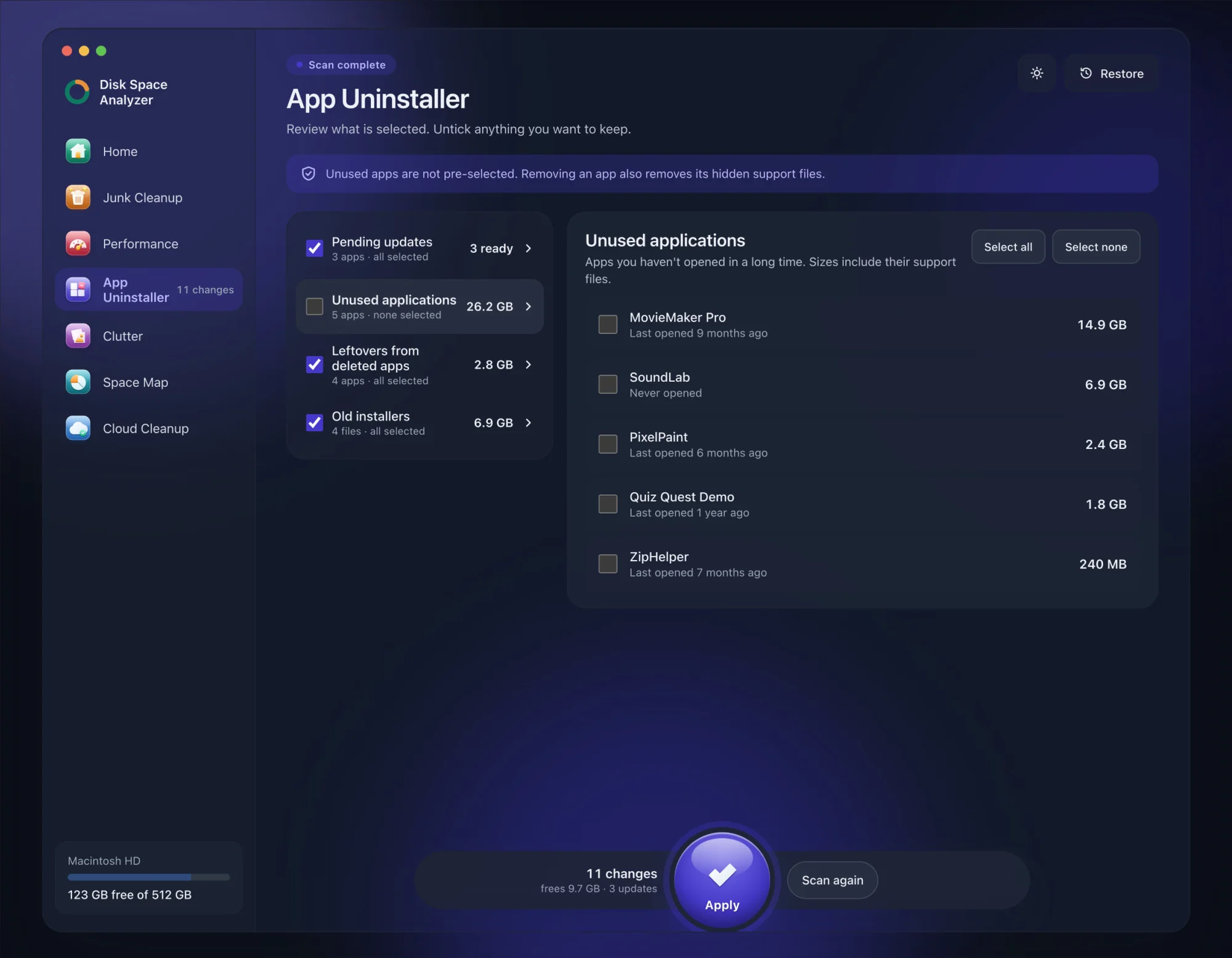
We make DissectMac, so this is our tool. App Uninstaller does the Library search for you, so you don't have to visit each folder above.
- Open DissectMac, go to App Uninstaller and press Scan.
- Find Microsoft Teams in the list of applications and tick it.
- Press Apply. Teams goes together with its hidden support files, so check with your IT team first if this is a work Mac.
Already dragged Teams to the Trash? Its files show up in the Leftovers from deleted apps group instead. The scan is free; removing from inside the app is part of Pro, $19.99 once, and anything removed is kept for 30 days, so Restore brings it back.
Will uninstalling Teams delete my chats?
No. Chats, channel posts and meeting history are stored in Microsoft's cloud, not on your Mac. Sign in to Teams on the web or another device and they're all there.
Why did Teams come back after I uninstalled it?
Something installed it again. Microsoft says reinstalling or repairing Office can add Teams back, and on a work Mac your IT team can push it out through device management. Ask IT if it keeps returning.
How do I uninstall classic Teams on Mac?
Move Microsoft Teams classic from Applications to the Trash, then run Microsoft's commands in the classic Teams section above to remove its cache, settings and updater. If the new Teams is installed, it may remove classic Teams on its own after a while.
How do I reinstall Teams on Mac?
Download Teams from Microsoft's Teams download page, open the installer and follow the steps, then sign in. If you deleted the containers, Teams starts fresh and rebuilds its cache, so the first launch takes a little longer.
More guides
Uninstall
How to Uninstall Apps on Mac Completely (Leftovers Included)
How to uninstall apps on a Mac properly: Finder, Launchpad, official uninstallers, apps that won't delete, and the ~/Library leftovers most guides skip.
Uninstall
How to Uninstall Zoom on Mac
Uninstall Zoom on Mac from Zoom's own menu: Zoom Workplace > Uninstall Zoom Workplace. Then clear the Keychain entries and Library files it leaves.
Uninstall
How to Uninstall Xcode on Mac
Uninstall Xcode on Mac completely: remove simulator runtimes first, delete Xcode.app, then clear DerivedData, Archives and device support in ~/Library/Developer.
Uninstall
How to Uninstall Steam on Mac (and Its Games)
How to uninstall Steam on Mac: remove games inside Steam, quit it, drag it to the Trash, then clear the Steam folder in ~/Library where your games live.