On this page
- Before you uninstall Python
- Find out which Python you have
- Never delete Apple's system Python
- How to uninstall Python on Mac (python.org installer)
- Uninstall Python installed with Homebrew
- Uninstall Python installed with pyenv
- Remove the files Python leaves behind
- Uninstall Python with DissectMac
- Is it safe to uninstall Python on Mac?
- Why does python3 still work after I uninstalled Python?
- How do I uninstall Python 2 on Mac?
To uninstall Python on a Mac, first find out how it was installed, because each method removes it differently: the python.org installer puts files in three places you delete by hand, Homebrew removes its copy with brew uninstall, and pyenv with pyenv uninstall. The python3 at /usr/bin/python3 belongs to Apple, and you should never delete it.
Python isn't a normal app, so dragging something to the Trash won't do it. Our guide to uninstalling apps on Mac covers the general case; this one covers Python's.
Before you uninstall Python
- List the packages you rely on. Run
python3 -m pip freeze > requirements.txtwith the Python you're removing, so you can reinstall the same packages later. - Check what depends on it. Virtual environments created with that Python stop working once it's gone. Homebrew formulas, editors and scripts may point at it too.
- Know which copy your projects use. If you have several, removing the wrong one breaks the tools you still need.
Find out which Python you have
Open Terminal and run:
which -a python3
This lists every python3 on your PATH, in the order your shell finds them. To see where each one lives, run ls -l on the path, for example ls -l /usr/local/bin/python3.
| Path you see | Installed by |
|---|---|
/usr/bin/python3 |
Apple, through Xcode or the Command Line Tools |
/Library/Frameworks/Python.framework/..., or a link to it in /usr/local/bin |
The python.org installer |
/opt/homebrew/bin/python3 (Apple silicon) or a link into /usr/local/Cellar (Intel) |
Homebrew |
~/.pyenv/shims/python3 |
pyenv |
~/anaconda3/bin/python3 or ~/miniconda3/bin/python3 |
Anaconda or Miniconda |
If it's Anaconda or Miniconda, follow our guide to uninstalling Anaconda on Mac instead, because conda has its own uninstaller.
Never delete Apple's system Python
The Python documentation is clear that /usr/bin/python3 is provided by and for Apple's developer tools, and that you should never modify or delete it. Other software expects it to be there. Anything you install from python.org or Homebrew sits alongside it without conflict, so there's nothing to gain by removing it. If you want it gone, the only supported way is to remove Xcode or the Command Line Tools themselves, covered in how to uninstall Xcode on Mac.
How to uninstall Python on Mac (python.org installer)
According to the Python documentation, a python.org install puts three things on your Mac, and removing them uninstalls it:
-
Quit IDLE and any running Python scripts.
-
Delete the app folder. Open Applications in Finder and drag the Python 3.x folder (it holds IDLE and Python Launcher) to the Trash. Each version has its own folder.
-
Delete the framework. In Finder choose Go > Go to Folder, enter
/Library/Frameworks/Python.framework/Versionsand press Return. Drag the folder for the version you're removing, such as 3.13, to the Trash. If it's the only version there, you can delete the wholePython.frameworkfolder from/Library/Frameworksinstead. macOS asks for your password. -
Delete the links in /usr/local/bin. The installer places links to the Python executables there. List them with:
ls -l /usr/local/bin | grep Python.frameworkOpen
/usr/local/binwith Go > Go to Folder and drag each link that points to the version you removed (such aspython3.13,pip3.13,idle3.13) to the Trash. -
Empty the Trash.
If you installed the free-threaded build, it lives in a separate PythonT.framework in /Library/Frameworks, with its own links in /usr/local/bin ending in t. Remove those the same way.
The installer can also add a PATH line to your shell profile. Open ~/.zprofile (or ~/.bash_profile for bash) in a text editor and delete the lines that mention Python.framework.
Uninstall Python installed with Homebrew
Homebrew installs Python as a versioned formula, such as [email protected]. See which you have:
brew list | grep python
Then remove one:
brew uninstall [email protected]
Homebrew refuses if other formulas need that Python, and names them. Check first with brew uses --installed [email protected]. Afterwards, brew autoremove removes dependencies nothing else uses.
Uninstall Python installed with pyenv
To remove one Python version, the pyenv documentation gives:
pyenv uninstall 3.12.4
Run pyenv versions to see the exact version names. If you use pyenv-virtualenv, it also removes the virtual environments linked to that version.
To remove pyenv itself and every version it installed, delete the pyenv lines from your shell startup file (~/.zshrc, ~/.zprofile or ~/.bash_profile), then run:
rm -rf $(pyenv root)
This deletes all Python versions under pyenv and can't be undone. If you installed pyenv with Homebrew, finish with brew uninstall pyenv.
Remove the files Python leaves behind
Open each with Go > Go to Folder and delete the items for the version you removed:
| Location | What's there |
|---|---|
~/Library/Python/3.x |
Packages you installed with pip install --user |
~/Library/Caches/pip |
pip's download cache |
~/.zprofile, ~/.zshrc, ~/.bash_profile |
PATH lines added by the installer or pyenv (edit, don't delete the file) |
Project folders such as venv or .venv |
Virtual environments built on that Python, which no longer run |
Leave ~/Library/Caches/pip if you still use another Python, since all versions share it.
Uninstall Python with DissectMac
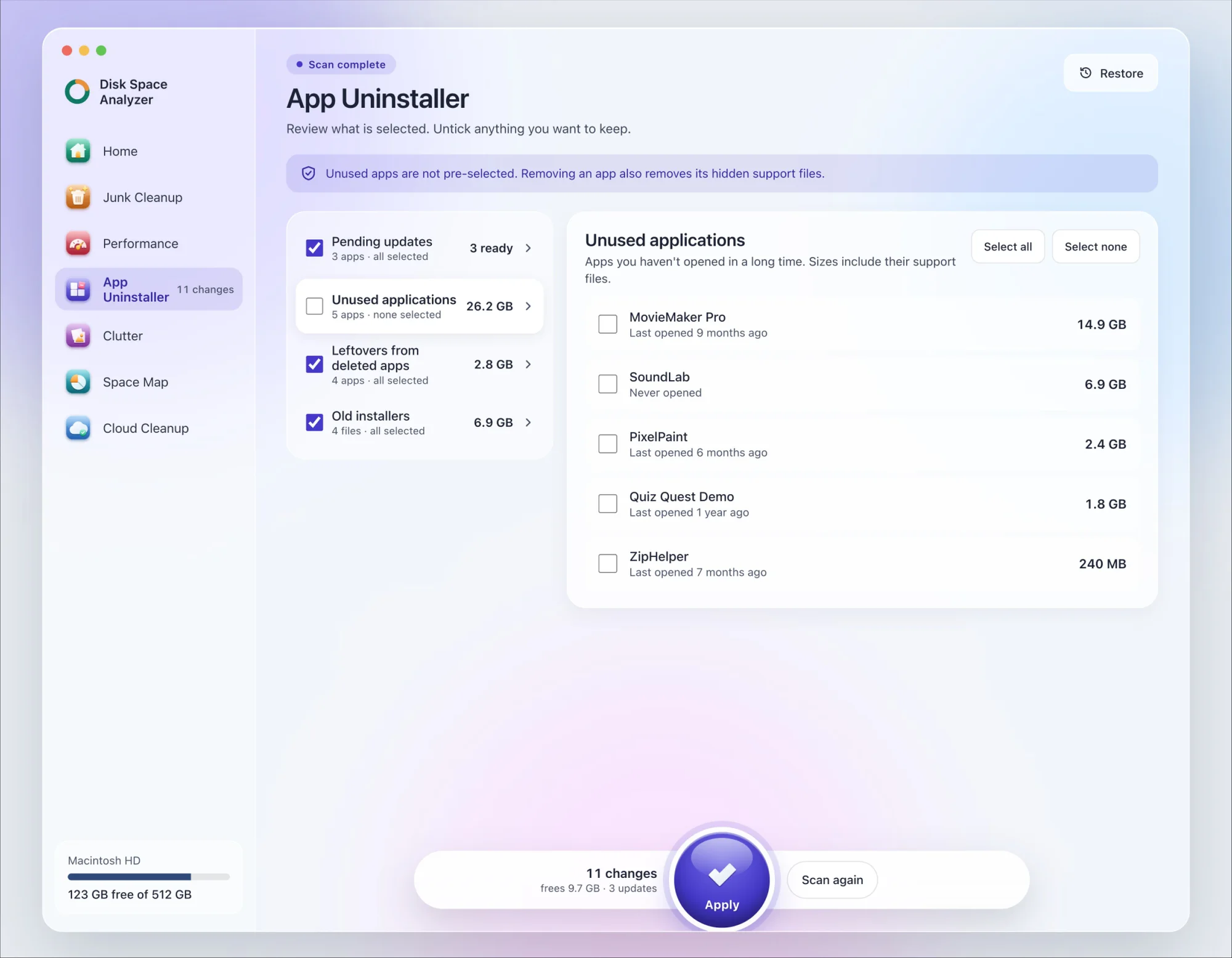
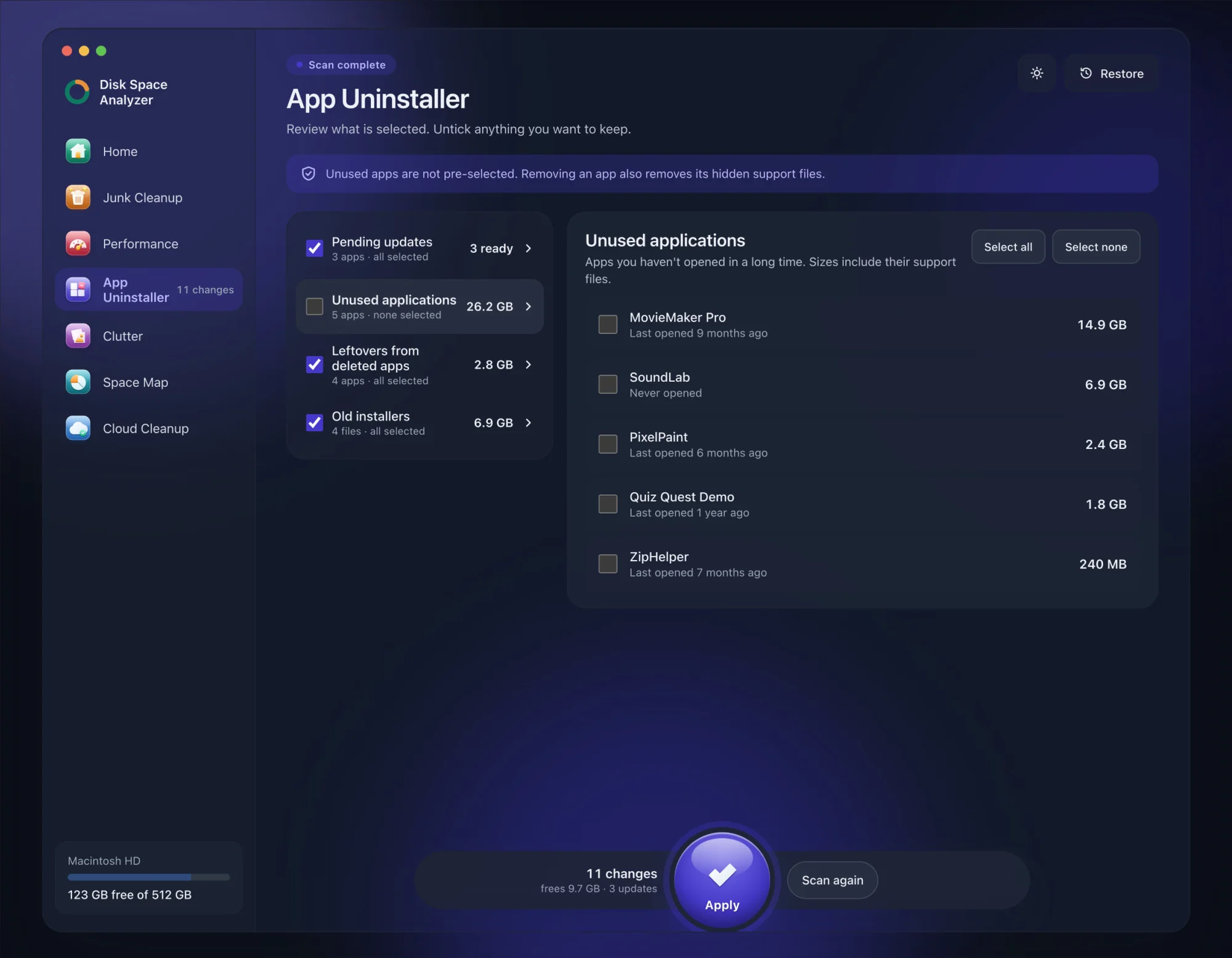
We make DissectMac, so this is our tool. App Uninstaller does the Library search for you, so you don't have to visit each folder above.
- Open DissectMac, go to App Uninstaller and press Scan.
- If IDLE or Python Launcher appears in the list of applications, tick it.
- Press Apply. Apps go together with their hidden support files. Python itself (the framework in
/Library/Frameworks, or a Homebrew or pyenv install) isn't an app, so remove it with the steps above.
Already deleted Python's apps? Their files show up in the Leftovers from deleted apps group instead. The scan is free; removing from inside the app is part of Pro, $19.99 once, and anything removed is kept for 30 days, so Restore brings it back.
Is it safe to uninstall Python on Mac?
Yes, as long as you remove a copy you installed yourself and leave /usr/bin/python3 alone. macOS doesn't depend on a python.org, Homebrew or pyenv install. Your own scripts and virtual environments built on that copy will stop working.
Why does python3 still work after I uninstalled Python?
Because another copy is still on your PATH, usually Apple's /usr/bin/python3 or a second version you installed. Run which -a python3 to see which one answers now.
How do I uninstall Python 2 on Mac?
Python 2 from python.org uninstalls the same way: delete the Python 2.7 folder in Applications, /Library/Frameworks/Python.framework/Versions/2.7 and its links in /usr/local/bin. Current macOS versions no longer include Python 2, so any copy you find is one you installed.
More guides
Uninstall
How to Uninstall Apps on Mac Completely (Leftovers Included)
How to uninstall apps on a Mac properly: Finder, Launchpad, official uninstallers, apps that won't delete, and the ~/Library leftovers most guides skip.
Uninstall
How to Uninstall Zoom on Mac
Uninstall Zoom on Mac from Zoom's own menu: Zoom Workplace > Uninstall Zoom Workplace. Then clear the Keychain entries and Library files it leaves.
Uninstall
How to Uninstall Xcode on Mac
Uninstall Xcode on Mac completely: remove simulator runtimes first, delete Xcode.app, then clear DerivedData, Archives and device support in ~/Library/Developer.
Uninstall
How to Uninstall Steam on Mac (and Its Games)
How to uninstall Steam on Mac: remove games inside Steam, quit it, drag it to the Trash, then clear the Steam folder in ~/Library where your games live.