On this page
- What Disk Inventory X is
- Does Disk Inventory X work on current Macs?
- How to open Disk Inventory X if macOS blocks it
- Disk Inventory Xs and Disk Inventory Y: the community revival
- Disk Inventory X alternatives
- Is Disk Inventory X safe?
- Is Disk Inventory X free?
- What is a good replacement for Disk Inventory X on Mac?
- Can I check disk space on a Mac without any app?
Disk Inventory X still opens on many Macs, but it hasn't been updated since version 1.3 in December 2019. Its official site lists macOS 10.13 to 10.15, it's built for Intel processors, so Apple Silicon Macs run it through Rosetta 2, and macOS warns that it can't verify the app when you first open it. If you liked it, a community fork called Disk Inventory Xs now runs natively on Apple Silicon, and actively maintained apps such as GrandPerspective and DissectMac draw the same kind of treemap.
We make DissectMac, one of the alternatives below. Disk Inventory X's details come from its official site, derlien.com, and the revival project at diskinv.github.io, checked on 12 November 2026.
What Disk Inventory X is
Disk Inventory X is a free, open-source (GPL) disk analyzer by Tjark Derlien. It draws your drive as a treemap: every file is a rectangle sized by how much space it takes, so the largest files and folders stand out at a glance. Next to the map it lists file types, so you can see how much of the disk goes to videos, disk images or archives, and click a type to highlight every file of it on the map.
Its author says the idea came from WinDirStat, the Windows tool a friend of his had written, and the layout is based on KDirStat. For a long time it was the Mac's answer to WinDirStat. If that's what you're looking for, our WinDirStat for Mac page covers the newer options.
Does Disk Inventory X work on current Macs?
| Status in November 2026 | |
|---|---|
| Latest official version | 1.3, December 2019 |
| macOS listed on derlien.com | 10.13 High Sierra to 10.15 Catalina |
| Apple Silicon (M1 and later) | Not native. Runs through Rosetta 2 |
| Opening it the first time | macOS warns it can't verify the app is free of malware |
| Homebrew | The cask is disabled |
| Price | Free, donations welcome |
In practice it still opens on many newer Macs once you allow it, but you're running unmaintained Intel code through a translation layer. Scans of a large drive are slow, and if a macOS update breaks it, nobody upstream will fix it. Apple has also said Rosetta 2 won't be around forever, which would end the official build on Apple Silicon.
How to open Disk Inventory X if macOS blocks it
Because the 2019 build isn't notarized by Apple, macOS stops it on first launch.
- Try to open Disk Inventory X once and close the warning.
- Open System Settings > Privacy & Security.
- Scroll to Security, where macOS mentions Disk Inventory X was blocked, and click Open Anyway.
- Confirm with your password or Touch ID.
On an Apple Silicon Mac, macOS will offer to install Rosetta 2 the first time if you don't have it.
To scan system folders, it also needs Full Disk Access in System Settings > Privacy & Security > Full Disk Access. Without it, parts of ~/Library show as empty or unreadable.
Disk Inventory Xs and Disk Inventory Y: the community revival
A community project at diskinv.github.io has picked up where the original left off, with two apps:
- Disk Inventory Xs updates the original Objective-C code to run natively on Apple Silicon. It looks and works like the original, and the project lists it as macOS Sonoma compatible.
- Disk Inventory Y is a complete rewrite in Swift and SwiftUI, with a modern macOS design.
Both are free and open source. They're volunteer projects, so check their GitHub pages for recent activity before relying on them. If you want Disk Inventory X exactly as you remember it but native on a new Mac, Disk Inventory Xs is the obvious first try.
Disk Inventory X alternatives
| App | Price | Native on Apple Silicon | Map style | Cleans up for you |
|---|---|---|---|---|
| DissectMac | Every scan free, Pro $19.99 once | Yes | Space Map: Treemap, File types, Sunburst and six more | Yes (Pro) |
| GrandPerspective | Free, or $2.99 on the Mac App Store | Yes | Treemap | No |
| Disk Inventory Xs | Free | Yes | Treemap + file types, as the original | No |
| WizTree for Mac | Free for personal use | Yes | Treemap + sorted list | No |
| OmniDiskSweeper | Free | Not stated by Omni | Sorted list, no map | No |
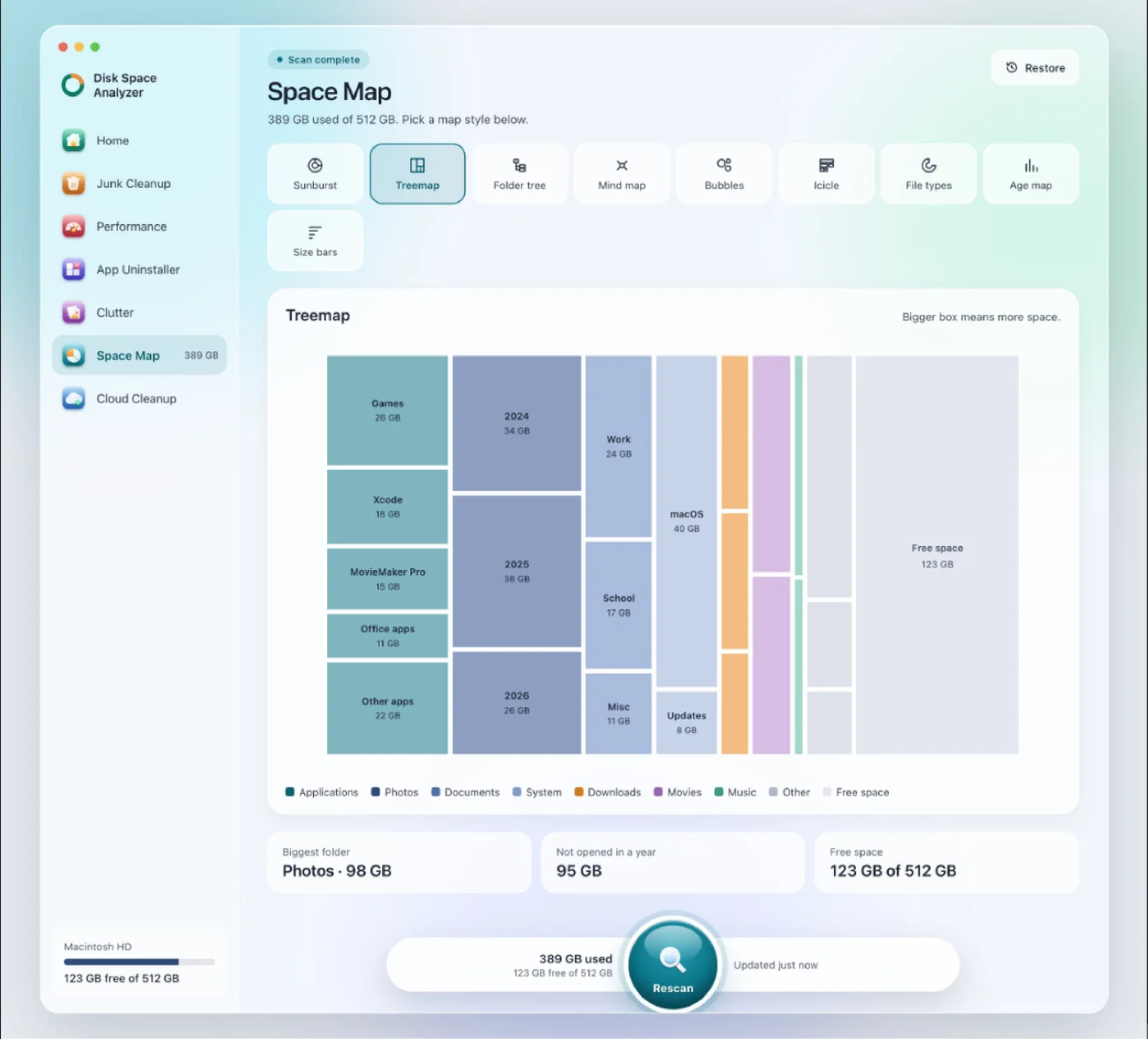
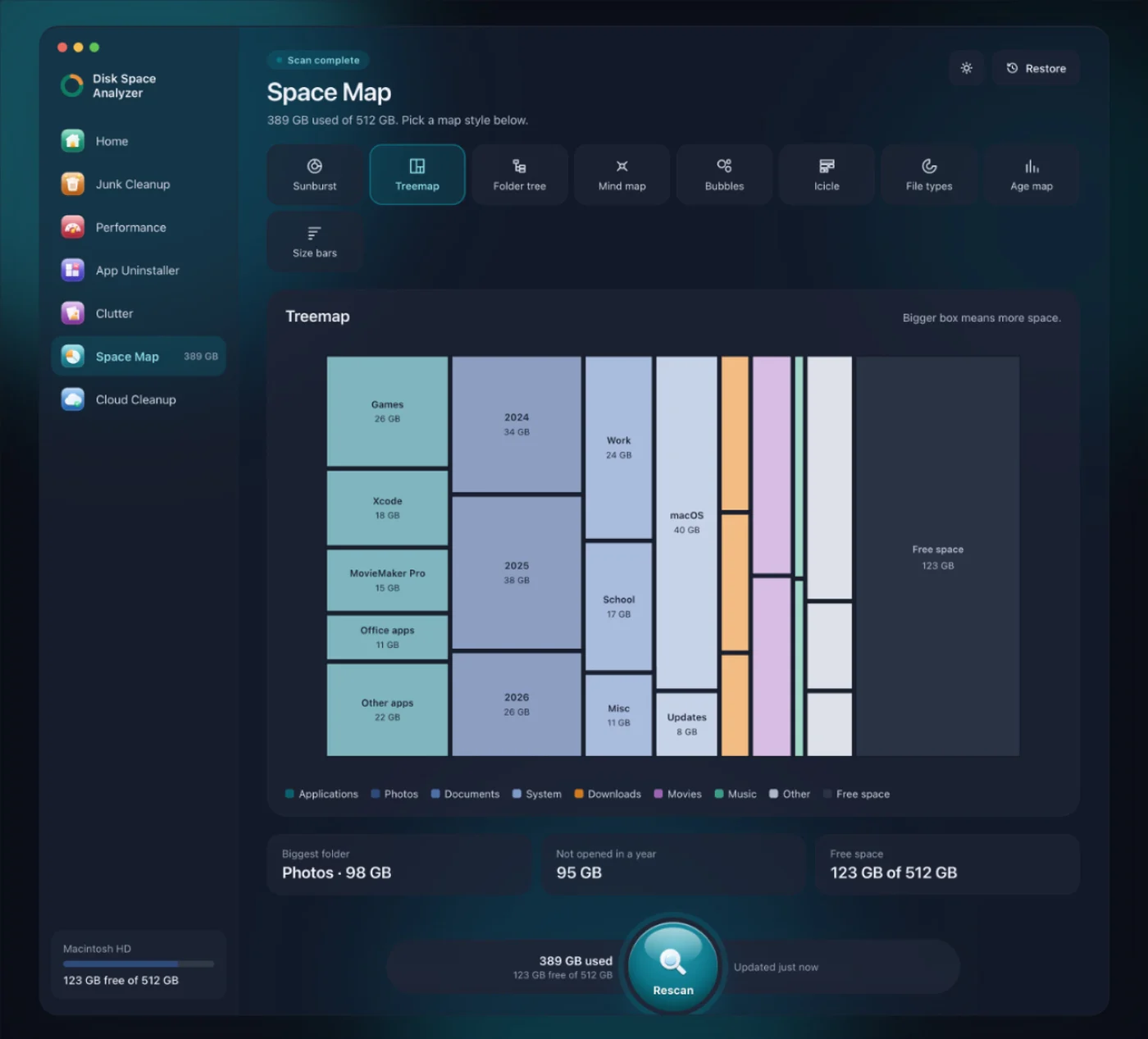
DissectMac is ours. Space Map has a Treemap view that works like Disk Inventory X's map and a File types view that groups the drive by kind of file, plus seven other ways to see it. Next to the map are tools Disk Inventory X never had: Junk Cleanup for caches and logs, App Uninstaller for apps and what they leave behind, Clutter for duplicates and old downloads, and a Performance check. Every scan is free, and Pro removes files from inside the app for $19.99 once. It needs macOS 15 or later and isn't open source.
GrandPerspective is the closest free, open-source match: a treemap, still updated (3.8.1 in September 2026), with no cleanup tools. We compared it with ours in GrandPerspective vs DissectMac.
WizTree for Mac arrived in September 2026 from the developer of the popular Windows tool. It's free for personal use and needs macOS 12 or later.
OmniDiskSweeper skips the map and lists folders by size, which some people find faster to read.
For more options, see our DaisyDisk alternatives comparison.
Is Disk Inventory X safe?
The app itself is safe if you download it from derlien.com: it's open source, and the code is public. The macOS warning appears because the 2019 build isn't notarized, not because anything harmful was found. Avoid copies from download sites you don't recognise, which sometimes bundle extra software.
Is Disk Inventory X free?
Yes. It's released under the GPL and has always been free. The author accepts donations on derlien.com.
What is a good replacement for Disk Inventory X on Mac?
For the same treemap on a current Mac, use Disk Inventory Xs (the native revival) or GrandPerspective. If you also want to clean up what you find, such as app leftovers, caches and duplicates, DissectMac does both in one app.
Can I check disk space on a Mac without any app?
Yes. Apple menu > System Settings > General > Storage shows space by category. It won't show individual folders, and much of it lands in System Data. Our guide on how to check storage on Mac explains what each number means.
More guides
Compare
DaisyDisk Alternatives: Free Disk Analyzers We've Actually Tested
The best free DaisyDisk alternatives for Mac in 2026, compared: DissectMac, GrandPerspective, SquirrelDisk, OmniDiskSweeper, WizTree for Mac and Disk Inventory X.
Compare
WinDirStat for Mac: The Closest Equivalents
There's no WinDirStat for Mac, and no TreeSize either, but WizTree now has a Mac version. The Mac apps that work like them, and which to pick.
Compare
Is CleanMyMac Safe? An Honest Review
Is CleanMyMac safe and legit? It's not malware and it's on the Mac App Store. Where the real risks are, what it costs, and whether your Mac needs it.
Compare
CCleaner for Mac: Is It Worth It in 2026?
CCleaner for Mac still exists, but its listed system requirements stop at macOS 13. What the free and Pro versions do, the safety history, and alternatives.